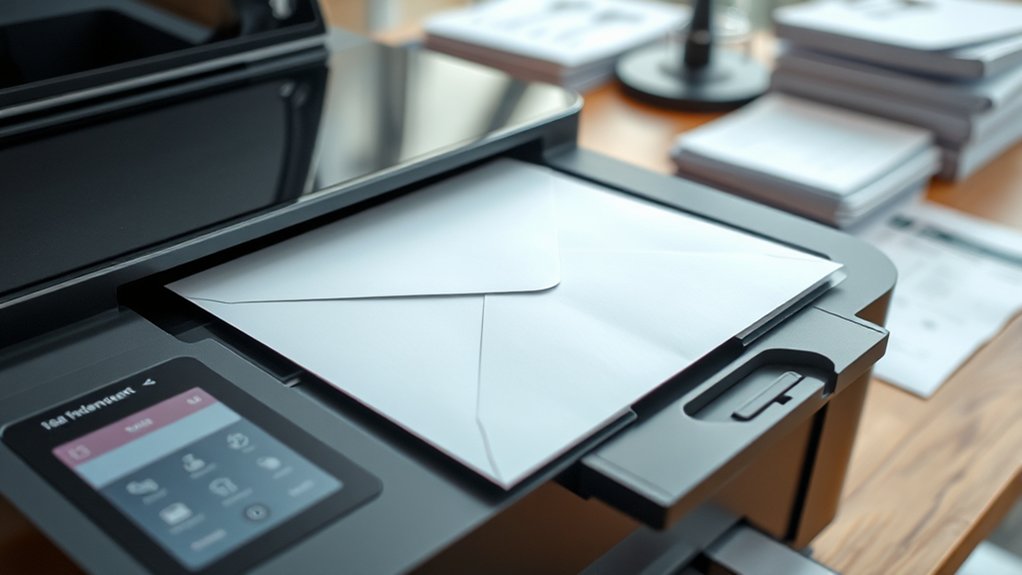

To print an envelope, first choose the right envelope size and use smooth, flat envelopes without creases or staples.
Designing your layout with clear addresses positioned correctly is essential. Set proper margins to ensure everything fits well on the envelope.
Load the envelopes flap side up or down as your printer manual directs. Adjust paper guides snugly to keep the envelope in place.
In the printer settings, select the envelope size and paper type to guarantee proper feeding and print quality.
Follow these steps carefully, and you’ll avoid common issues like jams or misalignment.
Keep going to master each part perfectly for professional-looking envelope prints every time.
Key Takeaways
- Verify your printer supports the envelope size and load envelopes according to the printer manual instructions.
- Design the envelope layout with correct dimensions, positioning the recipient’s address and return address clearly.
- Use smooth, sturdy envelopes and flatten any creases before loading to ensure proper ink adherence.
- Set printer preferences to the correct envelope size and select “Envelope” as the paper type for proper feeding.
- Load a small, uniform stack of envelopes with the flap side up or down per printer guidelines to avoid jams.
How to Prepare Your Envelopes for Printing
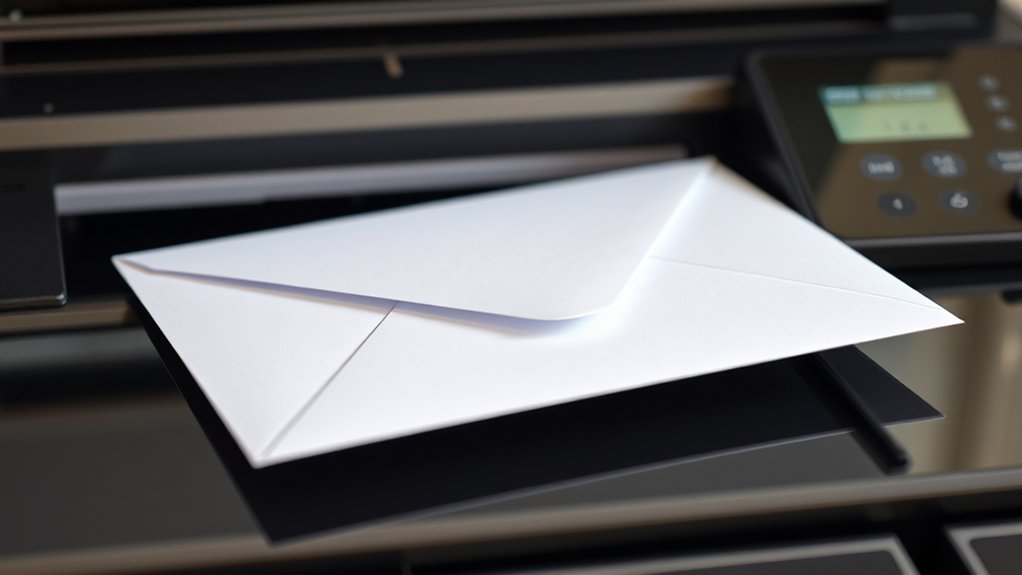
Before you start printing, make certain your envelopes are the right size and type for your printer. Check your printer’s specifications to confirm which envelope sizes it supports. Standard sizes like #10 or A7 are common, but always verify to avoid jams or misprints.
Next, select suitable printing materials. Use envelopes made from smooth, sturdy paper to guarantee ink adheres well and prevents smudging. Avoid glossy or textured materials unless your printer can handle them.
Choose smooth, sturdy envelopes to ensure ink sets properly and avoid smudges or printing errors.
Also, flatten any creases and remove any staples or adhesives that could cause feeding issues. Finally, load your envelopes correctly into the printer tray according to its guidelines, usually flap side up or down.
Preparing your envelopes carefully will help you achieve clean, professional results without wasting materials.
How to Design Your Envelope Layout for Printing
When you design your envelope layout, focus on placing key elements like the recipient’s address and return address clearly and legibly. Start by selecting the correct envelope dimensions to guarantee your design fits perfectly. Use design software that allows you to customize text placement and size accurately.
Set margins to prevent text from printing too close to the edges. Position the return address in the upper left corner and the recipient’s address in the center-right area, following postal guidelines. Choose a readable font and appropriate font size to enhance clarity.
Avoid overcrowding the layout with unnecessary graphics or text. Preview your design within the software to confirm alignment and spacing. By paying attention to these details, you’ll create a professional envelope layout ready for smooth printing.
How to Load Envelopes Correctly for Envelope Printing
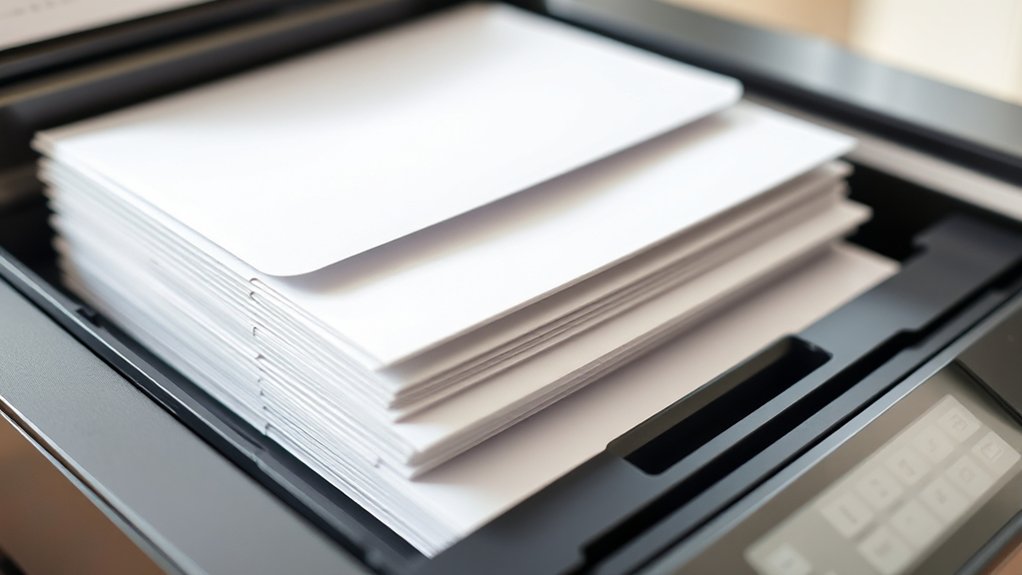
To load envelopes correctly for printing, start by checking your printer’s manual for the specific tray or slot designed for envelopes. This guarantees the best handling of various envelope sizes and printing materials. Next, adjust the paper guides snugly against the envelope edges to prevent jams or misfeeds. Make sure the envelopes are clean, flat, and stacked uniformly, avoiding curled or wrinkled ones.
Place envelopes flap side up or down as instructed. Align envelopes with the feed direction marked on the tray. Use envelopes that match recommended sizes for your printer. Load only a small stack to avoid feeding multiple envelopes at once.
Following these steps aids your printer feed envelopes smoothly, producing crisp, professional prints every time.
How to Set Printer Settings for Envelope Printing
Three key printer settings you’ll want to adjust for envelope printing are paper size, print quality, and paper type. First, open your printer preferences and select the correct envelope size that matches your envelope. This guarantees the printer aligns text properly.
Next, set the paper type to “Envelope” or a similar option, which adjusts the printer’s feeding mechanism and ink output for thicker paper. Finally, choose an appropriate print quality—standard quality usually works well, balancing clarity and ink use.
Double-check these settings before printing to avoid misalignment or jams. By customizing these printer preferences, you’ll get professional-looking results every time. Remember, matching your settings precisely to your envelope sizes and type is essential for smooth, accurate envelope printing.
How to Troubleshoot Common Envelope Printing Problems
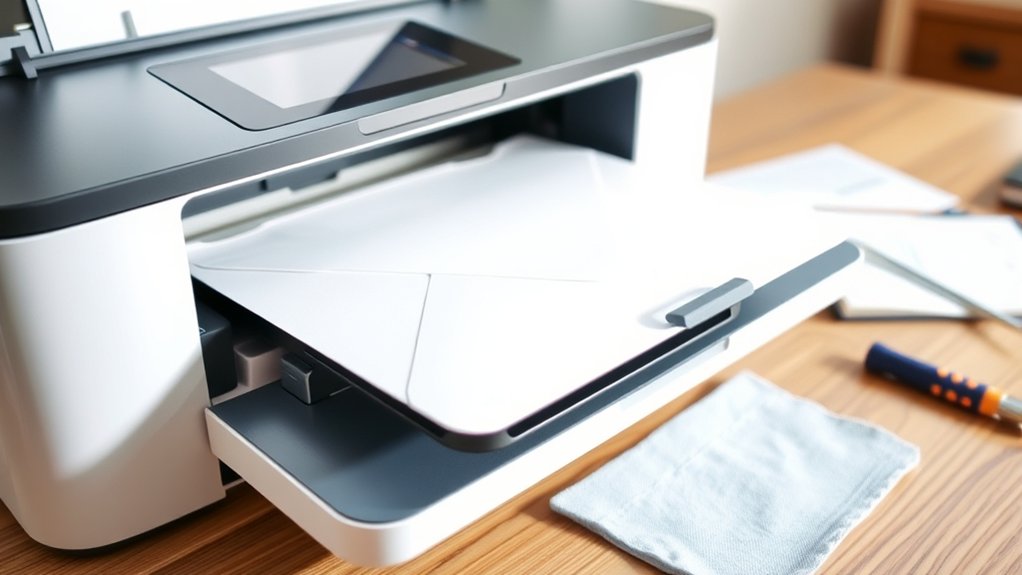
Although envelope printing is straightforward, you might encounter issues like paper jams, misaligned text, or ink smudges. To troubleshoot common envelope printing problems, start by checking for envelope jams. Remove any stuck envelopes carefully to avoid damaging the printer.
Envelope printing is simple but watch for jams, misaligned text, and smudges to keep everything running smoothly.
Next, verify your printer alignment settings. Misalignment often causes text to print off-center. Also, make sure you’re using the correct envelope size and type for your printer.
Finally, clean the printer rollers and print heads to prevent smudges and paper feeding issues.
- Envelope jams stuck inside the feed tray
- Text printing too far left or right
- Ink smudges on the envelope surface
- Envelopes not feeding smoothly through the printer
Frequently Asked Questions
Can I Print Envelopes Using a Mobile Device?
Yes, you can print envelopes using mobile printing. Just download envelope apps that support your printer, format the envelope, and send it directly from your device.
This makes printing envelopes on-the-go quick and easy.
What Types of Envelopes Are Best for Laser Printers?
Imagine crisp, smooth envelopes sliding through your laser printer effortlessly. You’ll want envelope sizes like #10 or A2 with moderate paper weight (20-24 lb) to prevent jams and guarantee sharp, clean prints every time.
How Do I Avoid Ink Smudging on Envelopes?
You can avoid ink smudging by choosing high-quality paper for your envelopes and allowing sufficient ink drying time before handling.
Adjust your printer settings for slower speeds to enhance drying and improve print clarity.
Is Duplex Printing Possible on Envelopes?
Duplex printing on envelopes is usually not supported because envelope settings prioritize single-sided printing to avoid jams and misfeeds.
Check your printer’s manual, but typically, you’ll need to print each side manually for envelopes.
Can I Print Addresses Directly From Contact Lists?
Yes, you can print addresses directly from contact lists by using address printing features with contact integration in your software. This streamlines envelope printing, reduces errors, and saves time by importing addresses automatically.
Conclusion
Now that you know how to prepare, design, and load your envelopes properly, plus adjust your printer settings, you’re ready to print with confidence.
Did you know that over 60% of businesses still rely on printed envelopes for direct mail marketing? This shows how important precise printing is for a professional look.
By following these steps, you’ll avoid common issues and make certain your envelopes come out crisp and perfect every time.
Happy printing your envelope in printer!