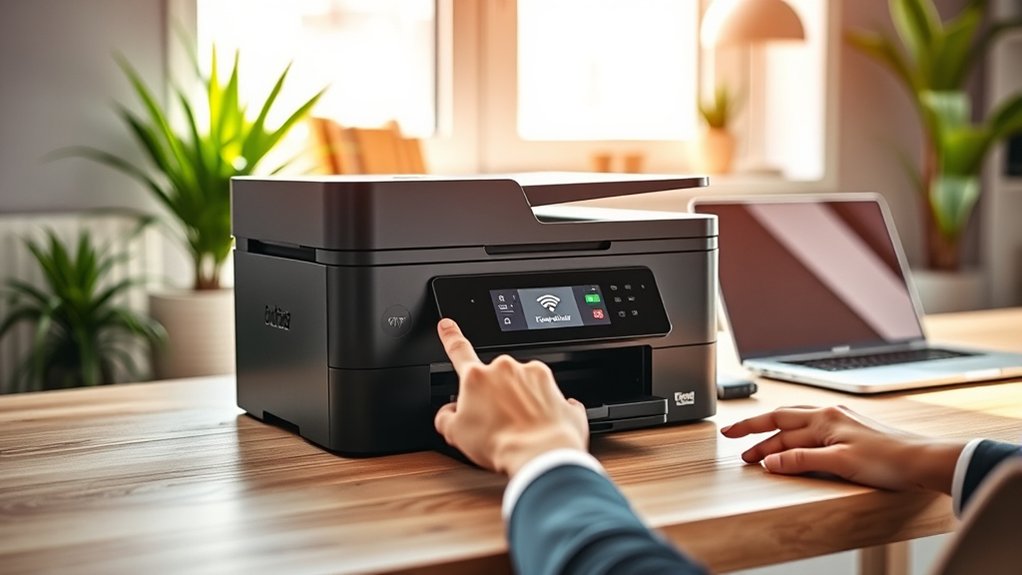

To connect your Brother printer to WiFi, start by verifying that your printer model supports wireless connectivity. If necessary, reset the network settings to clear any previous configurations.
Next, install the latest drivers from Brother’s official website on your computer or device. This ensures compatibility and smooth communication between your printer and device.
Use the printer’s control panel to navigate to the network settings. Select the WLAN setup wizard, then follow the prompts to enter your WiFi network name and password.
Alternatively, you can use the Brother iPrint&Scan app for a more straightforward setup process.
If you encounter connection issues, double-check your WiFi password, signal strength, and make sure your printer’s firmware is up to date.
For additional tips on optimizing your wireless setup and troubleshooting, continue exploring further guidance and support resources.
Key Takeaways
- Ensure your Brother printer supports WiFi and is powered on with network settings reset if needed.
- Download and install the latest wireless drivers from Brother’s official website matching your operating system.
- Use the printer’s control panel to access network settings, select WLAN Setup Wizard, and enter your WiFi password.
- Alternatively, connect via the Brother iPrint&Scan mobile app to configure WiFi and manage the printer remotely.
- Troubleshoot connection issues by verifying SSID/password, restarting devices, updating firmware, or resetting network settings.
Prepare Your Brother Printer for WiFi Setup
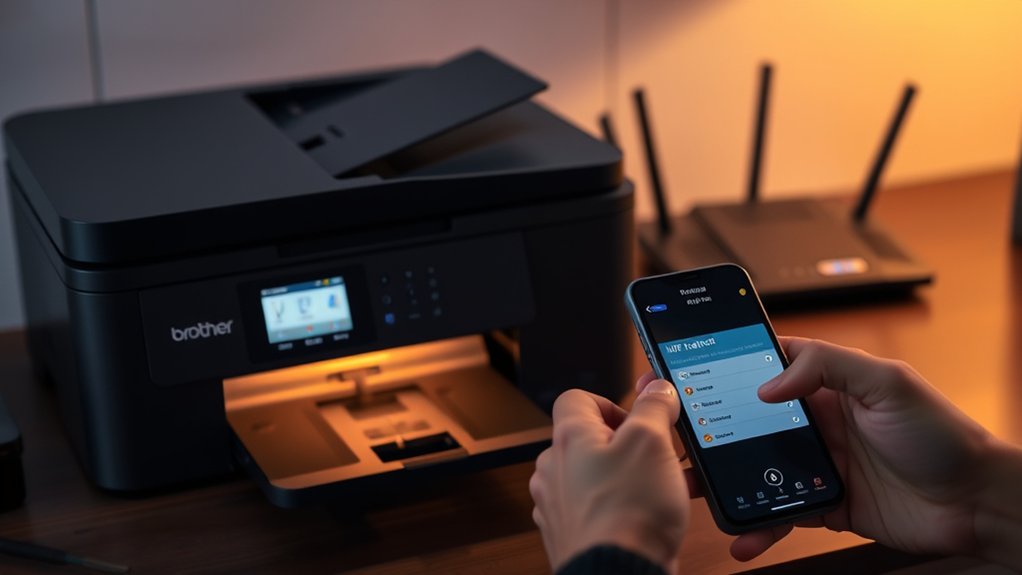
Before you begin connecting your Brother printer to WiFi, make certain it’s properly prepared for the setup process. First, check your printer compatibility to verify your model supports wireless connections. Not all Brother printers have WiFi capabilities, so verifying this prevents wasted effort.
Next, review your network requirements. Confirm your WiFi network operates on a compatible frequency, typically 2.4 GHz, as many printers don’t support 5 GHz bands. Also, confirm your network security settings, like WPA2 encryption, are enabled because Brother printers usually require secure connections.
Finally, power on your printer and reset its network settings if needed to clear previous configurations. Taking these steps guarantees a smooth, trouble-free connection when you proceed with the WiFi setup.
Install Drivers to Enable Wireless Printing
Once your Brother printer is ready, you’ll need to install the appropriate drivers on your computer to enable wireless printing. Verifying driver compatibility is essential for smooth communication between your device and printer.
Visit Brother’s official website, download the latest drivers matching your operating system, and follow the installation prompts. This step activates wireless printing features, allowing seamless print jobs over WiFi.
| Step | Emotion Felt | Result Achieved |
|---|---|---|
| Download driver | Confidence | Compatibility verified |
| Install software | Anticipation | Wireless printing ready |
| Follow prompts | Clarity | Easy setup |
| Restart computer | Relief | System refreshed |
| Test print | Satisfaction | Successful connection |
Connect Your Brother Printer via Control Panel
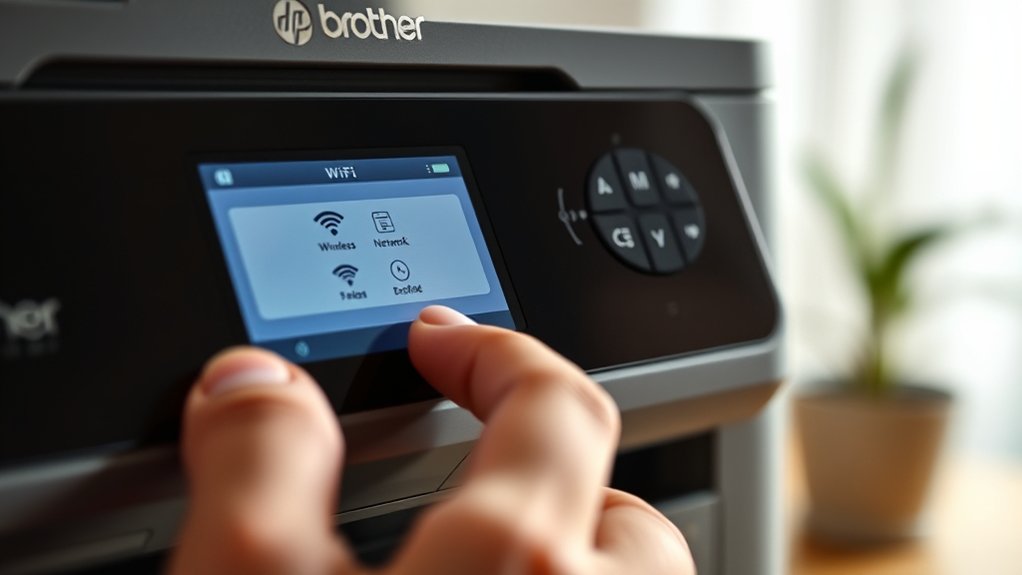
To connect your Brother printer to WiFi using the control panel, start by accessing the printer’s menu and selecting the network settings. Navigate through the printer menu until you find the “WLAN” or “Wireless” option.
Choose “Setup Wizard” from the control panel settings to scan for available networks. Select your WiFi network from the list and enter the password using the printer’s keypad.
Confirm the settings and wait for the printer to establish a connection. Once connected, the printer will display a confirmation message on the screen.
You can verify the connection status by printing a network configuration page via the control panel settings. This method guarantees your Brother printer is linked directly to your wireless network without needing a computer or mobile app.
Connect Your Brother Printer Using the Mobile App
If you prefer managing your printer settings from your smartphone, connecting your Brother printer using the mobile app is a convenient option. First, verify your printer model supports printer app compatibility by checking Brother’s official website.
Download the Brother iPrint&Scan app from your device’s app store. Open the app and follow the prompts to detect your printer on the same WiFi network. The app’s mobile app features let you configure WiFi settings directly, simplifying the connection process.
You can also print, scan, and monitor ink levels remotely. Make sure your smartphone is connected to the desired WiFi network before initiating the setup. Using the mobile app streamlines managing your printer without needing the control panel, offering a user-friendly and efficient way to connect your Brother printer to WiFi.
Troubleshoot Common WiFi Connection Issues
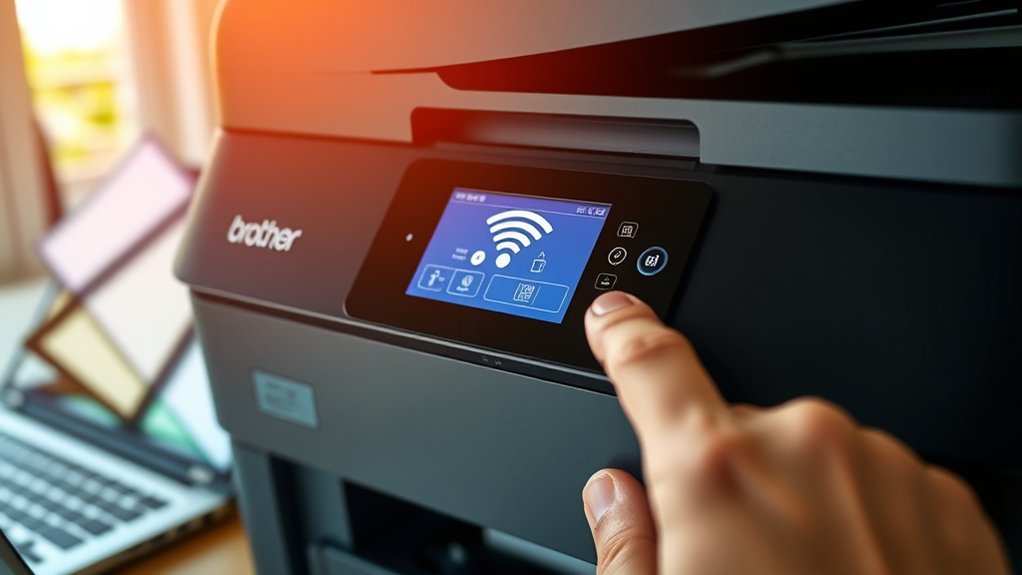
Although connecting your Brother printer to WiFi is usually straightforward, you might encounter occasional issues that prevent a stable connection. First, verify your network configuration—ensure your printer’s WiFi settings match your router’s SSID and password exactly. If you recently changed your router or password, update the printer’s settings accordingly.
Next, check for signal interference; devices like microwaves or cordless phones can disrupt WiFi signals. Place your printer away from these sources to minimize interference. Restart your printer and router to refresh the connection.
If problems persist, confirm your printer’s firmware is up to date, as outdated software can cause connectivity issues. Finally, consider resetting the printer’s network settings and reconnecting it to your WiFi to resolve persistent problems efficiently.
Improve and Maintain Your Printer’s WiFi Signal
When you want consistent printing performance, you need to improve and maintain your printer’s WiFi signal. Weak signal strength or network interference can disrupt your connection, causing delays or failed print jobs.
To keep your Brother printer running smoothly, follow these steps:
- Place your printer closer to the WiFi router to boost signal strength.
- Minimize physical obstructions like walls or large metal objects between the printer and router.
- Reduce network interference by moving other wireless devices away from the printer.
- Regularly update your printer’s firmware and router software to optimize connection stability.
Frequently Asked Questions
Can I Connect My Brother Printer to Multiple Wifi Networks?
You can’t connect your Brother printer to multiple WiFi networks simultaneously, but you can switch networks manually. Regular network switching helps avoid connectivity issues, ensuring your printer stays connected when moving between different locations or routers.
Does Brother Offer Cloud Printing Services?
Yes, Brother offers cloud printing through Brother services like iPrint&Scan and Brother Web Connect.
You can easily print documents from your mobile device or computer without needing a direct connection to your printer.
How Do I Update My Brother Printer’s Firmware?
You’ll update your Brother printer’s firmware by accessing printer settings via the control panel or Brother’s website.
Download the latest firmware update, then follow on-screen instructions to complete the installation safely and efficiently.
Can I Use My Brother Printer With a VPN?
Like a secret tunnel, VPN compatibility can shield your Brother printer’s data, but it might slow printer performance. You can use it, but expect occasional delays or connection hiccups affecting seamless printing.
What Security Features Protect My Brother Printer’s Wifi Connection?
Your Brother printer’s WiFi connection is protected by WiFi encryption, like WPA2 or WPA3, and network authentication protocols. This ensures only authorized devices connect securely, keeping your data safe from unauthorized access and potential breaches.
Conclusion
Now that you’ve connected your Brother printer to WiFi, you’re all set to print wirelessly with ease. Just like a well-tuned orchestra, your printer and network will work in harmony, saving you time and hassle.
Remember, a strong signal and up-to-date drivers keep everything running smoothly. If issues arise, don’t hesitate to troubleshoot.
With these simple steps, your printing experience will be seamless and stress-free every time. Connecting your Brother printer to WiFi ensures convenience and efficiency in your printing tasks.