
You can find your printer’s IP address by printing its network configuration page from the settings menu, usually under “Network” or “Wireless.” This is often the easiest way to get the exact IP assigned to your device.
On Windows, go to Settings > Devices > Printers & scanners, select your printer, then check the Ports tab in the printer properties for the IP address.
On a Mac, open System Preferences > Printers & Scanners, select your printer, and view its details to find the IP.
Alternatively, you can check your router’s connected devices list to locate the printer’s IP address. Using command-line tools like `arp -a` can also help discover it on your network.
Keep exploring to uncover more detailed methods and troubleshooting tips for finding your printer IP address.
Key Takeaways
- Print the printer’s network configuration page from its settings menu to see the current IP address and network details.
- On Windows, find the IP under “Printers & scanners” in Settings by selecting the printer and checking “Printer properties” > “Ports” tab.
- On Mac, open “Printers & Scanners” in System Preferences, select the printer, and view IP in “Options & Supplies” under “General” or “Location.”
- Access your router’s admin page, check connected devices or DHCP client list, and identify the printer’s IP by hostname or MAC address.
- Use Command Prompt or Terminal with commands like `arp -a` or `ping [printer hostname]` to discover the printer’s IP address.
Check Your Printer’s Network Configuration Page
Before you can connect to your printer, you’ll need to find its IP address, which is often listed on the network configuration page. To access this page, navigate through your printer settings menu, usually under “Network” or “Wireless” options.
Select the option to print or view the network configuration page. This page provides detailed information about your printer’s current network status, including its IP address, subnet mask, and gateway.
If the IP address is missing or incorrect, this can indicate network issues, so reviewing the configuration helps in network troubleshooting. Checking this page guarantees you have the correct IP for setting up or diagnosing your printer connection, avoiding guesswork and streamlining the troubleshooting process efficiently.
Find Your Printer’s IP Address on Windows or Mac
How can you quickly locate your printer’s IP address using your computer? On Windows, open the Settings app, go to “Devices,” then “Printers & scanners.” Select your printer, click “Manage,” then “Printer properties.”
Under the “Ports” tab, you’ll see the IP address associated with your printer. Alternatively, check the “Network” or “Web Services” tabs in the printer settings if available.
On Mac, open “System Preferences,” then “Printers & Scanners.” Select your printer and click “Options & Supplies.” The IP address often appears under the “General” or “Location” fields, reflecting the device’s network connectivity details.
Accessing these areas in printer settings guarantees you retrieve the current IP address assigned on your network, helping maintain seamless connectivity.
Locate Your Printer’s IP via the Control Panel
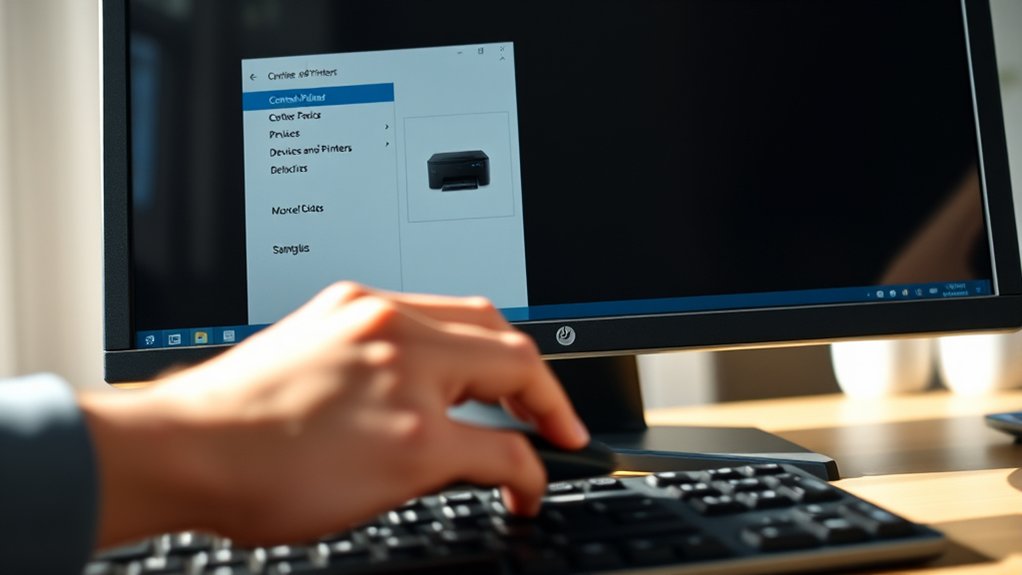
When you need to find your printer’s IP address without using system settings, the Control Panel offers a direct method. Accessing printer settings here lets you retrieve network details efficiently.
Follow these steps:
- Open the Control Panel from the Start menu.
- Select “Devices and Printers” or “View devices and printers.”
- Right-click your printer and choose “Printer properties.”
- Navigate to the “Ports” tab to view the IP address associated with the active port.
This approach taps directly into your printer’s configured network settings via the Control Panel, bypassing system preferences. It’s especially useful when dealing with multiple printers or troubleshooting network connectivity issues. By accessing printer settings here, you guarantee you retrieve accurate, current IP information essential for network communication.
Find Your Printer’s IP Through Your Router’s Admin Page
If you can’t locate your printer’s IP address through the Control Panel, accessing your router’s admin page provides another reliable method. Start by logging into your router settings via a web browser, typically using addresses like 192.168.1.1 or 192.168.0.1. Enter your admin credentials to access the dashboard.
Within the interface, navigate to the connected devices or DHCP client list section. Here, you’ll find a list of all devices currently assigned IP addresses by the router. Identify your printer by its hostname or MAC address.
This method offers precise information while maintaining network security, as you avoid exposing device details externally. Always log out after checking to prevent unauthorized access. This approach guarantees you retrieve your printer’s IP without altering any router configurations.
Use Command Prompt or Terminal to Find Your Printer’s IP
You can quickly find your printer’s IP by opening Command Prompt on Windows or Terminal on macOS/Linux. Run commands like `arp -a` or `ping` followed by your printer’s hostname to identify its IP address.
This method provides a direct way to locate your printer on the network without accessing your router.
Accessing Command Prompt
To track down your printer’s IP address, start by opening the Command Prompt on Windows or the Terminal on macOS and Linux. Understanding command prompt basics and command prompt navigation is essential for efficient operation.
Here’s how to quickly access it:
- On Windows, press `Win + R`, type `cmd`, and hit Enter to launch Command Prompt.
- On macOS, open Finder, go to Applications > Utilities, and double-click Terminal.
- On Linux, use the shortcut `Ctrl + Alt + T` or find Terminal in your applications menu.
- Familiarize yourself with basic navigation commands like `cd` (change directory) and `dir` or `ls` (list files), which help you move efficiently within the command environment.
This setup prepares you to execute commands to find your printer’s IP address.
Executing IP Lookup Commands
Launch your Command Prompt or Terminal and enter specific commands to reveal your printer’s IP address. Start by typing `arp -a` to display all devices connected to your network along with their IP and MAC addresses.
Identify your printer by matching its MAC address or manufacturer details. Alternatively, use `ping` combined with your printer’s hostname, if known, to verify connectivity.
For more thorough IP scanning, tools like `nmap` can systematically probe your network to list active devices and their IPs. These network tools provide detailed insights into connected hardware, including printers.
Using these commands, you can efficiently pinpoint your printer’s IP without accessing router interfaces. Verify your device and printer are connected to the same network to get accurate results from these lookup commands.
Troubleshoot If You Can’t Find Your Printer’s IP Address
Although locating your printer’s IP address can seem straightforward, network issues or misconfigurations often obscure it. When you can’t find the IP, start by verifying your printer settings directly on the device’s control panel or embedded web server.
Next, check for network issues that might block communication between your computer and printer. Also, verify your printer is connected to the correct network, especially if multiple Wi-Fi networks exist. Finally, restart both your printer and router to reset connections.
- Access printer settings via control panel or web interface
- Confirm printer and computer are on the same network
- Resolve potential network issues (e.g., firewall, DHCP conflicts)
- Restart printer and router to refresh network connections
These steps help you pinpoint and resolve IP address detection problems efficiently.
Frequently Asked Questions
Can I Assign a Static IP Address to My Printer?
Yes, you can assign a static address to your printer by accessing the printer settings menu. This guarantees the printer keeps the same IP, improving network stability and simplifying device management.
How Do I Secure My Printer From Unauthorized Access?
Over 70% of breaches involve unsecured devices. You should enable printer security features like strong passwords, firmware updates, and network segmentation to prevent unauthorized access. This ensures only trusted users can connect and manage your printer safely.
What Does an IP Address Conflict With My Printer Mean?
An IP address conflict with your printer means two devices share the same IP, causing network issues.
During printer troubleshooting, check your network settings to assign unique IPs, ensuring smooth communication and avoiding connectivity errors.
Can I Print Without Knowing My Printer’s IP Address?
You can print without knowing your printer’s IP address by using wireless printing features or printing directly via USB.
Access printer settings to enable wireless printing or set up a connection through your device’s network detection options.
How Often Should I Update My Printer’s Firmware?
You should update your printer’s firmware every 3-6 months to enhance firmware benefits like security patches and performance improvements. Regular update frequency guarantees your device runs at its best and protects against vulnerabilities effectively.
Conclusion
Finding your printer’s IP address is like uncovering a hidden gateway in a digital maze. Whether you check the network page, use your computer’s settings, or explore your router’s admin panel, each step brings you closer to seamless connectivity.
If obstacles arise, troubleshooting tools are your compass. By mastering these methods, you guarantee your printer communicates efficiently.
Turning a complex task into a straightforward solution is much like steering through familiar paths in a vast network. Knowing how to find printer IP address ensures smooth and reliable communication every time.