Your printer shows offline because your device isn’t properly communicating with it, often due to network disruptions, driver conflicts, or incorrect settings interrupting data flow.
Check your cables, network connection, and guarantee the correct printer is selected. Restart your printer and computer; updating or reinstalling drivers often helps.
Verifying network settings like IP addresses can also restore connection.
If issues persist, hardware faults or spooler errors might be involved—exploring these areas can guide you to a full fix.
Key Takeaways
- Printer offline means it’s not responding to print commands, often due to network or connection disruptions rather than hardware failure.
- Network issues like incorrect IP address, router problems, or mismatched network settings commonly cause printers to go offline.
- Faulty cables, loose connections, or power supply problems can physically disconnect the printer, resulting in offline status.
- Outdated, corrupt, or incompatible printer drivers often disrupt communication, making the printer appear offline to the computer.
- Software glitches, including stuck print jobs or spooler errors, can block printing and cause the printer to show offline.
What Does “Printer Offline” Mean and Why Does It Happen?
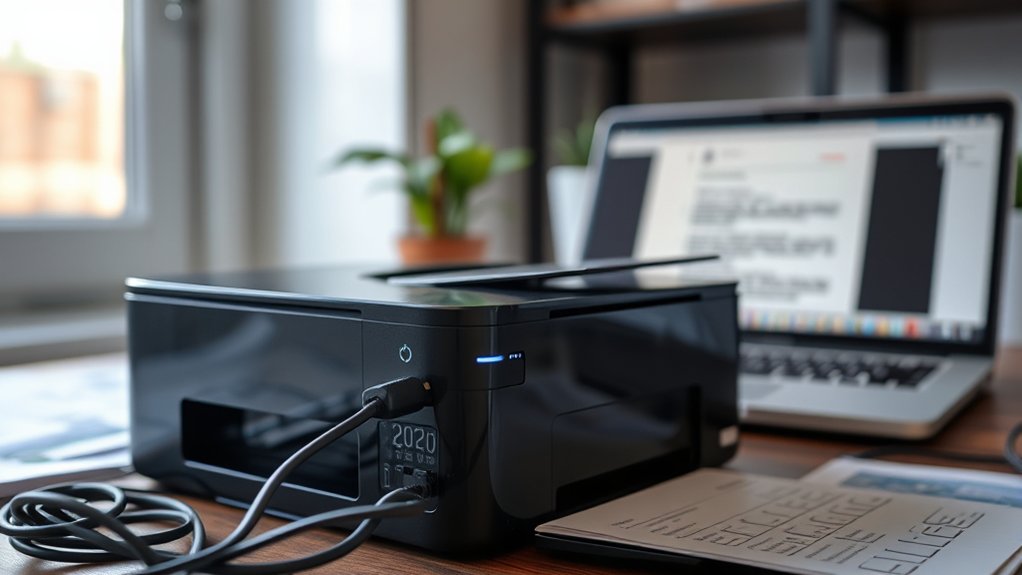
Although your printer may appear offline, it often means your computer can’t communicate with it. This status usually signals a disruption in data flow rather than a hardware failure.
Printer troubleshooting starts by understanding that “offline” indicates your device isn’t responding to print commands. Common causes include network issues like interrupted Wi-Fi connections, incorrect IP addresses, or router malfunctions.
“Offline” means your printer isn’t responding—often due to network problems like Wi-Fi interruptions or incorrect IP settings.
It may also stem from cable disconnections or driver conflicts. Identifying the root cause helps you address the problem efficiently. You should verify network stability and guarantee your printer is properly connected to the same network as your computer.
Resolving these issues restores communication, switching your printer back online and ready for use. Stay systematic to minimize downtime during printer troubleshooting.
How to Check Your Printer’s Connection Status
First, check that your printer is properly connected to your network or computer. Next, inspect the printer’s hardware status, including power and cable connections.
Ensuring both network and hardware are functioning correctly helps identify why your printer shows as offline.
Verify Network Connectivity
How can you quickly determine if your printer is properly connected to your network? Start by checking your printer’s network status through its control panel or embedded web server. Look for a valid IP address; if missing or incorrect, your device isn’t connected.
Next, verify your computer’s network connection aligns with the printer’s network. Both should be on the same subnet to avoid connectivity issues. Use the ping command from your computer’s terminal or command prompt to test communication with the printer’s IP address.
If the ping fails, this indicates network troubleshooting is necessary. Restart your router and printer to reset connections. Also, confirm no firewall or security settings block printer communication. These steps help you identify and resolve network connectivity issues efficiently.
Inspect Printer Hardware Status
A printer’s hardware status provides critical clues about its connection health and functionality. To check your printer’s connection status, start by examining the device’s display panel for error messages or connectivity icons. Next, verify cables are securely connected and undamaged.
Follow these printer maintenance tips and hardware troubleshooting steps to identify issues quickly.
| Component | Status Indicator | Action Required |
|---|---|---|
| Power Cable | LED On/Off | Confirm plugged in firmly |
| Network Cable | Link Light (Green) | Replace if no light |
| Printer Display | Error Message/Idle | Follow on-screen prompts |
Regularly inspecting these elements helps maintain peak printer performance and prevents offline errors.
How to Fix Network Issues That Make Your Printer Offline
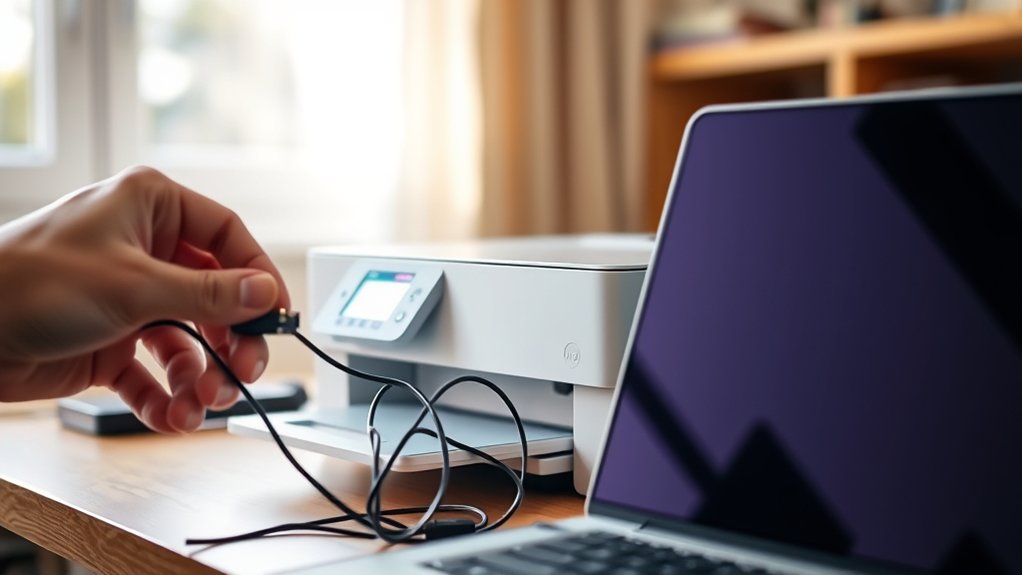
Why does your printer suddenly lose connection to the network? Network instability often causes your printer to go offline unexpectedly. Start your printer troubleshooting by verifying your Wi-Fi or Ethernet connection.
Confirm your printer and computer are on the same network. Restart your router and printer to refresh IP addresses. Check for IP address conflicts by assigning a static IP to your printer through its settings or router interface.
Update your printer’s firmware and network drivers to maintain compatibility. Disable any VPN or firewall temporarily to test if they block printer communication.
Use the printer’s built-in network test tool to identify connectivity issues. Maintaining network stability is essential to prevent offline status, so regularly monitor your network’s performance and address any signal interference or bandwidth congestion promptly.
How Incorrect Printer Settings Can Cause Printer Offline Status
If your printer is offline, check that the correct printer port is selected in your settings. Make sure printer sharing is enabled if you’re on a network, and verify your network configuration matches your printer’s requirements.
Incorrect settings in any of these areas can disrupt communication and cause the offline status.
Wrong Printer Port Selection
Incorrect printer port selection can quickly cause your printer to show as offline, even if it’s physically connected and powered on. Your printer’s port configuration must match the actual connection type USB, network IP, or wireless.
If the wrong printer port is selected in your system’s settings, your computer can’t communicate with the device properly, resulting in an offline status. To fix this, access the printer properties through your control panel or settings menu, then review the port tab.
Verify that the port matches your printer’s connection such as USB001 for USB printers or the correct TCP/IP address for network printers. Adjusting the port configuration to the correct setting restores communication, eliminating the offline error and enabling smooth printing operations.
Disabled Printer Sharing Settings
When printer sharing settings are disabled, your computer won’t recognize the printer on the network, causing it to appear offline. Printer sharing allows multiple devices to access the printer via network settings.
If these settings are turned off or misconfigured, your system cannot communicate with the printer. To fix this, access your computer’s Control Panel or Settings, navigate to Devices > Printers & Scanners, and check if printer sharing is activated.
Also, verify that the printer’s network settings permit sharing and that firewalls aren’t blocking connections. Activating printer sharing guarantees your device broadcasts its availability on the network, maintaining continuous communication.
Correcting these settings typically resolves offline status caused by disabled printer sharing, restoring smooth printing functionality across your networked devices.
Incorrect Network Configuration
Though your printer may be properly connected, misconfigured network settings can prevent your computer from detecting it, causing it to show as offline. To resolve this, verify that your printer’s IP address matches your network’s configuration.
An incorrect IP or subnet mask disrupts printer connectivity. Access your printer’s control panel or web interface to confirm these settings. Additionally, guarantee your computer and printer are on the same network segment.
Check your router’s DHCP settings to avoid IP conflicts. If you use a static IP, assign it outside your DHCP range. Updating your printer driver can also refresh network settings.
Why Printer Drivers Cause Printer Offline Errors (And How to Fix Them)
Because printer drivers serve as the essential communication link between your computer and printer, any corruption, incompatibility, or outdated version can cause your printer to appear offline. To fix this, regularly check for printer driver updates and guarantee driver compatibility with your operating system. Installing the correct driver version eliminates offline errors caused by mismatched software.
| Problem | Emotion Felt |
|---|---|
| Driver corruption | Frustration |
| Outdated drivers | Annoyance |
| Compatibility issues | Confusion |
| Installation errors | Helplessness |
How Restarting Devices and Printer Spooler Can Fix Printer Offline Problems
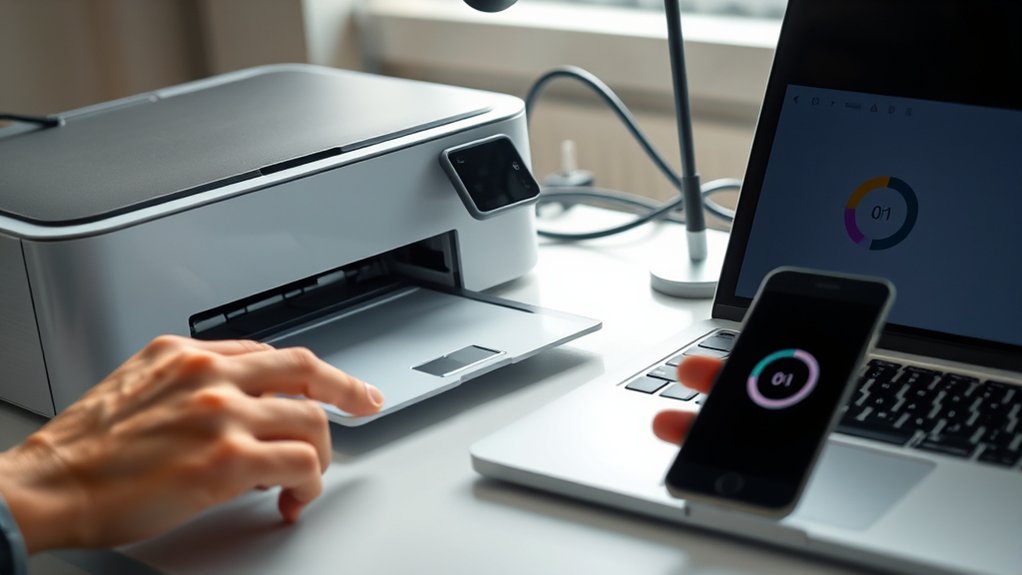
If your printer shows as offline despite having the correct drivers, restarting your devices and the printer spooler often resolves communication glitches. Begin by performing a printer reset: power off both your printer and computer, wait 30 seconds, then power them back on. This simple step clears temporary errors and re-establishes network connections.
Next, manage the spooler service to clear stuck print jobs causing the offline status. On Windows, open Services, locate “Print Spooler,” stop it, delete all files in the spooler folder (usually C:WindowsSystem32spoolPRINTERS), then restart the spooler service.
This spooler management flushes queued jobs that might block printing. Combining a device restart with spooler reset often restores printer communication quickly and effectively, eliminating offline errors caused by software glitches.
When Hardware Problems Cause Your Printer to Go Offline
When your printer suddenly goes offline despite software fixes, hardware issues often play a key role. To resolve this, you need to perform hardware diagnostics and apply targeted troubleshooting techniques. Check physical connections, power supply, and internal components like cartridges or paper feed.
Faulty cables or worn parts can disrupt communication and cause offline status.
| Hardware Issue | Diagnostic Step |
|---|---|
| Loose Cable | Inspect and secure cable |
| Power Supply | Verify power source status |
| Internal Component | Test cartridge and rollers |
Running these hardware diagnostics helps identify malfunctions quickly. Once pinpointed, replace or repair the defective parts. This approach guarantees you address underlying hardware problems effectively, restoring your printer’s online status without unnecessary software interventions.
Tips to Prevent Your Printer From Going Offline Again
To keep your printer online consistently, you should implement routine maintenance and proactive monitoring. Start by following essential printer maintenance tips, such as cleaning print heads, checking cable connections, and ensuring proper paper loading.
Regularly update your printer’s firmware and drivers to fix bugs and improve compatibility. Configure your printer’s network settings to use a static IP address, preventing connectivity loss due to DHCP changes.
Monitor your printer’s status via its control panel or management software to catch issues early. Additionally, schedule periodic power cycles to refresh hardware components.
Frequently Asked Questions
Can Printer Offline Status Affect Scanning Functions?
Yes, printer offline status can disrupt your scanning capabilities since scanning often relies on printer connectivity. To restore full function, verify your printer is properly connected to your network or computer and is powered on.
Does Printer Offline Mean Ink or Toner Is Low?
Just like a ship’s lighthouse warns sailors, ink level indicators and toner replacement alerts notify you of low supplies. However, a printer offline status doesn’t necessarily mean your ink or toner is running low. Check those alerts directly.
How Does Printer Offline Status Impact Scheduled Print Jobs?
Your printer offline status causes print job delays by halting jobs in the queue. You’ll need to perform troubleshooting steps, like checking connections and restarting the printer, to resume printing and clear the backlog efficiently.
Can a Printer Offline Error Be Caused by a Firewall?
Yes, over 30% of printer offline errors stem from firewall settings blocking communication. You should review your firewall and network configuration to guarantee printer ports are open, allowing seamless connectivity and preventing offline status.
Is Printer Offline Status Related to Paper Jam Errors?
Yes, printer offline status can relate to paper jam errors. During paper jam troubleshooting, your printer may disconnect or pause, causing printer connection issues.
Clearing jams promptly restores communication and resolves offline status effectively.
Conclusion
When your printer shows as offline, don’t panic—“a stitch in time saves nine.” By regularly checking connections, updating drivers, and restarting devices promptly, you can avoid prolonged downtime.
Address network issues and hardware faults quickly to keep your printer reliable. Staying proactive with settings and maintenance guarantees smooth printing and saves you from bigger problems later.
Follow these steps consistently, and you’ll keep your printer online and ready whenever you need it. This approach helps you effectively manage why your printer is offline and ensures it stays connected.