
To get your printer online, first check its status on your computer and verify it’s not set to offline mode.
Restart the printer, your computer, and router to reset connections.
For wireless printers, confirm it’s connected to the right Wi-Fi with a strong signal.
If it’s wired, securely reconnect the USB cable.
Update or reinstall drivers and restart the print spooler service to clear stuck jobs.
If issues persist, further steps can help resolve them efficiently.
Key Takeaways
- Check the printer status on your computer and ensure it is not set to “Use Printer Offline” mode.
- Restart your printer, computer, and router in sequence to refresh network connections.
- Verify the printer is connected to the correct Wi-Fi network with a strong signal.
- Update or reinstall printer drivers from Device Manager or the manufacturer’s website.
- Restart the Print Spooler service and run the Windows printer troubleshooter to resolve stuck jobs or errors.
Check Your Printer’s Offline Status
How do you know if your printer is offline? First, check the printer status on your computer. On Windows, open “Devices and Printers,” right-click your printer, and select “See what’s printing.” If the status reads “Offline,” your printer isn’t connected properly.
Offline indicators can also appear on the printer’s display panel, such as a blinking light or a specific error message. Confirm your printer’s connectivity by verifying the network or USB connection. Additionally, check for any physical signs like a disconnected cable.
Identifying these offline indicators helps you understand whether the issue stems from communication problems or hardware faults. By accurately checking your printer status, you can proceed with targeted troubleshooting to get your printer online efficiently.
Restart Your Printer, Computer, and Router
Start by powering off your printer, computer, and router to reset their network connections. Wait at least 30 seconds before turning each device back on to guarantee a full power cycle.
This process clears temporary issues and helps your devices reestablish a stable connection.
Power Cycle Devices
Restarting your printer, computer, and router can resolve connectivity issues by clearing temporary glitches and renewing network settings. To power cycle devices, first turn off your printer, computer, and router.
Unplug each device from the power source to fully discharge residual power. Wait about 60 seconds to guarantee a complete device reset. Next, plug in and turn on your router first, allowing it to fully boot and reestablish network connections.
Then, power on your computer, followed by your printer. This sequence guarantees proper network recognition and device synchronization. Power cycling is an effective troubleshooting step that often restores communication between your devices and the network.
If connectivity issues persist after this device reset, proceed to check network connections or other advanced troubleshooting methods.
Check Network Connections
If your printer remains offline after power cycling, the next step is to verify all network connections between your printer, computer, and router. Start by confirming that your printer is properly connected to the Wi-Fi network or Ethernet cable. Check for loose or disconnected cables.
Confirm that your computer is on the same network as your printer to maintain proper printer connectivity. Restart your router to refresh network settings and eliminate temporary glitches.
After rebooting, confirm your printer’s network status via its control panel or software. Use network troubleshooting tools on your computer to detect and fix connectivity issues.
If problems persist, consider resetting your printer’s network settings and reconnecting it to your network. This systematic approach guarantees you isolate and resolve common network-related printer connectivity problems effectively.
Fix Network Issues for Wireless Printers
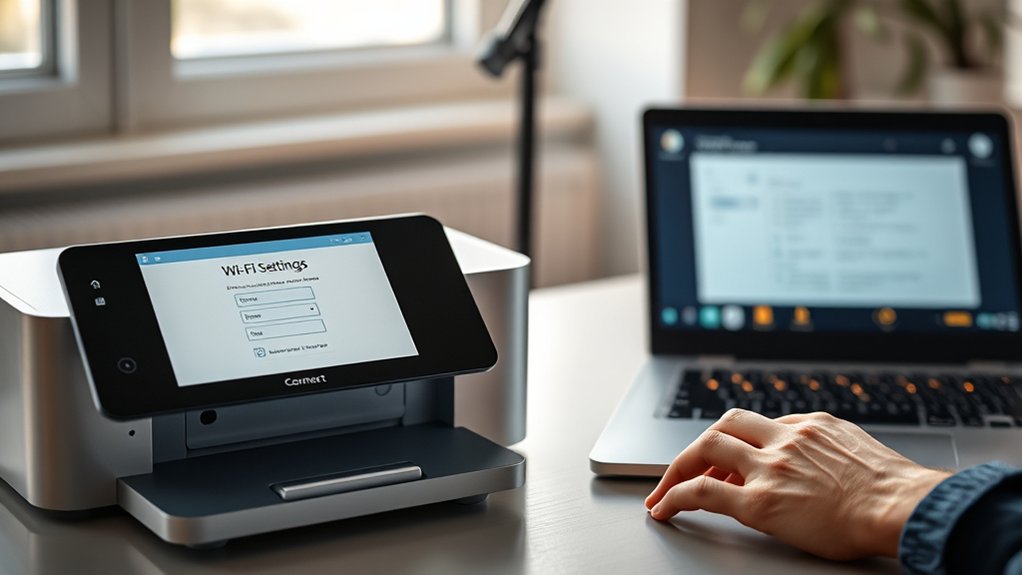
First, verify that your printer is connected to the correct Wi-Fi network with a strong signal.
If connection issues persist, reset your printer’s network settings to clear any corrupted configurations. Then, reconnect the printer to your wireless network following the manufacturer’s instructions.
Check Wi-Fi Connection
A stable Wi-Fi connection is essential for your wireless printer to communicate with your devices. Begin by confirming your printer is connected to the correct SSID and that the Wi-Fi signal strength is strong.
Use your printer’s control panel or app to verify network status. If you experience connectivity issues, perform Wi-Fi troubleshooting by restarting your router and printer.
Check for network interference from devices like microwaves or cordless phones, which can disrupt signals. Position your printer closer to the router or on a different channel to reduce interference.
Make certain your router firmware is updated to maintain compatibility. Finally, verify that your network supports the printer’s frequency band (2.4 GHz or 5 GHz) since mismatches can prevent connections.
These steps help maintain consistent printer access over Wi-Fi.
Reset Printer Network Settings
When network issues persist despite troubleshooting, resetting your printer’s network settings often resolves configuration errors and connectivity conflicts. Begin by accessing your printer’s control panel or settings menu. Locate the network or wireless settings option, then select “Restore Network Defaults” or “Reset Network Settings.”
This action clears previous configurations, allowing you to start fresh. After resetting network settings, reconnect your printer to your Wi-Fi network by entering your SSID and password. Confirm the printer’s IP address is assigned correctly, either via DHCP or a static IP, depending on your network setup.
Finally, update your printer configuration on your computer or mobile device to reflect these changes. Resetting network settings restores connectivity and solves most wireless printer network issues efficiently.
Reconnect Your Wired Printer to Your PC
Two essential steps will get your wired printer reconnected to your PC: ensuring the cable is securely plugged into both devices and confirming your PC recognizes the printer through its settings. Start by checking the USB setup. Make sure the USB cable is firmly connected to the printer and an available USB port on your computer. Avoid loose connections that disrupt printer connection.
Next, power on the printer and navigate to your PC’s “Devices and Printers” section in the Control Panel or Settings. Look for your printer model; if it appears, the connection is established. If not, unplug and reconnect the USB cable, then restart your printer and PC. This will refresh the printer connection and allow your PC to detect the device properly.
Update Drivers to Fix Offline Printer Issues
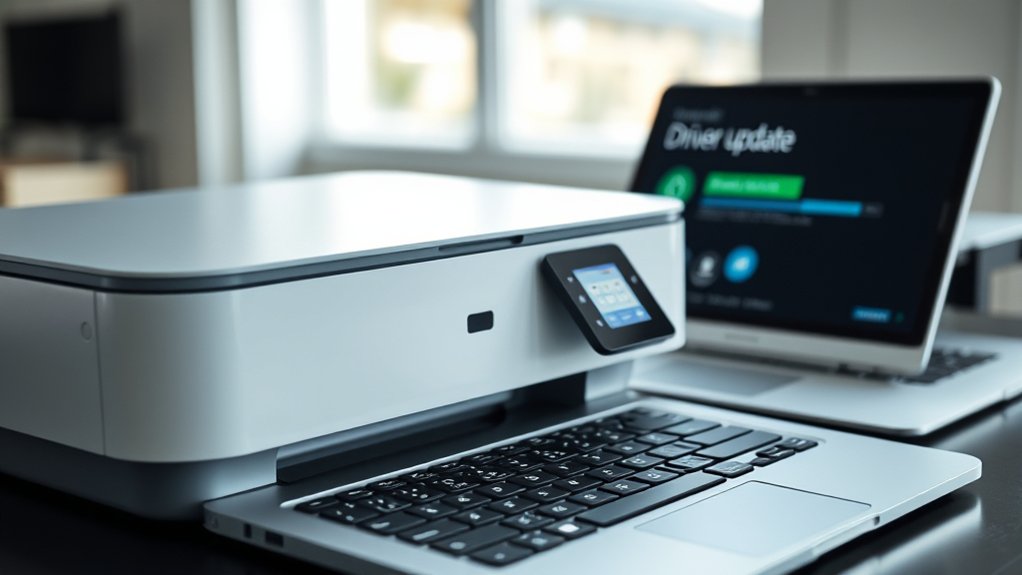
If your PC doesn’t recognize the printer despite checking the USB connections, outdated or corrupted drivers might be the cause. Start by opening Device Manager, locate your printer under “Printers” or “Universal Serial Bus controllers,” right-click it, and select “Update driver.”
Choose “Search automatically for updated driver software” to let Windows find compatible drivers. If that fails, visit the printer manufacturer’s website to download the latest drivers, ensuring driver compatibility with your operating system version.
Install these drivers manually by running the downloaded setup file. Regularly check for software updates, as they often include driver patches improving printer communication. After updating, restart your PC and reconnect the printer. This process resolves many offline issues caused by driver conflicts or outdated software components.
Change Printer Settings to Mark It Online
Since printers can sometimes default to offline mode, you’ll need to manually change the settings to mark it online. Start by accessing your printer preferences via the Control Panel or system settings.
Locate the Devices and Printers section, right-click your printer, and select “See what’s printing.” In the window that opens, click the “Printer” menu and uncheck “Use Printer Offline” if it’s enabled.
Next, review your network configurations to verify the printer has a valid IP address and is connected to the correct network. If necessary, update the network settings through the printer’s onboard menu or web interface.
After adjusting these preferences and configurations, restart both your printer and computer to apply the changes and confirm the printer status shows as online.
Troubleshoot Common Errors Causing Offline Status
When your printer shows offline status despite correct settings, common errors like connectivity issues, driver conflicts, or spooler service problems often cause the disruption. Begin printer troubleshooting by checking your network connection. Ensure your printer is connected to the correct Wi-Fi or Ethernet.
Next, verify the printer driver is up to date and compatible with your operating system. Outdated drivers commonly cause offline printer issues. Then, restart the Print Spooler service via Services.msc to clear stuck print jobs causing offline status.
Additionally, confirm that your printer’s IP address matches the one in your printer settings. If problems persist, run the built-in Windows troubleshooter for printers to diagnose specific errors. Following these steps systematically resolves most offline printer errors quickly and efficiently.
Frequently Asked Questions
Can I Print From My Phone if the Printer Is Offline?
You can’t use mobile printing if your printer is offline. Confirm your printer compatibility with your phone’s mobile printing app, then connect the printer online or via Wi-Fi to enable seamless printing from your device.
How Do I Set up a New Printer on My Home Network?
For printer setup, connect your printer to Wi-Fi via its control panel. Access network configuration, select your home network, enter the password, then install the printer driver on your device to complete the setup.
What to Do if My Printer Keeps Disconnecting Intermittently?
When Sarah faced wireless connection issues, she updated her printer’s firmware and reset the router. You should follow printer troubleshooting tips like checking signal strength, updating drivers, and ensuring no interference disrupts your printer’s connection.
Are There Any Apps to Monitor Printer Status Remotely?
Yes, you can use printer monitoring apps like PrinterLogic or PaperCut for remote printer management. These tools let you track status, receive alerts, and manage print jobs from anywhere, streamlining your workflow efficiently.
Can a VPN Affect My Printer’s Online Connectivity?
If your VPN settings block local network traffic, your printer might lose connectivity. Check your VPN’s configuration for split tunneling options.
Verify printer compatibility and adjust network configuration to resolve such connectivity issues effectively.
Conclusion
Getting your printer back online is like tuning a finely crafted instrument—it just takes a little adjustment. Start by checking its status and making sure it’s properly connected. Sometimes, a simple restart of your printer and computer can resolve many issues.
Next, examine your network connections to ensure they are stable and functioning correctly. Updating your printer drivers can also help eliminate compatibility problems. Don’t forget to adjust printer settings and troubleshoot any errors that appear.
By following these steps methodically, you’ll resolve most offline issues quickly. This approach ensures your printer works seamlessly whenever you need it. With patience and these tips, getting your printer online will be a smooth process.