
To add a printer to your Mac, first confirm it’s compatible with your macOS version.
Adding a printer to Mac is straightforward whether you use USB or Wi-Fi connections. Connect your printer via USB for automatic setup or use Wi-Fi if both devices share the same network.
AirPrint printers don’t require extra drivers, simplifying setup.
Open System Settings, go to Printers & Scanners, and click the plus (+) to add your device. You can also set up shared printers or troubleshoot issues if needed.
These basics pave the way for smoother printing management on your Mac.
Key Takeaways
- Connect the printer to your Mac via USB or ensure both are on the same Wi-Fi network for wireless setup.
- Open System Preferences, select Printers & Scanners, and click the plus (+) button to add a new printer.
- If the printer supports AirPrint, it will appear automatically without needing additional drivers.
- Select the printer from the list and follow on-screen instructions to complete installation.
- Verify printer compatibility with your macOS version before adding to avoid setup issues.
Check If Your Printer Works With Your Mac
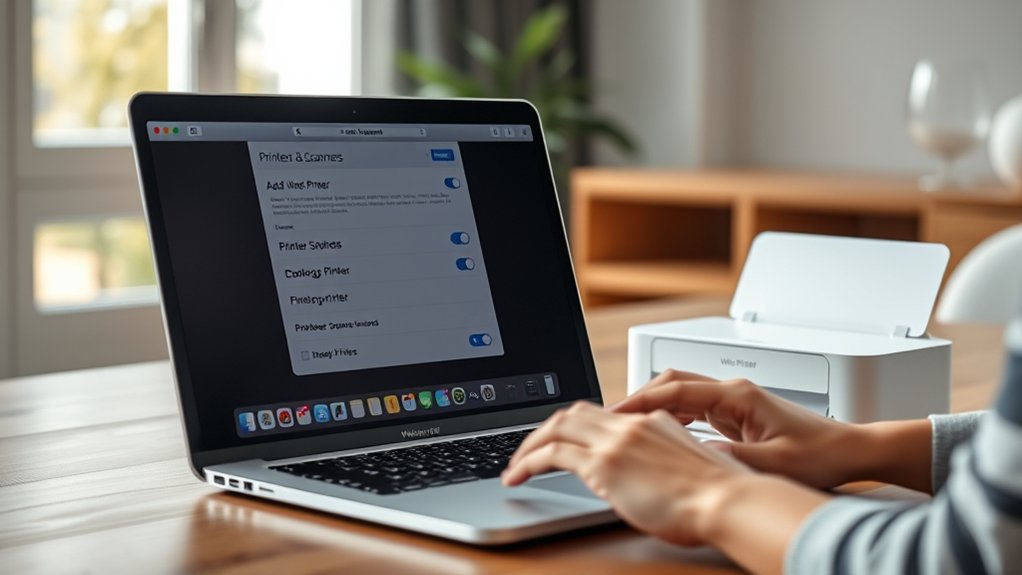
Before you start setting up your printer, make certain it’s compatible with your Mac. Printer compatibility is essential because not all printers support macOS or meet specific Mac requirements.
First, check the manufacturer’s website for your printer model to confirm macOS support and find the latest drivers. Also, verify your Mac’s operating system version to guarantee it matches the printer’s compatibility list.
If your printer supports AirPrint, you can skip installing drivers, but confirm this feature beforehand. Meeting mac requirements avoids installation issues and guarantees smooth printing.
Taking these steps saves time and frustration by confirming your printer works seamlessly with your Mac before you proceed with connection and setup.
Connect and Add a Printer via USB, Wi-Fi, or AirPrint
How do you connect your printer to your Mac? You have three simple options: USB connection, Wi-Fi setup, or AirPrint. For a USB connection, plug the printer directly into your Mac using the cable. Your Mac usually detects it automatically and adds the printer in System Preferences under Printers & Scanners.
For Wi-Fi setup, make certain your printer is connected to the same wireless network as your Mac. Open System Preferences, go to Printers & Scanners, click the plus (+) button, then select your printer from the list. AirPrint works similarly if your printer supports it. Your Mac will recognize it over Wi-Fi without needing extra drivers.
Choose the method that fits your setup, and you’ll be printing in no time.
Set Up a Shared or Network Printer on Your Mac
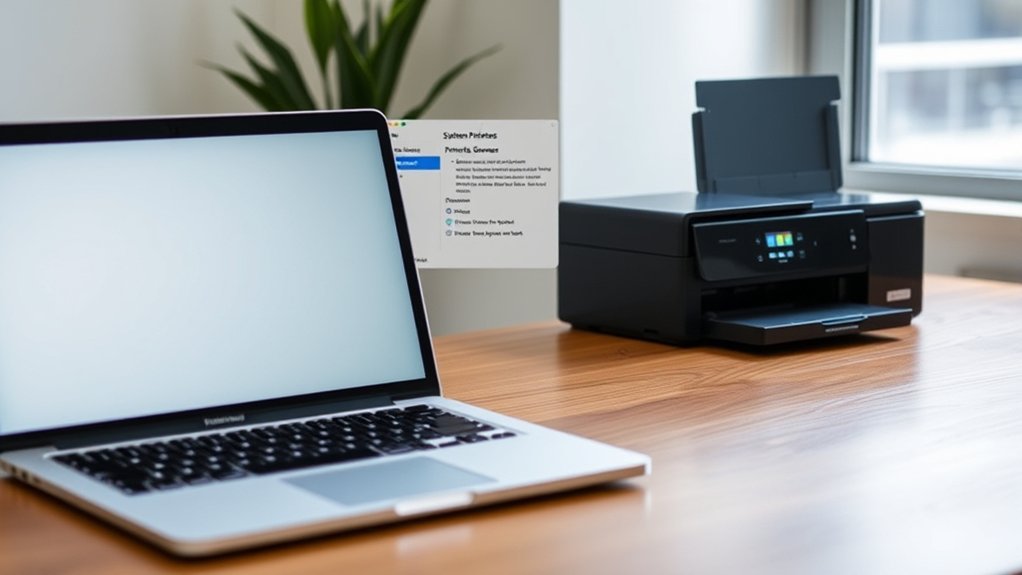
If you want to share a printer with multiple Macs or connect to a printer on a network, setting up a shared or network printer is the way to go. Start by enabling printer sharing on the Mac connected to the printer.
Next, verify your network configuration allows all devices to communicate smoothly. Finally, add the shared printer on each Mac you want to print from.
Here’s how to do it:
- On the Mac with the printer, go to System Settings > Printers & Scanners, select the printer, and enable “Share this printer on the network.”
- Check your router and firewall settings to confirm they support printer sharing and network visibility.
- On other Macs, open Printers & Scanners, click “+,” find the shared printer under the network section, and add it.
Troubleshoot Common Printer Setup Issues on Mac
When your Mac doesn’t recognize a printer or fails to print, you might encounter a few common setup issues. First, confirm your printer is compatible with your macOS version, as printer compatibility is essential. Check the manufacturer’s website for updated drivers or software.
If the printer is wireless, verify it’s connected to the same network as your Mac. Restart both devices to clear temporary glitches. Use the built-in printer troubleshooter by going to System Preferences > Printers & Scanners, then select your printer and click “Open Print Queue” to check for errors.
Also, reset the printing system by right-clicking the printer list area and choosing “Reset printing system.” These troubleshooting tips often resolve connection and recognition problems quickly, helping you get your printer up and running without hassle.
Manage and Remove Printers on Mac
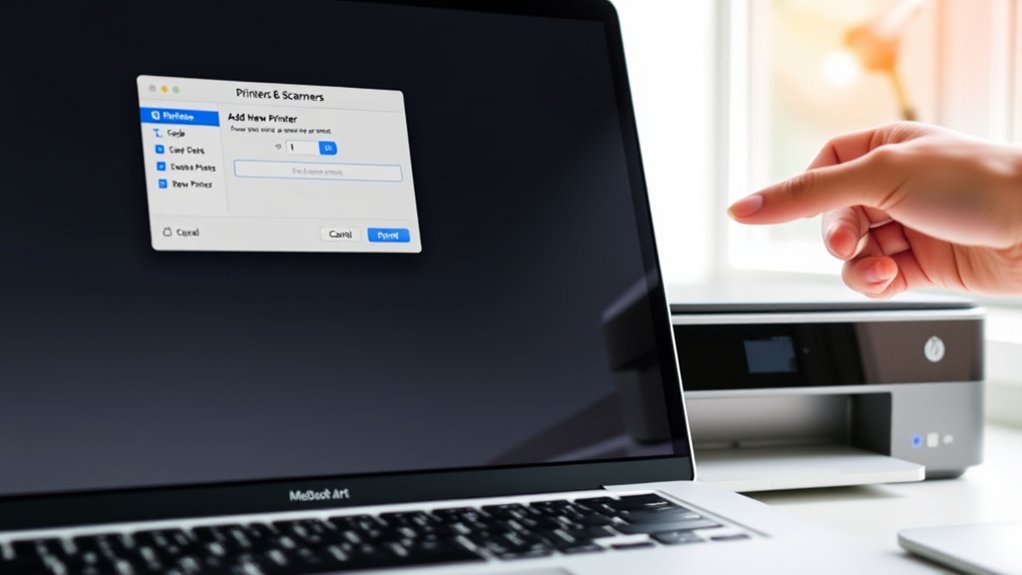
Although adding a printer to your Mac is straightforward, managing and removing printers guarantees your system stays organized and efficient. To handle your printer settings and preferences effectively, follow these steps:
- Open System Settings and click Printers & Scanners to view all added printers.
- Select a printer to adjust its printer preferences, such as default paper size or print quality, ensuring your print jobs meet your needs.
- To remove a printer, click the minus (“-”) button below the printer list and confirm. This clears unused printers and prevents confusion.
Regularly reviewing printer settings helps you avoid clutter and optimize your Mac’s printing performance. Managing your printers this way keeps your device running smoothly and your workflow uninterrupted.
Use AirPrint to Add a Printer Without Installing Drivers
Since MacOS supports AirPrint, you can add a printer without installing any additional drivers or software. AirPrint benefits include easy setup, wireless printing, and compatibility with many modern printers. However, AirPrint limitations mean you might miss advanced printer features or have trouble with older models.
Here’s a quick overview:
| Feature | AirPrint Benefits | AirPrint Limitations |
|---|---|---|
| Setup | No driver installation | Only supports AirPrint printers |
| Compatibility | Works with many printers | Not universal for all printers |
| Printing | Wireless, fast | Limited to basic print options |
| Software | No extra software needed | No custom print settings |
| Maintenance | Automatically updated | No access to advanced settings |
Use AirPrint for hassle-free, driverless printing on your Mac, but check if your printer supports it first.
Add a Printer via System Settings on macOS Ventura and Later
If you want to add a printer to your Mac running macOS Ventura or later, you can do so easily through the System Settings. Follow these steps:
- Open System Settings and select Printers & Scanners.
- Click the Add Printer button (+), then choose your printer from the list. If it doesn’t appear, verify it’s connected or on the same network.
- Once added, adjust your printer preferences such as paper size or print quality. Also, review printer security settings to control access and protect your device from unauthorized use.
This method guarantees your printer integrates smoothly with your Mac while giving you control over both functionality and security.
Frequently Asked Questions
Can I Print From My Mac to a Printer Connected to a Windows PC?
Yes, you can print from your Mac to a printer connected to a Windows PC by enabling printer sharing on the Windows machine. Use network printing to access that shared printer from your Mac over the same network.
How Do I Print Double-Sided on My Mac?
Imagine your pages flipping like a book; to enable double sided printing, open Mac print settings, select your printer, choose “Two-Sided” or “Duplex” printing, then confirm.
This saves paper and sharpens your presentations effortlessly.
What Are the Best Printer Brands for Mac Compatibility?
You’ll find that printer brands like HP, Epson, Canon, and Brother offer excellent Mac compatibility. They provide reliable drivers and seamless integration, ensuring your Mac prints smoothly without frustrating setup or connectivity issues.
Can I Print Wirelessly From My Mac Without Wi-Fi?
Think of your Mac and printer as dance partners needing a common rhythm. You can’t print wirelessly without Wi-Fi, but Bluetooth printing or a USB connection lets you groove together without the network’s beat.
How Do I Scan Documents Using My Printer on Mac?
You open the Printer & Scanner preferences, select your printer, then click Scan. Adjust scanner settings, choose your preferred document format, and hit Scan to digitize your documents directly onto your Mac efficiently.
Conclusion
Now that you know how to add a printer to your Mac—whether via USB, Wi-Fi, or AirPrint—you’re just moments away from hassle-free printing.
Setting up shared or network printers is a breeze, and troubleshooting common issues won’t feel like rocket science anymore.
With these simple steps, managing and removing printers is easier than ever.
You’ll wonder how you ever survived without this seamless printing setup on your Mac! Adding a printer to Mac has never been simpler.