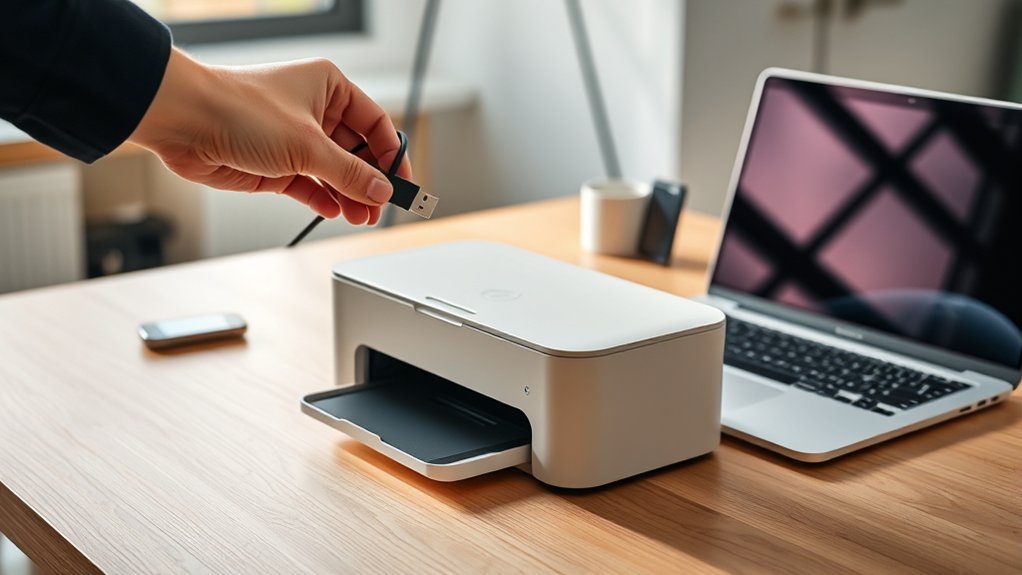

To add a printer, first connect it to your computer via USB, Wi-Fi, or Bluetooth. This is the initial step in setting up your printing device correctly.
Then, go to your system’s printer settings—on Windows, open Settings > Devices > Printers & scanners, and on Mac, go to System Preferences > Printers & Scanners.
Select “Add a printer,” choose your device, and install the latest drivers from the manufacturer’s website.
Once set up, your printer should be ready to use.
Keep exploring to master wireless setups and troubleshoot any issues.
Key Takeaways
- Confirm printer compatibility with your computer’s operating system before starting the setup process.
- Connect the printer via USB, Wi-Fi (same network), or Bluetooth by following appropriate pairing or connection steps.
- On Windows, go to Settings > Devices > Printers & scanners and click “Add a printer or scanner” to find and add the printer.
- On Mac, open System Preferences > Printers & Scanners and click the “+” button to add a new printer.
- Download and install the latest printer drivers from the manufacturer’s website to ensure proper functionality.
How to Add and Connect Your Printer on Windows and Mac
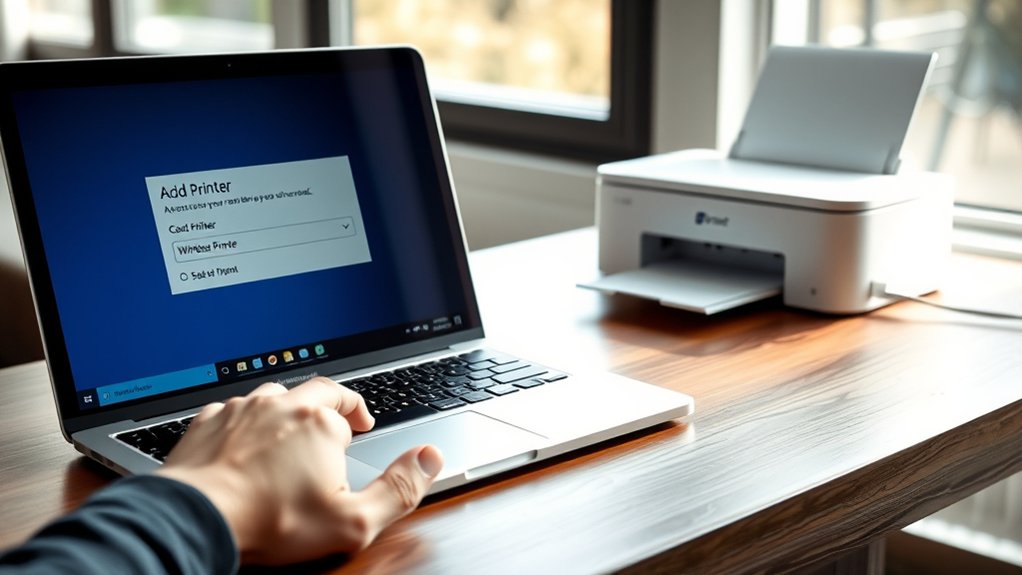
Before you start printing, you’ll need to add and connect your printer to your Windows or Mac computer. First, check for any printer compatibility issues by confirming your printer supports your computer’s operating system.
Next, choose your printer connection method: USB, Wi-Fi, or Bluetooth. For USB, simply plug the cable into your computer and printer. For Wi-Fi, make sure both devices are on the same network and use your computer’s “Add Printer” feature to detect it. Bluetooth requires pairing through your system settings.
On Windows, go to Settings > Devices > Printers & scanners, then click “Add a printer or scanner.” On Mac, open System Preferences > Printers & Scanners, then click the “+” button to add your device. This guarantees a smooth printer setup without compatibility or connection issues.
How to Install Printer Drivers and Software
Once you’ve connected your printer, you’ll need to install the correct drivers and software to confirm it works properly. Start by visiting the printer manufacturer’s website to download the latest driver package, as this helps prevent printer compatibility issues. Avoid relying solely on your operating system’s default drivers, which might be outdated.
Follow the installation prompts carefully, and restart your computer if prompted. Keep in mind that regularly checking for driver updates is vital; driver update processes improve performance and fix bugs. If you encounter problems, uninstall old drivers before reinstalling.
Installing the full software suite often provides additional features, like scanning or maintenance tools, enhancing your printer’s functionality. By following these steps, you guarantee smooth operation and avoid common driver-related problems.
How to Set Up Wireless and Network Printers
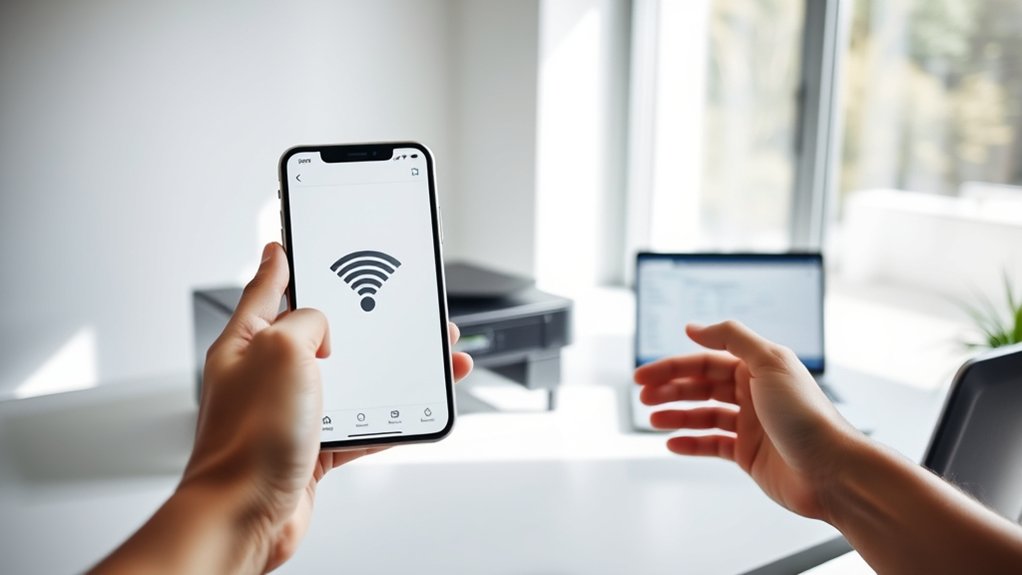
After installing your printer drivers and software, you can connect your printer to your wireless network or set it up as a network printer. Follow these steps for smooth wireless printing and network configuration:
- Access Printer Settings: Use the printer’s control panel or software to find the wireless setup wizard.
- Connect to Wi-Fi: Select your home or office Wi-Fi network and enter the password to activate wireless printing.
- Add Printer on Your Device: On your computer, go to “Add a Printer,” choose the network or wireless printer, and complete the setup.
This setup guarantees your printer is detectable over the network, enabling multiple devices to print wirelessly without cables. Proper network configuration improves printing efficiency and convenience.
How to Troubleshoot Common Printer Setup Problems
If you run into issues while setting up your printer, don’t worry. Most problems have simple fixes. First, check for any printer error messages on the device’s display or your computer. These messages often pinpoint the problem, like paper jams or low ink.
Next, address connectivity issues by ensuring your printer and computer are on the same network if wireless, or properly connected via USB if wired. Restart both devices to refresh connections.
Also, verify your printer drivers are correctly installed and up to date. If you still face trouble, try running the built-in printer troubleshooter on your computer.
Following these steps usually resolves common setup problems quickly, helping you get your printer ready without hassle.
How to Manage Multiple Printers on Your Computer
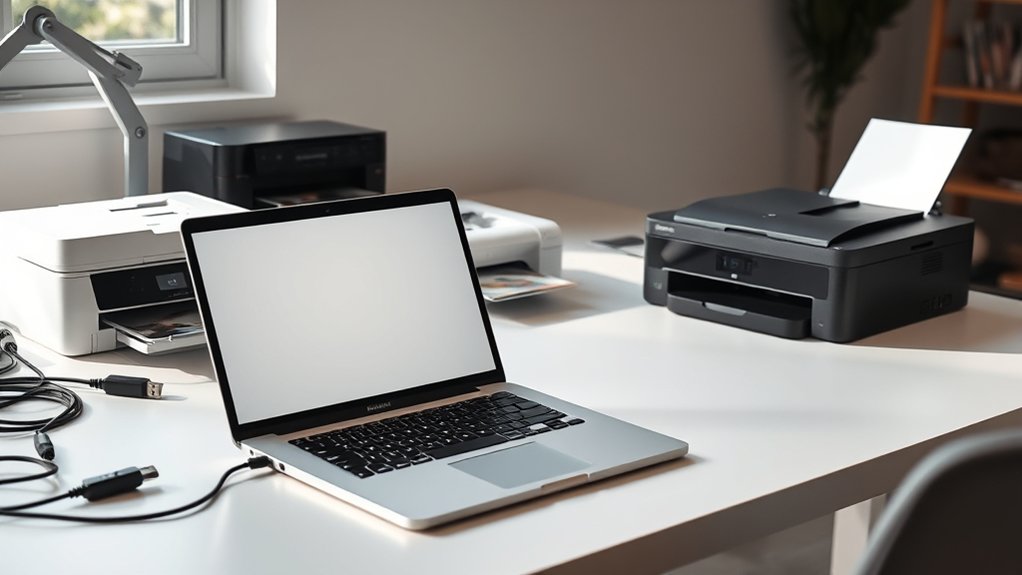
Successfully troubleshooting printer setup issues sets a solid foundation for managing multiple printers on your computer. To keep everything running smoothly, you’ll want to organize your printer preferences and adjust print settings for each device. Here’s how:
- Access the “Devices and Printers” section in your computer’s control panel to view all installed printers.
- Right-click on each printer to set it as default, adjust printer preferences, or customize print settings like paper size and quality.
- When printing, always double-check the selected printer in the print dialog box to avoid sending documents to the wrong device.
Frequently Asked Questions
Can I Add a Printer Without an Internet Connection?
Yes, you can add a printer without an internet connection by using offline printing. During printer setup, connect your printer via USB or local network, then install drivers manually to enable printing without needing online access.
How Do I Add a Printer to a Mobile Device?
You add a printer to your mobile device by ensuring printer compatibility, enabling mobile printing features like AirPrint or Google Cloud Print, then connecting via Wi-Fi or Bluetooth.
Follow your device’s prompts to complete setup quickly.
What Is the Difference Between Inkjet and Laser Printers?
Did you know inkjet printers dominate 60% of home use? You’ll enjoy inkjet advantages like vivid color, but beware laser disadvantages: higher upfront cost and bulkier size.
Choose based on your printing needs and budget.
How Can I Share My Printer With Others Remotely?
You can enable printer sharing on your computer to allow remote access. Configure your printer’s sharing settings, make certain it’s connected to the network, and grant permissions so others can print remotely without being physically present.
Are There Any Security Risks When Adding a New Printer?
Yes, adding a printer can expose printer vulnerabilities that compromise network security. You should update firmware, use strong passwords, and restrict access to prevent unauthorized use.
These steps help protect your network from potential attacks effectively.
Conclusion
Adding a printer might seem tricky, but with the right steps, you’ll be printing in no time. Did you know that over 60% of office workers rely on wireless printers for convenience and efficiency?
By following these simple guides—from installing drivers to troubleshooting—you can easily connect, manage, and optimize your printer setup. Stay confident, and don’t hesitate to explore the tools that make printing seamless and hassle-free.
When you know how to add a printer correctly, you can enjoy smooth and efficient printing every time.