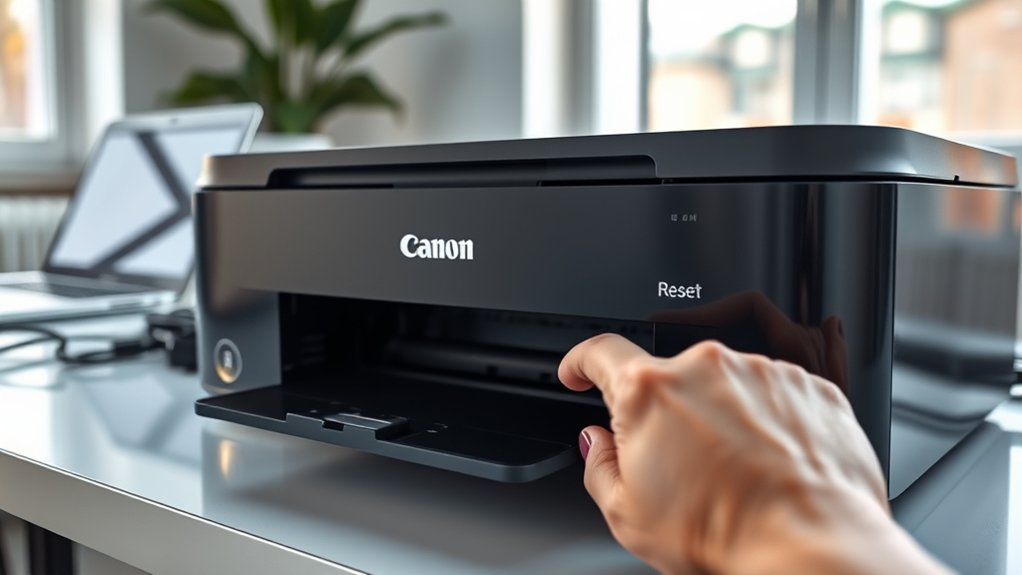

If your Canon printer acts up, start by performing a soft reset. Power it off, unplug for 60 seconds, then plug it back in and turn it on. This clears minor glitches without losing your settings.
For persistent issues, try a hard reset by turning off, unplugging, waiting, and restarting. You can also restore factory settings through the menu to erase configurations and start fresh.
Additionally, you can reset ink levels or network settings if needed.
Learn the proper steps to keep your printer running smoothly and error-free.
Key Takeaways
- Perform a soft reset by turning off the printer, unplugging it for 60 seconds, then reconnecting and turning it on.
- Clear the print queue on your computer to cancel all pending jobs before restarting the printer.
- Execute a hard reset by unplugging the printer for at least 60 seconds to clear internal memory glitches.
- Restore factory settings via the printer’s Setup menu by selecting “Reset All” or “Factory Reset.”
- Reset ink levels by replacing cartridges and holding the Stop/Reset button for 5 seconds to clear ink errors.
Why and When to Reset Your Canon Printer
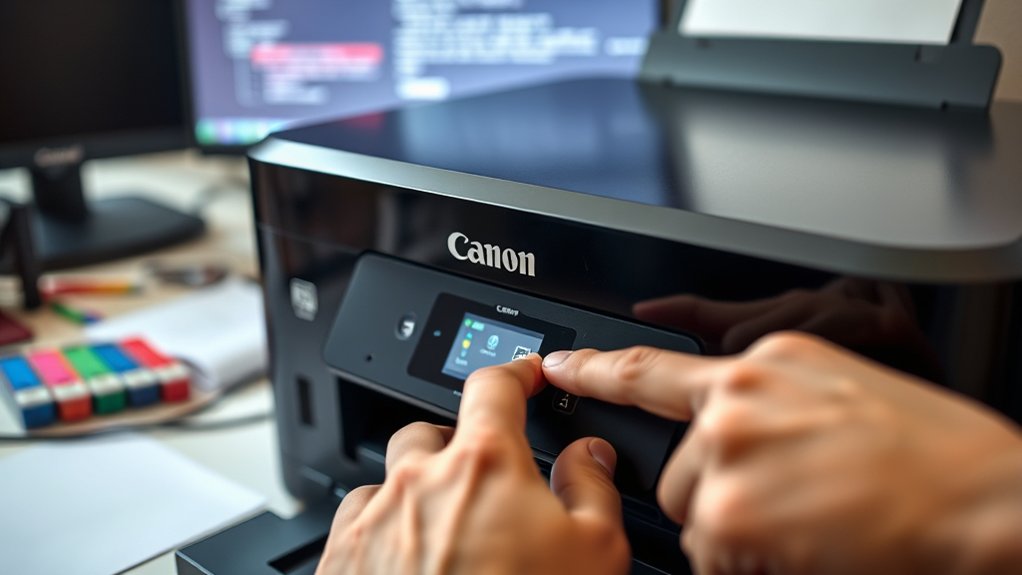
Although Canon printers are generally reliable, you might need to reset yours when it malfunctions or displays error messages. Resetting can restore printer performance by clearing temporary errors and resolving communication issues.
It’s a practical troubleshooting technique when your printer stops responding, jams frequently, or fails to print correctly. You should consider a reset if basic steps like checking connections and restarting the device don’t work.
Also, if you experience persistent error codes or software glitches, a reset often resolves these problems efficiently. Knowing when to reset avoids unnecessary repairs and downtime.
How to Perform a Soft Reset on Your Canon Printer
To perform a soft reset on your Canon printer, start by powering it off and on using the power cycle method. You can also reset settings directly from the control panel for a quick refresh.
Additionally, clearing the print queue helps resolve common printing issues without a full reset.
Power Cycle Method
Start by turning off your Canon printer using the power button. Power cycling is a simple yet effective printer troubleshooting step that clears temporary errors and refreshes the device.
After switching it off, unplug the power cord from the outlet. Wait about 60 seconds to allow any residual power to drain. Then, reconnect the power cord and turn the printer back on.
This soft reset often resolves minor glitches without affecting your settings.
| Step Number | Action | Purpose |
|---|---|---|
| 1 | Turn off printer | Prepare for power cycling |
| 2 | Unplug power cord | Remove power source |
| 3 | Wait 60 seconds | Drain residual electricity |
| 4 | Plug power cord back in | Restore power |
| 5 | Turn on printer | Restart device for reset |
Control Panel Reset
When your Canon printer acts up but you want to keep your settings intact, performing a control panel reset offers a quick fix. To do this, locate the control panel functions on your printer.
Usually, you’ll find a reset or settings option within the menu. Navigate through the display settings until you reach the “Reset” or “Restore Defaults” choice. Select this option to perform a soft reset, which refreshes the system without erasing customized preferences.
This method resolves minor glitches and refreshes control panel functions effectively. After the reset, your printer will reboot, and the display settings should return to normal operation.
This soft reset is a simple way to troubleshoot without losing important configurations.
Clearing Print Queue
Three simple steps can help you clear the print queue and perform a soft reset on your Canon printer. First, open the print queue on your computer by clicking the printer icon in the taskbar.
Next, cancel all pending print jobs to stop any stuck tasks. Finally, power off your printer, wait 30 seconds, then turn it back on to complete the soft reset.
| Step Number | Action | Result |
|---|---|---|
| 1 | Open print queue | View all pending print jobs |
| 2 | Cancel print jobs | Clear stuck jobs |
| 3 | Restart printer | Reset printer functions |
How to Hard Reset Your Canon Printer
Although resetting your Canon printer might seem complex, performing a hard reset is straightforward and often resolves many common issues. To hard reset, start by turning off your printer and unplugging it from the power source.
Wait at least 60 seconds to guarantee all residual power drains, then plug it back in and turn it on. This process clears temporary glitches and refreshes the printer’s internal memory, providing effective printer troubleshooting.
The reset benefits include resolving connectivity problems, unresponsive controls, and error messages without affecting your saved settings. If your Canon printer still acts up after this, you might need more advanced solutions.
But often, a hard reset is a quick, simple step that can get your printer back to working smoothly.
How to Restore Factory Settings on Canon Printers
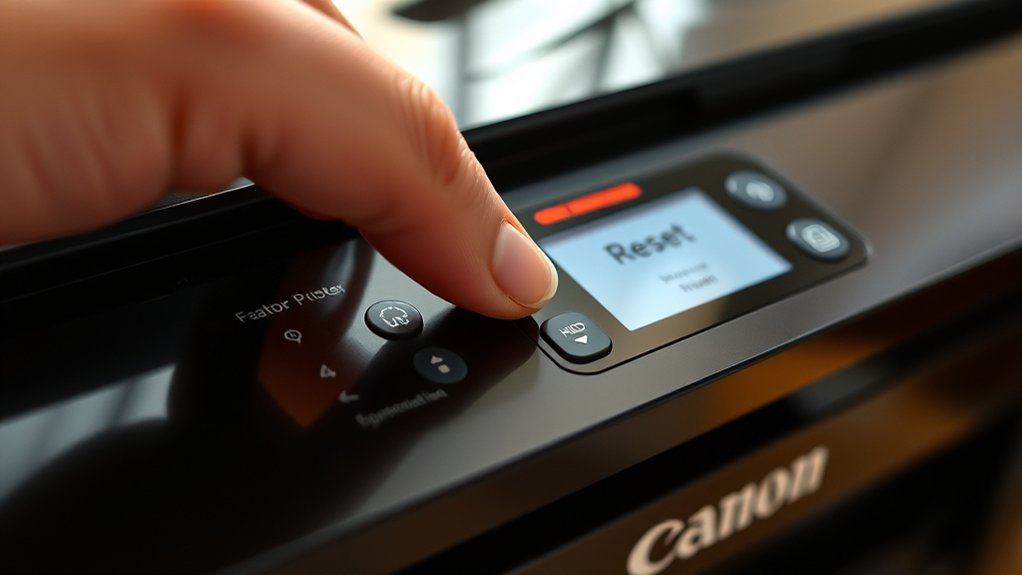
If you need to completely clear your Canon printer’s settings, restoring factory defaults is the best approach. To perform a factory reset, start by turning on your printer. Access the Setup or Settings menu via the printer’s LCD screen.
Navigate to “Device Settings” or “Reset Setting” depending on your model. Select “Reset All” or “Factory Reset” to erase all current printer settings. Confirm your choice when prompted.
This process restores the printer settings to their original state, resolving persistent errors or misconfigurations. Remember, a factory reset will remove customized settings like network configurations and preferences.
After the reset, you’ll need to reconfigure your printer settings to fit your needs. This straightforward method guarantees your printer functions as it did when you first got it.
How to Reset Ink Levels and Cartridge Warnings on Canon Printers
Once you’ve restored your Canon printer to its factory settings, you might notice that ink levels and cartridge warnings don’t reset automatically. To perform an ink level reset, first make sure you’ve replaced the ink cartridges with genuine Canon ones.
Then, press and hold the Stop/Reset button for about 5 seconds until the alarm lamp flashes twice. This action triggers the cartridge warning reset, clearing any error messages related to ink levels.
If your model doesn’t have a dedicated Stop/Reset button, check the printer’s manual for a specific sequence involving the power and other buttons. Remember, manually resetting ink levels helps guarantee your printer accurately monitors cartridge status, preventing unnecessary interruptions during printing.
This process keeps your Canon printer running smoothly without false ink alerts.
How to Reset Network Settings on Canon Wireless Printers
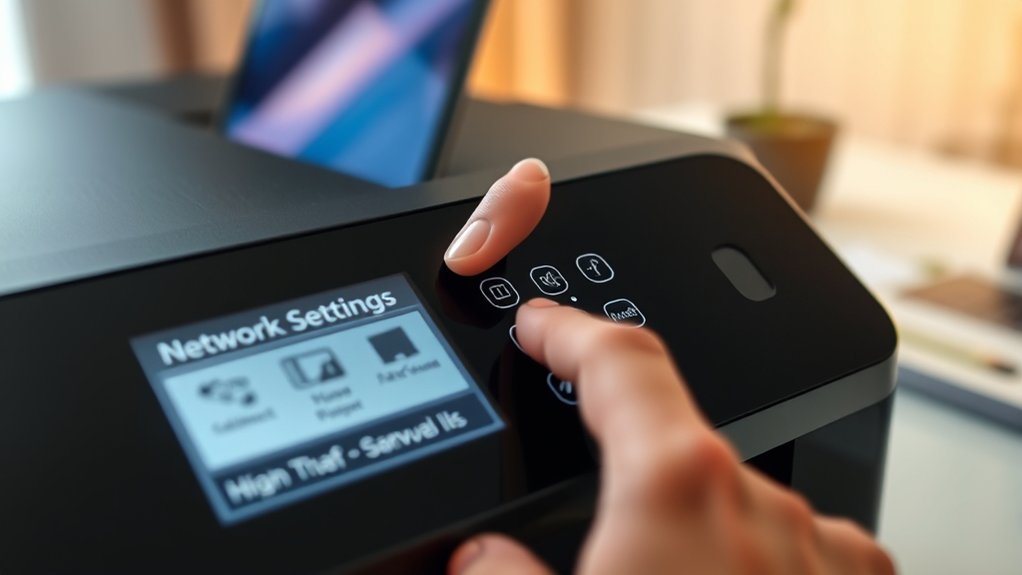
To reset the network settings on your Canon wireless printer, start by accessing the printer’s network menu through the control panel. From there, you can select the option to perform a network reset, which clears all current settings.
This process helps resolve connectivity issues and allows you to set up your wireless connection from scratch.
Accessing Network Settings
Resetting the network settings on your Canon wireless printer involves maneuvering through the device’s control panel to access the proper menu. First, turn on your printer and navigate to the Home screen. Use the arrow keys or touchscreen to find the “Setup” or “Settings” option.
From there, select “Device settings” or “Wireless LAN setup,” depending on your model. This section lets you view and modify network connectivity options, vital for printer troubleshooting. Accessing these settings allows you to check the current network status, IP address, and connection type.
Familiarizing yourself with this menu is important before performing any reset, ensuring you understand the existing configurations and can restore connectivity efficiently after troubleshooting.
Performing Network Reset
Although accessing the network settings is essential, performing a network reset on your Canon wireless printer requires a few more precise steps. This reset helps resolve network issues and restores wireless connectivity to default settings, allowing you to reconnect your printer to your Wi-Fi network smoothly.
Follow these steps to reset your network:
| Step | Action |
|---|---|
| 1. | Turn on your Canon printer. |
| 2. | Press the Menu or Setup button. |
| 3. | Navigate to Network Settings. |
| 4. | Select “Reset Network Settings” and confirm. |
After the reset, reconfigure your wireless settings to restore connectivity and fix network issues quickly.
How to Fix Common Canon Printer Errors With a Reset
When your Canon printer displays error messages, performing a reset can often clear the issue quickly. Start by turning off the printer and unplugging it from the power source. Wait about 60 seconds to allow the internal memory to clear.
Then, plug it back in and turn it on. This simple reset often resolves common issues like paper jams, ink cartridge errors, or connection problems. If the error messages persist, consult your printer’s manual for a specific reset procedure or perform a factory reset if available.
Regular printer troubleshooting through resets can save time and avoid unnecessary repairs. Remember, resetting doesn’t delete your settings but clears temporary glitches that cause error messages. This method is your first step in resolving many Canon printer errors effectively.
Maintenance Tips to Prevent Frequent Resets and Keep Your Canon Printer Running Smoothly
Clearing error messages with a reset is helpful, but you can reduce how often you need to do it by keeping your Canon printer well-maintained. Start with regular cleaning: dust and debris can cause jams and sensor errors. Use a soft cloth and recommended cleaning solutions to wipe the exterior and interior parts carefully.
Perform printer maintenance by checking ink levels and replacing cartridges before they run out, preventing print quality issues. Also, update your printer’s firmware regularly to guarantee smooth operation and compatibility with your devices.
Avoid overloading paper trays and use the correct paper type to prevent jams. Following these steps will minimize errors and reduce the need for frequent resets, keeping your Canon printer running smoothly over time.
Frequently Asked Questions
Can Resetting My Canon Printer Delete Saved Documents?
Resetting your Canon printer usually won’t delete saved documents since it mainly restores printer settings. However, if your printer uses internal document storage, some files may be erased, so back up important documents beforehand.
Will Resetting Affect My Printer’s Warranty?
Resetting your Canon printer usually won’t void warranty terms if you follow proper printer maintenance guidelines. However, avoid unauthorized repairs or modifications, as those actions can affect your warranty coverage.
Always check your specific warranty details first.
How to Reset Canon Printer Firmware Updates?
You can perform a firmware reset by accessing your Canon printer’s menu, steering to firmware update settings, and selecting the reset option. This restores default printer settings and helps resolve update issues effectively.
Can I Reset My Canon Printer Remotely?
You can reset your Canon printer remotely if it supports remote access and network connection. Access the printer settings via its web interface or dedicated software, then initiate the reset to restore default configurations.
Does Resetting Clear Print Job History?
Resetting your Canon printer wipes print job history faster than a lightning bolt! It clears print job management data, freeing up space and improving performance.
These reset benefits keep your printer running smoothly and efficiently.
Conclusion
Resetting your Canon printer can quickly solve frustrating issues, but don’t rely on it as a constant fix. While a reset clears errors and refreshes settings, regular maintenance keeps problems at bay and your printer running smoothly.
Balancing quick resets with proper care guarantees you avoid downtime and costly repairs. So, reset when needed—but pair it with good habits to enjoy seamless printing every time.
In conclusion, knowing how to reset your Canon printer is useful, but combining it with regular upkeep ensures the best performance and longevity for your device.