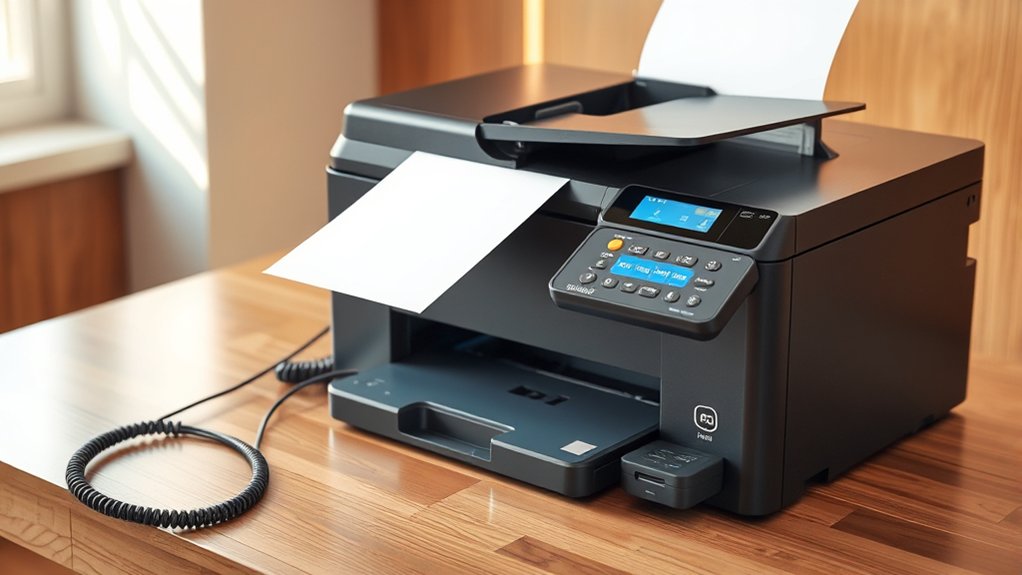

To fax from your printer, first confirm it supports faxing and connect it to a phone line using a telephone cable.
Using the printer’s control panel, enter the recipient’s fax number and adjust fax settings like resolution or ring count.
Prepare your documents clearly and load them properly, then send the fax from the printer menu.
If you run into issues, check connections and retry.
If you want to speed up faxing or explore alternatives, there’s more to contemplate.
Key Takeaways
- Confirm your printer has fax capabilities and connect it to a phone line using a standard telephone cable.
- Prepare your documents and a fax cover sheet, ensuring pages are clear and properly ordered.
- Access the printer’s fax menu to enter the recipient’s fax number and adjust settings as needed.
- Send the fax through the printer control panel and run a test fax to verify successful transmission.
- Troubleshoot issues by checking phone line connections, verifying fax numbers, and restarting the printer if needed.
Does Your Printer Support Faxing?
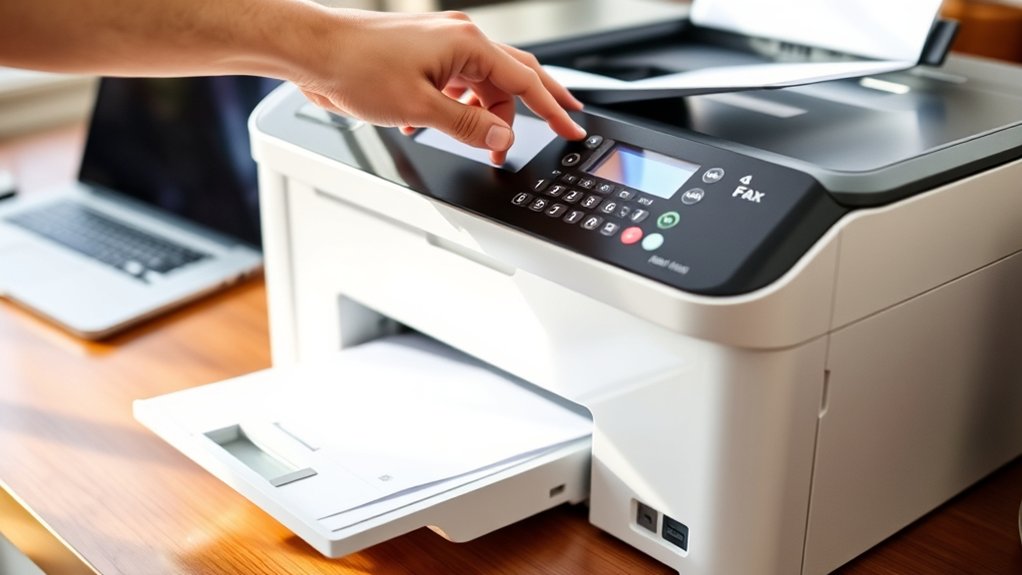
How can you tell if your printer supports faxing? First, check the printer features listed in the user manual or on the manufacturer’s website. Look specifically for mentions of fax capabilities or fax machine compatibility.
Many all-in-one printers combine printing, scanning, copying, and faxing, so if yours is multi-functional, it likely supports faxing. You can also inspect the printer itself; fax-capable models usually have a phone line port for connecting to a telephone jack.
Another quick way is to navigate your printer’s control panel or touchscreen menu. If you see options for sending or receiving a fax, your printer supports faxing. Confirming fax machine compatibility guarantees you can proceed with fax setup without issues.
Set Up Your Printer for Faxing
Before you can send or receive faxes, you need to connect your printer to a phone line and configure its fax settings. Start by verifying your printer supports fax machine integration and check for printer compatibility with your phone system.
Use a standard telephone cable to connect the printer’s fax port to a phone jack. Next, power on your printer and access the fax setup menu via the control panel or printer software.
Enter your fax number and adjust settings like ring count and fax resolution. If your printer supports advanced features, enable options such as fax forwarding or automatic redial.
Finally, run a test fax to confirm everything works. Proper setup guarantees smooth faxing directly from your printer without extra devices.
Prepare Documents to Fax From Your Printer
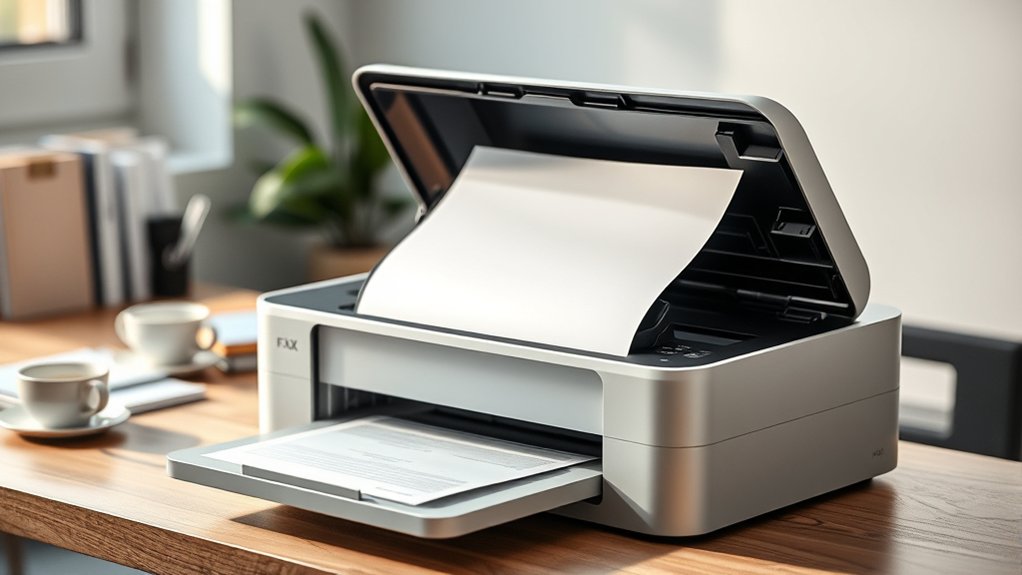
Before faxing, organize your documents to guarantee everything is in the right order. Check the quality of each page to avoid blurry or unreadable faxes.
Don’t forget to prepare a fax cover sheet with necessary details for a smooth transmission.
Organize Your Documents
Since fax quality depends heavily on the clarity of your documents, you’ll want to organize them carefully before sending. Start by sorting your papers using document categorization. Group related pages together to avoid confusion.
Arrange them in the exact order you want them faxed. Use paper clips or folders to keep each set intact, preventing any mix-ups during scanning.
Next, focus on file management by guaranteeing each document is free from staples, wrinkles, or smudges that could affect transmission. Label your files clearly if you’re faxing multiple documents to different recipients.
This organization saves time and reduces errors, making the fax process smoother. By taking these steps, you guarantee your documents are fax-ready and easy to manage, improving the overall quality and efficiency of your fax transmission.
Check Document Quality
Although organizing your documents is essential, you also need to check their quality to assure a clear fax transmission. Poor document resolution or low image clarity can result in unreadable faxes.
Before faxing, confirm your documents look sharp and legible.
Here’s how to check document quality effectively:
Inspect the original for any smudges or marks.
Confirm the document resolution is set to at least 200 dpi.
Use a scanner or copier preview to verify image clarity.
Adjust brightness and contrast if the text appears faint.
Replace any worn-out ink or toner cartridges to avoid faded prints.
Prepare Fax Cover Sheet
A fax cover sheet provides essential information and helps guarantee your documents reach the right recipient. To prepare a fax cover sheet, start by including the sender’s and recipient’s names, fax numbers, and the date.
Add a clear subject line explaining the purpose of your fax. You can also include the number of pages and any special instructions.
Using a clean, simple template guarantees your fax cover looks professional and organized. Avoid clutter or excessive details to maintain a professional appearance.
Once complete, print the fax cover and place it on top of your documents before faxing. This step not only protects your information but also makes a positive impression on the recipient.
Send a Fax From Your Printer
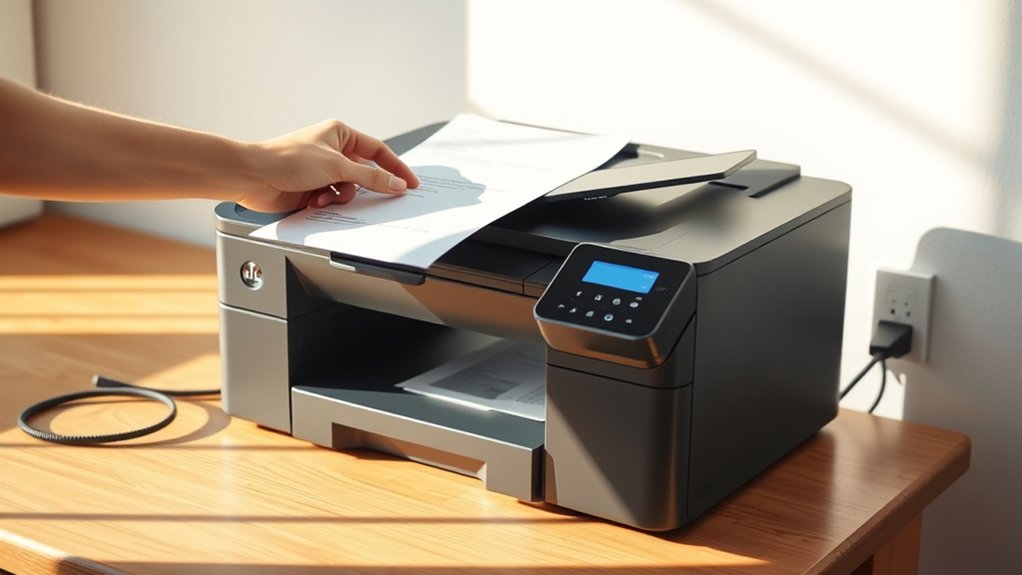
Now that your document is ready, it’s time to connect your printer to a phone line. Make sure the phone cable is securely plugged into both the printer’s fax port and the wall jack.
Once connected, you can start sending your fax directly from the printer’s control panel.
Preparing Your Document
Before sending a fax from your printer, you need to guarantee your document is properly prepared. Ensuring the right document format and file compatibility is essential for a smooth faxing process. Here’s what to do:
Check that your document is in a supported format (usually PDF or TIFF). Confirm the file size is manageable to avoid transmission errors.
Review the content for clarity and completeness. Arrange pages in the correct order before scanning or sending.
Remove any unnecessary marks or annotations that might confuse the recipient.
Connecting To Phone Line
Since faxing requires a phone line connection, you’ll need to link your printer directly to a telephone jack using a phone cable. First, identify the phone line types compatible with your printer, typically standard RJ-11 cables.
Check your printer’s fax port, usually labeled “Line” or “Fax,” and plug one end of the phone cable there. Connect the other end to an active telephone jack in your home or office.
If you don’t have a dedicated fax line, consider fax line installation to avoid call interruptions during faxing. Some setups may require a splitter if the line handles both voice and fax.
Once connected, your printer can send and receive faxes. Ascertain the connection is secure and test by sending a fax to confirm proper setup before proceeding.
Fix Common Faxing Problems
Although faxing usually works smoothly, you may encounter issues like paper jams, poor connection, or unclear transmissions. To resolve common fax transmission issues, follow these troubleshooting steps:
Check the phone line connection to verify it’s secure and active. Clear any paper jams in the printer’s fax tray carefully. Confirm the fax number you’re dialing is correct and active.
Adjust the resolution settings if your transmissions come out blurry or unclear. Restart your printer and try sending the fax again to reset any temporary glitches.
Addressing these points often resolves typical problems quickly. If issues persist, consult your printer’s manual for model-specific advice or contact support. Keeping your fax line and printer in good condition helps prevent future fax transmission issues.
Use Speed Dial and Cover Sheets to Fax Faster
When you need to send faxes frequently, using speed dial and cover sheets can save you valuable time. Start by programming your printer’s speed dial feature with common contacts. This lets you dial numbers instantly, reducing errors and streamlining the process. These speed dial benefits mean you spend less time entering fax numbers manually.
Next, create a reusable cover sheet template that includes essentials like sender and recipient info, date, and a brief message. Having cover sheet essentials ready guarantees professionalism and clarity in every fax you send.
When you combine speed dial with ready-to-use cover sheets, your faxing routine becomes faster and more efficient, letting you focus on the content rather than technical details. Implement these steps to fax smarter, not harder.
Alternatives to Faxing From Your Printer
If you don’t have access to a fax-capable printer or want a more flexible option, several alternatives let you send faxes easily. Online faxing services and mobile apps provide convenient, paperless ways to fax documents from anywhere. Here are some options to explore:
Use online faxing platforms like eFax or MyFax to send and receive faxes via email or web. Download mobile apps that let you fax directly from your smartphone. Utilize multifunction copiers that connect to fax lines without needing a printer.
Visit local business centers or print shops that offer fax services. Use email-to-fax services that convert your emails into fax transmissions.
These methods save time and offer greater mobility, making faxing simpler without relying on a traditional fax printer.
Frequently Asked Questions
Can I Fax Internationally From My Printer?
Yes, you can fax internationally if your printer supports international faxing and has printer compatibility with your phone line.
Make sure to check dialing codes and confirm your printer’s settings before sending an international fax.
Is Faxing From a Printer Secure?
Faxing security depends on your printer and network. If your device supports data encryption and secure transmission, it’s more secure.
Always enable encryption, use trusted lines, and avoid sending sensitive info without proper protection.
How Much Does It Cost to Fax From a Printer?
Faxing costs vary depending on your fax service and phone plan. If you use an online fax service, expect monthly fees.
Using a phone line with your printer might only cost per call, minimizing expenses.
Can I Fax Multiple Pages Automatically?
You’ll love this. If your printer has an automatic document feeder, you can fax multiple pages automatically.
Just load them, and the fax transmission speed handles the rest, making your multi-page faxing quick and easy.
Do I Need a Phone Line to Fax From My Printer?
You don’t always need a phone line to fax from your printer. Instead, consider fax machine alternatives like online faxing services, which let you send faxes digitally without relying on traditional phone connections.
Conclusion
Now that you know how to fax from your printer, you’re ready to send documents quickly and efficiently. Just like a well-oiled machine, your printer can handle faxing smoothly once set up properly. Remember to check compatibility, prepare your documents, and troubleshoot common issues to keep things running.
With speed dial and cover sheets, you’ll save time and effort. These features make the faxing process even more convenient and user-friendly. If faxing feels outdated, explore alternatives that fit your needs better.
By mastering how to fax from your printer, you ensure your documents are sent reliably whenever needed. This knowledge keeps your communications efficient and professional.