
Where Is the WPS Pin on My HP Printer?
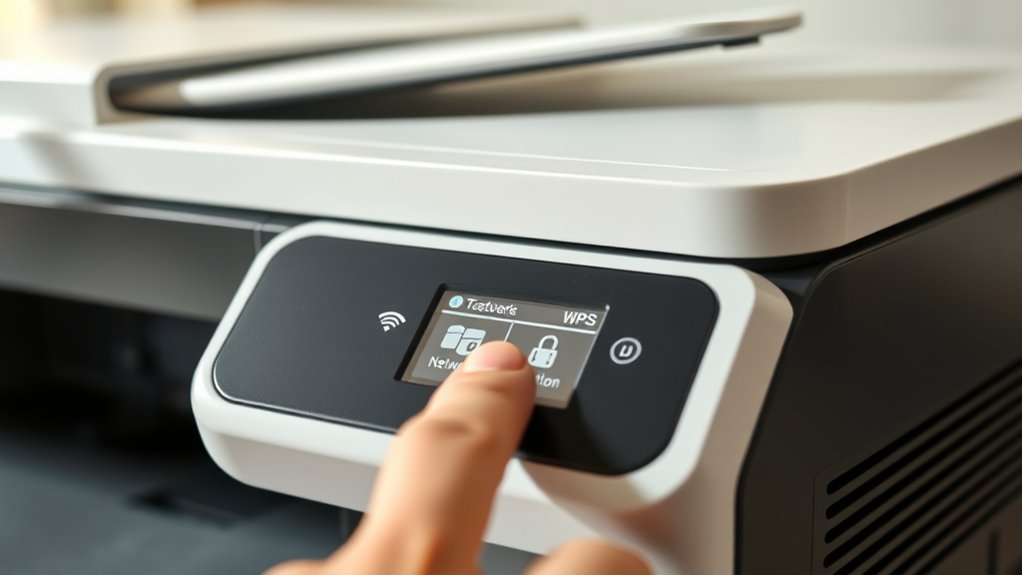
You can usually find the WPS PIN for your HP printer on a label near the control panel, at the back of the device, or inside its wireless settings menu via the touchscreen or control panel buttons.
If you don’t see a label, access the network or wireless section in the printer settings to display the PIN.
Enter this code on your router’s WPS setup page to connect.
If you need more details on connection methods or troubleshooting, keep exploring further tips.
Key Takeaways
- The WPS PIN may be printed on a label near the printer’s control panel or on its back or bottom.
- Access the printer’s settings menu via touchscreen or control panel, then check wireless or network settings for the WPS PIN.
- The original printer manual or packaging might include the WPS PIN.
- Some models display the WPS PIN on the printer’s screen under wireless setup or network options.
- If unsure, consult the HP support website for model-specific instructions to locate the WPS PIN.
Does Your HP Printer Use a WPS PIN or Push Button?
Before you try to connect your HP printer using WPS, you need to determine whether it requires a WPS PIN or if it supports the push button method. Not all HP printers use the same WPS connection approach, so checking printer compatibility is crucial.
Some models feature a physical WPS button on the printer itself, allowing you to connect by pressing it and then pressing the router’s WPS button within two minutes. Other models require a WPS PIN, which you enter into your router’s setup page.
You can usually find this information in your printer’s manual or on the HP support website. Knowing which method your printer supports helps you avoid connection issues and guarantees a smooth setup process.
How to Find the WPS PIN on Your HP Printer
To find your HP printer’s WPS PIN, first check for a label on the printer itself, often located near the control panel or back.
If you don’t see a label, access the printer’s settings menu through the touchscreen or control panel. From there, navigate to the wireless or network settings to generate or view the WPS PIN.
Locating WPS Pin Label
Finding the WPS PIN on your HP printer is usually straightforward once you know where to look. The WPS pin location is often found on a label attached to the printer, which helps during printer setup. To locate it, check these common spots:
On the back or bottom of the printer, near the power cord or Ethernet port. Inside the printer’s control panel area, sometimes behind a small door or flap. On the original packaging or in the printer’s manual, if you still have them.
Once you find this label, you can use the WPS PIN to connect your printer to your wireless network quickly. Knowing the exact WPS PIN location saves time and simplifies your printer setup process.
Accessing Printer Settings Menu
Although locating the WPS PIN on a label is common, you can also access it directly from your HP printer’s settings menu. Start by turning on your printer and locating the touchscreen or control panel. Use the printer interface to navigate to the “Wireless” or “Network” settings.
From there, enter the menu navigation mode and look for an option labeled “Wi-Fi Protected Setup” or “WPS.” Select this option, and you should see a choice to display the WPS PIN on the screen. Note that menu names may vary slightly depending on your printer model.
Following these steps through the printer interface allows you to find the WPS PIN without needing to check physical labels, making your setup process smoother and more convenient.
How to Enter the WPS PIN on Your Router
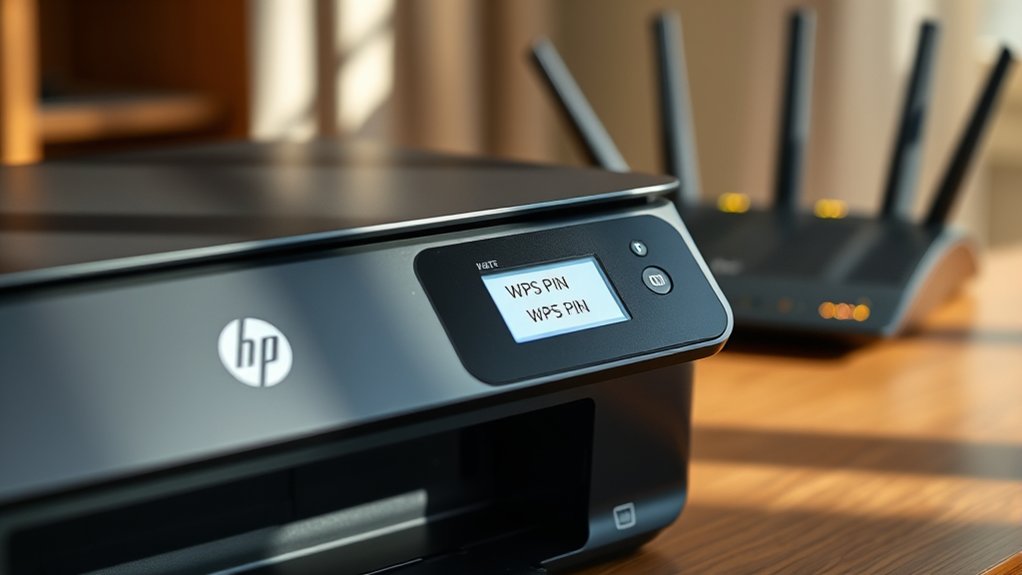
Wondering how to enter the WPS PIN on your router? It’s straightforward but depends on your router’s compatibility with WPS security features. Start by ensuring your router supports WPS PIN entry. Then, follow these steps:
Access your router’s admin panel by typing its IP address into a web browser. Navigate to the wireless or WPS settings section. Find the option to enter the WPS PIN, then input the PIN displayed on your HP printer.
After submitting the PIN, your router will authenticate the connection. This method provides a secure way to link your printer without manually entering a Wi-Fi password. Remember, not all routers support WPS PIN entry, so check your model’s documentation if you don’t see this option.
Using the WPS Push Button to Connect Your HP Printer
Start by finding the WPS button on your HP printer. It’s usually marked with the WPS symbol.
Press this button to activate the WPS mode on your printer. Then, within two minutes, press the WPS button on your router to connect your printer to the wireless network automatically.
Locating The WPS Button
Where can you find the WPS button on your HP printer? Locating it is essential for using WPS security to connect your device quickly and guarantee printer compatibility. Typically, the WPS button is easy to spot, but its position can vary by model.
Look for the WPS button:
On the printer’s control panel, near the LCD screen or buttons
On the back or side of the printer, sometimes labeled with the WPS symbol
Inside the wireless settings menu on touchscreen models
Knowing exactly where the WPS button is lets you initiate a secure connection without needing the WPS PIN. If you don’t see a dedicated WPS button, check your printer manual to confirm if your model supports WPS security through another method.
Activating WPS On Printer
Press the WPS button on your HP printer to quickly initiate a secure wireless connection. This method uses WPS security to link your printer to your router without entering passwords.
After pressing the printer’s WPS button, press the corresponding WPS button on your router within two minutes to establish printer connectivity. The printer’s wireless light will blink during the process and turn solid once connected.
| Step | Action |
|---|---|
| 1 | Press WPS button on printer |
| 2 | Press WPS button on router |
| 3 | Wait for wireless light to blink |
| 4 | Confirm connection via light |
| 5 | Start printing wirelessly |
This simple push-button method guarantees secure and fast printer connectivity using WPS security.
Connecting To Wireless Network
Although connecting your HP printer to a wireless network can seem complex, using the WPS push button simplifies the process. This method guarantees secure and fast network configuration without entering long passwords.
To connect your printer using WPS:
Press the WPS button on your router within two minutes.
Press the WPS button on your HP printer immediately after.
Wait for the printer’s wireless light to stop blinking, indicating a successful connection.
This approach maintains wireless security by establishing a direct, encrypted link between your printer and router. You won’t need to search for or input the WPS PIN manually.
Using the WPS push button method streamlines connecting your printer, making network setup quick and hassle-free.
What to Do When Your HP Printer Doesn’t Show a WPS PIN
If your HP printer doesn’t display a WPS PIN, you can still connect it using alternative methods. Start by using the WPS push button method if your router has a physical WPS button. Press it, then activate WPS on your printer’s control panel.
Another WPS alternative is to connect via your printer’s touchscreen menu by selecting the wireless setup wizard and entering your Wi-Fi network’s password manually. You can also use HP Smart software on your computer or mobile device to set up printer connectivity without needing a WPS PIN.
These options guarantee you establish a secure wireless connection quickly. Exploring WPS alternatives helps maintain smooth printer connectivity even when the PIN isn’t available, so you won’t face interruptions in printing tasks.
Troubleshooting WPS Connection Issues on HP Printers
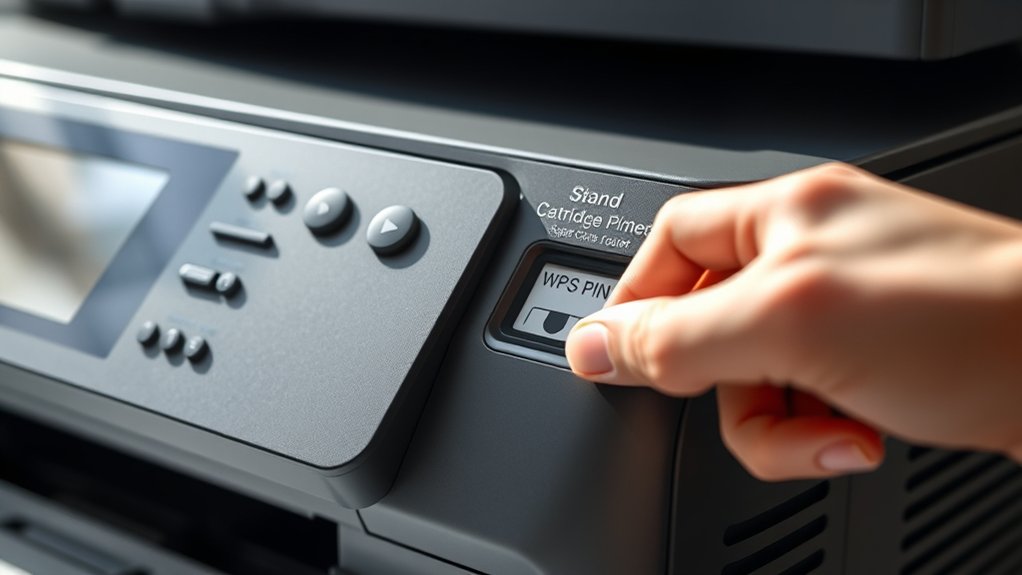
When connecting your HP printer via WPS, you might encounter connection problems that prevent successful setup. To troubleshoot WPS connection issues, first verify your printer supports WPS security and is compatible with your router. Next, try these steps:
Confirm your router’s WPS feature is enabled and functioning properly. Restart both your printer and router to refresh the connection. Check that you’re using the correct WPS method (PIN or push button) as some HP models differ.
If issues persist, verify network settings on your printer and update firmware to fix compatibility bugs. Avoid interference by placing devices closer and away from metal objects. By following these tips, you’ll improve your chances of a smooth WPS connection on your HP printer.
Frequently Asked Questions
Can I Connect My HP Printer Without Using WPS?
You can connect your HP printer without using WPS by manually entering your Wi-Fi network details. Just access printer connectivity settings, select your network, and input the password to enable wireless printing easily and securely.
Is WPS Connection More Secure Than Using a Password?
WPS advantages offer quick setup and easy access, but WPS security often lacks robustness compared to a strong, unique password.
You should prioritize passwords for better protection and avoid relying solely on WPS for secure connections.
How Do I Update My HP Printer’s Firmware?
You update your HP printer’s firmware by visiting HP’s official website, downloading the latest firmware for your model, and running the update tool.
Verify firmware updates match your printer compatibility to avoid issues.
Can I Print Wirelessly Without a Wi-Fi Network?
Sure, you can’t just magically print wirelessly without Wi-Fi, unless your printer supports wireless printing via a direct connection like Wi-Fi Direct.
Just connect your device straight to the printer for hassle-free printing, no network needed.
What Are the Alternatives if My Router Doesn’T Support WPS?
If your router doesn’t support WPS, you can use Wi Fi alternatives like manually entering your network password or connecting via an Ethernet connection for a stable, wired setup.
Both methods guarantee reliable printer connectivity.
Conclusion
Connecting your HP printer using the WPS PIN or push button is like opening a door with the right key—it’s simple once you know where to look.
If you can’t find the PIN, check your printer’s display or manual. Remember to enter the PIN on your router promptly or press the WPS button for a quick link.
With these steps, you’ll have your printer and network talking smoothly in no time. Knowing where is the WPS PIN on my HP printer is the key to a hassle-free connection.