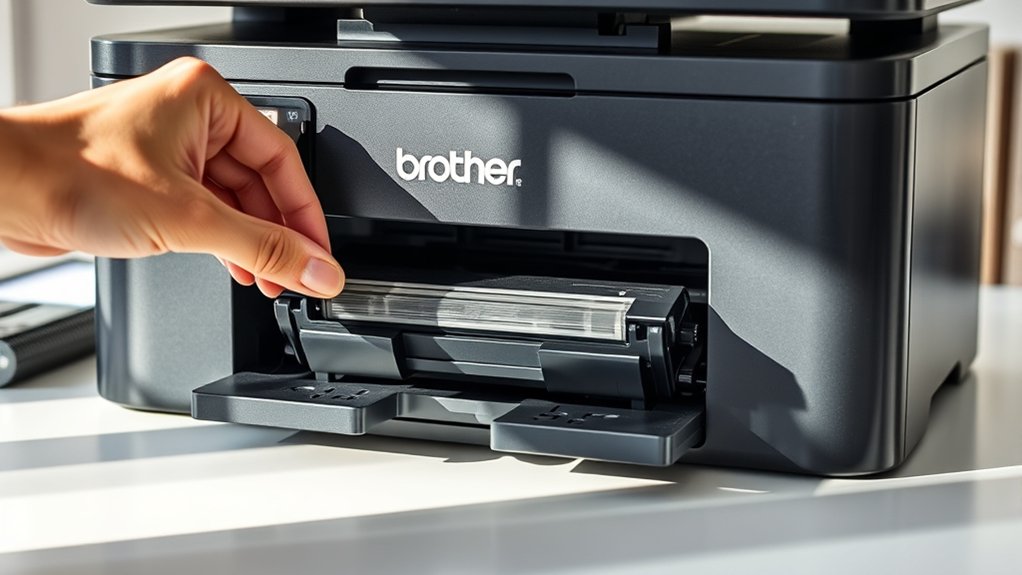

You should replace toner in your Brother printer when print quality fades or your printer signals low toner.
First, gather a compatible cartridge, gloves, and a cloth.
Open the printer cover and remove the old cartridge carefully.
Then unpack and gently shake the new one before inserting it securely until it clicks.
Close the cover and reset the toner counter if needed.
Following these steps keeps your prints sharp and prevents issues—there’s more to guarantee smooth replacement and recycling ahead.
Key Takeaways
- Open the printer cover to access and carefully remove the old toner cartridge.
- Unpack the new toner cartridge, gently shake it side to side for even toner distribution.
- Insert the new toner cartridge firmly until it clicks, then close the toner compartment securely.
- Wear gloves and safety goggles to protect from toner particles during replacement.
- Dispose of the old cartridge properly by using local recycling centers or manufacturer recycling programs.
When to Replace Your Brother Printer Toner
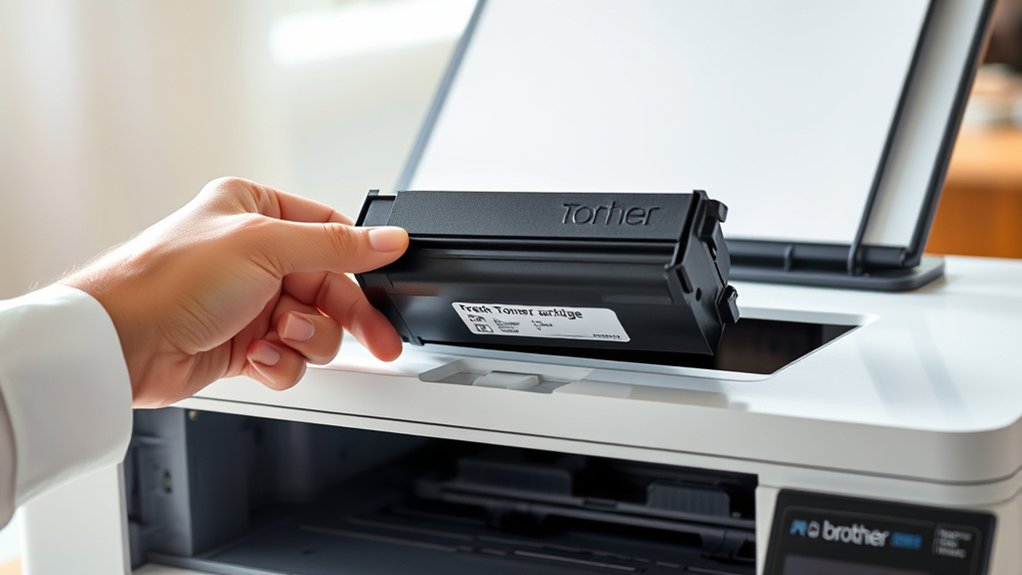
Knowing when to replace your Brother printer toner is essential for maintaining print quality and preventing interruptions. You’ll notice toner lifespan indicators on your printer’s display or software, which alert you when the toner cartridge is nearing the end of its life.
These indicators help you plan a timely replacement before print quality decline becomes obvious. Signs of print quality decline include faded prints, streaks, or uneven toner distribution. If you spot these issues, it’s a clear signal to replace the toner cartridge.
Ignoring these signs can lead to further printing problems and potential damage. By watching for toner lifespan indicators and monitoring print quality decline, you guarantee your Brother printer continues producing sharp, professional documents without unexpected downtime.
Tools Needed to Replace Brother Printer Toner
Before you start replacing the toner in your Brother printer, you’ll need a few essential tools to make the process smooth and safe. You’ll want to have safety equipment like gloves and a mask to protect yourself from toner dust.
Additionally, some optional accessories can help keep your workspace clean and make the job easier.
Essential Tools Overview
Replacing the toner in your Brother printer requires a few essential tools to guarantee a smooth and efficient process. Before you start, make certain you have the right toner types and confirm cartridge compatibility with your printer model to avoid any issues.
Here’s what you’ll need:
- Compatible toner cartridge – confirm it matches your printer’s specifications.
- Soft cloth or lint-free wipe to clean the cartridge area.
- Gloves to keep your hands clean and prevent toner stains.
- User manual for specific instructions related to your printer model.
Having these tools ready guarantees you replace the toner correctly and maintain your printer’s performance without hassle. Keep the toner types and cartridge compatibility in mind to avoid interruptions during replacement.
Safety Equipment Required
Although replacing toner is straightforward, using the right safety equipment protects you from toner dust and potential skin irritation. Before starting, put on safety goggles to shield your eyes from any accidental toner splashes. Toner particles can irritate your eyes, so this simple precaution is crucial.
Next, wear latex gloves to prevent toner from coming into direct contact with your skin. Toner powder can cause dryness or allergic reactions, so gloves create a barrier that keeps your hands clean and safe. Verify your gloves fit snugly to maintain dexterity while handling the toner cartridge.
Optional Accessories Benefits
Wearing safety goggles and gloves helps protect you during toner replacement, but having the right optional accessories can make the process even smoother. Choosing tools tailored to your toner cartridge types not only simplifies handling but also supports printing cost savings by reducing errors and waste.
Here are four must-have optional accessories:
- Toner Vacuum Cleaner – Quickly cleans spills without spreading dust.
- Cartridge Refill Kit – Saves money by refilling compatible toner cartridges.
- Static-Free Cleaning Cloths – Prevent toner smudges and static buildup.
- Toner Cartridge Storage Case – Organizes different cartridge types safely.
Using these accessories helps you maintain printer efficiency and extend cartridge life, ultimately lowering your printing costs.
How to Remove Your Old Brother Toner Cartridge
Before you start, make sure to power off your Brother printer to avoid any issues.
Next, carefully open the toner compartment where the cartridge is housed. This gives you clear access to remove the old toner cartridge safely.
Power Off Printer
Start by turning off your Brother printer and unplugging it from the power source. This step is essential for safe printer maintenance and helps improve energy efficiency by preventing unnecessary power use.
Follow these steps to power off your device properly:
- Press the power button to turn off the printer.
- Wait for all lights and sounds to stop.
- Unplug the power cord from the electrical outlet.
- Disconnect any USB or network cables if necessary.
Open Toner Compartment
To open the toner compartment on your Brother printer, locate the front cover and gently pull it towards you. This action reveals the toner compartment where the cartridge is housed. Handle the cover carefully to avoid damaging any components inside.
Once open, you’ll see the toner cartridge ready for removal. This step is vital for efficient printer maintenance, allowing you to replace or inspect the toner cartridge. Make certain the printer is powered off before proceeding to prevent any electrical issues.
Opening the toner compartment properly guarantees smooth access without causing harm to the printer’s internal parts. Now that the toner compartment is open, you’re ready to remove the old toner cartridge and prepare for a fresh replacement.
How to Install a New Toner Cartridge in Your Brother Printer
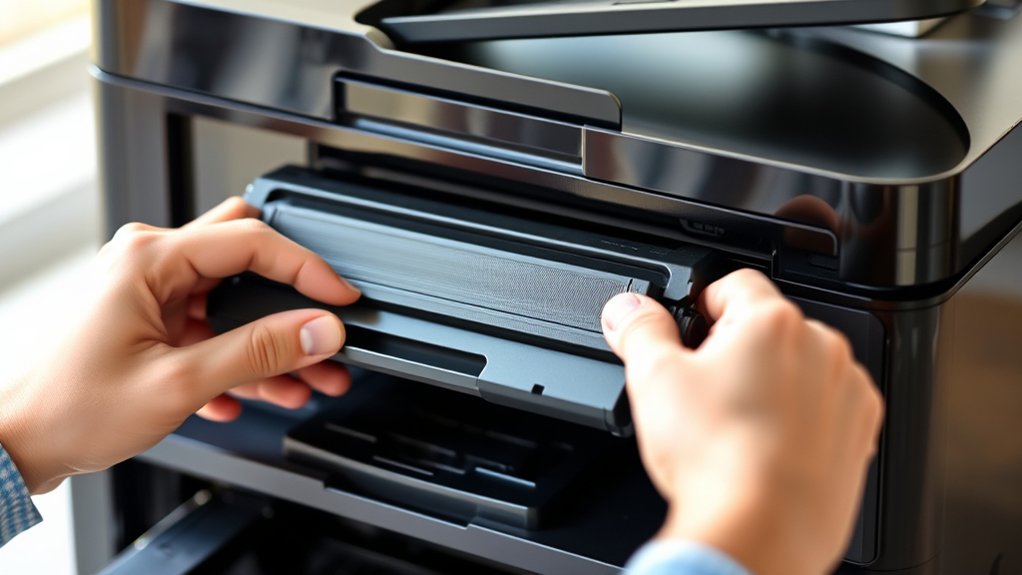
Installing a new toner cartridge in your Brother printer is a straightforward process that guarantees consistent print quality. To guarantee excellent results, always choose toner compatibility that matches your printer model and consider cartridge lifespan for cost efficiency.
Follow these steps:
- Remove the new toner cartridge from its packaging, avoiding exposure to direct light.
- Gently shake the cartridge side to side to distribute toner evenly.
- Insert the cartridge firmly into the toner compartment until it clicks into place.
- Close the toner compartment securely.
How to Reset Your Brother Printer’s Toner Counter After Replacement
After replacing the toner cartridge, you’ll need to reset your Brother printer’s toner counter to assure accurate tracking and prevent error messages. Start by turning on the printer and pressing the “Go” or “Start” button three times within five seconds to enter the toner counter reset mode.
Next, open the front cover to access the toner cartridge. The printer display will prompt you to confirm the reset. Press “Go” or “Start” once more to complete the reset procedure.
Close the front cover, and your toner counter will be set back to zero. This assures your printer accurately monitors toner levels and avoids unnecessary alerts. Always consult your specific model’s manual for slight variations in the toner counter reset procedure.
Troubleshooting Brother Toner Replacement Problems
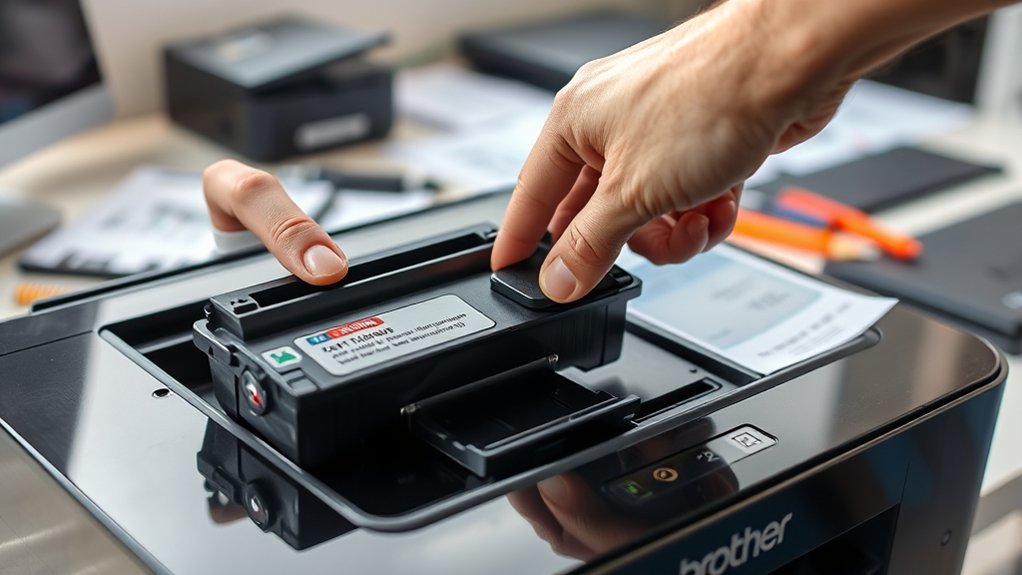
Although replacing the toner cartridge is usually straightforward, you might encounter issues that disrupt your Brother printer’s performance. To troubleshoot toner replacement problems, follow these steps:
- Check toner compatibility issues: Verify your cartridge matches the printer model; incompatible toners often cause errors.
- Inspect cartridge installation: Remove and reinstall the toner firmly; improper placement triggers printer error messages.
- Clean the contacts: Wipe the toner cartridge and printer contacts gently to maintain proper communication.
- Reset the toner counter: If your printer still shows error messages, reset the toner counter according to your model’s instructions.
How to Properly Dispose of or Recycle Used Toner Cartridges
One of the most important steps after replacing your Brother printer’s toner cartridge is disposing of or recycling the used cartridge responsibly. Proper cartridge disposal helps reduce environmental impact and supports toner recycling programs.
Start by checking if your local waste management facility accepts toner cartridges for recycling. Many Brother printers come with a recycling label or program you can use to send back empty cartridges at no cost.
Avoid throwing cartridges in the trash, as they contain materials harmful to the environment. You can also find specialized recycling centers or office supply stores that offer toner recycling services.
Frequently Asked Questions
How Long Does a Brother Toner Cartridge Typically Last?
You’ll find Brother toner lifespan varies, typically lasting 1,200 to 2,500 pages. Your printing frequency greatly impacts this, so if you print often, expect to replace cartridges more frequently to maintain quality output.
Can I Use Third-Party Toner Cartridges in My Brother Printer?
You can use third-party toner cartridges, but be aware of potential compatibility issues that might affect print quality or printer function. They offer cost savings, but weigh risks against benefits before deciding to switch.
What Are the Signs of a Low Toner Warning on Brother Printers?
You’ll see low toner warning signs like faded print, streaks, or a blinking toner light on your Brother printer. Sometimes, a message pops up on your screen alerting you that the toner is running low.
How Do I Store Unused Toner Cartridges Properly?
Don’t worry about toner lifespan shortening quickly; store unused cartridges sealed in original packaging, away from heat and sunlight. Keep them dry and compatible with your printer to guarantee peak performance when you need them.
Does Toner Replacement Affect Print Quality Immediately?
Yes, toner replacement affects print clarity immediately. You’ll notice improved toner performance and sharper prints right after swapping cartridges.
If print quality doesn’t improve, check for installation issues or printer settings.
Conclusion
Replacing your Brother printer toner is simpler than you might think. Did you know that about 70% of printer issues stem from toner or ink problems? By following the steps to remove, install, and reset your toner cartridge, you’ll keep your printer running smoothly and avoid common frustrations.
Remember to recycle your used cartridges responsibly to help the environment. Proper disposal reduces waste and supports sustainability efforts.
With these tips, you’ll save time, money, and reduce waste every time you replace your toner in Brother printer.