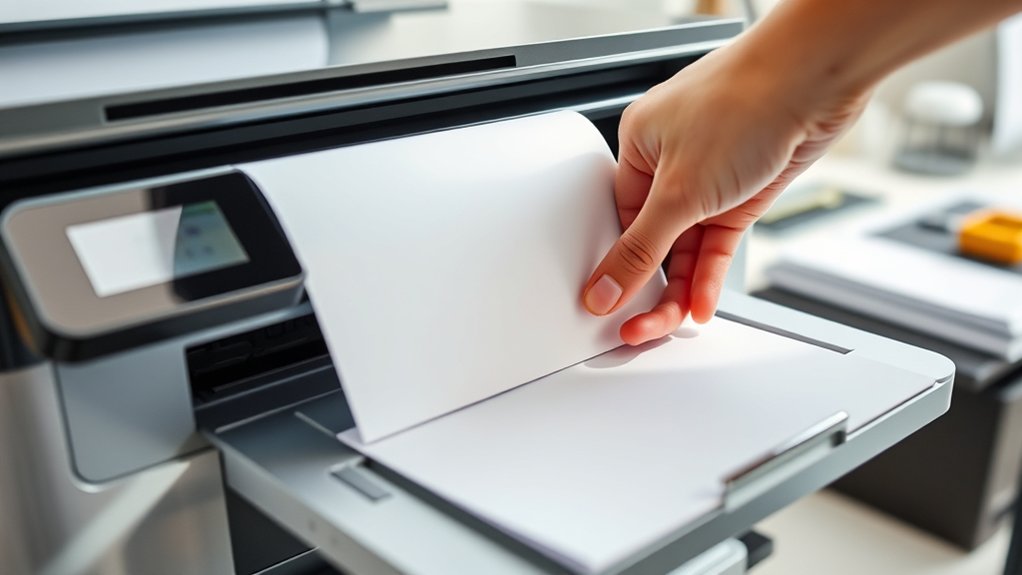

To print double sided, first check if your printer supports automatic duplex printing by reviewing its settings or manual.
Printing double sided can save paper and create professional-looking documents.
If your printer supports this feature, enable the “double-sided” or “duplex” option in your print dialog box on Windows or Mac.
If it does not, print odd pages first, then flip and reload the paper to print even pages manually.
Make sure to align the paper properly to avoid jams or errors.
Following these steps ensures efficient double-sided printing.
Keep exploring for tips on troubleshooting and optimizing double-sided prints.
Key Takeaways
- Check if your printer supports automatic duplex printing in its specifications or print settings.
- Enable the “Duplex” or “Two-Sided Printing” option in the print dialog box before printing.
- For manual duplex, print odd pages first, then flip and reload paper to print even pages.
- Ensure proper paper alignment and printer settings to avoid jams and misprints during double-sided printing.
- Test with a small document to confirm correct duplex setup before printing large jobs.
Check If Your Printer Can Print Double Sided
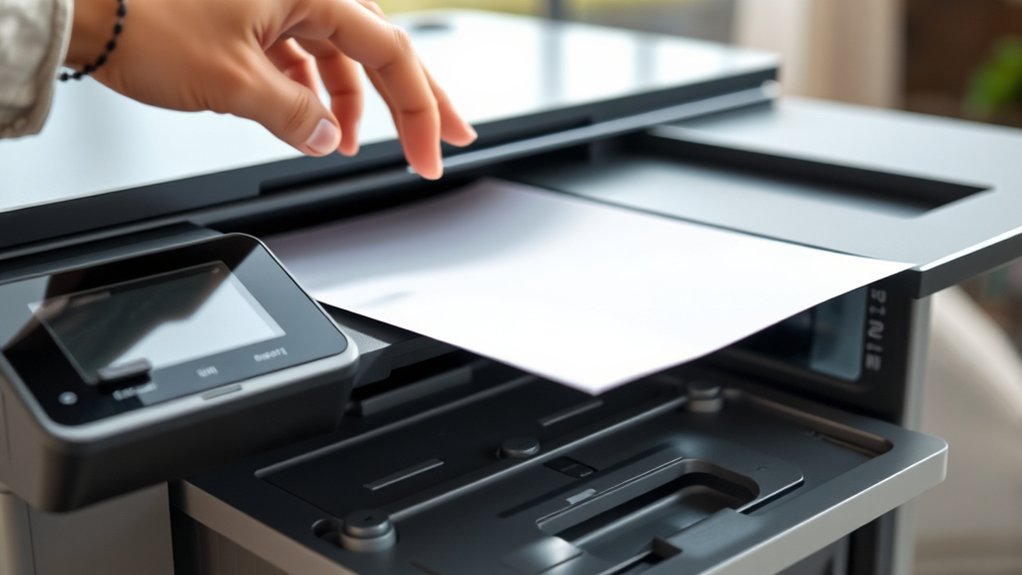
How do you know if your printer can print double sided? First, check your printer specifications, either in the manual or on the manufacturer’s website. Look for terms like “duplex printing” or “automatic double-sided printing.”
If your printer supports duplexing, it can print on both sides without manual intervention. Next, explore your print settings on your computer. When you open the print dialog box, see if there’s an option labeled “Print on both sides,” “Two-sided,” or “Duplex.”
If you spot it, your printer likely supports double-sided printing. If not, your printer might only offer manual duplexing, requiring you to flip the pages yourself. Knowing these details helps you decide if you can easily print double sided or if you’ll need to adjust your approach.
How to Print Double Sided Automatically on Windows and Mac
To print double sided automatically, start by enabling duplex printing in your printer settings. Next, configure the printer properties through the system print dialog on Windows or Mac. This guarantees your documents print on both sides without manual flipping.
Enable Duplex Printing
Although some printers require manual duplexing, many modern models let you enable automatic double-sided printing with just a few clicks. To enable duplex printing, start by opening your document’s print dialog. Look for an option labeled “Print on Both Sides,” “Two-Sided Printing,” or “Duplex Printing.”
Select it to activate automatic double-sided output. This feature not only saves paper but also reduces your environmental impact by cutting paper usage in half. Beyond environmental benefits, duplex printing can lower your printing costs and minimize clutter.
Enabling this function streamlines your workflow, especially for lengthy documents. Remember, if you don’t see the option, your printer might not support automatic duplexing, and you’ll have to print double-sided manually. Embracing duplex printing benefits both your budget and the planet.
Configure Printer Properties
Once you’ve enabled duplex printing in your document settings, you’ll need to configure your printer properties to assure double-sided printing works seamlessly. Adjusting these settings assures your printer handles both sides correctly without sacrificing print quality.
Follow these steps:
- Access the printer settings via Control Panel (Windows) or System Preferences (Mac).
- Locate the “Printing Preferences” or “Printer Properties” tab.
- Select the duplex or double-sided printing option, and confirm print quality settings to maintain clarity on both sides.
Use System Print Dialog
Many printers support automatic double-sided printing through the system print dialog, making the process straightforward. To use this feature, open the document you want to print and go to the print menu.
On Windows, click “Printer Properties” or “Preferences” to access print preferences. Look for an option labeled “Duplex,” “Two-sided,” or “Print on both sides,” and enable it.
On a Mac, click “Show Details” in the print dialog, then find the “Layout” section where you can select “Two-Sided” printing. These settings are part of your system settings, so once configured, they often stay active for future print jobs.
Using the system print dialog guarantees you control double-sided printing without extra software, streamlining your printing tasks on both Windows and Mac.
How to Print Double Sided Manually Without Duplex
If your printer doesn’t support automatic duplex printing, you can still print double sided manually by flipping the pages yourself. Use these manual printing techniques to guarantee proper paper alignment and avoid errors:
- Print all odd-numbered pages first. In the print dialog, select “Pages” and enter odd numbers or choose “Print Odd Pages Only.”
- Once printed, carefully collect the pages, then flip and reinsert them into the paper tray. Make sure the orientation matches how your printer feeds paper.
- Print all even-numbered pages next. Select “Pages” and enter even numbers or choose “Print Even Pages Only.”
Double-Sided Printing Tips for Mobile Devices
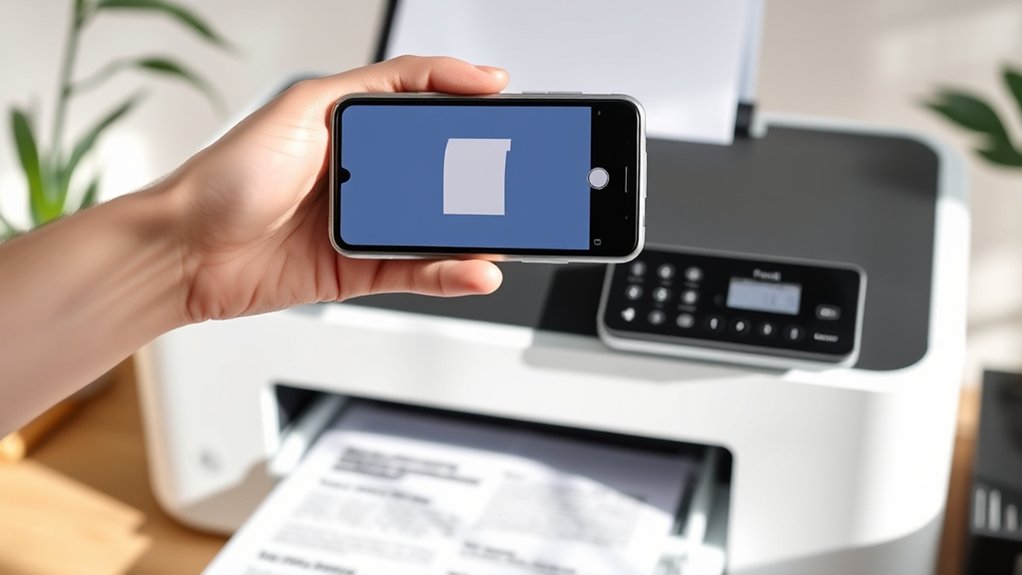
When printing double-sided from your mobile device, start by enabling the duplex printing feature in your printer settings. Use the printer’s app to adjust these settings easily and guarantee smooth operation.
Also, double-check that your mobile device supports duplex printing to avoid any surprises.
Enable Duplex Printing Feature
Although some mobile devices don’t enable duplex printing by default, you can usually activate this feature through your printer settings or the print menu. To activate duplex printing, follow these steps:
- Open the print menu from your mobile device when you’re ready to print.
- Look for an option labeled “Duplex Printing,” “Two-Sided,” or “Print on Both Sides” within the printer settings.
- Select the duplex printing option and confirm your choice before printing.
If you don’t see the duplex option, check your printer’s manual or website to verify your model supports double-sided printing.
Activating duplex printing saves paper and reduces waste, making your printing tasks more efficient and eco-friendly. Always double-check your printer settings to verify duplex printing is active before printing.
Use Printer App Settings
Since many mobile devices rely on dedicated printer apps for advanced features, you should explore these apps to facilitate double-sided printing easily. Start by opening your printer app and selecting the document you want to print.
Next, navigate to the print settings section, often found under “Options” or “Preferences.” Look for a duplex or double-sided printing option and toggle it on. Some printer apps allow you to choose between long-edge and short-edge binding, so pick the one that suits your document’s orientation.
After adjusting these print settings, preview your print job to confirm everything looks right. Using the printer app gives you more control and simplifies the process compared to default mobile print options. This way, you can print double-sided directly from your mobile device without hassle.
Check Mobile Device Compatibility
How can you guarantee your mobile device supports double-sided printing before you start? First, check your device’s operating system to ascertain it’s compatible with your printer’s software. Next, verify that your printer’s app integration includes support for duplex printing. Some apps specifically list this feature. Finally, confirm your mobile device’s print settings allow you to select double-sided printing directly from the print menu.
Here’s a quick checklist to confirm mobile device compatibility:
- Verify OS compatibility with your printer’s app.
- Ascertain the printer app integration supports duplex printing.
- Test the print settings on your mobile device for double-sided options.
Troubleshoot Double-Sided Printing Problems
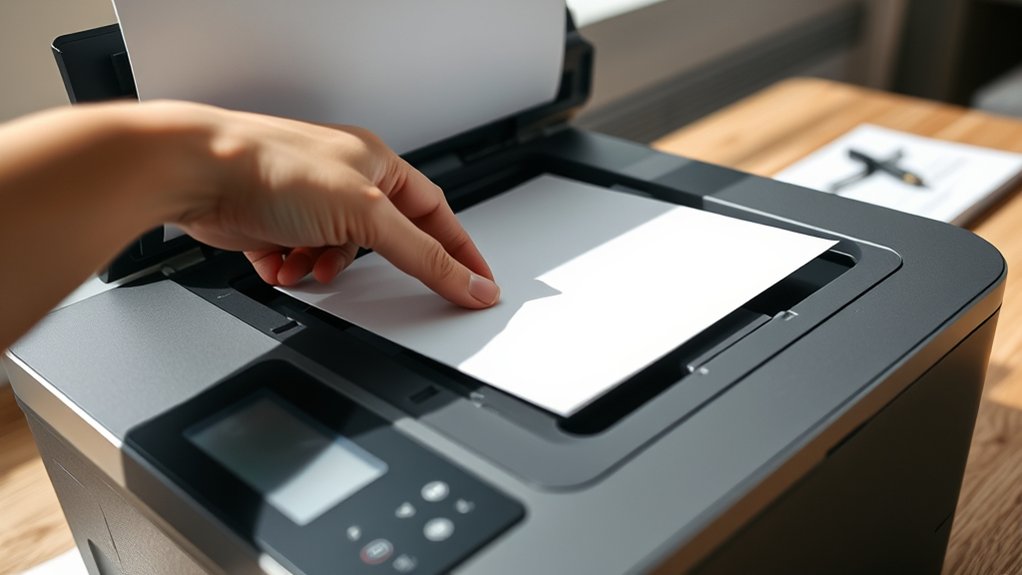
When your printer doesn’t produce double-sided pages as expected, it’s important to identify the root cause quickly. Common issues include incorrect printer settings, outdated drivers, or paper jams.
Start troubleshooting by checking that the double-sided or duplex option is enabled in your print settings. Next, update your printer drivers to guarantee compatibility.
Inspect the paper tray and internal rollers for jams or misfeeds, as these can prevent proper page flipping. If your printer supports manual duplex printing, make sure you follow the prompts correctly.
Finally, test printing a simple document to confirm the problem is resolved. By following these troubleshooting steps, you’ll often fix double-sided printing problems without professional help, saving time and frustration.
Best Practices for Double-Sided Printing
Although double-sided printing can save paper and reduce bulk, you’ll get the best results by following a few key practices. Embracing these habits maximizes paper savings and enhances the environmental benefits you gain from printing. Here’s what you should do:
Double-sided printing saves paper and reduces bulk, but following key practices ensures the best results and environmental benefits.
- Choose the right paper: Use thinner, high-quality paper to prevent jams and guarantee ink dries quickly on both sides.
- Adjust printer settings: Select “duplex” mode in your printer’s settings and confirm the correct orientation to avoid misprints.
- Print test pages: Run a small test batch first to check alignment and ink bleed through, guaranteeing your documents come out crisp and professional.
Frequently Asked Questions
Can Double-Sided Printing Save Ink or Toner?
Double-sided printing doesn’t greatly reduce ink usage or toner efficiency per page but cuts paper use in half, indirectly saving resources.
You’ll save more on paper costs than on ink or toner by printing double-sided.
Is Double-Sided Printing Eco-Friendly?
Yes, double-sided printing supports sustainability benefits by reducing paper use and waste. You’ll also enjoy cost savings on paper and ink, making it an eco-friendly choice that helps both the environment and your budget.
Which Paper Types Work Best for Double-Sided Printing?
Like finding the perfect dance partner, you want paper weight around 20-24 lbs with a smooth print texture for double-sided printing. This combo prevents bleed-through and guarantees crisp, clear prints on both sides every time.
Can I Double-Side Print PDFS Directly From My Phone?
Yes, you can double-side print PDFs directly from your phone by accessing mobile printing options. Just open the PDF settings, select duplex or double-sided printing, and send it to a compatible printer for seamless results.
Does Double-Sided Printing Affect Print Quality?
Just like a quill pen’s finesse, double-sided printing might slightly impact print quality if the paper thickness is low, causing ink bleed-through. Using thicker paper helps maintain sharpness, so you won’t notice much difference.
Conclusion
Don’t worry if your printer doesn’t support automatic double-sided printing—you can still save paper by manually flipping pages. Once you get the hang of it, double-sided printing becomes quick and easy, cutting your paper use in half and helping the environment.
Whether you’re using a PC, Mac, or mobile device, following these simple steps guarantees professional results every time. Give it a try—you’ll be surprised how much you save!
Mastering how to print double sided in printer not only conserves paper but also adds convenience to your printing tasks.