
To connect your iPad to a printer, first check if your printer supports AirPrint and ensure both devices are on the same Wi-Fi network. This is the easiest way to print directly from your iPad without additional software.
Open the file you want to print, tap the share icon, select Print, and choose your AirPrint-enabled printer.
If your printer isn’t AirPrint-compatible, download its manufacturer app to print wirelessly.
You can also adjust print settings like copies or quality for the best results.
Understanding these basics helps you easily manage printing from your iPad and troubleshoot common issues.
Key Takeaways
- Ensure the printer supports AirPrint or download the printer manufacturer’s app if AirPrint is not supported.
- Connect both the iPad and printer to the same Wi-Fi network for seamless communication.
- Open the file on the iPad, tap the share icon, then select “Print” to choose the printer.
- Access printer preferences to customize print settings like copies, page range, and print quality before printing.
- Restart devices and update firmware or apps if the printer does not connect or print correctly.
Check If Your Printer Supports AirPrint
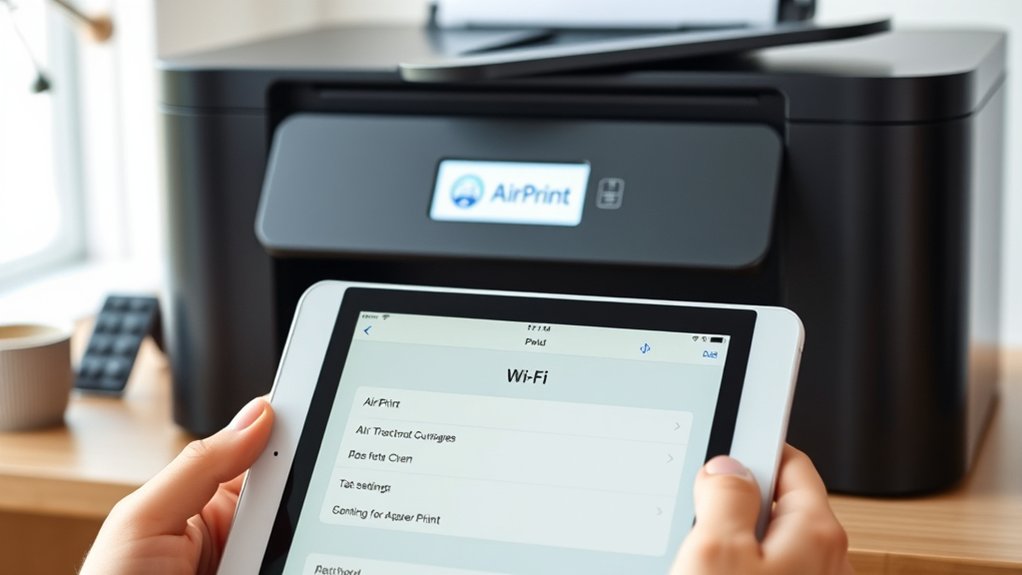
How can you tell if your printer supports AirPrint? Start by checking the printer compatibility list on Apple’s official website. This list includes all models with built-in AirPrint features, ensuring seamless wireless printing from your iPad.
You can also look for the AirPrint logo on your printer or in its user manual. If your printer supports AirPrint, it will connect directly to your iPad without needing extra drivers or software.
Confirming AirPrint features saves you time and avoids compatibility issues. If your printer isn’t listed, it likely doesn’t support AirPrint natively, and you’ll need alternative solutions.
Confirming AirPrint support helps avoid compatibility issues and guides you to the best printing solution for your iPad.
Always verify printer compatibility before proceeding to set up your device, so you know exactly what printing options are available for your iPad.
Set Up Wi-Fi to Print From Your iPad
First, make certain your printer’s Wi-Fi is turned on and connected to your home network. Then, connect your iPad to the same Wi-Fi network to guarantee they can communicate.
Once both devices share the network, you’re ready to start printing wirelessly.
Enable Printer Wi-Fi
To get started with printing from your iPad, you’ll need to enable your printer’s Wi-Fi connection. First, check your printer’s manual to confirm it supports wireless printing and avoid printer compatibility issues.
Most modern printers have a Wi-Fi button or a touchscreen menu where you can turn on wireless functionality. Once enabled, your printer will search for available wireless networks. Select your home or office network and enter the password if prompted.
This step completes the wireless network setup for your printer, allowing it to communicate with your iPad. Make certain your printer and iPad are on the same Wi-Fi network to guarantee seamless printing. Enabling Wi-Fi on your printer is essential before moving on to connecting your iPad.
Connect iPad Network
With your printer connected to the Wi-Fi network, you’ll need to guarantee your iPad is using the same network to print successfully. Ensuring proper iPad connectivity starts with verifying your network settings.
Here’s how to set up your iPad to connect to the printer’s Wi-Fi:
Open Settings on your iPad.
Tap Wi-Fi and check for the network your printer uses.
Select the correct Wi-Fi network and enter the password if prompted.
Confirm your iPad is connected by looking for the checkmark next to the network name.
Test the connection by opening an app and trying to print a document.
Print Directly From Your iPad Using AirPrint
Although setting up a printer might seem complex, you can easily print directly from your iPad using AirPrint. First, verify your printer supports AirPrint compatibility; most modern printers do, but double-check the manufacturer’s specifications.
Connect your iPad and printer to the same Wi-Fi network to enable communication. When ready, open the app containing the file you want to print, tap the share or action icon, then select “Print.”
Choose your AirPrint-enabled printer from the list and adjust settings if needed. If your iPad doesn’t detect the printer, try basic printer troubleshooting: restart both devices, confirm network connection, and update your iPad’s OS.
AirPrint simplifies wireless printing, letting you print effortlessly without installing extra drivers or software.
Print Documents, Photos, and Emails on iPad
You can easily print documents, photos, and emails right from your iPad using AirPrint. Start by setting up AirPrint on your printer to guarantee a smooth connection.
Then, use the print option within your favorite apps to send files directly to your printer.
AirPrint Setup Guide
Since many modern printers support AirPrint, you can easily print documents, photos, and emails directly from your iPad without installing extra software. To get started with AirPrint, verify your printer compatibility by checking if it supports AirPrint features.
Then, connect both your iPad and printer to the same Wi-Fi network. Here’s a quick setup guide:
- Confirm your printer supports AirPrint features.
- Connect your iPad and printer to the same Wi-Fi network.
- Open the document, photo, or email you want to print.
- Tap the Share icon, then select Print.
- Choose your AirPrint-compatible printer and tap Print.
With these steps, printing from your iPad becomes seamless, leveraging AirPrint’s convenience and eliminating the need for extra drivers or apps.
Printing From Apps
Printing with AirPrint simplifies the process, but knowing how to print directly from various apps on your iPad expands your flexibility. Different apps have unique printing preferences and app compatibility, so understanding these helps you print documents, photos, and emails effortlessly.
To print, just tap the Share icon, select Print, choose your printer, and adjust settings as needed.
| App | File Type |
|---|---|
| Files | Documents (PDF, DOCX) |
| Photos | Images (JPEG, PNG) |
| Emails (HTML, PDF) | |
| Safari | Webpages (PDF) |
This table highlights common apps and supported file types for printing. Always check your printing preferences within the app to optimize results and guarantee compatibility with your printer model.
Print From Non-AirPrint Printers With Manufacturer Apps
Although your iPad may not support AirPrint for certain printers, you can still print effortlessly by using the manufacturer’s dedicated app. Printer manufacturer apps solve many iPad compatibility issues by providing tailored printing solutions for non-AirPrint models.
To get started:
- Download the official app from the App Store (e.g., HP Smart, Epson iPrint, Canon PRINT).
- Connect your iPad and printer to the same Wi-Fi network.
- Open the app and select the document or photo you want to print.
- Customize print settings such as paper size and quality.
- Tap “Print” to send your job directly to the printer.
Using these apps guarantees smooth printing without relying on AirPrint, making it easy to handle iPad compatibility issues with non-AirPrint printers.
Use Third-Party Apps to Print From Your iPad
One reliable way to print from your iPad is by using third-party apps designed to work with a wide range of printers. These third party solutions often support multiple printer brands, making them a flexible option if your printer doesn’t support AirPrint or lacks a dedicated app.
To get started, download a reputable printing app from the App Store, such as Printer Pro or PrintCentral. Before you proceed, check app compatibility with your specific printer model to guarantee smooth operation.
Once installed, these apps typically allow you to select documents, photos, or emails and print directly from your iPad. Using third-party apps can bridge the gap between your iPad and non-AirPrint printers, providing a straightforward printing experience without needing complex setup or additional hardware.
Fix Common iPad Printing Problems
Using third-party apps can solve many compatibility issues, but you might still encounter occasional printing problems with your iPad. To handle common errors effectively, follow these troubleshooting tips:
Make sure your printer and iPad are connected to the same Wi-Fi network. Restart both your iPad and printer to refresh connections.
Check for firmware and app updates that might fix bugs. Verify that your printer supports AirPrint or the app you’re using.
Clear the print queue if jobs get stuck or fail to print.
Manage Printer Settings on Your iPad
To get the most out of your iPad’s printing capabilities, you’ll want to manage your printer settings directly from your device. When you tap the share icon and select Print, you can access printer preferences by tapping on the printer name.
Here, you can adjust options like the number of copies, page range, and orientation. Some printers also let you modify print quality settings, allowing you to choose between draft, standard, or high quality. Adjusting these preferences helps balance ink usage and output clarity.
If your printer supports color options, you can select black & white or color prints as well. Managing these settings guarantees your documents come out exactly how you want, saving time and resources while enhancing overall print quality from your iPad.
Frequently Asked Questions
Can I Print From My iPad Using Bluetooth?
You generally can’t use Bluetooth printing from your iPad unless your printer supports Bluetooth and is compatible. Most iPads rely on AirPrint for wireless printing, so check your printer’s compatibility before attempting Bluetooth printing.
How Do I Print Double-Sided From My iPad?
Printing double-sided from your iPad is a breeze once you’ve checked your printer compatibility. In AirPrint settings, tap “Print,” select “Double-Sided,” then hit “Print.”
If no option appears, your printer might not support duplex printing.
Is It Possible to Print via USB Directly From iPad?
You can’t print via USB directly from your iPad due to iPad limitations and lack of USB connectivity support. Instead, use AirPrint or connect through a Wi-Fi-enabled printer for seamless wireless printing.
Can I Print From My iPad Without Wi-Fi or Internet?
Coincidentally, you can print from your iPad without Wi-Fi or internet by using AirPrint alternatives like direct USB connections or Bluetooth-enabled printers. Mobile printing solutions offer offline options, letting you print anytime, anywhere.
How Do I Update My Printer’s Firmware From an iPad?
You can update your printer’s firmware from your iPad by accessing the printer settings through its app or web interface. Look for firmware updates, then follow the prompts to download and install the latest version directly.
Conclusion
Connecting your iPad to a printer is easier than you might think, even if your printer doesn’t support AirPrint. By using manufacturer apps or trusted third-party options, you can print documents, photos, and emails hassle-free.
Don’t worry about compatibility—there’s almost always a way to get your print jobs done smoothly. Just follow the steps, and you’ll have your printer set up in no time.
This will turn your iPad into a powerful, portable printing tool. With these simple methods, connecting your iPad to a printer has never been more convenient.