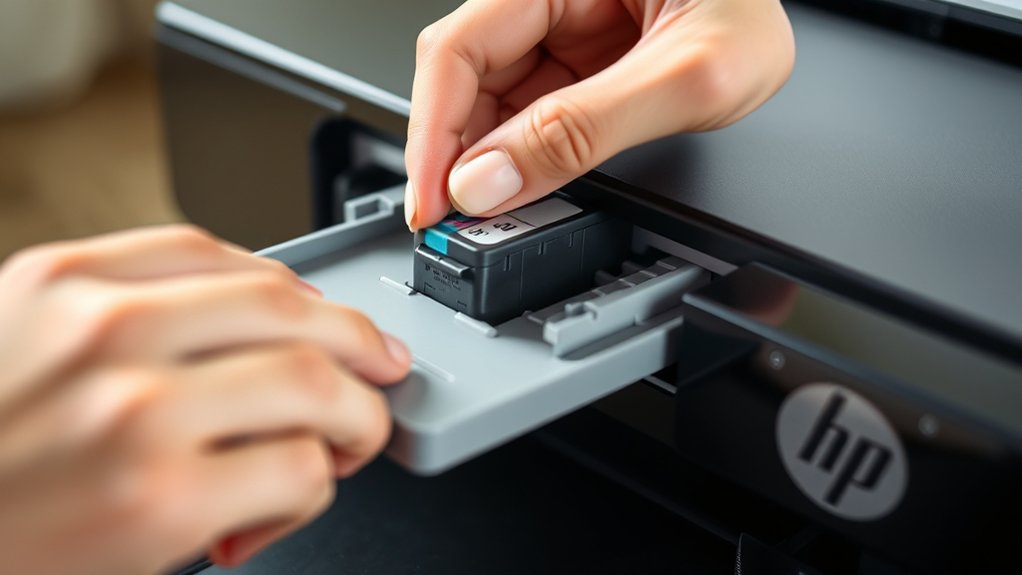

To install an ink cartridge in your HP printer, first power off and unplug the device.
Then, open the access door to reach the cartridges.
Remove the old cartridge by gently releasing its latch, and set it aside properly.
Take your new cartridge and remove all protective tape.
Insert it firmly into the correct slot until it clicks into place.
Close the cover, power the printer back on, and align it for best results.
Keep following for tips on troubleshooting and maintenance to get the most from your printer.
Key Takeaways
- Power off the printer and unplug it before opening the access door to the cartridge area.
- Remove the old cartridge by pressing the latch and holding it carefully by the sides.
- Unpack the new cartridge, remove any protective seals, and avoid touching contacts or nozzles.
- Insert the new cartridge into the correct slot until it clicks securely into place.
- Close the printer cover and power on the printer to complete the installation process.
How to Prepare Your HP Printer Before Installing Ink Cartridges
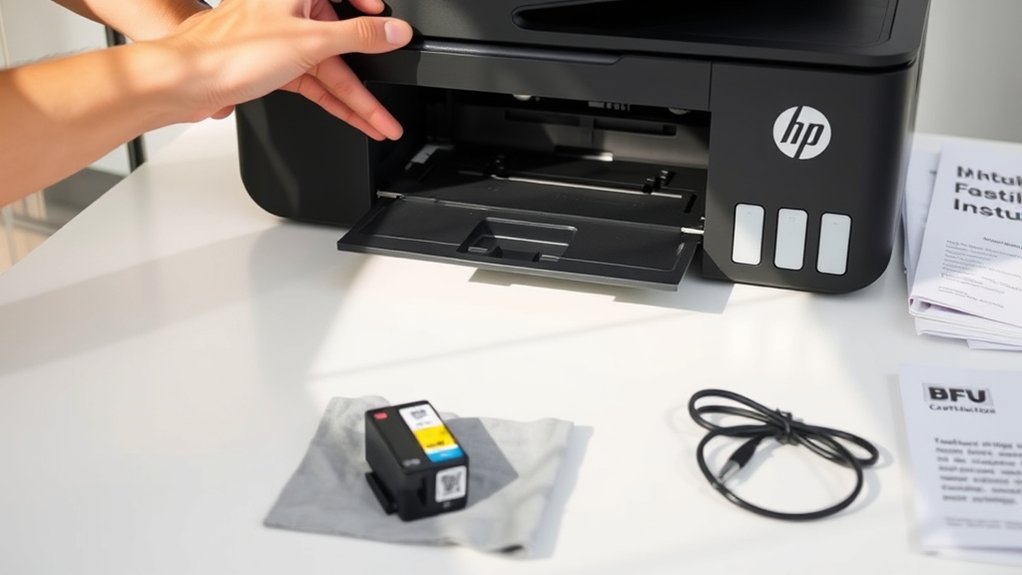
Before installing ink cartridges, you’ll want to prepare your HP printer properly to guarantee smooth setup and peak performance. Start by powering on your printer and ensuring it’s connected to your computer or network.
Open the printer’s access door to access the cartridge area but don’t remove anything yet. Next, gather your new ink cartridges and remove their protective packaging carefully, avoiding contact with the copper-colored contacts or nozzles. This ink preparation step is essential to prevent damage or poor print quality.
Also, check your printer manual for any specific instructions related to your model’s printer setup. By following these steps, you’ll set the stage for a hassle-free cartridge installation that promotes ideal printer function and consistent print results.
How to Safely Remove the Old Ink Cartridge
Once you’ve prepared your printer and handled the new cartridges carefully, it’s time to remove the old ink cartridges. Prioritize ink cartridge safety by turning off your printer and unplugging it before opening the cartridge access door.
Gently press down or lift the cartridge latch to release the cartridge without spilling ink or damaging the printer. Avoid touching the copper contacts to maintain printer maintenance and guarantee proper connectivity.
| Step | Tip |
|---|---|
| Turn off printer | Prevents electrical hazards |
| Open access door | Access cartridges safely |
| Release cartridge | Use gentle pressure |
| Remove cartridge | Hold cartridge by sides |
| Store or dispose | Follow recycling guidelines |
Follow these steps for safe removal and better printer longevity.
How to Install a New Ink Cartridge in Your HP Printer
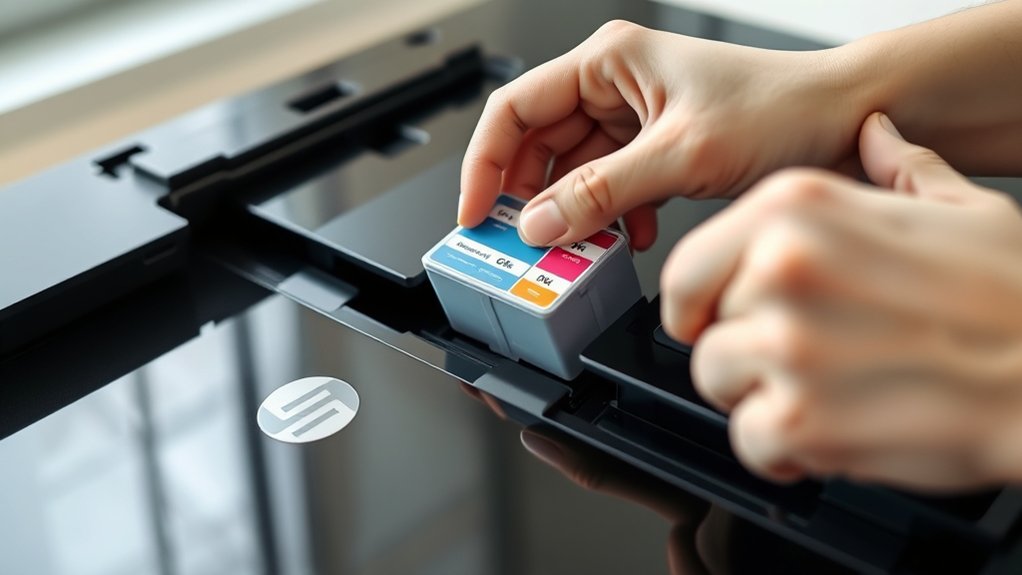
Before installing your new ink cartridge, make sure the printer is powered on and the carriage is accessible. After you’ve removed the old cartridge, carefully unpack the new one and remove any protective tape.
Then, align the cartridge properly and slide it into the slot until it clicks into place.
Preparing The Printer
Although installing a new ink cartridge might seem straightforward, you’ll need to prepare your HP printer properly to guarantee a smooth process. First, consult your printer manual to identify the correct ink cartridge types compatible with your model. Using the wrong cartridge can cause errors or damage.
Next, power on the printer and make certain it’s connected securely to your computer or network. Perform a quick printer maintenance check, such as cleaning the printhead and aligning cartridges if prompted by your device. This helps prevent clogs and promotes ideal print quality.
Finally, open the printer access door carefully, readying the cartridge slot for installation. Taking these steps guarantees your printer is set up correctly, reducing errors when you install the new ink cartridge.
Removing Old Cartridge
Lift the cartridge latch inside your HP printer to release the old ink cartridge. Gently pull the cartridge out, holding it by its sides to avoid damaging the nozzles or contacts. Proper removal guarantees your printer stays in good condition and supports effective printer maintenance.
Before discarding the old cartridge, check its model number to help you select a new one with the right cartridge compatibility. Using the correct cartridge is essential for peak print quality and avoiding printer errors.
Handle the cartridge carefully and store it properly if you plan to reuse it. Following these steps assures a smooth changeover when you’re ready to install the new cartridge, maintaining your printer’s performance and prolonging its lifespan.
Installing New Cartridge
Slide the new ink cartridge firmly into the slot inside your HP printer, guaranteeing it aligns with the guides. Different ink cartridge types might fit your model, so double-check compatibility before installation.
Press gently until you hear a click, confirming the cartridge is securely in place. Close the cartridge access door carefully to avoid damaging internal components.
After installation, run a printer alignment or cleaning cycle to optimize print quality. Following printer maintenance tips, such as regularly checking ink levels and cleaning printheads, will extend your printer’s lifespan.
Always handle cartridges by their sides to prevent ink smudges or damage. By installing your new cartridge correctly and maintaining your printer, you guarantee consistent, high-quality prints every time.
How to Align and Calibrate Your HP Printer After Installation
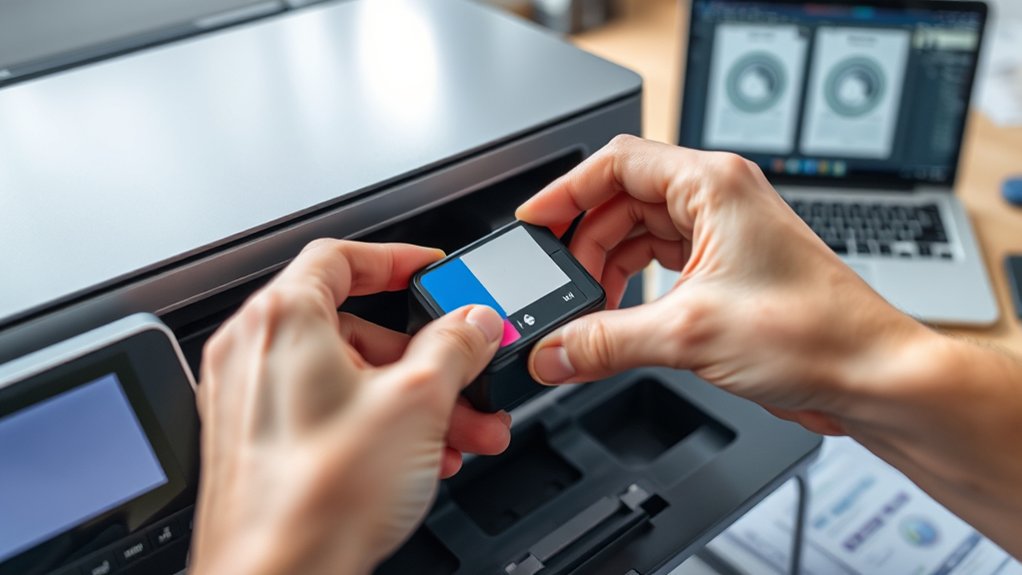
After installing your new ink cartridge, you’ll need to align and calibrate your HP printer to guarantee the best print quality. This process adjusts the print heads and fine-tunes color accuracy for sharp, clear results.
Follow the step-by-step guide to complete the alignment and calibration quickly and correctly.
Printer Alignment Process
Once you install the ink cartridge, you’ll want to align your HP printer to confirm ideal print quality. Printer alignment confirms that the ink nozzles print precisely on the paper, preventing misaligned colors and blurry text.
To start, access the printer’s control panel or software on your computer. Select the “Align Printer” option, which will prompt the device to print an alignment page. Follow the on-screen instructions to scan or manually input alignment results.
This step corrects any alignment issues that could degrade printer performance. Regular alignment after cartridge installation helps maintain sharp images and crisp text, extending your printer’s lifespan.
Skipping this process may lead to wasted ink and poor printouts, so make it a routine part of your setup.
Calibration Importance Explained
Although aligning your HP printer is essential, calibrating it guarantees the colors and tones print accurately every time. Calibration benefits go beyond alignment. It guarantees your printer operates at peak performance, producing sharp, vibrant prints.
Skipping calibration can lead to color mismatches and faded images, reducing print quality.
Here’s why calibration matters:
- Enhances color accuracy for true-to-life prints.
- Balances ink distribution, preventing streaks or smudges.
- Maximizes printer hardware settings for consistent results.
- Extends the lifespan of your ink cartridges and printheads.
Step-by-Step Calibration Guide
Understanding the importance of calibration sets the stage for properly aligning and fine-tuning your HP printer. After installing the correct ink cartridge types, follow these steps to calibrate:
- Turn on your printer.
- Load plain paper.
- Access the printer’s control panel.
- Select “Tools” or “Maintenance.”
- Choose “Align Printer” or “Calibrate.”
- Follow on-screen prompts to print an alignment page.
- Confirm alignment for ideal print quality.
Here’s a quick overview:
| Step | Purpose |
|---|---|
| Turn on printer | Power up for calibration |
| Load paper | Provide medium for test |
| Access maintenance | Find calibration option |
| Print alignment page | Evaluate print accuracy |
| Confirm alignment | Guarantee proper setup |
Regular calibration is a key printer maintenance tip to prolong your device’s life and maintain print quality.
Troubleshoot HP Printer Not Recognizing New Ink Cartridges
Why isn’t your HP printer recognizing the new ink cartridges? This issue often stems from ink cartridge compatibility or improper installation. To resolve printer error messages and guarantee smooth operation, try these steps:
- Verify the ink cartridge compatibility with your HP printer model.
- Remove and reinstall the cartridges, ensuring they click securely into place.
- Clean the cartridge contacts gently with a lint-free cloth to remove dirt or residue.
- Restart your printer and check for any firmware updates that might affect cartridge recognition.
Following these steps will often clear error messages and help your printer recognize new cartridges correctly. If problems persist, consider contacting HP support for further assistance.
How to Maintain Your HP Printer’s Ink Cartridges for Longer Life
To get the most out of your HP printer’s ink cartridges, you’ll need to follow some simple maintenance practices. Regular ink cartridge maintenance prevents clogging and extends cartridge life. Use these printer cleaning tips to keep print quality sharp and avoid costly replacements.
| Task | Frequency | Benefit |
|---|---|---|
| Clean print heads | Monthly or when prints fade | Prevents ink clogs |
| Store cartridges | In a cool, dry place | Preserves ink quality |
| Use printer regularly | At least once a week | Keeps ink flowing smoothly |
How to Choose the Right Ink Cartridge for Your HP Printer
When selecting an ink cartridge for your HP printer, you need to confirm compatibility with your specific model and printing needs. Choosing the right cartridge guarantees superior print quality and prevents damage. Consider these factors:
- Verify cartridge compatibility by checking your printer’s model number against HP’s official list.
- Decide on ink types. Original HP cartridges offer reliability, while compatible or remanufactured ones may save money but vary in quality.
- Assess your printing volume; high-yield cartridges suit heavy users, reducing replacements.
- Look for cartridges with genuine HP seals to avoid counterfeit products.
Frequently Asked Questions
Can I Use Third-Party Ink Cartridges With My HP Printer?
You can use third-party ink cartridges, but be aware that third party compatibility varies. Sometimes, ink quality may not match original HP cartridges, potentially affecting print results or printer performance.
Choose reputable brands carefully.
How Do I Recycle Used HP Ink Cartridges Responsibly?
You can recycle your used HP ink cartridges responsibly by using HP’s ink recycling program or authorized drop-off points. Proper ink recycling guarantees safe cartridge disposal, reducing environmental harm and promoting sustainable printer use.
What Should I Do if My HP Printer Displays an Ink Cartridge Error Code?
When your HP printer shows an ink cartridge error code, start ink cartridge troubleshooting by removing and reinstalling cartridges. Clean contacts gently, update printer firmware, and consult printer error solutions in the manual or HP support website.
Are HP Ink Cartridges Compatible Across Different Printer Models?
HP ink cartridges aren’t universally compatible across all printer models. You need to check ink compatibility for your specific printer model to avoid errors and guarantee peak performance.
Always verify before purchasing or installing cartridges.
How Long Can I Store Unused HP Ink Cartridges Before They Expire?
You can’t store HP ink cartridges forever; they don’t last like ancient treasures! Typically, their cartridge lifespan is about 2 years if kept sealed in proper ink storage conditions. Always check expiration dates to avoid dried-out ink.
Conclusion
Installing your HP ink cartridge is as straightforward as fitting a puzzle piece. By preparing your printer, removing old cartridges carefully, and installing new ones correctly, you guarantee smooth printing. Don’t forget to align and calibrate for the best results.
If issues arise, troubleshooting can save the day. With proper maintenance and choosing the right cartridge, your printer will serve you longer. Follow these steps, and you’re set for vibrant, hassle-free prints every time.
To ensure optimal performance, always remember how to install ink cartridge in HP printer correctly. This will keep your prints sharp and colors vivid.