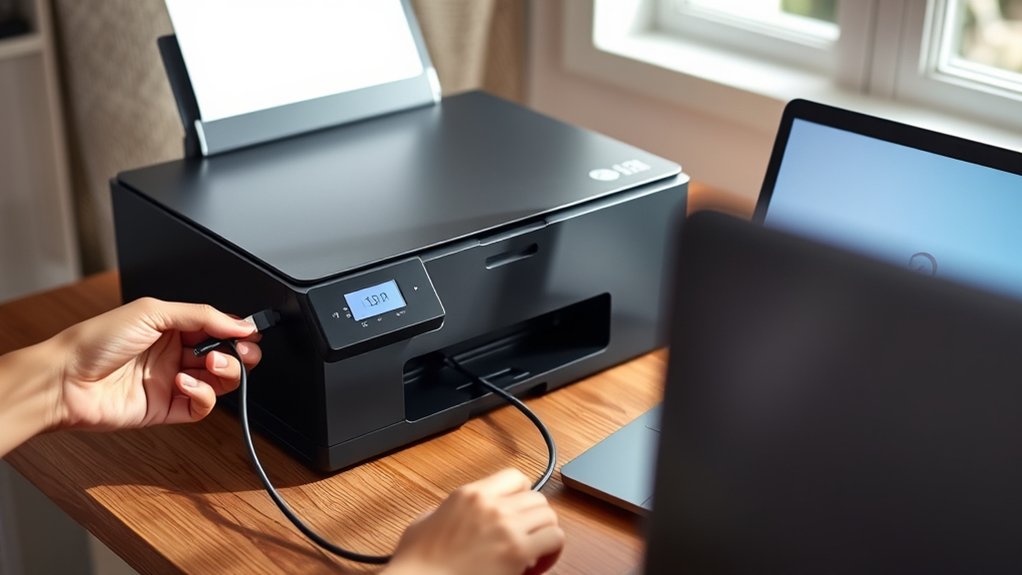

To connect your printer to your computer, start by choosing USB for a simple, stable link or wireless for more flexibility.
Connecting your printer to your computer is straightforward, whether you opt for a direct cable or a network connection.
For USB, just plug the cable into both devices, and Windows or Mac will usually recognize it automatically.
For wireless, verify your printer and computer share the same Wi-Fi network, then add the printer through your system’s printer settings.
Don’t forget to install or update drivers for smooth performance.
Keep going to uncover tips for setup and troubleshooting.
Key Takeaways
- Connect your printer to the computer using a USB cable for a simple, stable connection or set up a wireless connection via Wi-Fi for flexibility.
- Download and install the latest printer driver from the manufacturer’s website compatible with your operating system.
- On Windows, plug in the USB or connect to Wi-Fi, then go to Settings > Devices > Printers & scanners to add your printer.
- On Mac, open System Preferences, select Printers & Scanners, click the “+” button, and choose your printer to add it.
- Troubleshoot by checking cables, ensuring network connection, restarting the printer, and updating or reinstalling drivers if needed.
USB or Wireless: Which Printer Connection Should You Use?
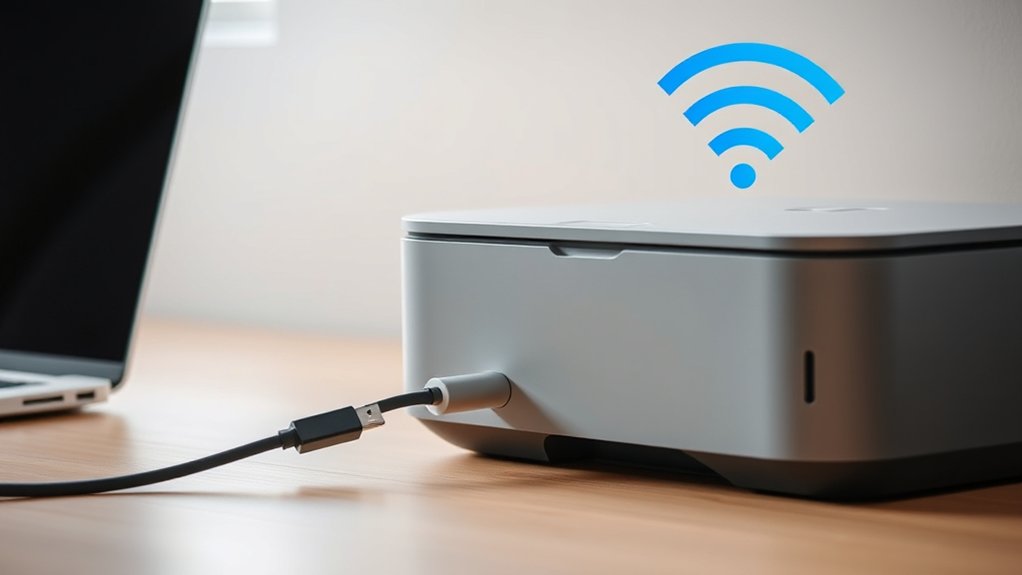
How do you decide between a USB or wireless connection for your printer? Start by considering wired connections if you want a simple, stable setup. USB connections offer reliable, consistent speeds and are easy to plug in, making them ideal when your printer sits close to your computer.
On the other hand, wireless advantages shine when you need flexibility. Connecting via Wi-Fi lets you place your printer anywhere within range and print from multiple devices without cables. Wireless also reduces clutter, which is perfect for shared spaces or home offices.
Choose wired connections for straightforward, interference-free printing, but go wireless if convenience and mobility are priorities. Assess your workspace and printing habits to pick the best connection method for your needs.
Installing and Updating Printer Drivers Made Easy
Getting your printer up and running starts with installing the right drivers, which serve as the essential link between your computer and printer. For printer driver installation, visit the manufacturer’s website and download the latest driver compatible with your operating system.
Run the installer and follow the on-screen instructions to complete the setup.
To keep your printer performing smoothly, regularly check for updates. The driver update process often involves visiting the manufacturer’s support page or using a built-in update tool.
Regularly updating your printer drivers ensures smooth performance and resolves potential connectivity issues.
Installing updated drivers fixes bugs, improves compatibility, and adds new features. Avoid using outdated drivers to prevent connectivity problems.
Connecting Your Printer to a Windows PC
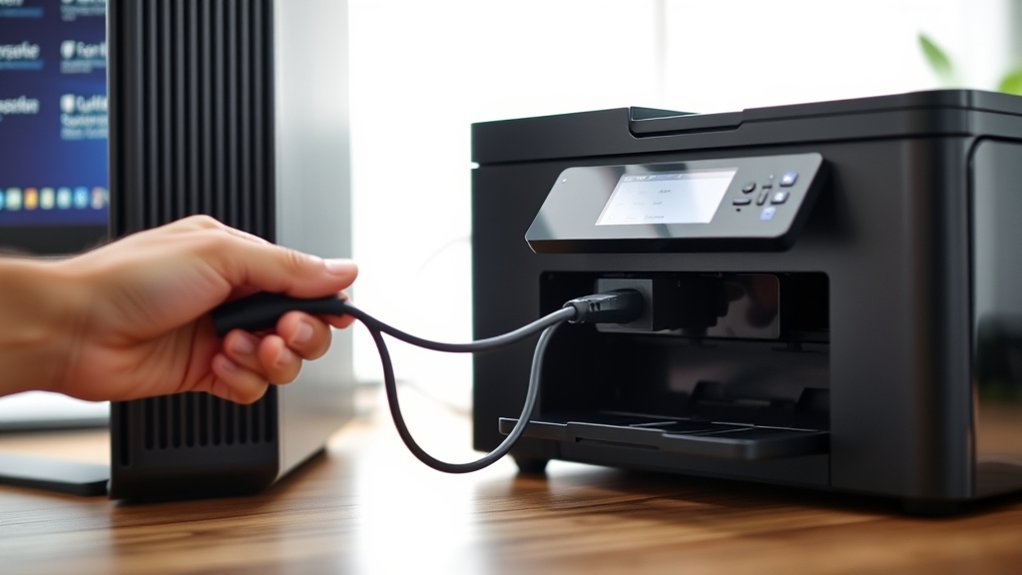
Once you have the drivers installed, you can connect your printer to your Windows PC using a USB cable or via your wireless network. For a USB connection, simply plug the cable into your PC and printer, then Windows should recognize the device automatically.
For wireless setup, access your printer’s network configuration through its control panel, then connect it to your Wi-Fi network. On your PC, go to Settings > Devices > Printers & scanners, and click “Add a printer or scanner.”
Select your printer from the list, then follow the prompts to complete the setup. After connecting, check your printer settings to adjust preferences like paper size and print quality. This guarantees your printer works smoothly with your Windows system.
Connecting Your Printer to a Mac Computer
Connecting your printer to a Mac computer involves a few straightforward steps, whether you’re using a USB cable or a wireless connection. First, power on your printer and connect it to your Mac with a USB cable or guarantee your printer is on the same Wi-Fi network.
Next, open Mac settings by clicking the Apple menu and selecting “System Preferences,” then choose “Printers & Scanners.” Click the “+” button to add your printer. Your Mac will detect available printers automatically.
Select your printer from the list and click “Add.” The printer setup will begin, and your Mac will download necessary drivers if needed. Once added, your printer will appear in the list, ready for use.
This method guarantees your printer is properly configured for smooth operation on your Mac.
Troubleshooting Common Printer Connection Problems
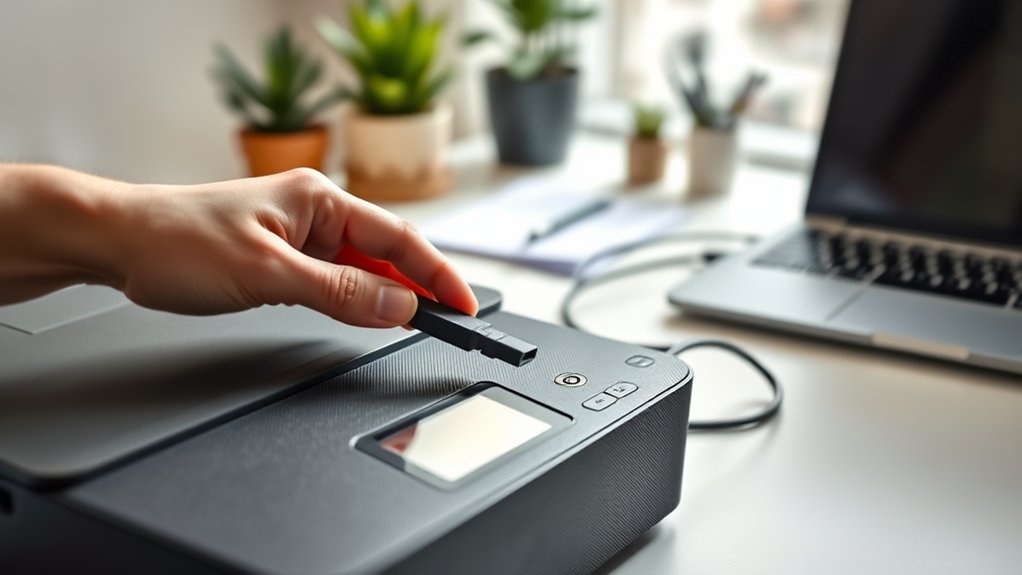
If your printer isn’t responding or showing up on your computer, don’t worry. You can often fix the issue quickly. First, check for any cable issues; verify all connections are secure and undamaged.
If you’re using a USB printer, try a different port or cable to rule out hardware problems. For wireless printers, confirm your computer and printer are on the same network.
Next, perform a printer reset by turning it off, unplugging it for 30 seconds, then powering it back on. This can clear minor glitches. Also, restart your computer to refresh the connection.
Finally, update or reinstall your printer drivers if problems persist. Following these steps should resolve most common printer connection problems efficiently.
Frequently Asked Questions
Can I Print From My Smartphone to My Computer-Connected Printer?
Yes, you can use mobile printing to print from your smartphone to a computer-connected printer. Just make certain your printer supports smartphone compatibility or use apps like Google Cloud Print or manufacturer-specific apps to enable wireless printing.
How Do I Share My Printer With Multiple Computers on a Network?
You’ll enable printer sharing on your main computer, then make certain your network setup allows other devices to access it.
Finally, add the shared printer on each computer through their settings for seamless printing across your network.
What Should I Do if My Printer Is Printing Blank Pages?
Imagine your printer’s like a sponge. If the ink cartridge’s dry or empty, it won’t soak up ink properly. For printer troubleshooting, check and replace cartridges, then run a cleaning cycle to fix blank pages quickly.
Can I Print Documents Remotely Using My Printer?
Yes, you can print documents remotely by enabling remote printing on your printer. Confirm it supports wireless connectivity, then connect it to your network.
After that, send print jobs from your device anywhere with internet access.
How Do I Properly Maintain My Printer to Avoid Connectivity Issues?
Keep your printer running smoothly by treating it like a well-oiled machine: perform regular cleaning, update software promptly, and check connections often. These steps prevent connectivity issues and keep your printing seamless and stress-free.
Conclusion
Now that you know your options—USB or wireless—it’s time to get hands-on. Installing the right drivers and following simple steps for Windows or Mac will have your printer ready in no time.
But what if it doesn’t connect? Don’t worry, common issues often have easy fixes. Stay patient, follow the troubleshooting tips, and you’ll soon be printing smoothly.
Ready to make your printer work for you? Let’s get started on how to connect my printer to my computer!