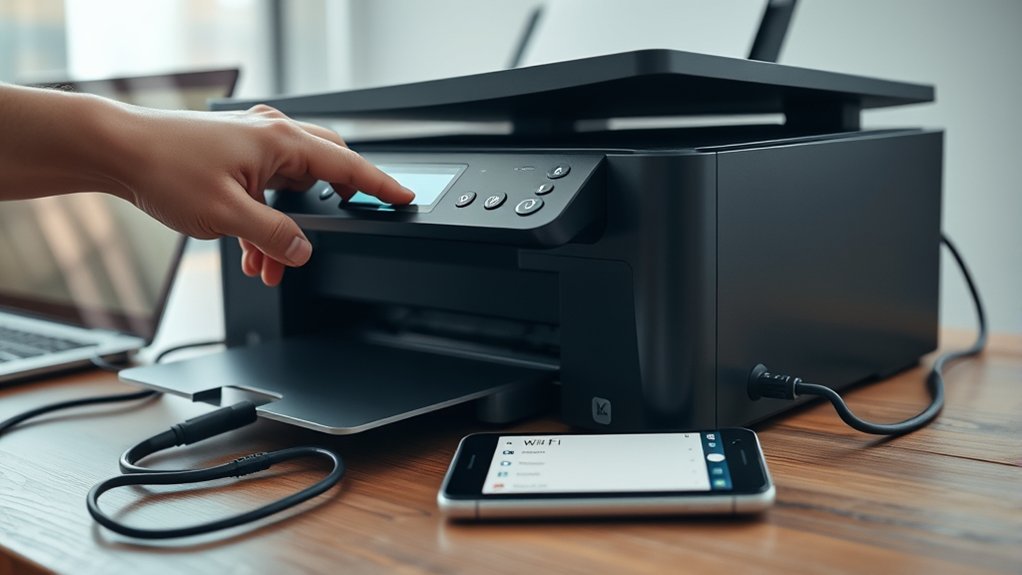

Make sure your printer’s cables are secure and the device is powered on to get your printer back online.
Restart both your printer and computer to reset connections and clear temporary issues.
Check the printer status via Control Panel and disable “Use Printer Offline” if it is enabled.
Clear any stuck print jobs by canceling them in the print queue to avoid printing delays.
For wireless models, verify Wi-Fi settings match your network and reboot your router if necessary.
Updating drivers and running built-in troubleshooters can also help resolve connectivity problems.
Explore further steps to fully restore your printer’s online status and ensure smooth printing operations.
Key Takeaways
- Check all printer cables and power connections to ensure the printer is properly connected and powered on.
- Restart both the printer and computer to refresh their connection and clear temporary errors.
- Verify the printer is not set to “Use Printer Offline” and clear any stuck print jobs from the print queue.
- For wireless printers, confirm the printer’s Wi-Fi settings match the router and restart the router and printer.
- Run the built-in printer troubleshooter in your operating system to detect and fix connectivity issues automatically.
Check Printer Connection and Power
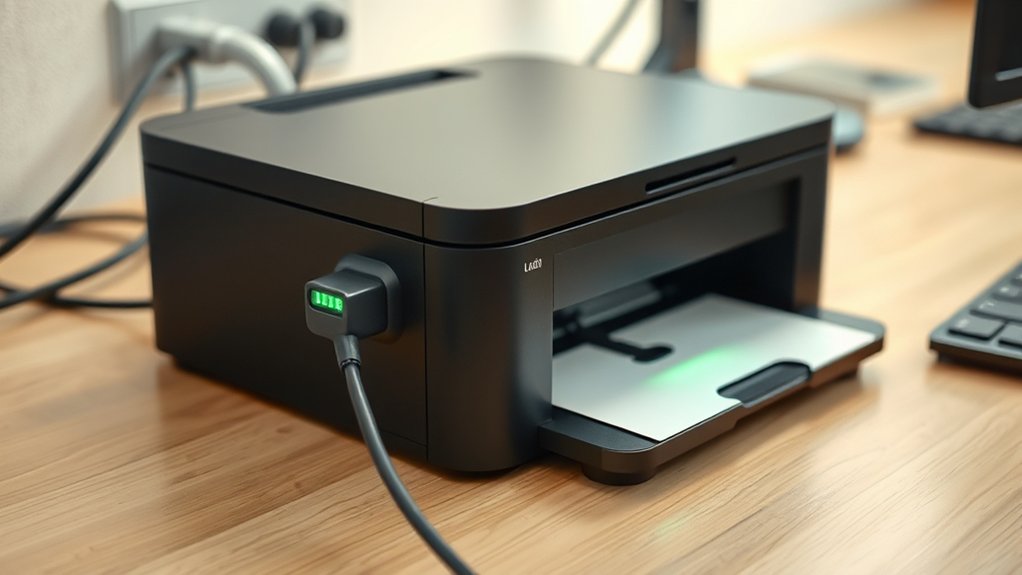
Before troubleshooting further, verify your printer is properly connected and powered on. Start by inspecting all printer cables. Ensure USB or Ethernet cables are firmly plugged into both the printer and your computer or network device. Loose or damaged printer cables often cause connectivity issues.
Next, confirm that the printer’s power cable is securely attached to both the printer and a functioning power source. Test the power outlet with another device to rule out power supply problems. Avoid using extension cords or power strips that might be faulty.
Additionally, check the printer’s power button and indicator lights to confirm it’s receiving power. Addressing these connection and power source issues first can resolve many printer offline errors without further intervention.
Restart Printer and Computer
Start by powering off both your printer and computer completely, then unplug the printer to check all connections are secure.
Wait at least 30 seconds before plugging the printer back in and turning both devices on to guarantee a full reboot. This process can clear temporary errors and re-establish communication between your devices.
Power Cycle Both Devices
Restarting both your printer and computer can resolve many connectivity issues by resetting their internal states. Power cycling these devices forces a device reset, clearing temporary errors that cause offline status.
To do this, turn off your printer and computer, unplug them from the power source, wait 60 seconds, then reconnect and power them on. This process refreshes network settings and hardware components.
| Step | Action |
|---|---|
| 1 | Turn off printer and computer |
| 2 | Unplug devices for 60 seconds |
| 3 | Reconnect and power devices on |
Power cycling is an effective troubleshooting step that restores communication between your printer and computer, improving the chance of getting your printer back online quickly.
Check Printer Connections
One key step to guarantee your printer is properly connected involves verifying all physical and wireless connections between your printer and computer. Start by inspecting printer cables. Ensure USB or Ethernet cables are firmly plugged into both devices without visible damage.
If you’re using wireless connectivity, check that your printer is connected to the correct Wi-Fi network. Restart both your printer and computer to refresh these connections; this often resolves communication glitches.
After rebooting, confirm the printer’s status on your computer to see if it’s online. If issues persist, try reconnecting the printer to your network or swapping out cables to rule out hardware faults.
Regularly checking these connections helps maintain stable communication and prevents your printer from going offline unexpectedly.
Allow Full Reboot Time
Although rebooting your devices is common, you need to allow sufficient time for both your printer and computer to fully restart. Performing a full system reboot guarantees that all hardware components and software processes reset properly.
When you power off your printer and computer, wait at least 60 seconds before turning them back on. This pause allows the printer initialization sequence to complete without interruption, which is essential for establishing a stable connection.
Avoid rushing this step, as premature use can lead to incomplete resets and persistent offline status. After rebooting, check that the printer has passed all self-tests and is recognized by your computer.
This method often resolves communication issues and restores the printer to an online state efficiently.
Make Sure Your Printer Isn’t Offline
Before troubleshooting further, check that your printer isn’t set to offline mode, as this prevents your computer from sending print jobs. Offline issues often arise when the printer status is mistakenly set to “Use Printer Offline.” To fix this, follow these steps:
Open the Control Panel and go to “Devices and Printers.”
Right-click your printer and select “See what’s printing.”
Click the “Printer” menu and verify “Use Printer Offline” is unchecked.
If it’s checked, click it to toggle the printer back online.
Confirming your printer status is online is essential for resolving connectivity problems quickly. By disabling offline mode, you restore communication between your computer and printer, eliminating common offline issues without needing additional troubleshooting.
Clear Printer Queues and Cancel Stuck Jobs
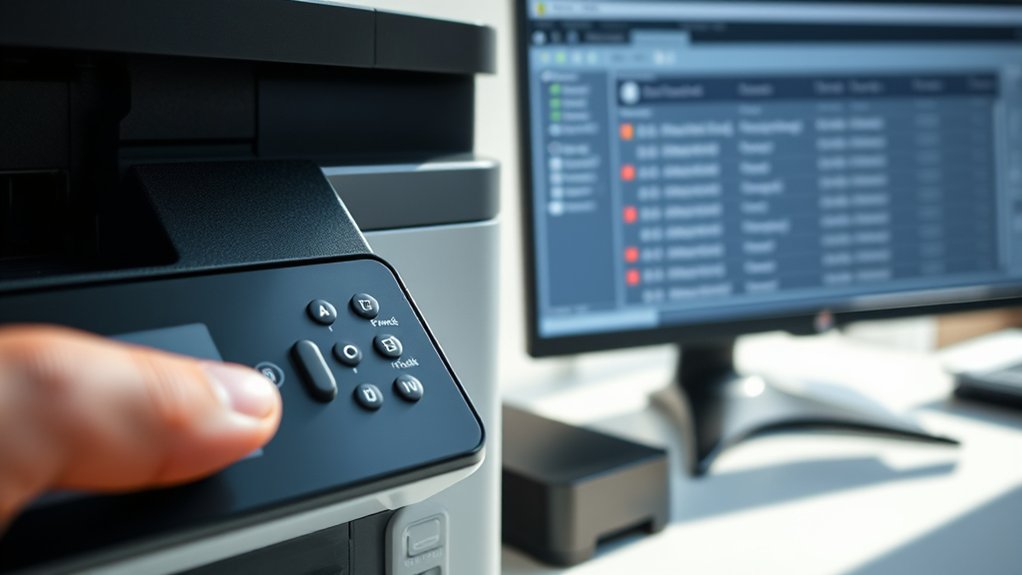
A printer queue clogged with stuck jobs can prevent new documents from printing and cause your device to appear unresponsive. To clear the printer queue, open the print spooler by accessing the “Devices and Printers” section on your computer.
A clogged printer queue stops new prints and makes your device unresponsive; clear it via Devices and Printers.
Select your printer, then click “See what’s printing” to view the list of pending jobs. Identify any stuck jobs causing delays. Right-click on each problematic job and select “Cancel” to perform job cancellation.
If jobs won’t cancel immediately, restart the print spooler service: open “Services,” locate “Print Spooler,” then stop and start it again. This action clears the queue and resets the spooler.
After clearing the printer queue and canceling stuck jobs, your printer should respond normally and accept new print commands without delay.
Update or Reinstall Printer Drivers
Once you’ve cleared the printer queue and canceled stuck jobs, the next step is to ascertain your printer drivers are up to date or properly installed. Outdated or incompatible drivers often cause printers to go offline. Check driver compatibility with your operating system to avoid conflicts.
You can update drivers through the device manager or download the latest version from the manufacturer’s website. If automatic updates fail, consider manual installation to guarantee precision.
- Verify current driver version and OS compatibility
- Download the latest driver from the official site
- Use manual installation if auto-update doesn’t work
- Restart your computer after installation to apply changes
Updating or reinstalling drivers resolves many connectivity issues, making your printer responsive and online again.
Fix Network Issues on Wireless Printers
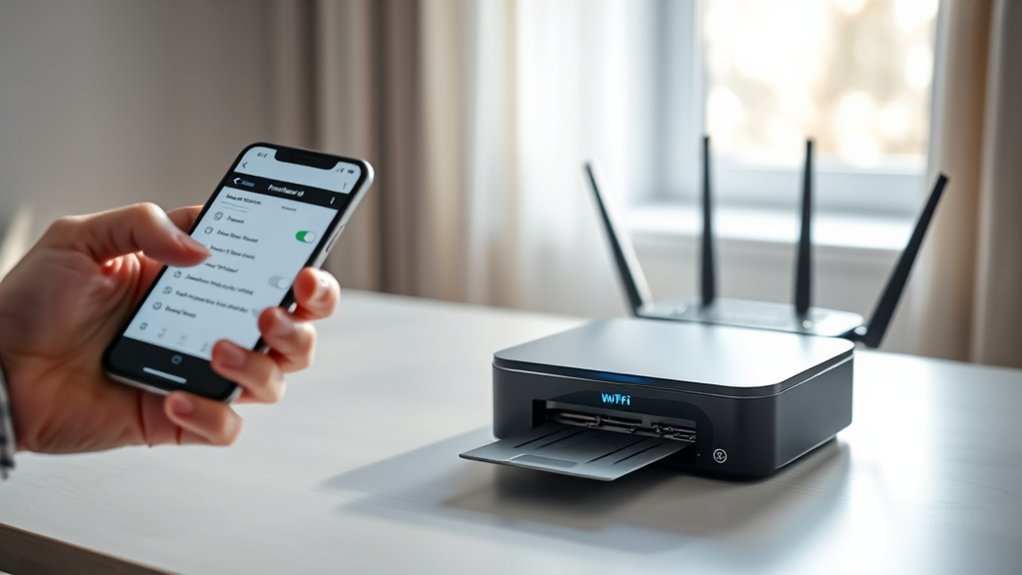
First, check your Wi-Fi signal strength to guarantee your printer has a stable connection. If the signal is weak, restart both your printer and router to refresh the network link.
Finally, verify and update your printer’s network settings to match your current Wi-Fi configuration.
Check Wi-Fi Signal
Even if your printer appears connected, weak Wi-Fi signals can disrupt communication between the device and your network. To guarantee reliable printing, you need to assess and optimize your printer’s signal strength. Wi-Fi interference from other devices or thick walls can degrade connectivity, causing your printer to go offline unexpectedly.
Check the following to improve your printer’s Wi-Fi connection:
- Verify the printer’s signal strength via its control panel or network settings.
- Minimize Wi-Fi interference by relocating cordless phones, microwaves, or Bluetooth devices away from the printer.
- Position your printer closer to the router or within line of sight to boost signal quality.
- Use your router’s 5 GHz band if supported, as it’s less prone to interference than 2.4 GHz.
Restart Printer And Router
Power cycle your printer and router to resolve common network glitches that cause printers to go offline. Begin by turning off your printer and unplugging it from the power source to perform a printer reset.
Next, power down your router and wait for about 30 seconds before plugging it back in. This step refreshes your router settings and clears temporary network conflicts.
Once the router fully restarts, power your printer back on. This process re-establishes your printer’s connection to the network by clearing cached data and resetting network interfaces.
After both devices are back online, check if your printer appears in your device list. Restarting both devices often resolves connectivity issues without needing to alter the printer’s network configuration or update drivers.
Update Printer Network Settings
If restarting your printer and router didn’t restore your printer’s online status, the issue might lie within its network settings. You need to verify and update the printer’s network configuration to guarantee a stable connection.
Access the printer settings through its control panel or web interface. Check the following:
- Confirm the printer is connected to the correct Wi-Fi network.
- Verify the IP address matches your network’s range.
- Update the SSID and password if your router’s credentials changed.
- Disable any static IP if your network uses DHCP, or assign a proper static IP.
Adjusting these printer settings resolves common connectivity problems and helps your printer stay online reliably.
Run Built-In Printer Troubleshooters
Although printer issues can be frustrating, running built-in printer troubleshooters can quickly identify and resolve common problems. Start by accessing your operating system’s printer troubleshooter options. On Windows, go to Settings > Update & Security > Troubleshoot > Printer.
This built-in diagnostics tool scans for connectivity, driver, and configuration issues automatically. Follow the prompts to apply suggested fixes. On macOS, open System Preferences > Printers & Scanners, select your printer, then click “Options & Supplies” and use the “Diagnose” button if available.
These tools streamline troubleshooting by targeting common errors without requiring manual intervention. If the troubleshooter detects problems, it will either fix them or guide you through specific steps, helping to restore your printer’s online status efficiently and precisely.
Frequently Asked Questions
Can I Print From My Smartphone if the Printer Is Offline?
You can’t print from your smartphone if the printer is offline. Check smartphone compatibility and perform printer troubleshooting to restore connection.
Confirm both devices are on the same network and the printer is online before printing.
How Do I Set up Printer Sharing on a Home Network?
Don’t put all your eggs in one basket. Start your printer setup by enabling sharing in your device’s settings.
Then, adjust network configuration so other devices on your home network detect and access the printer seamlessly.
What Should I Do if My Printer Is Printing Blank Pages?
Check your ink cartridges first; replace or reinstall them if empty or misaligned. Run printer maintenance tips like cleaning print heads and aligning cartridges to resolve ink cartridge issues causing blank pages efficiently.
How Can I Print Double-Sided if My Printer Doesn’T Support It?
You can’t rely on automatic double-sided printing, but you can use manual duplex. Adjust your print settings to print odd pages first, then flip and reinsert paper to print even pages manually.
Are There Eco-Friendly Settings to Reduce Ink Usage?
Yes, you can enable ink saving features in your printer settings to reduce ink usage. Regular printer maintenance, like cleaning printheads and using draft mode, also optimizes performance and extends cartridge life efficiently.
Conclusion
By consistently checking connections, clearing queues, and confirming your computer and printer communicate correctly, you can quickly quell printer problems. Restarting devices, reinstalling drivers, and resolving network nuisances guarantees smoother, smarter printing.
Don’t forget to deploy built-in troubleshooters to detect and defeat hidden defects. Staying systematic and solution-focused lets you swiftly shift your printer from offline to online, saving time and stress.
Following these steps ensures a streamlined setup for seamless, successful printing every time. This approach is key to how to get a printer back online efficiently and effectively.