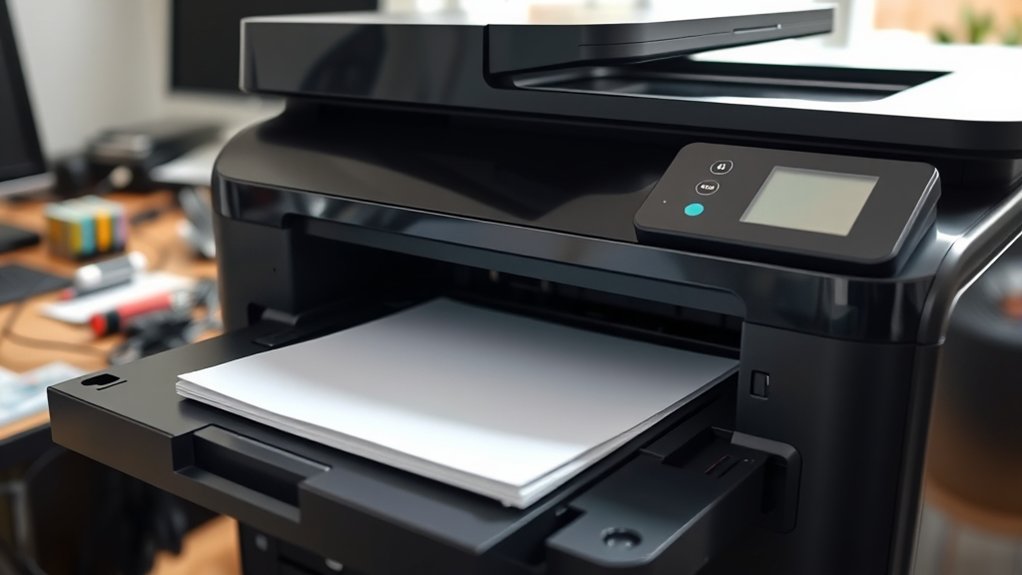

Your printer printing blank pages usually happens because the ink or toner is empty, the print heads are clogged, or the settings aren’t right.
Outdated drivers or loose connections might also cause this problem.
Check and replace the ink or toner if needed.
Cleaning the nozzles and adjusting print settings often fixes the issue.
Updating your printer software can also help.
If the problem continues, exploring printer maintenance and troubleshooting tips can restore clear, consistent prints quickly.
Key Takeaways
- Clogged print heads or nozzles block ink flow, causing blank pages during printing.
- Empty or low ink and toner cartridges prevent ink from being deposited on paper.
- Incorrect print settings such as wrong paper type or disabled color mode result in blank outputs.
- Poor or loose printer connections can disrupt data transfer, leading to blank print jobs.
- Outdated or corrupted printer drivers and software cause communication errors producing blank pages.
Common Causes of Blank Pages From Your Printer
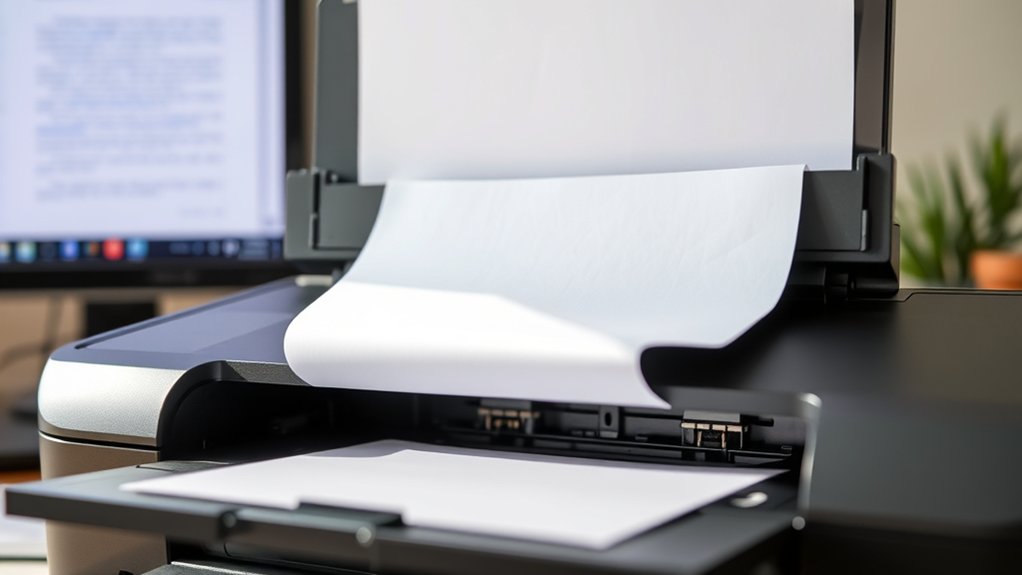
Blank pages from your printer often stem from simple issues you can fix yourself. One common cause is clogged print heads, which block ink flow and ruin print quality. Performing regular printer maintenance, like cleaning the print heads through your printer’s software, usually clears this up.
Another issue might be incorrect paper settings or a poor connection between your computer and printer, causing the device to send blank jobs. Software glitches or outdated drivers can also affect print quality and result in blank pages.
To avoid these problems, keep your printer’s firmware and drivers updated and run routine maintenance checks. By addressing these common causes, you’ll save time and get your printer working properly without calling for professional help.
Checking Ink and Toner Levels to Fix Blank Pages
Ink and toner levels play an essential role in your printer’s output quality. If your printer is spitting out blank pages, here’s how to check and fix it:
- Check ink level indicators on your printer’s display or software to see if ink cartridges are low or empty.
- For laser printers, inspect toner cartridges visually or via the printer’s status menu.
- Use proper toner refill methods to avoid damaging your printer or causing poor print quality.
- Replace empty ink cartridges or toner cartridges promptly to restore printing functionality.
Keeping your ink and toner levels sufficient prevents blank pages and maintains crisp, clear prints. Regularly monitoring and refilling or replacing supplies guarantees your printer works smoothly without interruptions.
Adjusting Print Settings That Cause Blank Pages
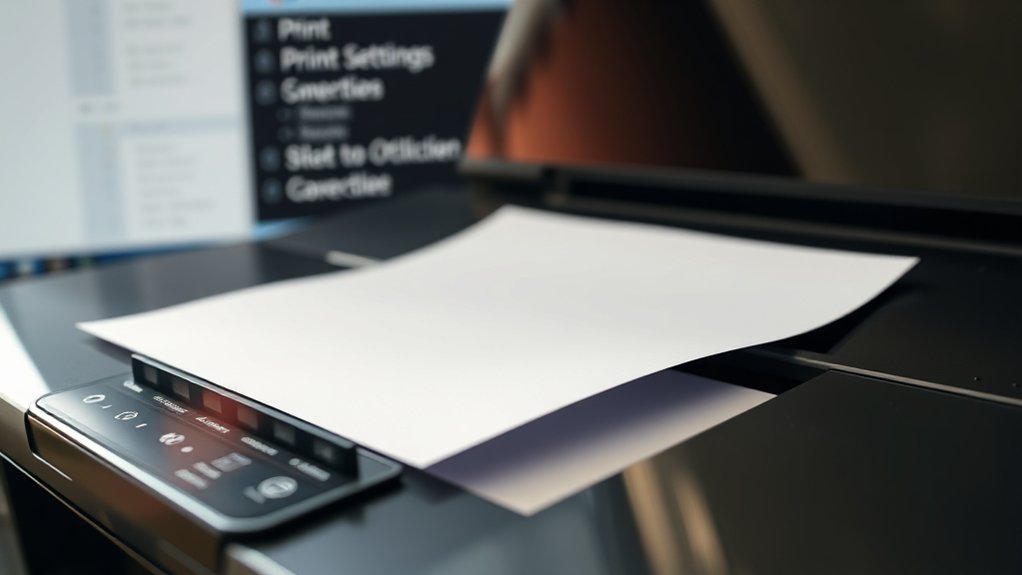
After ensuring your ink and toner levels are adequate, the next step is to check your print settings. Incorrect print quality or print resolution can cause blank pages. Lower print quality or too high print resolution might confuse the printer. Adjust these settings to match your document needs.
| Setting | Recommendation |
|---|---|
| Print Quality | Set to “Standard” or “High” |
| Print Resolution | Use 300 dpi for regular prints |
| Paper Type | Match to actual paper used |
| Color Mode | Select “Color” or “Grayscale” appropriately |
| Duplex Printing | Disable if causing issues |
Review these settings in your printer preferences before printing again to avoid blank pages.
Cleaning Printer Heads and Nozzles for Better Prints
Although print settings play an essential role, clogged printer heads and nozzles often cause poor print quality or blank pages. To fix this, you need effective cleaning techniques and regular nozzle maintenance. Here’s how to get started:
- Run the printer’s built-in cleaning cycle from the settings menu to dissolve dried ink.
- Use a soft, lint-free cloth dampened with distilled water or isopropyl alcohol to gently clean the print head surface.
- Avoid touching nozzles directly; instead, soak a cotton swab in cleaning solution and carefully wipe around the nozzles.
- Print a test page after cleaning to check if prints have improved.
Consistent nozzle maintenance prevents clogs, ensuring sharp, clear prints every time.
Replacing or Troubleshooting Empty and Faulty Cartridges
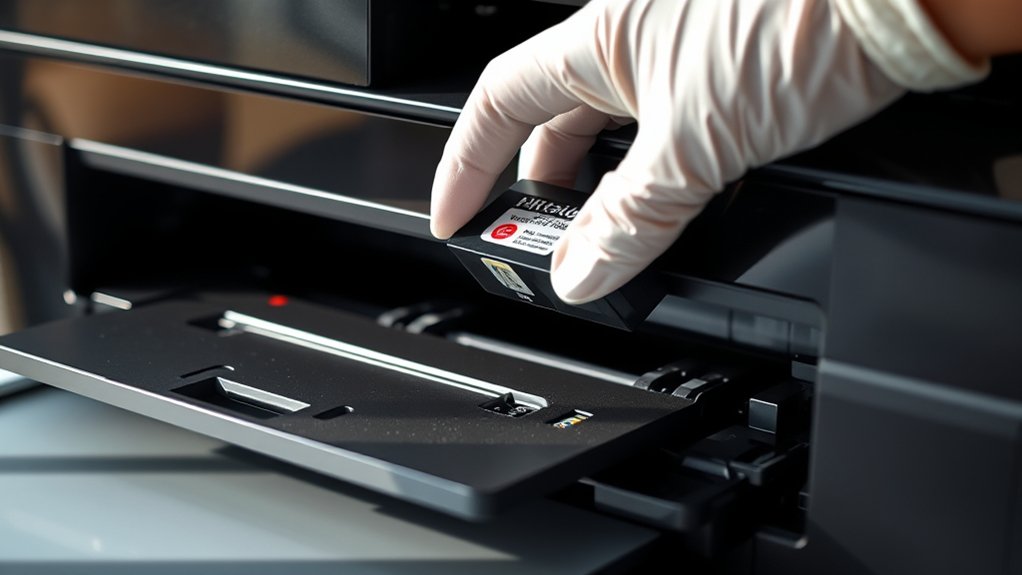
If your printer keeps producing blank pages, start by checking if the cartridges are empty. You can often spot empty cartridges through your printer’s software or by inspecting the ink levels manually.
If the cartridges aren’t empty, try troubleshooting or replacing faulty ones to restore proper printing.
Identifying Empty Cartridges
When your printer starts producing blank pages, one of the first things you should check is whether the cartridges are empty or faulty. Cartridge lifespan directly affects print quality, so knowing when to replace them saves you time and frustration.
Here’s how to identify empty cartridges:
- Check your printer’s display or software for ink level warnings.
- Remove the cartridge and gently shake it; a light cartridge often means it’s empty.
- Inspect the ink nozzle for dried or clogged ink that mimics emptiness.
- Consider ink quality. Low-quality ink can dry quickly, reducing cartridge lifespan.
Fixing Faulty Ink Cartridges
After identifying empty or faulty cartridges, the next step is to fix the issue to get your printer working again. Start by removing the problematic cartridge and inspecting it for damage or dried ink. Perform basic ink cartridge maintenance by gently cleaning the cartridge’s contacts with a lint-free cloth and some distilled water.
If cleaning doesn’t help, replace the cartridge with a new, compatible one. Use printer troubleshooting techniques like running a nozzle check or print head cleaning through your printer’s software to guarantee ink flows properly. Always handle cartridges carefully and store spares properly to avoid faults.
Regular ink cartridge maintenance and timely replacement can prevent blank pages and keep your printer running smoothly.
Fixing Software and Printer Driver Problems
Because software glitches and outdated drivers often cause printers to produce blank pages, you should start by checking for updates and reinstalling your printer driver.
Here’s how to fix software and printer driver problems:
- Visit the printer manufacturer’s website and download the latest driver updates.
- Uninstall the existing printer software from your computer to remove corrupted files.
- Reinstall the updated printer software and drivers carefully, following on-screen instructions.
- Restart your computer and printer to apply the changes effectively.
Identifying Hardware Issues That Cause Blank Pages
Though software issues are common, hardware problems can also cause your printer to produce blank pages. Start by checking your printer connections to confirm everything is securely plugged in.
Loose or damaged cables often disrupt communication between your computer and printer, leading to blank prints. Inspect USB or Ethernet cables for visible wear or bends, and replace them if necessary.
Additionally, verify that the printer’s ink cartridges or toner are installed correctly and not empty. Sometimes, clogged printheads or faulty cartridges cause no ink to deposit on paper.
Finally, consider running a printer self-test or diagnostic from its control panel to isolate hardware faults. Addressing these hardware issues can quickly resolve blank page problems and restore proper printing functionality.
Tips to Prevent Printer Blank Pages in Future Prints
Once you’ve ruled out hardware issues, focusing on preventive measures can save you from future blank page frustrations. Implementing preventive maintenance and regular inspections keeps your printer running smoothly.
After eliminating hardware problems, preventive care and routine checks ensure your printer stays reliable and avoids blank pages.
Here are four tips to help:
- Clean print heads regularly. This prevents ink clogs that cause blank pages.
- Use high-quality ink cartridges. Cheap or expired ink often leads to poor print quality.
- Check ink levels before printing. Running low can result in incomplete or blank pages.
- Perform routine printer tests. Regular inspections help detect issues early, avoiding surprises.
Frequently Asked Questions
Can Using Third-Party Ink Cause Blank Pages?
Yes, using third-party ink can cause blank pages if the ink quality is poor or the cartridge compatibility is off.
You should verify compatibility and use high-quality ink to avoid printing issues and maintain your printer’s performance.
How Do Environmental Factors Affect Printer Performance?
You might not expect it, but humidity levels and temperature variations can wreak havoc on your printer’s performance. Keep your device in a stable, controlled environment to prevent paper jams, ink smudging, and blank pages.
Is It Normal for Printers to Print Blank Pages During Startup?
Yes, during printer startup, it’s normal for your printer to print blank pages as it cleans the print head. This process guarantees no clogs, helping maintain print quality and preventing streaks or smudges later.
Can Outdated Firmware Cause Blank Printing Issues?
Outdated firmware updates are like worn-out maps, leading your printer astray with printing errors. You should update your firmware regularly to guide your printer correctly, preventing blank pages and ensuring smooth, accurate printing every time.
How Often Should Printer Maintenance Be Scheduled?
You should schedule printer cleaning and ink replacement every 3-6 months, depending on usage. Regular maintenance keeps your printer running smoothly and prevents issues like blank pages.
Stay proactive to avoid costly repairs.
Conclusion
Did you know that nearly 30% of printer issues stem from low or empty ink cartridges? By regularly checking your ink and toner levels, adjusting print settings, and keeping printer heads clean, you can avoid those frustrating blank pages.
If problems persist, updating drivers or inspecting hardware can make all the difference. Taking these simple steps guarantees your prints come out sharp and clear every time.
By following these tips, you can effectively prevent your printer from printing blank pages, saving you time, ink, and stress in the long run.