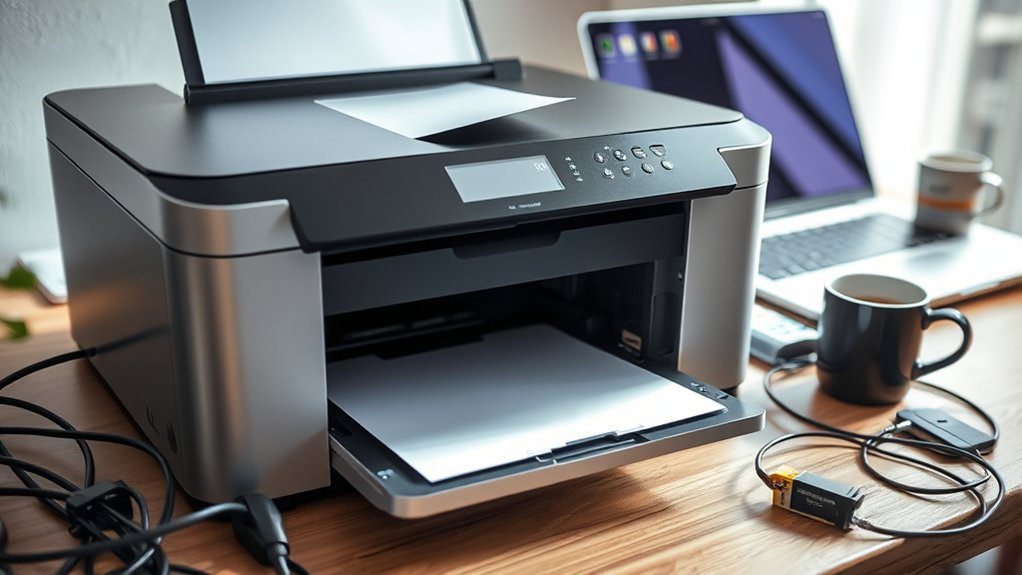

If your printer is not printing, start by checking that it’s plugged in, powered on, and properly connected to your computer or Wi-Fi.
Make sure there’s no paper jam or debris inside the printer.
Next, verify that your ink or toner isn’t empty.
Updating your printer drivers can also help avoid software conflicts that prevent printing.
For wireless printers, ensure you have a strong and correct network connection.
If these steps don’t resolve the issue, further hardware and software troubleshooting may be necessary to get your printer running smoothly again.
Key Takeaways
- Check if the printer is powered on and properly connected via USB or Wi-Fi to your computer or network.
- Ensure there is no paper jam or blockage inside the printer by inspecting and clearing any stuck paper.
- Verify ink or toner cartridges are correctly installed and have enough ink or toner to print.
- Update or reinstall printer drivers and software to fix communication issues between the printer and computer.
- Confirm the printer is set as the default device and not paused or offline in your computer’s print settings.
How to Check Printer Connections and Power
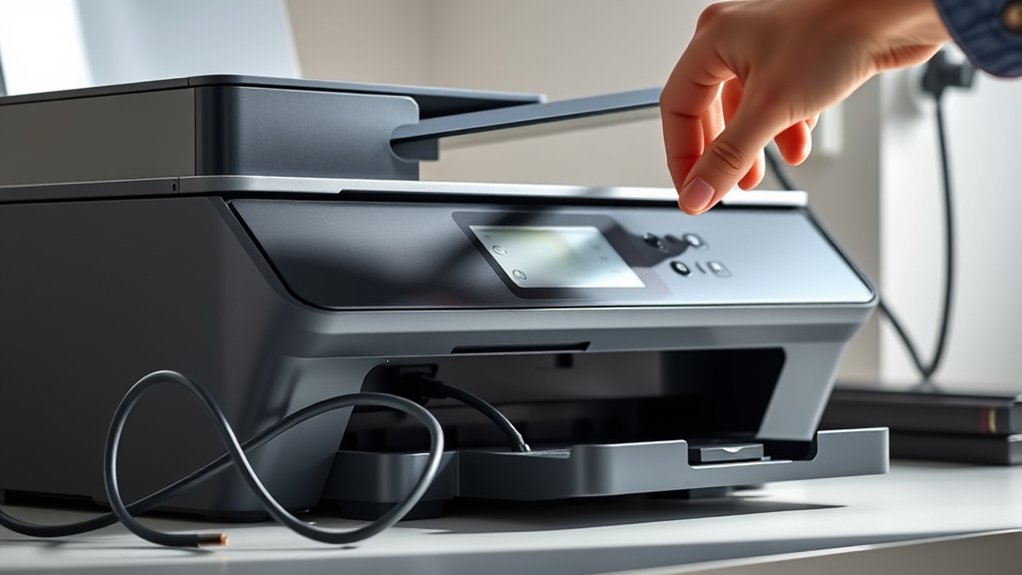
Before troubleshooting deeper issues, make certain your printer is properly connected and powered on. First, check the printer power cable to make sure it’s securely plugged into both the printer and the power outlet.
Ensure your printer is securely plugged in and powered on before starting any troubleshooting steps.
If your printer uses a power button, press it to confirm it’s turned on. Next, examine all connection points to avoid common connection issues.
For USB printers, verify the cable is firmly connected to your computer. For wireless printers, make certain your device is connected to the correct Wi-Fi network and that the signal is strong.
Sometimes, simply unplugging and reconnecting cables can resolve connection problems. By confirming your printer power and connections upfront, you can avoid unnecessary troubleshooting steps and fix the issue faster.
Troubleshooting Hardware Problems That Keep Your Printer From Printing
Start by double-checking all your printer connections to verify cables are firmly plugged in.
Next, inspect key hardware components like the ink cartridges, paper tray, and rollers for any jams or damage. Fixing these simple issues often gets your printer back to working smoothly.
Checking Printer Connections
Although it’s easy to overlook, ensuring your printer’s connections are secure is essential for resolving printing issues. Start by checking all printer cables: USB, Ethernet, or power cords. Make sure each cable is firmly plugged into both the printer and your computer or router.
Loose or damaged cables can interrupt communication, causing your printer not to print. Next, verify the connection type your printer uses. If it’s wireless, confirm your printer is connected to the correct Wi-Fi network and that the signal is strong.
For wired connections, inspect the cables for any visible wear or fraying and replace them if needed. Taking these steps helps you quickly identify and fix connection problems that often stop printers from working properly.
Inspecting Hardware Components
After confirming your printer’s connections are secure, the next step is to inspect the hardware components themselves. A thorough hardware inspection helps identify any physical issues affecting component functionality.
Start by checking for paper jams or debris inside the printer that might block the mechanism. Next, examine the ink or toner cartridges to verify they’re properly seated and not empty or dried out. Finally, look over the printer’s rollers and print head for wear or damage that could disrupt printing.
Clear any paper jams or debris carefully
Confirm ink or toner cartridges are installed correctly
Inspect rollers and print head for damage or buildup
How to Fix Paper Jams and Clear Printer Blockages
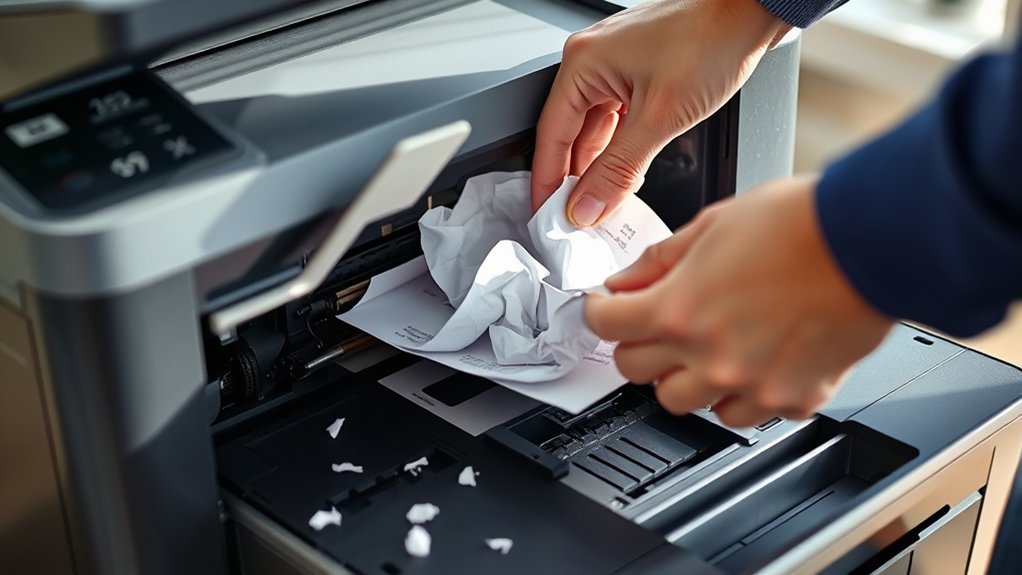
When your printer jams, it can halt your work quickly, but you can usually fix it yourself by carefully removing stuck paper and checking for any hidden blockages. First, turn off the printer and open all access points to locate jammed sheets.
Gently pull the paper in the direction of the feed to avoid tearing. Inspect rollers and pathways for small scraps or debris causing blockages. Using the correct paper types recommended for your printer prevents frequent jams.
Avoid overloading the tray and fan the paper stack before loading. Regular printer maintenance, such as cleaning rollers and removing dust, helps keep paper feeding smoothly.
After clearing jams and blockages, close all panels securely before restarting. Consistent care reduces future interruptions and keeps your printer running efficiently.
How to Update and Fix Printer Drivers and Software
Clearing paper jams is just one part of keeping your printer running smoothly. To avoid software compatibility issues, updating and fixing your printer drivers and software is crucial. Start with these printer maintenance tips:
- Visit the manufacturer’s website to download the latest drivers compatible with your operating system.
- Use your computer’s device manager to automatically search for and install driver updates.
- Uninstall and reinstall the printer software to resolve any corrupted files or installation errors.
Regular updates guarantee your printer communicates effectively with your computer, preventing print failures. If issues persist after updates, check for software conflicts or run the built-in printer troubleshooter.
Staying proactive with driver and software maintenance keeps your printer reliable and ready to print whenever you need it.
How to Replace Ink or Toner to Get Your Printer Printing Again
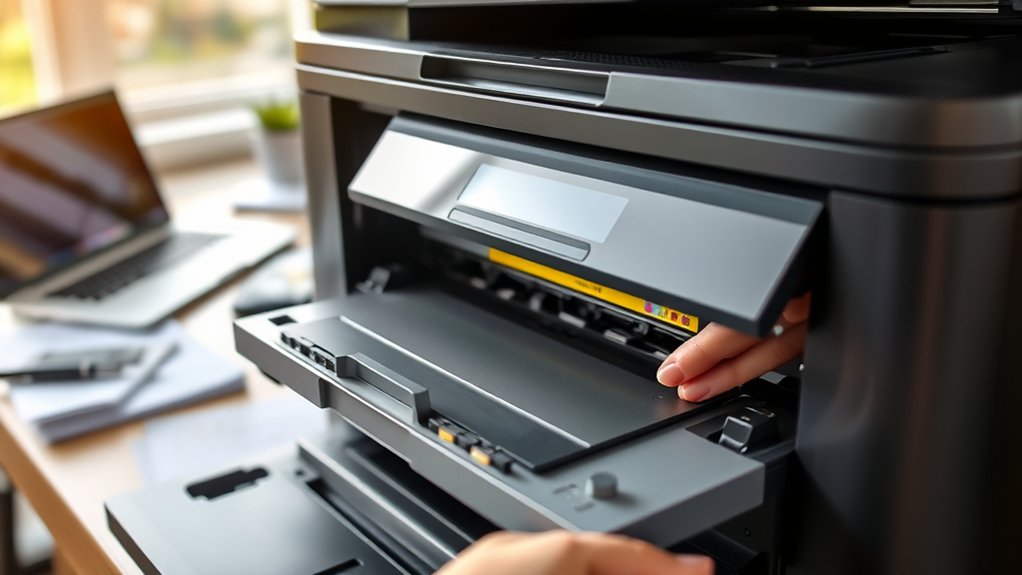
To get your printer printing again, you first need to identify whether it uses ink or toner cartridges. Once you know the type, follow a straightforward step-by-step guide to remove the old cartridge and install the new one properly.
This guarantees your printer recognizes the replacement and functions smoothly.
Identifying Cartridge Type
How do you know which cartridge your printer needs? Start by checking your printer model. This info is essential for cartridge compatibility. Next, look at the cartridge itself or the printer manual to find the exact cartridge number. This guarantees you get the right ink or toner for smooth cartridge installation and printing.
To identify your cartridge type, consider these tips:
- Check your printer’s official website for recommended cartridges.
- Inspect the old cartridge for model numbers and compatibility info.
- Use online tools or apps that match printers with compatible cartridges.
Getting the right cartridge type prevents errors and improves print quality. Always verify cartridge compatibility before buying to avoid installation issues and get your printer printing again quickly.
Step-by-Step Replacement Guide
When your printer stops printing, replacing the ink or toner cartridge can quickly resolve the issue. First, power off your printer and open the cartridge access door.
Remove the empty cartridge by gently pressing the release tab. Take your new cartridge, remove any protective tape, and insert it firmly into place until it clicks.
Close the access door and power the printer back on. Run a test print to confirm the replacement worked.
Following these printer maintenance tips helps you avoid common printing errors like streaks or faded prints. Regularly checking cartridge levels and replacing them promptly guarantees smooth printing.
This straightforward replacement guide gets your printer back in action with minimal downtime and hassle.
How to Troubleshoot Wireless and Network Printer Issues
Although wireless and network printers offer convenience, connectivity issues can often disrupt your printing tasks. To troubleshoot, start by checking your wireless setup to guarantee your printer is connected to the correct Wi-Fi network.
Next, verify your network configuration. Make sure your computer and printer are on the same network and the IP address hasn’t changed. Finally, restart your devices to refresh connections.
- Confirm your printer’s Wi-Fi signal strength.
- Review your router settings for any blocked devices.
- Update your printer drivers and firmware.
Frequently Asked Questions
Can Printing Issues Be Caused by Incompatible File Formats?
Yes, printing issues can arise from file compatibility problems. You’ll need to check if your file format is supported and perform format conversion if necessary to guarantee your printer accepts and processes the document correctly.
How Do Printer Settings Affect Print Quality?
Did you know 70% of print quality issues stem from incorrect settings? You’ll improve results by adjusting print resolution and color settings, ensuring your printer uses ideal DPI and color profiles for sharper, more vibrant prints.
Does Printer Maintenance Impact Its Lifespan?
Yes, regular printer upkeep directly impacts its lifespan. By following maintenance tips like cleaning print heads and checking ink levels, you prevent damage and guarantee consistent performance.
This extends your printer’s functionality and saves repair costs.
Can Environmental Factors Affect Printer Performance?
You’d think your printer’s as fragile as a snowflake in a desert! Humidity levels and temperature extremes can mess with its performance.
Keep it in a stable, moderate environment to avoid jams and ink issues.
Are There Apps to Monitor Printer Usage Remotely?
Yes, you can use apps like PrinterLogic or PaperCut to monitor printer usage remotely. They let you track print jobs, manage access, and receive alerts, helping you control printer usage efficiently from anywhere.
Conclusion
If your printer still isn’t printing, don’t assume it’s broken beyond repair. Often, simple fixes like checking connections, clearing paper jams, or updating drivers can solve the issue quickly. Even if you’re not tech-savvy, following these steps can get your printer back in action without frustration.
Remember, a little troubleshooting goes a long way—so don’t give up before trying these straightforward solutions. You’ve got this! Understanding why your printer is not printing is the first step to resolving the problem efficiently.