
An AirPrint printer is a device that lets you print wirelessly from your Apple devices without needing extra drivers or software.
It works over your Wi-Fi network, automatically connecting with your iPhone, iPad, or Mac when you hit print.
You can easily print photos, documents, and emails right from your apps with just a few taps.
If you want to know how to connect, choose the right printer, and fix common issues, there’s plenty more to explore.
Key Takeaways
- An AirPrint printer supports Apple’s AirPrint technology for wireless printing from iPhones, iPads, and Macs without needing drivers or software.
- It connects seamlessly to Apple devices over the same Wi-Fi network for direct, driverless printing.
- AirPrint printers automatically appear on Apple devices when printing is initiated, simplifying setup and use.
- They support printing of various file types including photos, documents, and emails with customizable print settings.
- These printers often feature built-in Wi-Fi or Ethernet connectivity and require updated firmware for compatibility.
What Is an AirPrint Printer and How Does It Work
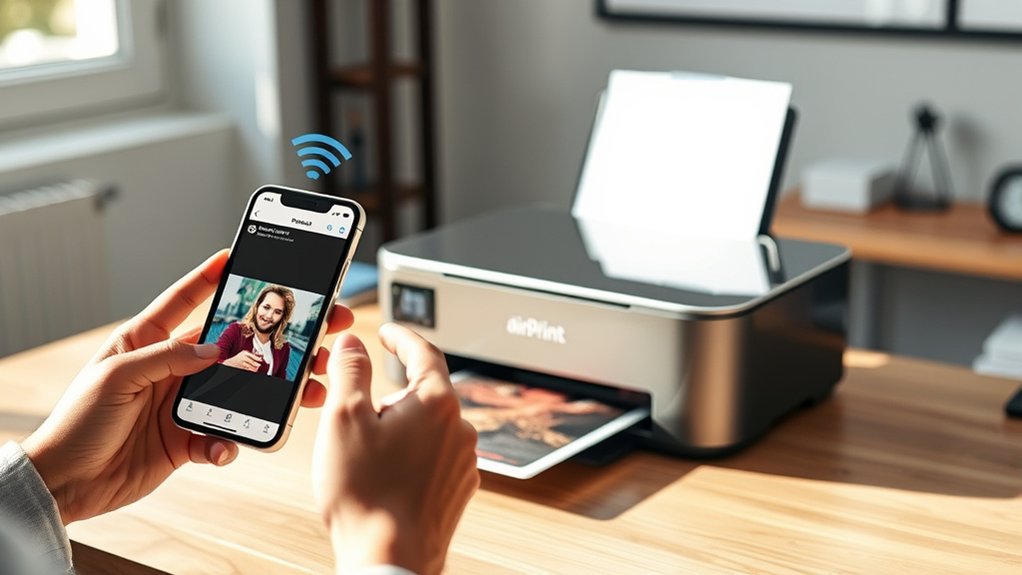
An AirPrint printer lets you print directly from your Apple devices without needing extra drivers or software. AirPrint technology simplifies wireless printing by allowing your iPhone, iPad, or Mac to communicate seamlessly with compatible printers over the same Wi-Fi network.
When you select print on your device, AirPrint automatically detects printers with printer compatibility, ensuring a smooth connection. This technology supports various printing tasks like photos, documents, and emails without requiring manual setup.
To use AirPrint, you just need a printer that supports this feature, which many modern models do. Since AirPrint handles the communication and file formatting behind the scenes, you avoid the hassle of installing drivers or apps, making printing straightforward and efficient.
How AirPrint Makes Printing Easy on Apple Devices
You’ll appreciate how AirPrint lets you print wirelessly without the hassle of cables or setup. It works seamlessly with your Apple devices, so you don’t need to install any drivers or software.
This makes printing straightforward and quick, right from your iPhone, iPad, or Mac.
Wireless Printing Convenience
Because AirPrint seamlessly connects your Apple devices to compatible printers without extra setup, it simplifies wireless printing like never before. You don’t need to install drivers or configure complicated settings. AirPrint uses wireless technology to deliver fast, reliable printing solutions. Just tap print from your iPhone, iPad, or Mac, and your document or photo will be ready in seconds.
Here’s how AirPrint makes wireless printing convenient for you:
- Automatically detects nearby AirPrint-enabled printers on the same Wi-Fi network
- Eliminates the need for cables or additional apps
- Supports high-quality photo and document printing directly from apps
- Provides easy access to printer features like page range and copy count
With AirPrint, printing is straightforward, efficient, and perfectly tailored to your Apple ecosystem.
Seamless Device Integration
AirPrint integrates effortlessly with your Apple devices, making printing as simple as tapping a button. You won’t need to worry about complex setups because AirPrint offers seamless connectivity between your iPhone, iPad, or Mac and compatible printers.
This direct connection enhances the user experience by eliminating barriers that usually complicate printing tasks. When you select the print option within an app, AirPrint instantly detects nearby printers and presents them for quick selection.
This smooth interaction saves you time and reduces frustration, allowing you to focus on your work or creative projects. Thanks to this seamless integration, printing becomes a natural extension of your device’s functionality, designed to deliver convenience and efficiency without any technical hassle.
No Driver Installation Needed
No drivers need to be installed when you print from your Apple device, making the process fast and hassle-free. Thanks to AirPrint’s driverless technology, your device communicates directly with the printer over the network.
This means you don’t have to search for, download, or update any software. Mobile printing becomes straightforward, whether you’re using an iPhone, iPad, or Mac.
With AirPrint, you can expect:
- Instant recognition of compatible printers on the same Wi-Fi network
- Effortless printing without manual driver setup
- Automatic handling of print settings for optimized output
- Compatibility across a wide range of apps and file types
This simplicity saves you time and reduces technical frustrations, making printing from your Apple device seamless and efficient.
Apple Devices Compatible With AirPrint
While not every Apple device supports wireless printing, many popular models are compatible with AirPrint, making it easy for you to print directly from your iPhone, iPad, or Mac without installing additional drivers. For iPhones, AirPrint works on models running iOS 4.2 or later, including iPhone 4 and newer, ensuring broad compatibility.
When it comes to iPads, iPad compatibility starts from the original iPad with iOS 4.2 or later, covering all iPad Air, iPad mini, and iPad Pro models. Macs running OS X 10.7 Lion or later also support AirPrint. By using these compatible devices, you can quickly print documents, photos, and emails wirelessly, streamlining your workflow without extra setup or software.
How to Connect Your Apple Device to an AirPrint Printer
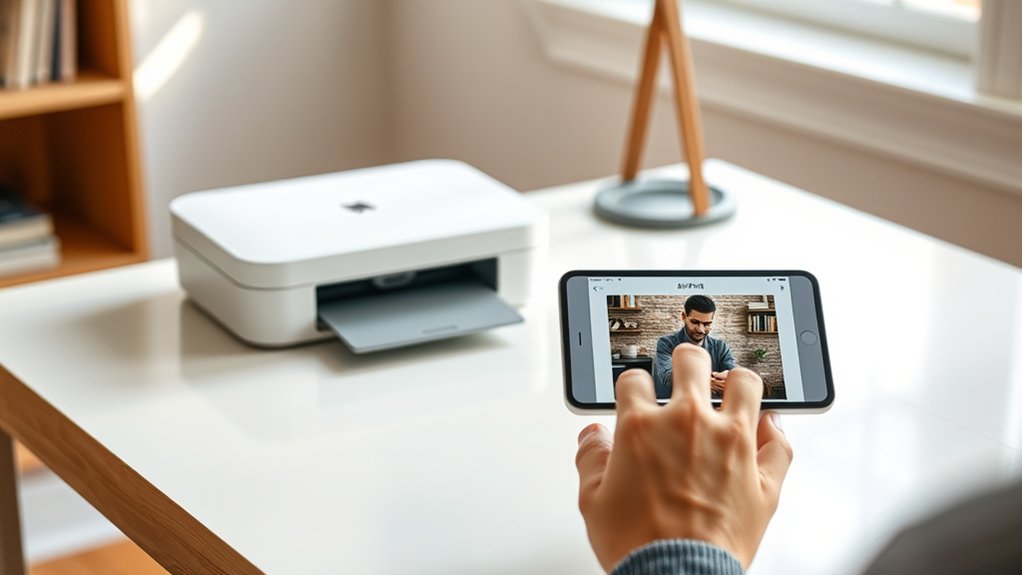
To connect your Apple device to an AirPrint printer, first make sure Wi-Fi and Bluetooth are enabled on your device. Then, open the app you want to print from and select the AirPrint printer from the available options.
This straightforward process lets you print wirelessly with ease.
Enable Wi-Fi And Bluetooth
Before you can print wirelessly, you need to enable both Wi-Fi and Bluetooth on your Apple device. This guarantees a smooth connection with your AirPrint printer through proper Wi-Fi setup and Bluetooth pairing. Here’s how to get started:
Open Settings and tap Wi-Fi to turn it on and connect to your home or office network.
Go back to Settings and select Bluetooth, then toggle it on to enable device pairing.
Make sure your AirPrint printer is powered on and connected to the same Wi-Fi network.
Keep Bluetooth active to help your device find the printer automatically.
Enabling both Wi-Fi and Bluetooth ensures your Apple device can communicate with the AirPrint printer, making wireless printing seamless and efficient.
Select Printer In Apps
How do you connect your Apple device to an AirPrint printer from within your favorite apps? First, verify your app supports AirPrint, as app compatibility is essential for smooth printing.
When ready to print, tap the share icon or the app’s menu to find the print option. Next, tap “Select Printer” to open the printer selection screen.
Your device will automatically search for nearby AirPrint-enabled printers connected to the same Wi-Fi network. Choose your desired printer from the list.
After selecting the printer, adjust any print settings like page range or number of copies, then tap “Print.” This straightforward process works across most Apple apps, making it easy to print directly without installing additional drivers or software.
Features That Make a Printer Work With AirPrint
Compatibility plays an essential role when choosing a printer that works with AirPrint. To guarantee smooth wireless printing from your Apple devices, you need to check the AirPrint compatibility of the printer. Not all printers support this feature, so reviewing the printer specifications is vital before buying.
Here are key features that make a printer work with AirPrint:
- Built-in Wi-Fi or Ethernet connectivity for seamless network access
- Support for Apple’s AirPrint protocol to enable driverless printing
- Updated firmware that recognizes and communicates with iOS and macOS devices
- Ability to handle common document types and print quality settings efficiently
How to Choose the Best AirPrint Printer
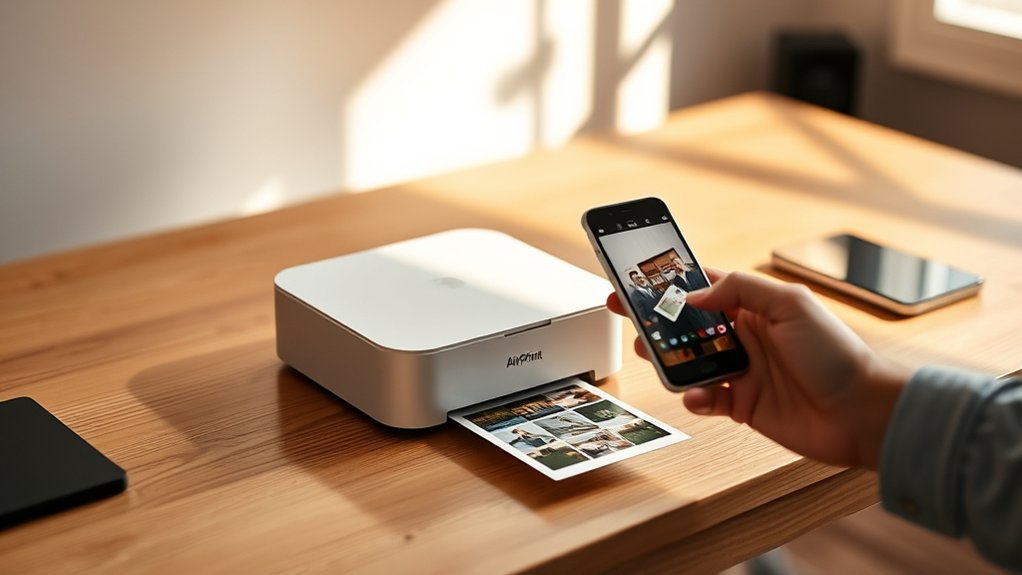
What factors should you consider to find the best AirPrint printer for your needs? Start by evaluating print quality. Look for printers that deliver sharp text and vibrant images, especially if you print photos or graphics frequently.
Next, consider the printer’s compatibility with your devices and wireless network to guarantee smooth AirPrint functionality. Don’t forget to check the printer’s speed and features, such as duplex printing or scanning, if those matter to you.
Price comparisons are essential; balance the upfront cost with ongoing expenses like ink or toner replacements. Reading user reviews can also give insight into reliability and ease of use. By focusing on print quality, features, and price comparisons, you’ll confidently choose an AirPrint printer that fits your workflow and budget.
Troubleshooting Common AirPrint Problems
Although AirPrint usually works seamlessly, you might occasionally run into issues like printers not appearing on your device or print jobs failing to start. To resolve common AirPrint issues, focus on improving printer connectivity and ensuring your devices communicate properly. Here’s what you can do:
Confirm your iPhone, iPad, or Mac and the AirPrint printer are on the same Wi-Fi network.
Restart your printer and device to refresh connections.
Check for firmware updates on your printer and install any available updates.
Disable and re-enable Wi-Fi on your device to reset network settings.
Alternatives to AirPrint for Wireless Printing on Apple Devices
If AirPrint doesn’t meet your needs or your printer isn’t compatible, you can still print wirelessly from your Apple devices using other solutions. One popular wireless alternative is cloud printing, which lets you send documents to your printer via the internet.
Services like Google Cloud Print (though now deprecated) have paved the way for newer apps supporting cloud printing. Another option is using your printer manufacturer’s app, which often supports wireless printing without AirPrint.
You can also connect your printer to your network via Wi-Fi and use third-party apps that enable wireless alternatives compatible with Apple devices. These methods expand your options, ensuring you can print easily even if AirPrint isn’t available on your printer.
Frequently Asked Questions
Can Airprint Be Used With Non-Apple Devices?
You can’t use AirPrint compatibility directly with non-Apple devices because AirPrint is designed for Apple products.
For non-Apple devices, you’ll need alternative printing solutions or apps that support your device’s printing protocols.
Does Airprint Support Duplex Printing Automatically?
AirPrint supports duplex printing only if your printer has that feature. It doesn’t handle automatic detection of duplex capability.
You need to select duplex printing manually when available to guarantee your print job prints on both sides.
How Secure Is Printing via Airprint?
You’d trust a paper plane with secrets, right? AirPrint security uses strong AirPrint encryption, keeping your data safe during wireless printing.
Still, always connect to trusted networks to guarantee your prints don’t fly into the wrong hands.
Are Firmware Updates Needed for Airprint Compatibility?
Yes, you’ll need firmware updates to guarantee firmware compatibility with AirPrint. Printer manufacturers regularly release these updates to maintain smooth functionality and security.
Keep your device current to avoid printing issues and enjoy seamless AirPrint use.
Can Airprint Print From Apps Other Than Apple’s Default Apps?
Yes, you can print from many third party apps using AirPrint, but some printing limitations exist. Not all apps support AirPrint fully, so you might encounter restrictions depending on the app’s design and features.
Conclusion
Now that you know what an AirPrint printer is and how it works, you’re ready to make printing from your Apple devices a breeze. Just like hitting two birds with one stone, AirPrint saves you time and hassle by eliminating cables and extra software.
Whether you’re choosing a new printer or troubleshooting, understanding these basics puts you in the driver’s seat for smooth, wireless printing every time. Embracing the convenience of an AirPrint printer ensures seamless connectivity and effortless printing from all your Apple devices.