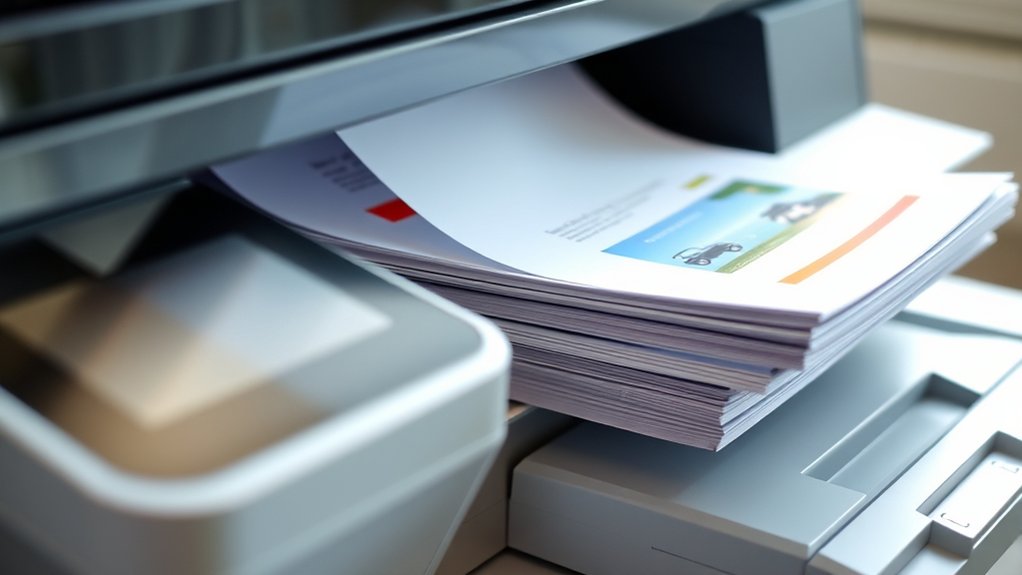

When you use the collate option on your printer, it automatically organizes multiple-page documents into complete sets in the correct order—Page 1, Page 2, and so on—saving you from manually sorting printed pages.
This is especially helpful when printing several copies or double-sided pages, keeping everything neat and error-free.
Without collate, you’d get all copies of one page before moving to the next.
Understanding how collate works can make your printing smoother and more efficient.
Key Takeaways
- Collate on a printer arranges printed pages in sequence to produce complete, ordered sets of multi-page documents automatically.
- It prevents manual sorting by printing pages in the natural order: Page 1, Page 2, Page 3, for each copy.
- Collated printing is especially useful for multi-page documents and multiple copies, saving time and reducing errors.
- When combined with duplex printing, collate ensures double-sided pages remain correctly ordered.
- Common issues with collate can be resolved by checking print settings, updating drivers, and clearing paper jams.
What Does Collate Mean on a Printer?
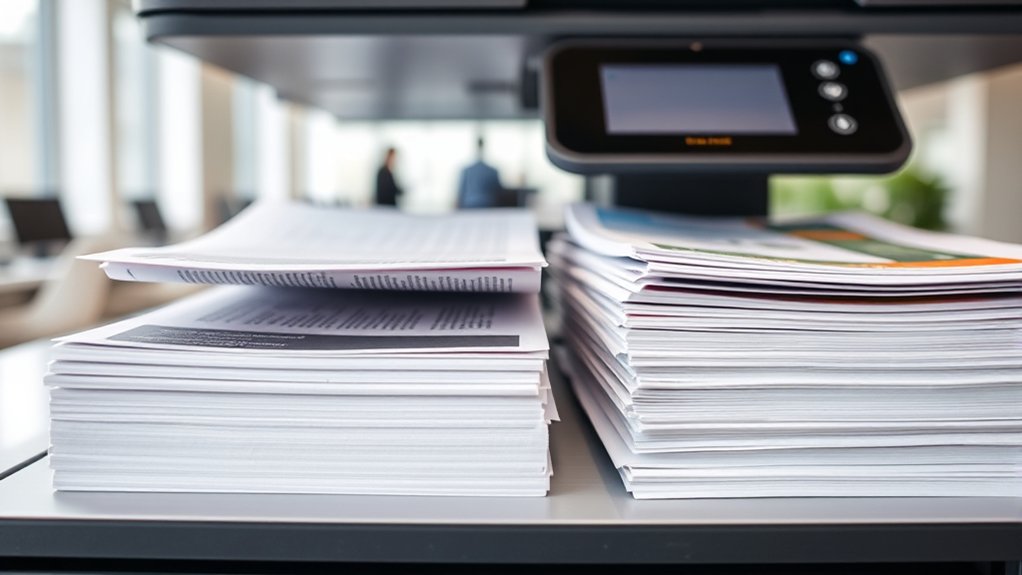
When you print multiple copies of a document, the collate option determines how the pages are organized. In your printer settings, selecting “collate” means your printer will group each complete set of pages together: page 1, page 2, page 3, then repeat for the next copy.
This makes it easier to distribute or file documents without manually sorting pages. If you don’t choose to collate, the printer will print all copies of page 1 first, then all copies of page 2, and so on, which can complicate your page organization.
Understanding this option lets you control how your printed materials come out, saving you time and effort in arranging pages afterward. Adjusting this in your printer settings is straightforward and essential for efficient printing.
Collated vs. Uncollated Printing: What’s the Difference?
Although both collated and uncollated printing serve to produce multiple copies, they organize your pages differently. When you choose collated printing, your printer arranges pages in sequence, creating complete sets of collated documents.
Uncollated printing, however, produces stacks where each stack contains all copies of one page before moving to the next.
This difference affects how you handle your prints:
| Collated Printing | Uncollated Printing |
|---|---|
| Ready-to-use, in order | Pages grouped by number |
| Saves manual sorting time | Requires manual sorting |
| Ideal for multi-page documents | Suitable for single-page copies |
Knowing this helps you pick the best option for your task, saving time and reducing frustration.
How Collate Changes Printed Page Order
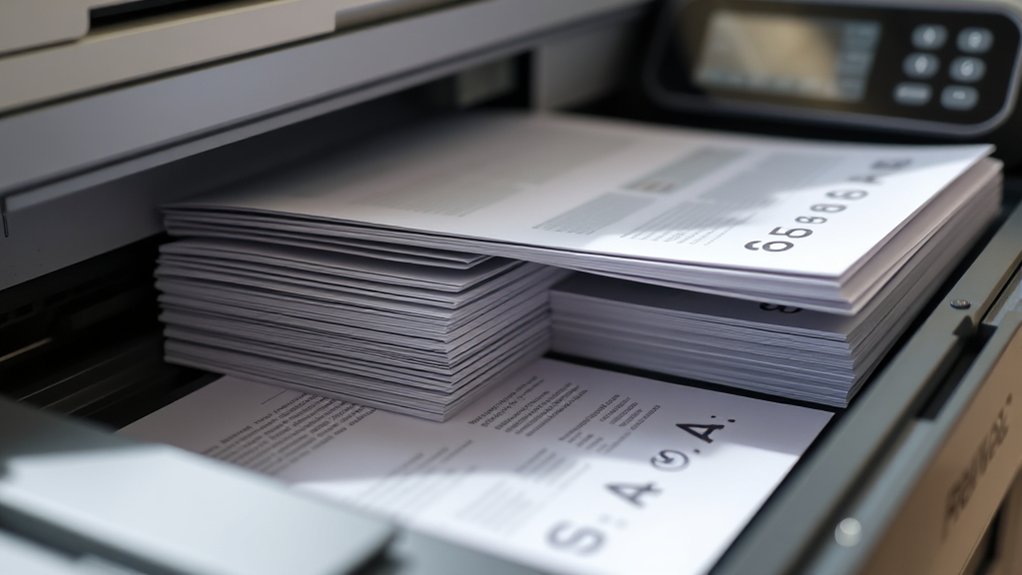
When you choose to collate, your printer arranges pages in complete sets, like 1-2-3, 1-2-3. Without collate, it prints all copies of page one first, then page two, and so on.
This simple change affects how you handle and organize your printed documents.
Definition Of Collate
Collate refers to the way a printer organizes pages during printing, affecting the sequence they come out in. When you use the collate function, the printer arranges printed pages in complete sets, rather than printing all copies of each page consecutively.
This means if you print multiple copies of a multi-page document, the pages come out in order—Page 1, Page 2, Page 3—repeated for each copy. Understanding this printing terminology helps you manage how your documents are assembled, saving you the hassle of manually sorting pages later.
The collate function is especially useful for creating handouts, reports, or presentations where maintaining the correct page order is essential. Using it guarantees your printed materials are organized and ready to distribute immediately.
Collate Versus Non-Collate
Understanding how the collate function affects page order helps you decide between collate and non-collate printing options. When you select collate, your printer outputs complete sets of your document in sequence (e.g., pages 1-5, then 1-5 again).
This setup offers clear collate advantages by saving you the hassle of manually organizing pages, especially with multi-page documents. On the other hand, non-collate prints all copies of each page before moving to the next (e.g., all copies of page 1, then all copies of page 2).
Non collate scenarios work well when you need to separate pages for specific tasks, like distributing handouts page by page or inserting pages between printed batches. Knowing these differences helps you choose the best printing method to suit your needs efficiently.
Impact On Print Sequence
Since you choose to collate your print jobs, your printer arranges pages into complete sets automatically. This means the print order follows the natural sequence of your document, page 1, page 2, page 3, and so on, repeated for each copy.
Collating guarantees each set is fully organized before the next begins, which simplifies document organization when handling multiple copies. Without collating, your printer would print all copies of page 1 first, then all copies of page 2, disrupting the print order and requiring manual sorting.
When Should You Use the Collate Option?
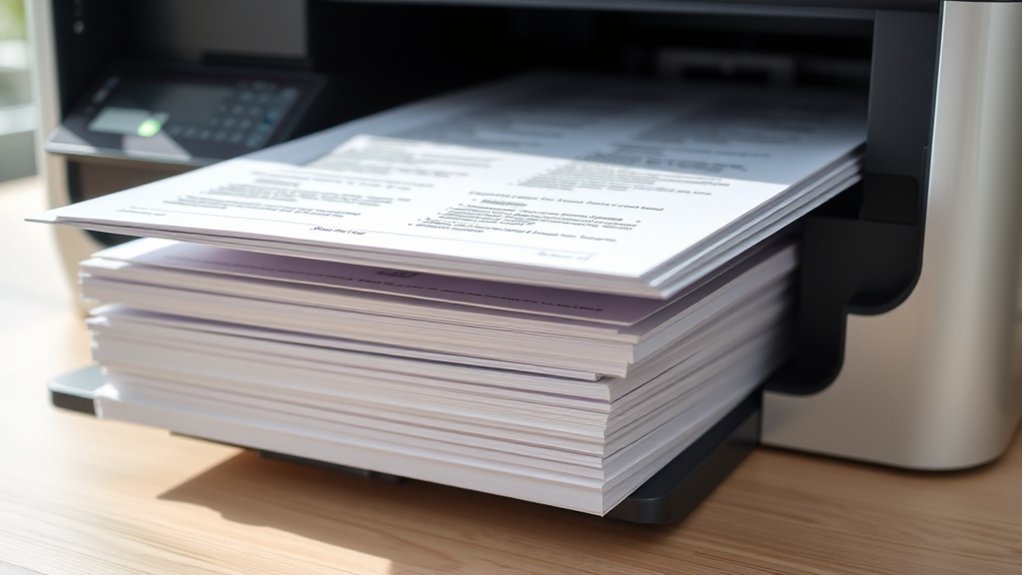
When you need multiple copies of a multi-page document, using the collate option saves you time and effort. You should know when to collate to keep your printouts organized and avoid manual sorting.
For example, if you’re printing reports, presentations, or booklets that require sequential order, collating guarantees each set comes out complete and in the right sequence. The collate benefits include reducing mistakes, speeding up distribution, and minimizing paper waste from misordered pages.
On the other hand, if you only need single pages or don’t mind sorting them yourself, collating isn’t necessary. Understanding when to collate helps you streamline your printing tasks, especially in busy environments where efficiency and accuracy matter most.
How to Turn Collate On or Off in Your Printer Settings
Although printer settings vary by model, you can usually turn collate on or off within the print dialog box before sending your job. Start by opening the document you want to print, then click “Print.”
In the print dialog box, look for a button or link labeled “Printer Preferences” or “Properties.” This opens the printer’s settings interface. Within this interface, find the option labeled “Collate.” It’s often a checkbox or dropdown menu.
Checking or selecting “Collate” will group your printed pages in sets, while unchecking it prints all copies of each page together. After adjusting this setting, confirm by clicking “OK” or “Apply,” then proceed to print.
Selecting collate prints pages in order, unchecking prints all copies of each page before moving on.
Familiarizing yourself with your printer preferences makes toggling collate quick and easy for future print jobs.
Using Collate With Duplex and Multi-Page Prints
When you use collate with duplex printing, your double-sided pages stay in the correct order automatically. This helps you avoid mixing up multi-page documents and saves time on sorting.
You’ll find your prints organized and ready to use without extra effort.
Duplex Printing Collate Benefits
Since duplex printing involves printing on both sides of the paper, using the collate function guarantees your multi-page documents stay in the correct order without manual sorting. This combination enhances duplex benefits by ensuring each double-sided set is complete and sequential, saving you time and effort.
When you enable collate with duplex printing, you improve printing efficiency by reducing errors and minimizing interruptions caused by misplaced pages. This means you can print multiple copies seamlessly, confident that each copy is organized correctly.
Multi-Page Print Organization
To keep your multi-page prints organized, especially when using duplex printing, you’ll want to enable the collate function. Collate arranges pages in the correct order, so each copy is complete and sequential without needing manual sorting.
This becomes essential with multi-page formats where print organization guarantees efficiency and prevents errors.
Here’s how collate impacts your print job:
| With Collate Enabled | Without Collate |
|---|---|
| Pages printed in order | Pages printed in sets |
| Easy to distribute | Needs manual sorting |
| Saves time | Time-consuming |
| Suitable for duplex | Confusing page order |
| Ideal for multi page formats | Risk of mixing pages |
Using collate with duplex printing keeps your documents neat and ready to use immediately, improving overall workflow.
Common Collate Problems and Fixes
Several common issues can disrupt the collate function on your printer, causing pages to print out of order or in incomplete sets. When facing collate problems, start with basic collate troubleshooting: confirm the collate option is enabled in your print settings.
Ensure the collate option is enabled to prevent pages from printing out of order or incomplete.
Common errors include driver glitches, incorrect paper size, or outdated firmware. If pages still print incorrectly, try restarting your printer and computer.
Check for paper jams or low ink, which can interrupt printing sequences. Updating your printer driver often resolves hidden bugs affecting collate.
If you use a shared network printer, verify that no conflicting print jobs are causing errors. By methodically addressing these points, you can fix most collate issues and keep your documents organized without hassle.
Tips for Efficient Printing With Collate
Mastering just a few key tips can make your collated printing tasks faster and more reliable. First, always select the correct paper type for your print job. Using the right paper improves print quality and prevents jams, especially when printing multiple sets.
Next, check your printer settings before starting. Ensure “Collate” is enabled to automatically organize pages in the correct order. Also, avoid overloading the paper tray; too much paper can cause misfeeds and disrupt collating.
If you’re printing large volumes, consider printing in smaller batches to reduce errors. Finally, perform regular maintenance, like cleaning print heads and aligning cartridges, to maintain consistent print quality. Following these tips helps you streamline collated printing, saving time and reducing frustration.
Frequently Asked Questions
Can Collate Settings Affect Print Speed?
Yes, collate settings can slow your print speed because the printer organizes pages into sets, which may take more time. However, this improves document organization and can maintain consistent print quality throughout your job.
Does Collate Work With All Printer Brands?
You’ll find collate features vary across printer brands, so printer compatibility isn’t universal. Always check your printer’s specifications to confirm if it supports collate, ensuring smooth, organized printing without unexpected issues or limitations.
Is Collate Available on Mobile Printing Apps?
Think of collate like organizing your playlist before a road trip. Yes, many mobile printing apps include the collate feature, letting you print multi-page documents in order, so your pages don’t get mixed up on the go.
How Does Collate Interact With Print Queue Management?
When you enable collate, your print queue organizes multiple copies by document sets, preventing mixed pages. This guarantees your documents stay neatly grouped, improving document organization and simplifying retrieval during print queue management.
Can Collate Settings Be Saved as Default?
Yes, you can save collate settings as default preferences by adjusting your printer’s properties or driver settings. This way, each print job automatically uses your preferred collate option without needing to set it every time.
Conclusion
Now that you know what collate means on a printer, you can print smarter, not harder. Remember, “a stitch in time saves nine”—using collate correctly saves you the hassle of sorting pages later. Whether you’re printing reports or multi-page documents, turning collate on keeps everything in order and saves time.
So, take control of your print jobs, avoid confusion, and get your work done efficiently every time. Understanding what collate means on a printer is a simple step that can make a big difference in your printing experience.