
To use your printer effectively, start by connecting it via USB or Wi-Fi following the setup instructions.
Installing the correct driver on your device is essential to enable printing. Choose settings like resolution and color mode based on your document type for better results.
Save ink by selecting draft mode and printing double-sided when possible.
Troubleshoot issues by checking connections and restarting devices. Regular maintenance, such as cleaning and timely cartridge replacement, helps keep your printer running smoothly.
Exploring these tips will help you master your printer’s full potential and ensure consistent, high-quality prints every time.
Key Takeaways
- Connect the printer to your device via USB cable or wirelessly through Wi-Fi following the printer’s setup instructions.
- Install the correct printer driver on your computer or device to enable communication and printing.
- Select the appropriate print settings such as resolution, color mode, and paper type before printing.
- Preview your document to confirm formatting and content, then send the print job to the printer.
- Regularly maintain the printer by cleaning, checking ink levels, and updating drivers for optimal performance.
How to Connect Your Printer to Computers and Devices
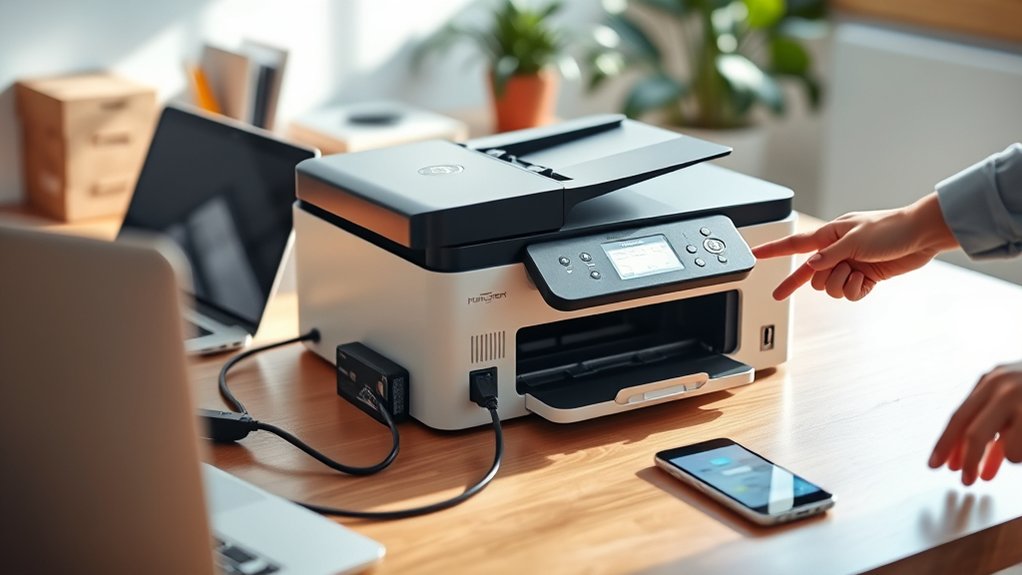
There are several ways to connect your printer to computers and devices, each suited to different needs and setups. You can use a USB setup, which involves plugging a USB cable directly from your printer to your computer. This method is straightforward, reliable, and ideal for a single device.
Alternatively, a wireless connection lets you connect your printer to your Wi-Fi network, enabling multiple devices to print without cables. To set up a wireless connection, follow your printer’s instructions to join your network, then install the printer driver on each device.
Wireless connections offer flexibility, perfect for home or office use where you want to print from laptops, smartphones, or tablets. Choose the method that fits your environment and preferences.
Choose the Right Printer Settings for Your Documents
Once your printer is connected, selecting the right settings guarantees your documents print exactly how you want. Start by choosing the appropriate printer resolution; higher resolutions produce sharper images and text but may take longer to print.
For standard documents, 300 dpi usually suffices, while photos benefit from 600 dpi or more. Next, adjust the color settings based on your document type. Use color mode for vibrant images or presentations, and switch to grayscale or black-and-white for text-heavy pages to save ink.
Check the paper type setting to match your paper choice, ensuring peak quality. Finally, preview your document to confirm all settings are correct before printing. Taking these steps helps you achieve professional results every time.
Save Ink and Paper When Printing
Although printing is essential, you can save ink and paper by adjusting a few simple settings. Start by selecting draft or economy mode on your printer to reduce ink usage without sacrificing legibility.
Use black-and-white printing when color isn’t necessary to apply effective ink saving techniques. Before printing, preview your document and remove unnecessary pages or images to avoid wasting paper.
You can also print double-sided to cut paper consumption in half. Choose smaller fonts and narrow margins to fit more content on each page.
These steps not only save resources but promote eco friendly printing by reducing waste. By adopting these habits, you’ll lower printing costs and minimize environmental impact effortlessly.
Print Photos and Documents With the Best Quality
Balancing ink and paper savings with print quality can enhance your overall printing experience. When focusing on photo printing, use high-quality photo paper and select the highest resolution in your printer settings.
For documents, choose standard or draft mode for everyday prints, but switch to high quality for important files to improve document quality.
| Print Type | Paper Type |
|---|---|
| Photo Printing | Glossy or Matte |
| Document Printing | Standard or Recycled |
| Photo Printing | High-resolution |
| Document Printing | Draft or High Quality |
Adjusting these settings guarantees clear, vibrant photos and sharp, readable documents. Regularly clean your printer heads to maintain quality and avoid smudges or streaks.
How to Troubleshoot Common Printer Problems
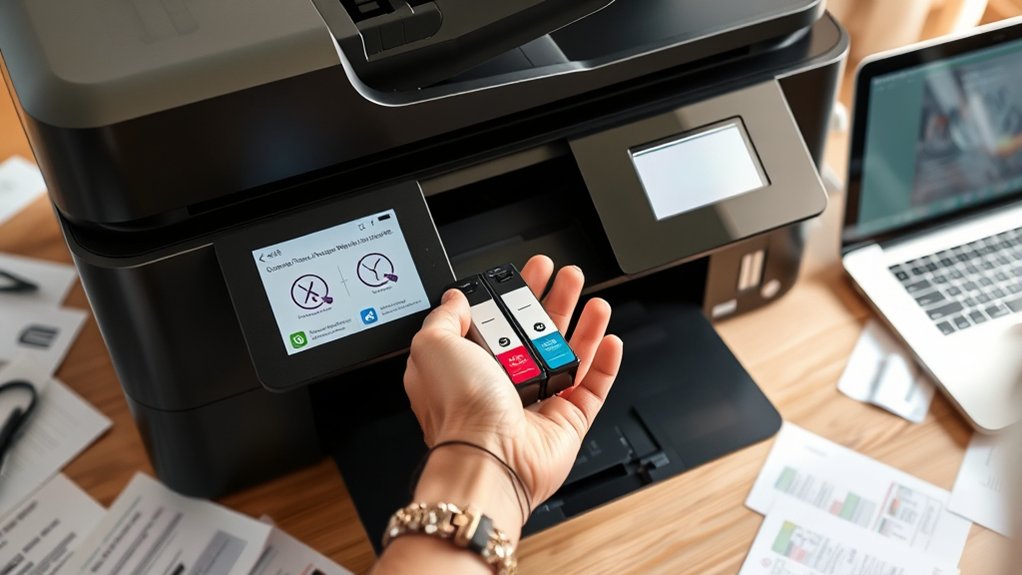
If your printer isn’t working as expected, don’t worry—you can often fix common problems yourself. Start by checking for any printer error messages on the display or your computer. These messages usually point to the issue, such as paper jams or low ink.
Next, verify your printer’s connection. A connection failure is a frequent cause of printing problems, so ascertain cables are securely plugged in or your Wi-Fi signal is strong. Restart both your printer and computer to reset their communication.
If the problem persists, update or reinstall your printer drivers. Also, clear any stuck print jobs in the queue. By following these steps, you can quickly resolve most issues and get back to printing without delay.
Maintain Your Printer for Longer Life
Regular maintenance can considerably extend your printer’s lifespan and guarantee consistent performance. Start by scheduling routine printer cleaning to remove dust, ink residue, and paper debris, which can cause jams or print quality issues.
Use a soft, lint-free cloth and manufacturer-recommended cleaning solutions to avoid damage. Monitor your ink or toner levels and perform timely cartridge replacement to prevent poor printouts and potential damage to the print head.
Always power off the printer before cleaning or replacing cartridges to avoid electrical issues. Additionally, keep your printer in a dry, dust-free environment and avoid overloading the paper tray.
Frequently Asked Questions
Can I Print Directly From My Smartphone Without a Computer?
Yes, you can print directly from your smartphone if it supports wireless printing. Confirm your printer has smartphone compatibility, connect both devices to the same network, and use the printer’s app or your phone’s sharing options to print.
What Types of Paper Are Compatible With My Printer?
You’ll want to choose paper types that gently enhance your printing quality, like plain, glossy, or matte sheets. Using the right paper guarantees crisp, vibrant results. Always check your printer’s manual for the best match.
How Do I Recycle Used Printer Cartridges Responsibly?
You can recycle printer cartridges responsibly by using printer cartridge recycling programs or returning them to the manufacturer. This eco friendly disposal reduces waste and conserves resources, so don’t toss cartridges in the trash.
Are There Wireless Printers That Support Multiple Users?
Yes, many wireless printers support multiple users by offering wireless connectivity and user management features. You can easily connect various devices and control access, making printing seamless and secure for everyone in your network.
Can I Print Double-Sided Documents Automatically?
Yes, you can print double-sided documents automatically by enabling double sided printing in your printer settings. Just access your printer preferences before printing, select duplex or double-sided option, and your printer handles the rest effortlessly.
Conclusion
Now that you know how to connect your printer, choose settings, save ink and paper, print with quality, troubleshoot issues, and maintain your device, you’re ready to print like it’s 1899—but with modern ease.
Keep these tips handy, and your printer will serve you well for years. Remember, a little care goes a long way. Stay proactive, and you’ll avoid common headaches while getting the best results every time.
With these guidelines, using your printer becomes simple and efficient. Follow them closely to ensure your printing experience is smooth and satisfying. Your printer will thank you with flawless performance each time you need it.