
To use a 3D printer, first set it on a stable surface and calibrate, focusing on leveling the build plate.
Load the compatible filament by preheating the extruder and feeding the filament until molten material appears.
Import your model into slicing software, adjust the settings, and export the G-code to the printer.
Monitor the print for proper adhesion and layer quality.
If you want to boost print precision and fix common issues, there are detailed steps to follow next.
Key Takeaways
- Set up the 3D printer on a stable surface and calibrate the bed for accurate leveling and positioning.
- Load compatible filament, preheat the extruder, and manually feed filament until molten material extrudes.
- Import and slice your 3D model using software, adjust settings, and export the G-code for printing.
- Start the print job with a simple test model, monitoring the initial layers for proper adhesion and extrusion.
- Troubleshoot common issues like bed adhesion, nozzle temperature, and mechanical alignment for optimal print quality.
Set Up Your 3D Printer
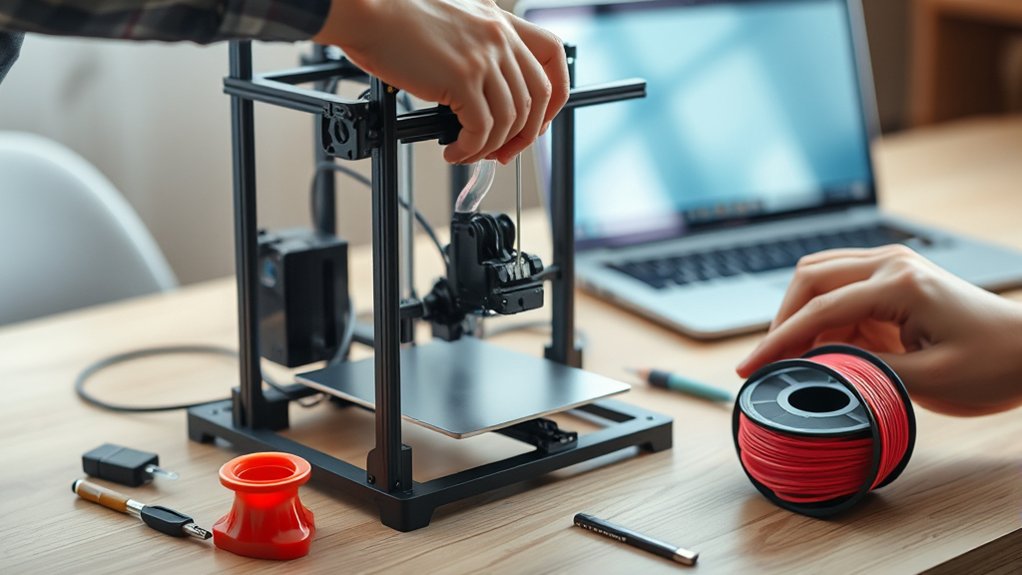
Before you begin printing, you need to set up your 3D printer correctly to guarantee peak performance. Start by positioning your printer on a stable, level surface to prevent vibrations.
Next, power on the device and initiate printer calibration. This process aligns the print head and certifies accurate movement along the X, Y, and Z axes. Proper calibration is essential to avoid print defects.
Then, focus on bed leveling. Use the printer’s interface or manual adjustment knobs to fine-tune the build plate’s height, ensuring it’s equidistant from the nozzle at multiple points. Accurate bed leveling prevents poor adhesion and warping.
Repeat calibration and leveling until you confirm the printer’s mechanical and positional accuracy. This setup forms the foundation for reliable, high-quality prints.
Load Filament and Start Your First Print
Once your printer is properly calibrated and the bed is leveled, you can proceed to load the filament. First, identify the filament type compatible with your printer: PLA, ABS, or PETG are common.
After calibration and leveling, begin by selecting the correct filament type for your printer.
Preheat the extruder to the filament’s recommended temperature to guarantee smooth feeding. Use proper loading techniques: cut the filament tip at a sharp angle, insert it into the extruder inlet, and manually feed it until you see molten filament extruding from the nozzle.
Confirm that the filament moves without obstruction by running the extruder motor briefly. Finally, select a simple test model on your printer’s interface and start the print job.
Monitor the first few layers closely to guarantee proper adhesion and extrusion, adjusting settings if necessary before proceeding with longer prints.
Prepare and Slice Your 3D Models for Printing
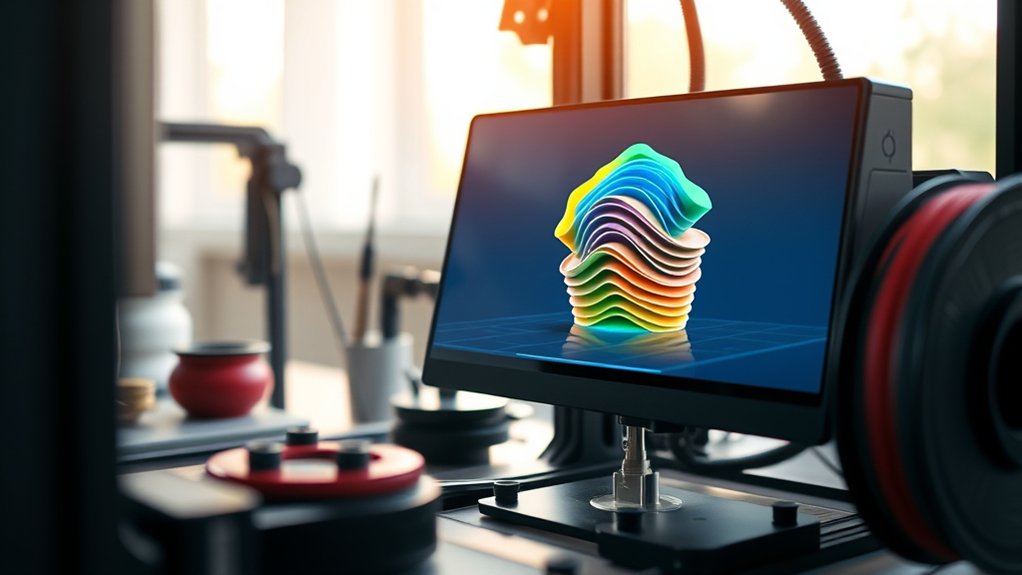
Although you’ve loaded the filament, you need to prepare and slice your 3D models to guarantee accurate printing. Start by importing your model into the slicing software. Adjust model scaling to fit the print bed and meet your design specifications.
Next, configure print settings like layer height, infill density, and support structures. Use the software’s preview feature to inspect each sliced layer for errors. Finally, export the G-code file to your printer.
Key steps to prepare and slice your model:
Import and position the model in slicing software
Adjust model scaling precisely
Set print parameters (temperature, speed, layer height)
Generate supports if needed
Preview sliced layers and export G-code
This process guarantees your print runs smoothly and matches your design.
Fix Common 3D Printing Problems
If your print doesn’t come out as expected, troubleshooting common issues quickly can save time and material. Start by addressing filament adhesion problems. Ensure the build plate is clean and leveled, and consider using adhesives like glue stick or painter’s tape.
Adjust the first layer height and printing speed to improve the filament’s grip on the bed. For layer separation, verify your nozzle temperature matches filament specifications. Too low temperature weakens interlayer bonding.
Increase print temperature incrementally to enhance layer fusion, but avoid overheating to prevent deformation. Also, check cooling fan settings. Excessive cooling can cause layers to separate.
Tighten belt tensions and inspect for mechanical play to maintain precise layer alignment. Following these targeted steps will help you fix common 3D printing problems effectively.
Improve Your 3D Printing Quality and Speed
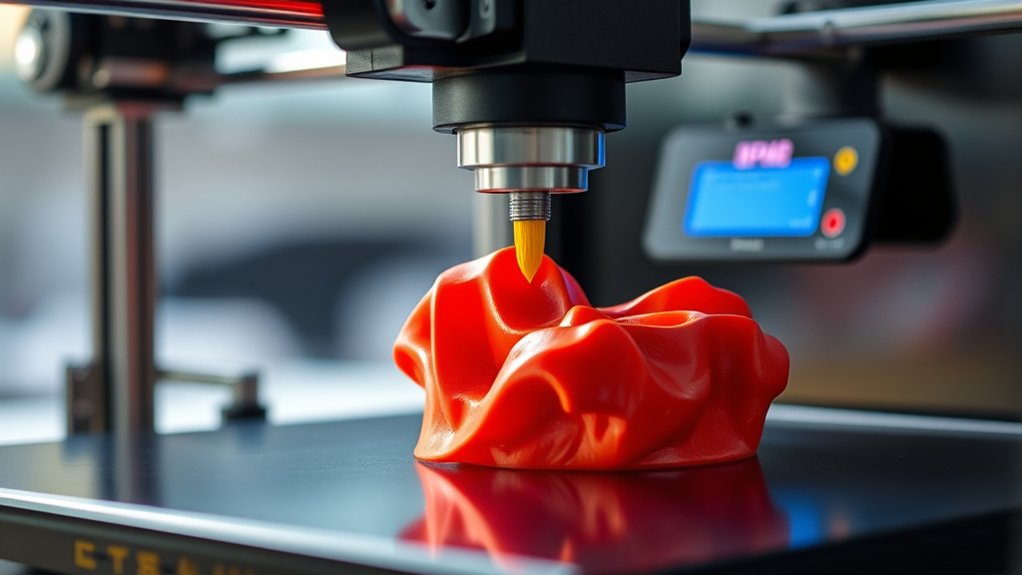
When you optimize print settings and hardware calibration, you can greatly enhance both the quality and speed of your 3D prints. Start by ensuring precise printer calibration to avoid layer misalignment and improve dimensional accuracy.
Next, focus on filament selection; choose materials suited for your specific project requirements to balance strength and printability. Adjust layer height and print speed to find the ideal trade-off between detail and efficiency.
Fine-tune nozzle temperature and cooling settings to prevent defects like stringing or warping. Finally, maintain your printer regularly to keep mechanical components in top condition.
Perform thorough printer calibration before each print
Select filament compatible with your model’s demands
Optimize layer height for quality versus speed
Adjust nozzle temperature and cooling for clean layers
Regularly clean and lubricate moving parts for consistent operation
Frequently Asked Questions
What Safety Precautions Should I Take When Operating a 3D Printer?
You should wear personal protective gear, like gloves and safety glasses, and manage heat by avoiding contact with hot surfaces. Guarantee proper ventilation to prevent fumes and monitor the printer to quickly address any malfunctions.
How Do I Choose the Right 3D Printer for My Needs?
Choosing a 3D printer is like picking the right tool in a toolbox. Factor in budget considerations and printer specifications, such as resolution, build volume, and material compatibility. This will guarantee your choice fits your precise project needs efficiently.
Can I Print With Materials Other Than Filament?
Yes, you can print with resin printing for high-detail models or powder printing for metal and ceramics. Make certain your printer supports these materials, then adjust settings like curing time or sintering temperature accordingly for ideal results.
What Software Is Best for Designing 3D Models?
You might think complex equals best, but intuitive design software like Fusion 360 or Blender lets you master modeling techniques efficiently. They’ll help you create precise 3D models, balancing power and usability for ideal results.
How Do I Maintain and Clean My 3D Printer Regularly?
You should regularly perform printer lubrication on moving parts, clean the nozzle with a needle or cleaning filament to prevent clogs, and wipe down the build plate to guarantee consistent print quality and prolong your printer’s lifespan.
Conclusion
Now that you’ve mastered setting up your 3D printer, loading filament, and slicing models, you’re practically a pro—until the inevitable paper jam or nozzle clog reminds you otherwise.
But don’t worry, those “common problems” are just part of the fun. By troubleshooting efficiently and fine-tuning your settings, you’ll actually improve your prints faster than you expect.
So embrace the quirks; they’re the secret ingredients to perfecting your 3D printing skills. With patience and practice, using a 3d printer becomes an enjoyable and rewarding experience.