
To update your printer driver, start by visiting your printer manufacturer’s official website. Download the latest driver that matches your printer model to ensure compatibility and optimal performance.
On Windows, open Device Manager, locate your printer, right-click on it, and select “Update driver.”
For Mac users, download the appropriate drivers from the manufacturer’s site and install them manually.
Make sure your printer is connected and powered on before beginning the update process. If you encounter problems, try disabling your antivirus temporarily or reinstalling the driver altogether.
Want to learn how to enable automatic updates and troubleshoot issues easily? Follow these steps to keep your printer running smoothly and efficiently.
Key Takeaways
- Visit the official printer manufacturer’s website to download the latest compatible driver for your printer model.
- Open Device Manager on Windows, find your printer, right-click, and select “Update driver” to search automatically or install manually.
- On Mac, download the latest driver from the manufacturer’s site and follow the installation prompts after verifying compatibility with your macOS version.
- Restart your computer after installing the driver to ensure the update is applied and printer functions correctly.
- Enable automatic updates and update notifications in printer settings to keep drivers current and avoid future issues.
Why You Should Keep Your Printer Driver Updated
Although it might seem unnecessary, keeping your printer driver updated guarantees your device runs smoothly and efficiently. The importance of updates lies in addressing bugs, enhancing compatibility, and improving security. When you update your driver, you tap into the latest fixes designed to prevent printing errors and reduce crashes.
This proactive approach assures your printer communicates effectively with your computer and operating system. Moreover, the benefits of performance are clear: faster print jobs, higher print quality, and access to new features. Updates optimize resource use, so your printer won’t lag or freeze during tasks.
Where to Find the Latest Printer Drivers
Finding the latest printer drivers is essential to keep your device performing at its best. You should start by visiting the official website of your printer’s manufacturer. This is the most reliable printer driver source, ensuring compatibility and security.
Look for a support or downloads section where you can enter your printer model to find the newest driver updates. Avoid downloading drivers from unverified sites to prevent malware risks.
While third party drivers can be an option, use them cautiously. They may offer additional features or support for older printers but might lack official support or cause compatibility issues.
Always verify the credibility of any third party driver source before proceeding. Sticking to trusted sources guarantees your printer runs smoothly and securely.
How to Update Your Printer Driver on Windows
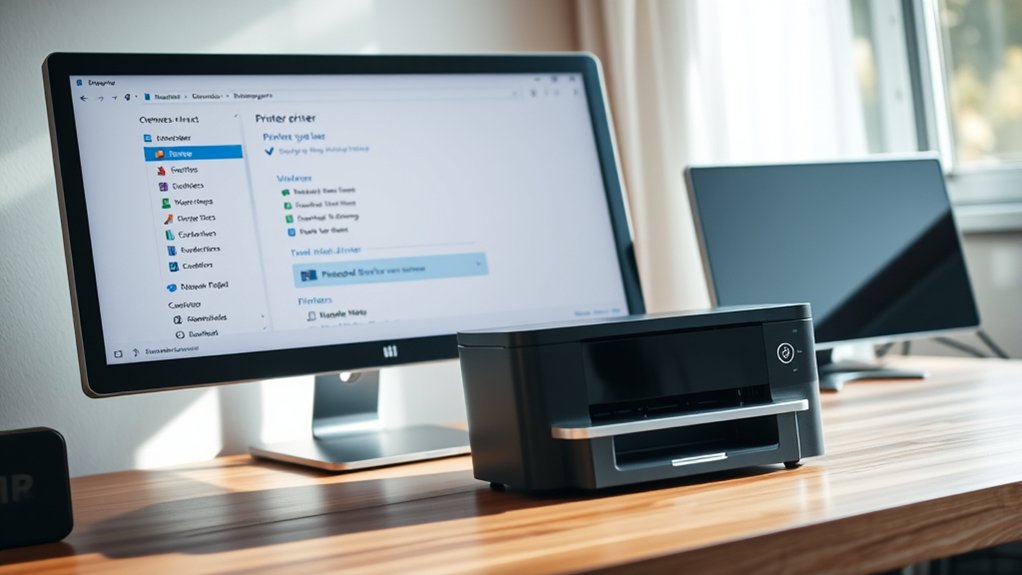
To update your printer driver on Windows, start by opening Device Manager and locating your printer under “Printers” or “Print queues.” You can right-click your device and select “Update driver” to let Windows search automatically or choose a driver you’ve downloaded from the manufacturer’s website.
Alternatively, visiting the manufacturer’s site directly allows you to download the latest driver and install it manually for the best compatibility.
Device Manager Steps
Updating your printer driver through Device Manager is one of the quickest ways to guarantee your printer runs smoothly on Windows. First, open Device Manager by right-clicking the Start button and selecting it from the menu.
Next, find your printer under “Printers” or “Print queues.” Right-click your printer’s name and choose “Update driver.” Select “Search automatically for updated driver software” so Windows can find the best match, helping to avoid driver conflicts.
This process verifies device compatibility by installing the most suitable driver version. If Windows doesn’t find a new driver, your current one is likely up to date.
Using Device Manager keeps your system stable and reduces errors, making it a reliable choice for maintaining your printer’s performance.
Manufacturer Website Update
Although Device Manager offers a quick update method, visiting the manufacturer’s website often provides the latest and most compatible printer drivers. To start, identify your printer model and visit the official site.
Locate the support or downloads section, then select your printer model and Windows version to ascertain printer compatibility. Download the recommended driver installation file.
Once downloaded, open the file and follow the on-screen instructions carefully to complete the installation. This direct approach reduces the risk of outdated or incompatible drivers that could cause printing errors.
After installation, restart your computer and test your printer to confirm the update worked. Using the manufacturer’s website guarantees you get the most reliable drivers tailored for your device and system.
How to Update Your Printer Driver on Mac
To update your printer driver on a Mac, start by checking if your printer is compatible with your current macOS version. Next, download the latest drivers directly from the printer manufacturer’s website. Finally, follow the instructions to install the drivers manually for a smooth update.
Check Printer Compatibility
Before you update your printer driver on a Mac, you need to check if your printer is compatible with your current macOS version. Skipping this step can cause installation issues or device malfunctions.
To perform compatibility checks, follow these steps:
- Review your printer specifications in the user manual or manufacturer’s website to see supported macOS versions.
- Visit Apple’s official support page for a list of printers compatible with your macOS.
- Check system preferences on your Mac under “Printers & Scanners” to see if your printer is recognized.
- Confirm that your printer’s firmware is up to date to guarantee smooth driver updates.
These compatibility checks save you time and guarantee your printer runs efficiently after updating.
Download Latest Drivers
Once you’ve confirmed your printer’s compatibility, you can move on to downloading the latest drivers. First, identify the correct printer driver type for your Mac. This could be AirPrint, a manufacturer-specific driver, or a generic driver.
Next, choose reliable download sources to guarantee safety and functionality. The best place to start is the official printer manufacturer’s website, which offers the most up-to-date and compatible drivers. Alternatively, Apple’s support site may provide drivers for common printer models.
Avoid third-party sites that could offer outdated or harmful files. When you find the right driver, download the installer package or compressed file suited for macOS. Keep this file handy, as you’ll need it to proceed with installing the driver manually.
Install Drivers Manually
After downloading the correct driver file, you’ll need to install it manually to update your printer’s software on your Mac. Follow this driver installation checklist to guarantee smooth setup and keep your device running efficiently with essential printer maintenance tips:
- Locate the downloaded driver file, usually in your Downloads folder.
- Double-click the file to open the installer package.
- Follow on-screen prompts to complete the installation, granting necessary permissions if requested.
- Restart your Mac to apply changes and verify the printer functions correctly via System Preferences > Printers & Scanners.
Troubleshooting Printer Driver Update Issues
Although updating your printer driver usually goes smoothly, you might encounter issues that prevent the process from completing successfully. When facing update problems, effective printer troubleshooting becomes essential.
Start by checking your internet connection, ensuring compatibility between the driver and your operating system, and temporarily disabling antivirus software that might block the update.
Here’s a quick troubleshooting guide:
| Issue | Solution |
|---|---|
| Driver won’t install | Run as administrator |
| Update fails midway | Restart printer and PC |
| Printer not detected | Check USB or network connection |
| Error messages appear | Note exact error for support |
| Old driver persists | Uninstall before reinstalling |
Following these steps helps you resolve common update problems quickly and get your printer running smoothly again.
How to Enable Automatic Printer Driver Updates
Dealing with printer driver update issues can be frustrating, but you can minimize these problems by enabling automatic updates. This way, your printer stays current without manual checks.
Avoid frustration with printer updates by enabling automatic updates for seamless, hassle-free printing.
To enable automatic updates, follow these steps:
- Open your printer settings from the control panel or system preferences.
- Locate the “Updates” or “Driver” section within the settings menu.
- Enable the option for automatic updates or check for update notifications.
- Save your changes and restart your computer if prompted.
Frequently Asked Questions
Can Outdated Drivers Cause Printer Hardware Damage?
Outdated drivers won’t directly cause printer hardware damage, but they can lead to printer malfunctions and poor driver compatibility.
You’ll experience errors or performance issues, so keeping drivers updated helps your printer run smoothly and reliably.
How Do I Roll Back to a Previous Printer Driver Version?
To perform a driver rollback, open Device Manager, find your printer under “Printers,” right-click, and select “Properties.” Go to the “Driver” tab, and click “Roll Back Driver” to revert to the previous version.
Are Third-Party Driver Update Tools Safe to Use?
Third party tools can be risky since their driver reliability varies. You should only use trusted software with good reviews, or stick to official manufacturer sites to guarantee safe, reliable updates without risking your printer’s performance or security.
How Can I Update Drivers for Multiple Printers Simultaneously?
You can save 30% time by using centralized printer management software. It lets you update multiple printer drivers simultaneously, ensuring driver compatibility across devices.
Just select all printers, then run the update in one click.
What Are the Signs My Printer Driver Needs Updating?
You’ll notice your printer performance drops, like slow printing or errors. If your device isn’t compatible with new software or operating systems, it’s a clear sign your printer driver needs updating to restore smooth functionality.
Conclusion
Keeping your printer driver updated is like giving your printer a fresh breath of life. It guarantees smooth performance, fixes bugs, and opens up new features. Whether you’re on Windows or Mac, updating is straightforward if you know where to look.
Don’t forget to enable automatic updates to save time and avoid headaches. By staying proactive, you’ll keep your printer running efficiently and avoid frustrating printing hiccups down the road.
Regularly updating your printer driver is essential to maintaining optimal performance and reliability.