
To set a default printer, open your device’s printer settings.
On Windows, use Control Panel or Settings, right-click your preferred printer, and choose “Set as default.”
On macOS, go to “Printers & Scanners,” then select your default printer from the dropdown.
For mobile devices, install the printer app and connect to your printer to set it as default.
If default settings don’t save, check permissions or drivers.
Learning how to manage these settings guarantees seamless printing across all your devices.
Key Takeaways
- On Windows, open “Devices and Printers” in Control Panel, right-click the printer, and select “Set as default printer.”
- In Windows Settings, go to “Printers & scanners,” select your printer, click “Manage,” then choose “Set as default.”
- On macOS, open “Printers & Scanners” in System Settings and select your printer from the “Default printer” dropdown menu.
- For mobile devices, install the manufacturer’s printer app, connect to the printer, and set it as default within the app settings.
- Disable “Let Windows manage my default printer” to manually control default printer selection on Windows systems.
How To Set A Default Printer On Windows (Control Panel Vs Settings)
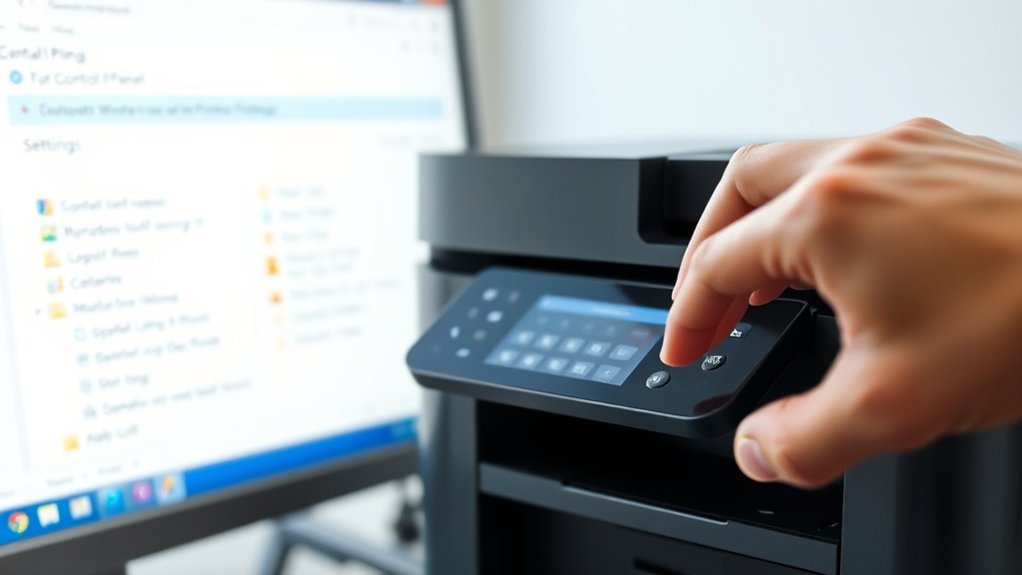
To set a default printer on Windows, you can use either the Control Panel or the Settings app. In the Control Panel, navigate to “Devices and Printers,” right-click your preferred printer, and select “Set as default printer.” This method offers a straightforward view of all installed printers.
Alternatively, open Windows Settings by pressing Win + I, go to “Devices,” then “Printers & scanners.” Select your printer, click “Manage,” and hit “Set as default.” If Windows automatically manages your default printer, you can disable this in Settings by unchecking “Let Windows manage my default printer.”
Both methods effectively designate your default printer, but Windows Settings provides a more modern interface, while Control Panel retains the classic look and feel. Choose based on your preference for ease or familiarity.
How To Set A Default Printer On macOS
Setting a default printer on macOS differs from Windows but remains straightforward. To adjust default printer settings, open System Settings and select “Printers & Scanners.” You’ll see a list of available printers; click the dropdown menu labeled “Default printer.”
Choose a specific printer to set it as your default, or select “Last printer used” to have macOS printing default to your most recent choice. This method guarantees all print jobs automatically route to your preferred device without manual selection each time.
If your preferred printer doesn’t appear, verify its connection or add it via the plus (+) button. Adjusting default printer settings on macOS streamlines your printing workflow, reducing repetitive steps and improving efficiency in managing print tasks across applications.
How To Set A Default Printer On Mobile Devices
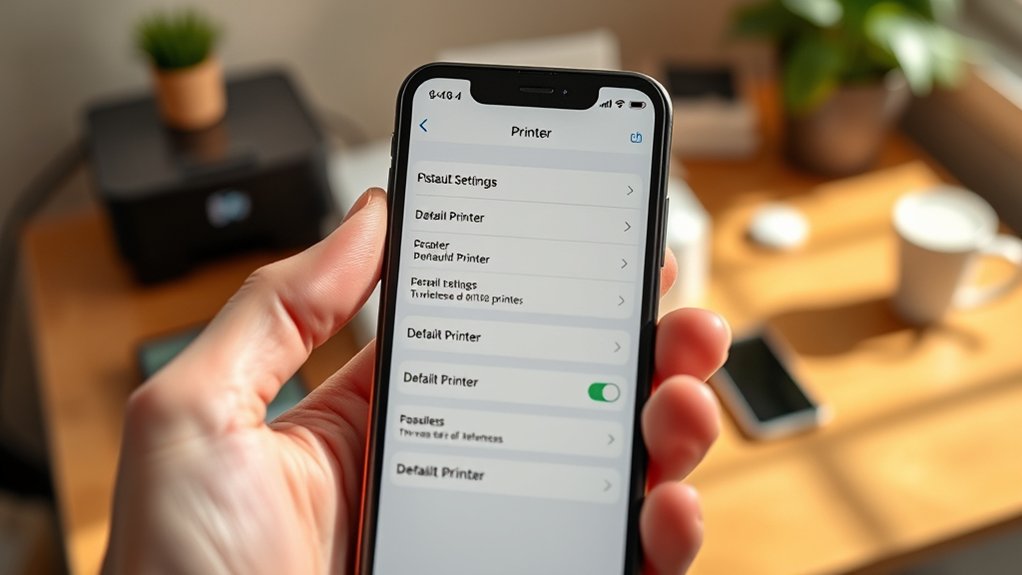
Wondering how you can designate a default printer on your mobile device? Start by installing the appropriate printer app from your printer’s manufacturer, as most support mobile printing directly.
Open the app and connect it to your Wi-Fi-enabled printer. Within the app settings, look for an option to set this printer as the default.
Open the app, connect to your Wi-Fi printer, and set it as the default in the app settings.
If your mobile OS supports native printing, such as iOS or Android, go to Settings > Connections > Printing or Search > Printing Services. Enable the printer service and select your preferred printer.
This method guarantees your device routes all print jobs to the default printer automatically. Using dedicated printer apps and mobile printing features streamlines the process, so you don’t have to select a printer each time you print from mobile.
Troubleshooting When Your Default Printer Settings Don’t Save
If your default printer settings don’t save, it usually indicates a configuration or permission issue. To fix this, first verify your user account has the necessary permissions to change printer settings. Next, check that no policies or system settings override your default configurations. Also, confirm the printer driver is up to date and compatible.
Try these steps to troubleshoot:
Restart the Print Spooler service to clear any stuck processes. Use the Control Panel or Settings app to reset your default printer manually. Scan for system updates that might address printer-related bugs.
Automatically Change Your Default Printer By Location
You can set your system to automatically switch your default printer based on your current location. Start by creating printer profiles tied to specific networks or physical locations.
Then, use automation tools or built-in settings to enable seamless printer switching without manual input.
Location-Based Printer Selection
How can you streamline printing when moving between multiple workspaces? Location-based printer selection uses location detection to automatically adjust your default printer based on where you are, ensuring printer prioritization aligns with your current environment. This eliminates manual switching and reduces errors.
To set this up, you should:
Enable location detection on your device or network to determine your workspace.
Configure printer prioritization rules that assign default printers to specific locations.
Use operating system settings or third-party apps that support automatic printer switching.
Setting Up Printer Profiles
Building on location-based printer selection, setting up printer profiles automates switching your default printer based on where you work. To create printer profiles, first access your operating system’s printer settings and locate the profile management section.
Here, you can assign specific printers to different locations or network zones. Managing profiles involves defining rules that trigger profile changes automatically, such as connecting to a particular Wi-Fi or entering a designated IP range.
Once set, your device will recognize your location and switch the default printer accordingly, eliminating manual changes. Regularly review and update printer profiles to guarantee accuracy as your workspace or network configurations evolve.
Proper managing profiles streamlines printing tasks and reduces errors caused by incorrect default printer settings.
Automating Printer Switches
Although manually switching printers can work in simple setups, automating printer switches based on your location saves time and prevents errors. With printer automation, your system adjusts switch preferences seamlessly as you move between offices or workspaces.
To set this up, you’ll need software that supports location-based defaults or scripts leveraging network changes.
Here’s how to automate printer switches effectively:
Use Windows’ “Let Windows manage my default printer” to enable automatic location detection.
Deploy third-party tools designed for printer automation to customize switch preferences.
Create scripts that trigger on network or Wi-Fi changes, updating your default printer accordingly.
Managing And Setting Default Printers In Office Networks
You’ll start by identifying available network printers and their capabilities to choose the right default. Next, assign the default printer settings through your system or group policies to guarantee consistent printing across devices.
If any issues arise, troubleshoot configuration errors promptly to maintain smooth network printing.
Identifying Network Printer Options
When managing printers in an office network, understanding your available network printer options is essential. You need to assess printer detection methods and guarantee network printer compatibility before proceeding.
Start by scanning your network to locate all connected printers using built-in detection protocols like Bonjour or WSD. Next, verify compatibility with your operating system and required drivers to avoid connectivity issues. Finally, review the printer features to match your office needs.
Consider these key points:
- Use automated printer detection methods to identify all accessible devices quickly.
- Check network printer compatibility with your software environment.
- Evaluate printer capabilities such as duplex printing, speed, and security features.
This approach guarantees you select the right devices before setting default printers across your office network.
Assigning Default Printer Settings
Since selecting the appropriate default printer streamlines workflow and reduces print errors, you should configure default printer settings carefully across your office network. Start by accessing each printer’s properties through the Control Panel or Settings app.
Adjust printer preferences such as paper size, print quality, and duplex options to match your office’s standard requirements. Assign these preferences as defaults to guarantee consistent output.
Next, set your chosen printer as the default device on each workstation to avoid manual selection during printing. Utilize printing shortcuts where possible to speed up common tasks, like double-sided printing or color settings.
Consistently managing these settings across all devices minimizes user errors and improves efficiency, guaranteeing smooth, reliable printing operations throughout your network.
Troubleshooting Printer Configuration Issues
Although setting up default printers streamlines your workflow, configuration issues can still arise and disrupt printing tasks. To troubleshoot effectively, start by verifying the printer’s compatibility with your operating system to avoid printer compatibility issues. Next, ascertain all printer driver updates are installed; outdated drivers often cause malfunctions.
Finally, check network connections and permissions in office networks to confirm your device can communicate with the default printer.
- Confirm printer compatibility with your OS and network environment.
- Install the latest printer driver updates from the manufacturer’s website.
- Verify network settings and user permissions for printer access.
Tips For Choosing The Best Default Printer For Your Needs
Anyone selecting a default printer should consider factors like print volume, speed, and connectivity options. Start by evaluating printer features that align with your typical tasks, such as duplex printing or color capabilities.
Match these features with your user preferences, whether you prioritize quiet operation, cost efficiency, or wireless access. Also, assess the printer’s compatibility with your devices and operating systems to avoid connectivity issues.
If you frequently print large documents, choose a model with higher paper capacity and faster output. For occasional use, a compact, budget-friendly option may suffice.
Finally, consider maintenance requirements and consumable costs to guarantee sustainable operation. By focusing on these technical criteria, you can confidently select a default printer that meets your productivity and convenience needs without compromise.
Best Practices For Managing Default Printers Across Devices
When you manage default printers across multiple devices, maintaining consistency and efficiency becomes essential. To streamline printer management, you should leverage cloud printing platforms that synchronize settings automatically. This avoids manual configuration on every device and reduces errors.
Follow these best practices:
- Use centralized printer management tools to assign default printers based on device location or user role.
- Regularly update printer drivers and firmware to guarantee compatibility and performance.
- Implement cloud printing solutions that allow seamless switching between devices without losing default printer settings.
Frequently Asked Questions
Can I Set a Default Printer via Command Line?
Yes, you can set a default printer via command line by using commands like `wmic` or `powershell`. Access printer settings quickly, then execute appropriate commands to specify your preferred default printer efficiently.
How Do I Clear My Default Printer Selection?
You can clear your default printer by opening printer settings, selecting no default printer option, or disabling “Let Windows manage my default printer.” This helps as a troubleshooting option to reset printing preferences effectively.
Can Default Printer Settings Be Synced Across Multiple User Accounts?
Imagine Sarah syncing printer settings across user accounts using Windows Group Policy. You can’t directly sync default printers, but deploying policies or scripts helps maintain consistent printer settings across multiple user accounts efficiently and securely.
What Happens if My Default Printer Is Offline?
If your default printer is offline, your print jobs won’t process. Start printer troubleshooting by checking connections and restarting the device.
Use offline printer solutions like reconnecting to Wi-Fi or clearing the print queue to resume printing.
How Do I Set a Default Printer for Virtual Machines?
You set a default printer for virtual machines by accessing the VM’s printer settings, then selecting the desired printer as default within the guest OS.
Verify printer sharing or redirection is enabled between host and virtual machines.
Conclusion
Setting a default printer saves you time—did you know that 70% of users waste up to five minutes daily selecting printers manually? By following simple steps on Windows, macOS, or mobile devices, you guarantee smooth, efficient printing every time.
If settings don’t stick, troubleshooting common issues helps maintain your workflow. For office networks, managing defaults centrally boosts productivity.
Stay proactive, and your printing tasks will become seamless and hassle-free across all your devices. Learning how do I set a printer as default is key to achieving this efficiency.