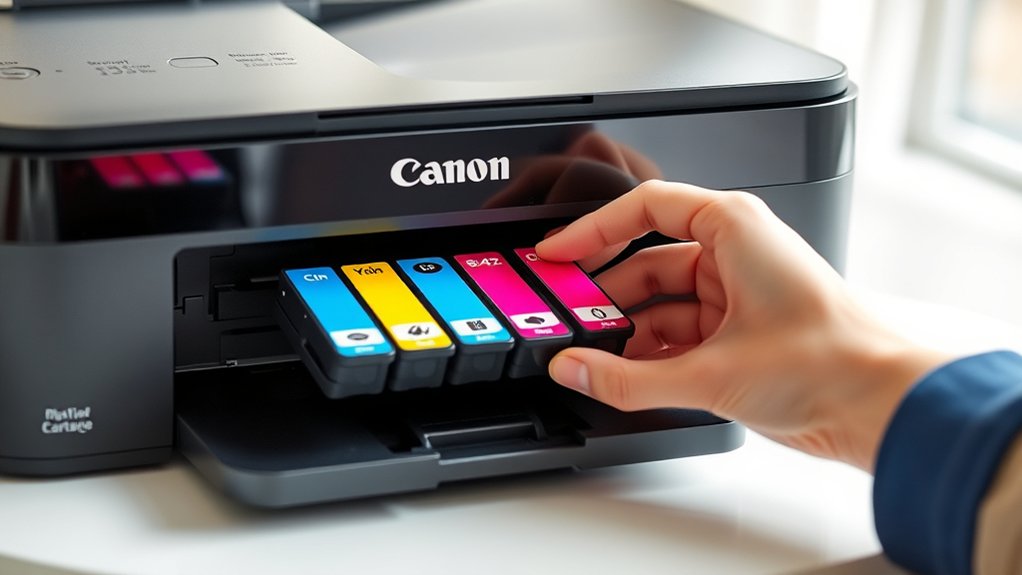

To replace ink in your Canon printer, start by powering it on and carefully opening the cartridge cover. This is an essential first step to access the ink cartridges safely.
Wait for the cartridge carriage to stop moving completely before proceeding. Then, gently press down on the empty cartridges and pull them out with care.
When inserting new compatible cartridges, do so at an angle until you hear them click into place. Be sure to avoid touching the nozzles or electrical contacts to prevent damage.
Remember to remove any protective tape from the new cartridges before installation. Proper handling and positioning of the cartridges help ensure smooth printing.
By following these key tips and knowing how to troubleshoot common issues, you can improve your ink replacement experience and maintain high print quality.
Key Takeaways
- Power on the Canon printer and open the cover to access the ink cartridge carriage once it stops moving.
- Press down gently on the old cartridge to release and pull it out carefully by the edges.
- Insert the new compatible cartridge at a slight angle until it clicks securely in place.
- Remove any protective tape from the new cartridge without touching the ink nozzles or contacts.
- Close the printer cover and run a nozzle check or cleaning cycle if print quality issues persist.
Signs Your Canon Printer Ink Needs Replacing
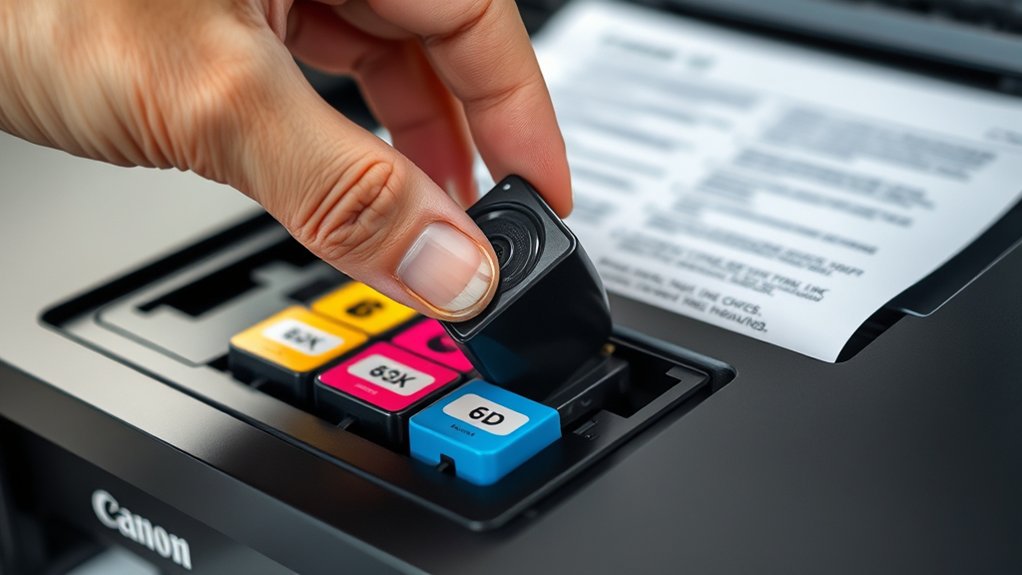
Although your Canon printer may continue to operate, you’ll need to replace the ink when print quality degrades, such as faded colors, streaks, or missing sections on the page. Pay close attention to ink level indicators on your printer’s display or software interface; these indicators provide real-time data on remaining ink.
Low ink warnings will alert you before the cartridge is empty, allowing you to prepare for replacement. Ignoring these signs can cause damage to printheads or result in incomplete prints. Visual defects like banding or inconsistent color density also signal depleted ink.
Monitoring these technical cues guarantees timely cartridge changes, maintaining ideal print performance and avoiding interruptions. Always respond promptly to ink level indicators and low ink warnings to keep your Canon printer functioning efficiently.
Get Your Canon Printer Ready for Ink Replacement
When you notice your Canon printer signaling low ink or print quality issues, the next step is to prepare the device for cartridge replacement. Begin by powering on the printer and verifying it’s connected to a stable power source.
Consult your printer manual to identify compatible ink cartridge types; using the correct cartridges prevents damage and guarantees peak performance. Open the printer cover carefully to access the cartridge compartment.
Check your manual to use the right ink cartridges and carefully open the cover to replace them safely.
Follow printer maintenance tips such as avoiding touching the cartridge’s electrical contacts or nozzles, which can cause malfunctions. Allow the printer’s carriage to move to the replacement position automatically.
Clear your workspace to avoid contamination or damage during the process. Taking these preparatory steps guarantees a smooth, efficient ink replacement without compromising your printer’s functionality.
Step-by-Step Guide to Replacing Canon Ink Cartridges
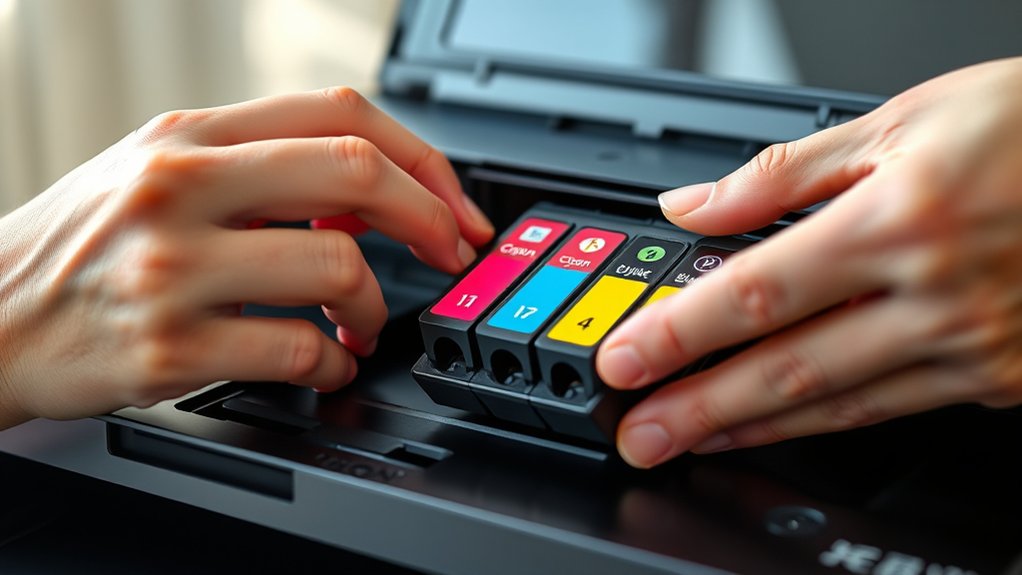
Start by lifting the printer cover to expose the ink cartridge carriage. Wait for the carriage to stop moving before touching it.
Identify the ink cartridge types compatible with your Canon model, commonly dye-based for color and pigment-based for black.
Gently press down on the cartridge to release it, then pull it out. Remove the protective tape from the new cartridge without touching the electrical contacts to avoid damage.
Insert the new cartridge into the slot at a slight angle until it clicks into place. Close the printer cover carefully.
After replacement, run a nozzle check via the printer software to verify proper ink flow.
Regularly following these printer maintenance tips extends cartridge life and maintains print quality. This precise process guarantees your Canon printer operates efficiently.
Tips for Installing Canon Ink Cartridges Correctly
Three key tips guarantee you install Canon ink cartridges correctly: handle cartridges by their edges to prevent damage, align them precisely with the designated slots, and avoid touching electrical contacts or nozzles.
Different ink cartridge types require exact placement; misalignment can cause poor print quality or cartridge errors. Check that you’re using the correct cartridge model compatible with your printer to maintain ideal ink quality factors such as pigment concentration and flow consistency.
Ensure correct cartridge type and precise placement to avoid print errors and maintain optimal ink quality.
Before installation, remove any protective tape without touching the ink surface. Insert the cartridge firmly until you hear a click, confirming secure placement.
Proper installation guarantees consistent ink delivery and prevents clogs or leaks. Following these precise steps safeguards your printer’s performance and extends cartridge lifespan.
Handling and Storing Canon Ink Cartridges Safely
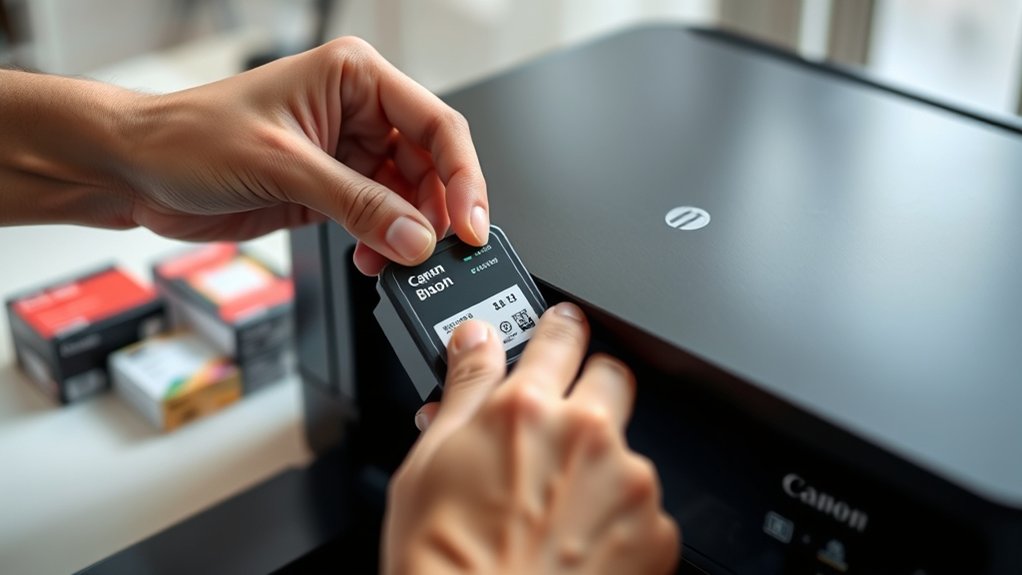
You should handle Canon ink cartridges by avoiding contact with the nozzles and electrical contacts to prevent damage. Store cartridges upright in a cool, dry place away from direct sunlight to maintain ink quality. Proper handling and storage extend cartridge life and guarantee peak printer performance.
Proper Cartridge Handling
Although handling Canon ink cartridges requires care, following proper procedures guarantees their longevity and excellent performance. To guarantee cartridge safety and maintain peak function, adopt these handling techniques:
- Always hold cartridges by their sides to avoid contact with the nozzles and electrical contacts.
- Avoid shaking cartridges aggressively, as this can cause ink leakage or damage internal components.
- Remove cartridges promptly from their packaging and install them without delay to prevent drying out.
- Use clean, dry hands or wear gloves to prevent contamination that might affect print quality.
Ideal Storage Conditions
Proper handling techniques extend beyond immediate cartridge use and play a significant role in how you store Canon ink cartridges. When managing ink storage, maintain cartridges in a cool, dry environment with consistent temperature control between 15°C and 30°C (59°F to 86°F).
Avoid exposure to direct sunlight, heat sources, or freezing conditions, as temperature fluctuations can degrade ink quality and clog nozzles. Store cartridges upright in their original packaging until use to prevent drying and contamination.
Make certain cartridges remain sealed to protect against air exposure and dust. By adhering to these storage protocols, you preserve ink integrity, extend cartridge lifespan, and guarantee ideal printer performance when you install the ink.
Proper ink storage safeguards your investment and reduces printing errors caused by improperly stored cartridges.
Troubleshooting Common Canon Ink Replacement Issues
If your Canon printer doesn’t recognize the ink cartridge, check for proper installation and clean the contacts. Installation errors often stem from misaligned cartridges or protective tape left on.
Addressing these issues promptly guarantees reliable printer performance.
Ink Cartridge Not Recognized
Anyone who’s replaced a Canon ink cartridge may encounter an error where the printer doesn’t recognize the new cartridge. This issue often stems from ink cartridge compatibility or installation problems. To resolve it, follow these error message solutions:
- Verify the cartridge matches your printer model; incompatible cartridges trigger recognition errors.
- Power off the printer, remove the cartridge, and inspect the contacts for dirt or damage.
- Gently clean the cartridge contacts with a lint-free cloth and reinsert it firmly.
- Restart the printer to reset the detection system.
If the error persists, confirm the cartridge is genuine Canon ink, as third-party versions can cause recognition failures. Addressing these points guarantees smooth cartridge detection and prevents printing interruptions.
Printer Cartridge Installation Errors
When you install a Canon ink cartridge incorrectly, your printer may display error messages or fail to print altogether. To avoid installation errors, verify printer compatibility before purchasing cartridges. Using incompatible cartridge types can trigger malfunctions or recognition failures.
Carefully remove protective covers and align the cartridge with the designated slot, applying firm, even pressure until it clicks into place. Avoid touching the cartridge’s electrical contacts to prevent connectivity issues.
If you receive an installation error, power off the printer, reseat the cartridge, and power it back on. Confirm that the cartridge is genuine and designed for your specific Canon model.
Following these steps guarantees proper cartridge seating, maintaining peak printer performance and preventing common Canon ink replacement issues linked to incorrect installation.
Tips to Make Your Canon Ink Cartridges Last Longer
Although Canon ink cartridges are designed for efficiency, you can extend their lifespan by managing print settings and maintenance routines carefully. Prioritizing ink conservation and cartridge maintenance helps you reduce waste and save money.
Follow these tips to maximize cartridge life:
- Adjust print quality to draft mode for non-essential documents, reducing ink usage.
- Print regularly to prevent ink drying and clogging in cartridges.
- Use the printer’s built-in cleaning function sparingly to avoid excess ink consumption.
- Store spare cartridges in a cool, dry place to maintain ink integrity.
Frequently Asked Questions
Can I Use Third-Party Ink Cartridges With My Canon Printer?
You can use third-party cartridges, but third party compatibility varies by model. Be cautious, as ink quality may affect print performance and warranty.
Always verify compatibility and reviews before choosing non-Canon ink cartridges.
How Do I Recycle Used Canon Ink Cartridges?
Just as a quill once needed careful upkeep, you should participate in Canon’s ink cartridge recycling program. Returning used cartridges helps reduce environmental impact through proper disposal methods and keeps your tech eco-friendly and efficient.
Does Replacing Ink Void My Canon Printer Warranty?
Replacing ink using genuine Canon cartridges won’t void your warranty, per the ink warranty policy. Follow printer maintenance tips carefully; using third-party ink or improper handling may affect warranty coverage and printer performance.
What Types of Canon Printers Require Different Ink Cartridges?
About 70% of Canon printers require specific ink cartridge types due to printer compatibility. Models like PIXMA use individual color cartridges, while MAXIFY series often needs combined cartridges.
Always check your printer’s exact ink type before replacing.
How Do I Check Ink Levels Without Printing a Test Page?
You can check ink levels using ink level indicators on your Canon printer’s display or through the printer maintenance software on your computer. These tools provide precise ink status without needing to print a test page.
Conclusion
Replacing your Canon printer ink is simple when you stay sharp and systematic. Spot signs swiftly, set up securely, and swap cartridges smoothly.
Follow correct handling habits to help prevent problems and prolong your printer’s performance. By practicing proper procedures and prudently preserving your ink, you’ll guarantee seamless, streak-free printing every time.
Stay savvy, stay safe, and save on supplies with smart, steady steps for superior results. Remember, regularly replacing ink in your Canon printer ensures consistent quality and keeps your device running efficiently.