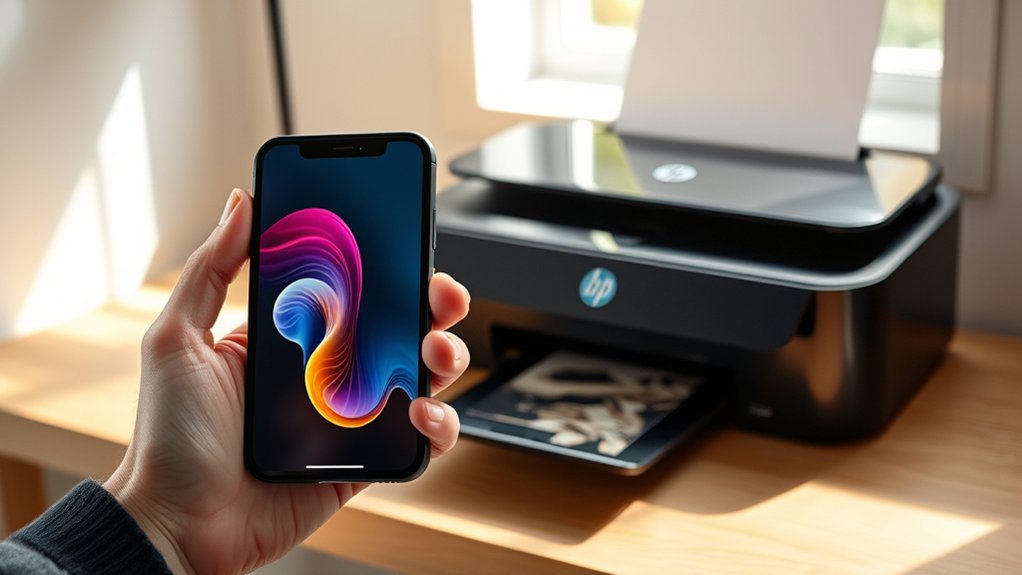

To print from iPhone to HP printer, first make sure your printer supports AirPrint and that both your iPhone and printer are connected to the same Wi-Fi network.
Open the document, email, or photo you want to print. Tap the Share icon, then select Print from the options. Choose your HP printer from the list, adjust any print settings if needed, and tap Print to start printing.
If you don’t have Wi-Fi or want more printing features, consider downloading the HP Smart app. It allows you to print, scan, and manage your printer directly from your iPhone.
Make sure your printer firmware is up to date and follow security best practices to ensure smooth printing.
You can also explore tips to troubleshoot and customize your print jobs for a better printing experience.
Key Takeaways
- Ensure your HP printer supports AirPrint and both devices are connected to the same Wi-Fi network for seamless printing from iPhone.
- Open the document or photo on your iPhone, tap the Share icon, select Print, then choose your HP printer from the list.
- Use the HP Smart app for additional printing features like scanning, managing jobs, and monitoring ink levels.
- For direct printing without Wi-Fi, connect your iPhone to the printer’s wireless direct or Bluetooth feature if supported.
- Troubleshoot printing issues by restarting devices, updating firmware, and confirming network connections to maintain smooth printing.
Check If Your HP Printer Supports AirPrint
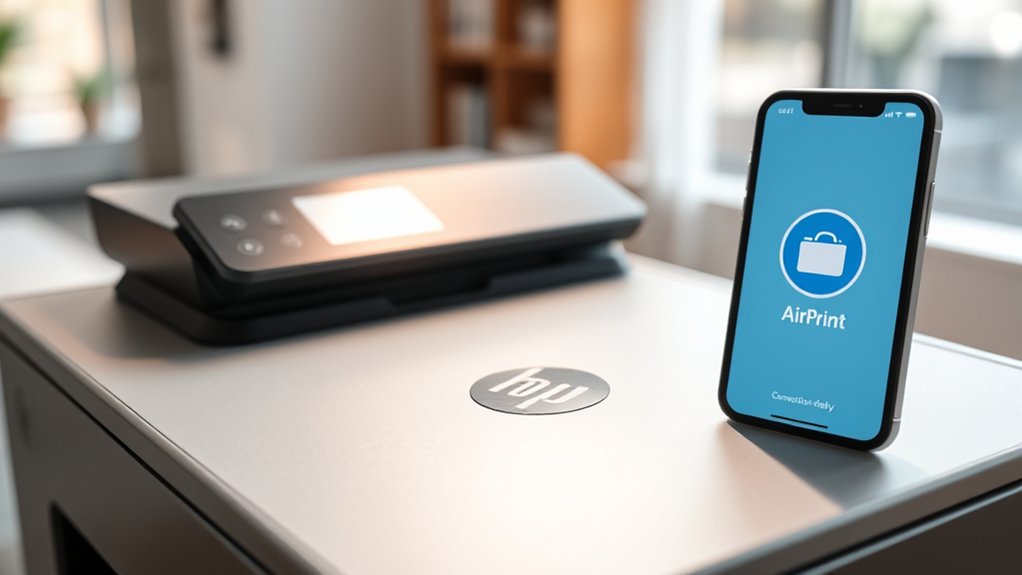
How can you tell if your HP printer supports AirPrint? First, check your printer model against Apple’s official list of AirPrint-compatible printers. You can find this list on Apple’s website or HP’s support page.
If your printer model appears there, it means it has AirPrint compatibility, allowing you to print directly from your iPhone without additional drivers or apps. Alternatively, look for the AirPrint logo on your printer’s packaging or manual.
If you don’t have access to these, access the printer’s settings menu via its control panel and look for AirPrint options. Confirming AirPrint compatibility guarantees a smooth printing experience from your iPhone.
If your printer model isn’t compatible, you’ll need to explore other printing methods.
Connect Your iPhone and HP Printer to the Same Wi-Fi
First, make sure both your iPhone and HP printer are connected to the same Wi-Fi network by checking the network name on each device. Connect your printer to Wi-Fi using its control panel or HP Smart app if it’s not already connected.
Then, verify your iPhone’s Wi-Fi settings to confirm it’s on the correct network before printing.
Check Wi-Fi Network Name
Where can you find the Wi-Fi network name on your iPhone and HP printer? Verifying both devices connect to the same network is key for smooth printing and avoiding Wi Fi troubleshooting issues. Here’s how to check:
- On your iPhone, open Settings and tap Wi-Fi. The network with a checkmark is the one you’re connected to.
- On your HP printer, navigate to the Wireless or Network menu via the control panel.
- Select Wireless Settings or Network Setup to view the current network name (SSID).
- Confirm that both names match to verify network compatibility.
If they differ, your printer won’t communicate with your iPhone. Double-check before moving to connect your printer to Wi-Fi.
Connect Printer to Wi-Fi
To connect your iPhone and HP printer to the same Wi-Fi network, start by accessing the printer’s control panel to select your wireless network. Verify your HP printer supports printer compatibility with your network by checking its wireless setup options.
Use the printer’s touchscreen or buttons to navigate to the wireless setup wizard, then choose your Wi-Fi network from the list. Enter your Wi-Fi password when prompted to complete the connection. Once connected, your printer will be on the same network as your iPhone, allowing seamless communication.
Confirm the printer’s wireless status on the control panel. This setup is essential for your iPhone to detect the printer during printing. Following these steps guarantees a smooth wireless connection between your devices.
Verify iPhone Wi-Fi Settings
Before you start printing, make certain your iPhone is connected to the same Wi-Fi network as your HP printer. This step is essential for seamless iPhone connectivity and avoiding Wi Fi troubleshooting issues.
Here’s how to verify your iPhone’s Wi-Fi settings:
- Open the Settings app on your iPhone.
- Tap “Wi-Fi” and check the network name.
- Confirm the network matches the one your HP printer is connected to.
- If not connected, select the correct Wi-Fi network and enter the password if prompted.
Matching networks guarantee your iPhone communicates with the HP printer without interruption. If you still face issues, restarting your router or toggling Wi-Fi off and on can resolve common Wi Fi troubleshooting problems quickly.
Print From Your iPhone to HP Printer
To print from your iPhone to an HP printer, first make sure AirPrint is enabled on your printer. Then, connect your iPhone to the same Wi-Fi network as the printer.
Once connected, you can select the printer directly from your iPhone’s print options.
Enable Printer AirPrint
Although many HP printers support AirPrint automatically, you’ll need to verify that your printer’s AirPrint feature is enabled before printing from your iPhone. To check AirPrint compatibility and activate the feature, follow these steps:
- Access your printer’s control panel or embedded web server by entering its IP address in a browser.
- Navigate to the Printer settings menu.
- Locate the AirPrint option and verify it’s enabled or turned on.
- Save any changes and restart your printer if necessary.
Enabling AirPrint verifies your iPhone recognizes the printer for wireless printing. If your HP printer doesn’t support AirPrint, you’ll need to explore alternative printing methods. Confirming these settings upfront saves time and avoids connection issues when you print directly from your iPhone.
Connect iPhone To Printer
You’ll need just a few simple steps to connect your iPhone to your HP printer and start printing wirelessly. First, verify your printer supports AirPrint or is compatible with your iPhone’s wireless connection. Both devices must be on the same Wi-Fi network for seamless communication.
On your iPhone, open the app or document you want to print, tap the Share icon, then select Print. From the Printer Options, tap Select Printer and choose your HP printer from the list. If your printer doesn’t appear, double-check its wireless connection and compatibility.
Once selected, adjust print settings if needed, then tap Print. By following these steps, you’ll quickly establish a wireless connection and print directly from your iPhone to your HP printer without hassle.
Fix Common Problems Printing From Your iPhone
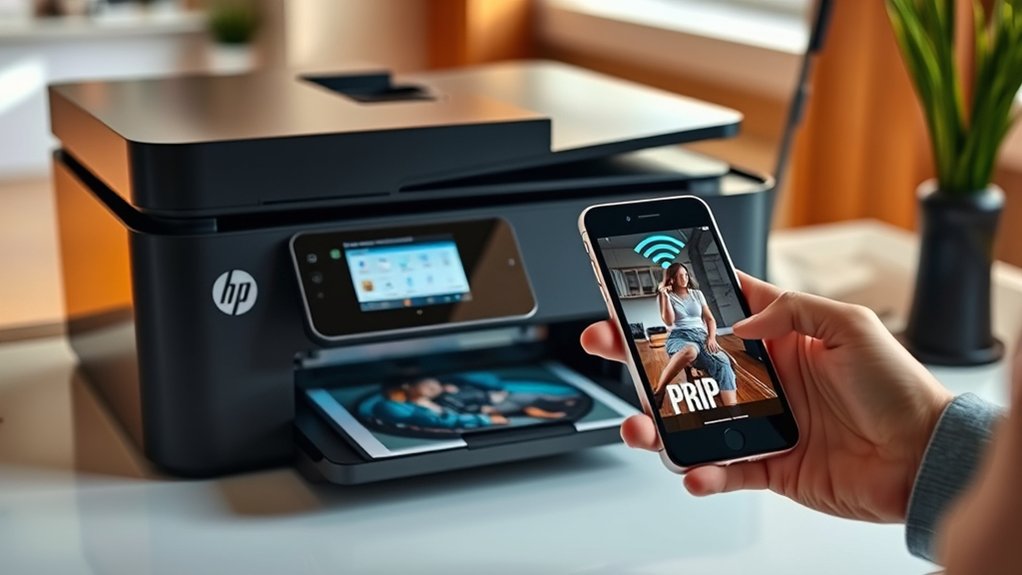
When your iPhone won’t print to your HP printer, common issues like connectivity errors or outdated software might be the cause. Use these troubleshooting tips to fix common errors quickly:
- Check your Wi-Fi connection Confirm both your iPhone and printer are on the same network.
- Restart devices Power off and on your iPhone and printer to refresh connections.
- Update software Verify your iPhone’s iOS and printer firmware are up to date.
- Reset printer settings Clear any errors by resetting your printer to factory defaults.
Following these steps often resolves printing problems. If issues persist, double-check your printer’s AirPrint compatibility or consult HP’s support resources.
Use the HP Smart App for More Printing Features
If troubleshooting doesn’t fully solve your printing needs, the HP Smart app offers a range of features to enhance your experience. Download and install HP Smart from the App Store, then connect it to your HP printer.
Once set up, you can access advanced printing features like scanning, copying, and managing print jobs directly from your iPhone. The app also lets you preview documents before printing, adjust print quality, and choose specific pages or photo sizes.
With HP Smart, you can monitor ink levels and receive alerts when supplies run low, helping you avoid interruptions. Using these printing features streamlines your workflow and gives you greater control, making printing from your iPhone to your HP printer faster and more efficient.
Print From Your iPhone Without Wi-Fi
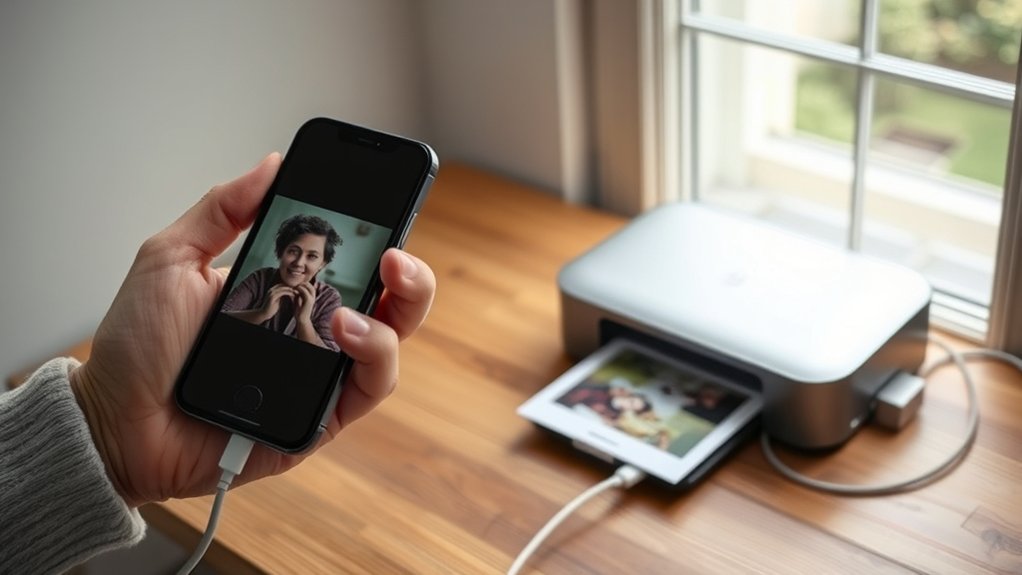
Although most printing methods rely on Wi-Fi, you can still print from your iPhone to an HP printer without a wireless network. Here’s how to do it using Bluetooth printing or a USB connection:
Print from your iPhone to an HP printer without Wi-Fi using Bluetooth or a USB connection.
- Bluetooth printing: Confirm your HP printer supports Bluetooth. Turn on Bluetooth on both devices, pair them, then select the printer in your iPhone’s print options.
- USB connection: Use a Lightning to USB camera adapter. Connect your iPhone to the printer via USB, then open the document or photo and select Print.
- For USB, make certain your printer supports direct USB printing.
- Always check that your printer firmware is updated for compatibility.
This lets you print directly without Wi-Fi, perfect when networks aren’t available.
Manage Print Quality and Paper Settings on iPhone
Since print quality and paper settings greatly affect your final output, you’ll want to adjust them directly from your iPhone before printing. When you tap the Share icon and select Print, tap on Printer Options to access settings. Here, you can choose the paper size and type that matches your printer’s loaded paper, ensuring accurate results.
To manage print quality, look for options like Draft, Normal, or Best. Selecting Best will give you sharper images and text but may use more ink. Adjusting these settings helps you balance quality and ink usage.
If your printer supports advanced features, you might find additional options in the printer’s app or settings menu. Always double-check paper settings and print quality before confirming your print to avoid wasted materials.
Keep Your Wireless Printing Private and Secure
While wireless printing offers great convenience, you’ll want to take steps to keep your documents private and secure. Protecting your data during transmission is essential to prevent unauthorized access.
Wireless printing is convenient but requires careful steps to keep your documents private and secure.
Follow these tips to enhance your wireless security and guarantee data encryption:
- Use a strong, unique Wi-Fi password to keep your network secure.
- Enable WPA3 or WPA2 encryption on your router for better wireless security.
- Update your printer’s firmware regularly to patch security vulnerabilities.
- Print sensitive documents only when connected to a trusted, secure network.
Frequently Asked Questions
Can I Print From My iPhone to an HP Printer Using Bluetooth?
You can’t use Bluetooth printing to print from your iPhone to an HP printer because iPhone compatibility supports AirPrint instead.
Make sure your printer and iPhone are on the same Wi-Fi network for seamless printing.
How Do I Update My HP Printer Firmware From an iPhone?
Like a refreshing change, firmware updates keep your HP printer sharp. You’ll open the HP Smart app on your iPhone, navigate to printer settings, then select “Firmware Update” to download and install the latest version.
What Types of Files Can I Print Directly From My iPhone?
You can print image files like JPEG and PNG, plus document formats such as PDF, Word, and Excel directly from your iPhone.
Just open the file, tap the share icon, and select your printer to start printing.
Can I Schedule Print Jobs From My iPhone to an HP Printer?
You can’t directly schedule print jobs using iPhone’s native features, but some HP apps offer print scheduling. For advanced print scheduling, use HP’s mobile printing app or third-party apps that support timed print jobs from your iPhone.
How Do I Cancel a Print Job Sent From My iPhone?
You’re not stuck forever! To cancel a print job, open the Print Center on your iPhone, tap the active print job, then hit cancel.
This quick cancellation process saves you from endless paper jams and wasted ink!
Conclusion
Printing from your iPhone to your HP printer doesn’t have to feel like rocket science. Once you check AirPrint support, connect to the same Wi-Fi, and explore the HP Smart app, you’re all set.
Even without Wi-Fi, there are options to keep your workflow smooth. So, why wait? Grab your iPhone, tap print, and watch your ideas come to life on paper.
Printing from iPhone to HP printer is simple, secure, and just a few clicks away.