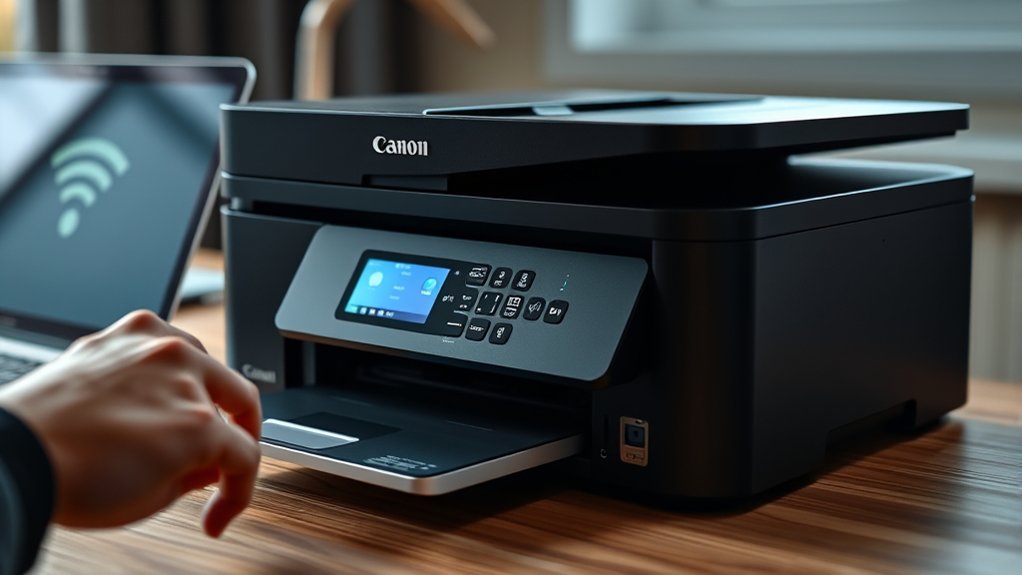

To pair your Canon printer with WiFi, first verify it’s powered on and within range of your wireless network.
Access the printer’s control panel, then navigate to the “Wireless LAN setup” or “Network” menu.
Next, choose your WiFi network and enter the password. Once connected, confirm the WiFi icon appears on the printer’s display.
Make sure your devices are on the same network to print wirelessly.
If you want to troubleshoot or optimize the connection, you can explore additional tips to help.
Key Takeaways
- Ensure the Canon printer is powered on, within WiFi range, and firmware is updated for compatibility.
- Access the printer’s control panel, navigate to “Wireless LAN setup” or “Network” menu.
- Select your WiFi network (SSID) from the available list on the printer screen.
- Enter the WiFi password accurately using the printer’s touch screen or buttons.
- Confirm connection success by checking for a WiFi icon or confirmation message on the printer display.
Get Your Canon Printer Ready for WiFi
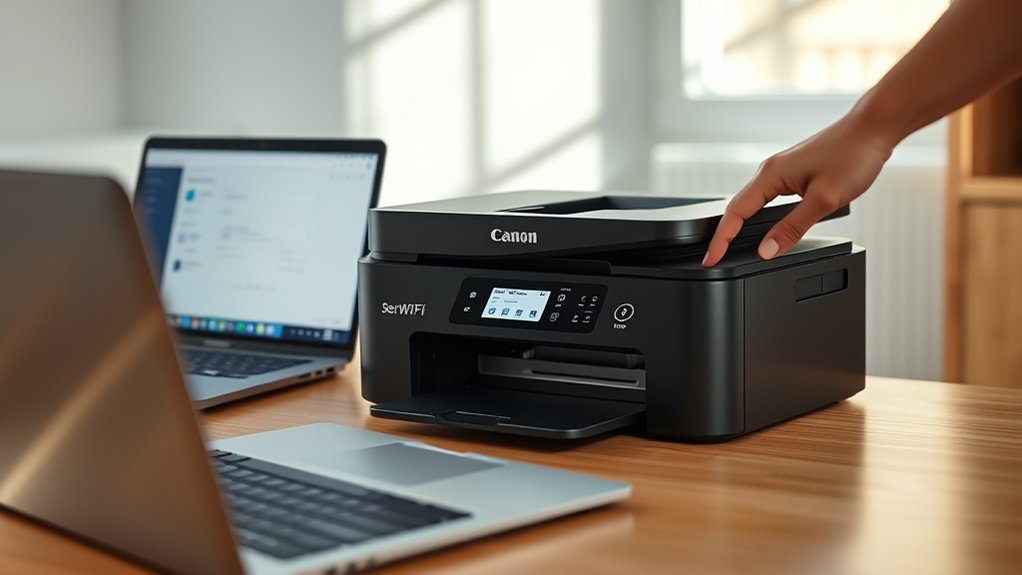
Before you connect your Canon printer to WiFi, make certain it’s powered on and within range of your wireless network. Begin your printer setup by checking the printer’s display panel for any error messages or alerts that could interrupt the wireless configuration.
Verify your printer’s firmware is up to date; this helps avoid compatibility issues during setup. Next, prepare your wireless network credentials—your WiFi name (SSID) and password—for quick input.
Disable any VPNs or firewalls on your device temporarily, as these can interfere with the printer’s connection process. Finally, reset the printer’s network settings to clear previous configurations, giving you a clean slate for a smooth wireless setup.
With these steps, your Canon printer will be ready for an efficient WiFi connection.
How to Connect Your Canon Printer to WiFi
Connecting your Canon printer to WiFi involves maneuvering the printer’s control panel to access the network settings. First, verify your printer compatibility with wireless setup by checking the model supports WiFi.
Then, navigate to the “Wireless LAN setup” or “Network” menu. Select your WiFi network from the list and enter the password using the touch screen or buttons.
Here’s a quick guide:
| Step | Action |
|---|---|
| 1. Access Settings | Use control panel to open network |
| 2. Select Network | Choose your WiFi SSID |
| 3. Enter Password | Input WiFi password carefully |
Once connected, the printer will confirm with a WiFi icon or message. This verifies your Canon printer is ready for wireless printing without cables.
Print Wirelessly From Devices With Your Canon Printer
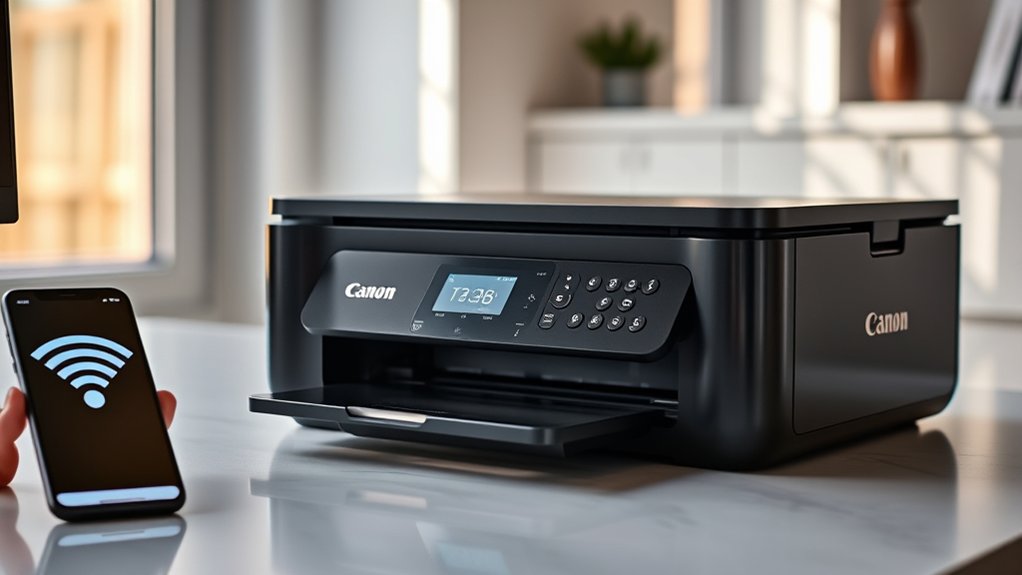
How do you start printing wirelessly from your devices once your Canon printer is connected to WiFi? First, verify your mobile devices and printer are on the same WiFi network. On your smartphone or tablet, open the document or photo you want to print.
Tap the share icon and select “Print” or “Wireless Printing.” Choose your Canon printer from the list of available devices. Adjust print settings like copies and color if needed, then tap “Print.”
For laptops or desktops, open the file, select “Print,” and pick your Canon printer under available printers. Using wireless printing lets you print effortlessly without cables, enhancing convenience and mobility.
Just keep your devices connected to the network, and you’re ready to print from anywhere within range.
Troubleshoot Common Canon Printer WiFi Issues
Even if your Canon printer seems connected, you might run into WiFi issues that disrupt printing. Troubleshooting wireless connectivity problems starts by checking your printer network settings and ensuring your router is stable.
Here’s a quick guide to common issues and fixes:
| Issue | Solution |
|---|---|
| Printer not found on network | Restart printer and router, check WiFi |
| Slow or dropped connection | Move printer closer to router |
| Incorrect network settings | Reconfigure printer network settings |
| Firewall blocking printer | Adjust firewall to allow printer access |
Secure and Optimize Your Canon Printer’s WiFi
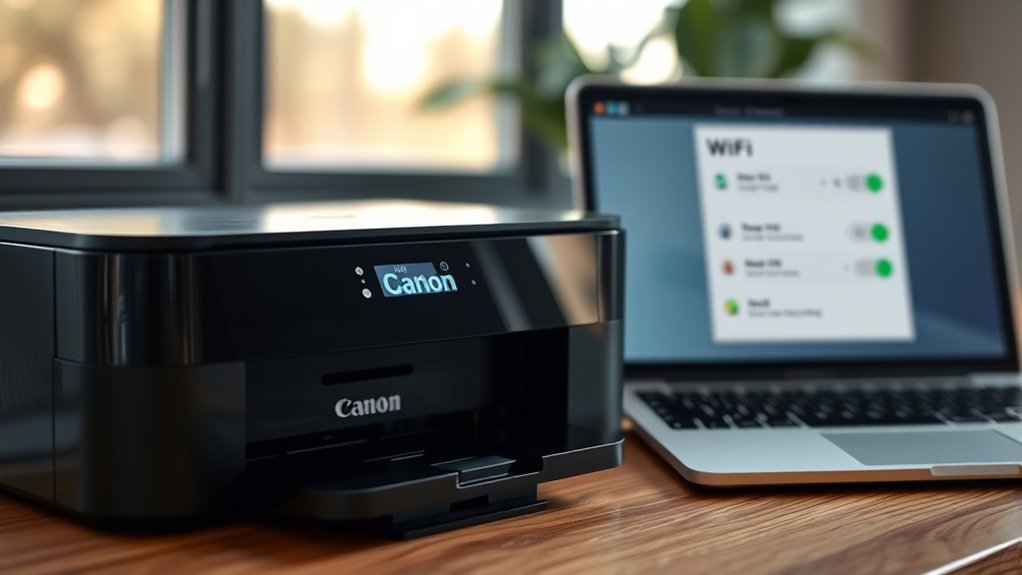
After resolving common WiFi issues, it’s important to secure and optimize your Canon printer’s wireless connection. Enhancing wifi security and performing network optimization guarantees reliable, safe printing.
Start by changing your printer’s default password to prevent unauthorized access. Next, update the printer’s firmware regularly to fix vulnerabilities. Use WPA3 or WPA2 encryption on your WiFi network for stronger protections.
Finally, position your printer close to the router to improve signal strength and reduce connection drops. Here’s a quick checklist:
- Change default printer password
- Enable WPA3/WPA2 encryption
- Update printer firmware regularly
- Place printer near your WiFi router
Frequently Asked Questions
Can I Use My Canon Printer With Public Wifi Networks?
You can use your Canon printer with public WiFi, but be cautious. Public WiFi often has printer limitations like restricted access or security issues, so your printing might be blocked or less secure compared to private networks.
How Do I Update My Canon Printer’s Firmware?
Don’t worry, your printer won’t update itself like your phone! Just visit Canon’s official site, download the latest firmware updates, and install them.
Regular firmware updates keep printer maintenance smooth and prevent unexpected paper jams!
Is It Possible to Connect Multiple Devices to One Canon Printer?
Yes, you can connect multiple devices to one Canon printer. Confirm your printer supports printer connectivity features like Wi-Fi or network sharing.
Also, verify device compatibility for smooth operation across smartphones, laptops, and tablets simultaneously.
What Mobile Apps Are Compatible With Canon Printers?
Seamlessly syncing smartphones, you’ll find Canon Print and Mobile Printing apps perfectly paired with Canon printers. These apps empower you to print, scan, and share directly from your device, making mobile printing marvelously manageable and efficient.
Can I Print Directly From a USB Drive on My Canon Printer?
Yes, you can print directly from a USB drive if your Canon printer supports USB printing. Check your model’s Canon compatibility to verify it has a USB port and menu options to access files for hassle-free printing.
Conclusion
Now that you’ve paired your Canon printer with WiFi, you’ll enjoy seamless wireless printing from any device. While some believe WiFi signals might disrupt print quality, in reality, a strong, stable connection guarantees crisp, reliable prints every time.
If you face issues, troubleshooting steps typically fix them quickly. Keep your printer’s firmware updated and secure your network to optimize performance.
With these tips, wireless printing becomes effortless and efficient. Pairing your Canon printer with WiFi ensures you get the most convenient and reliable printing experience possible.