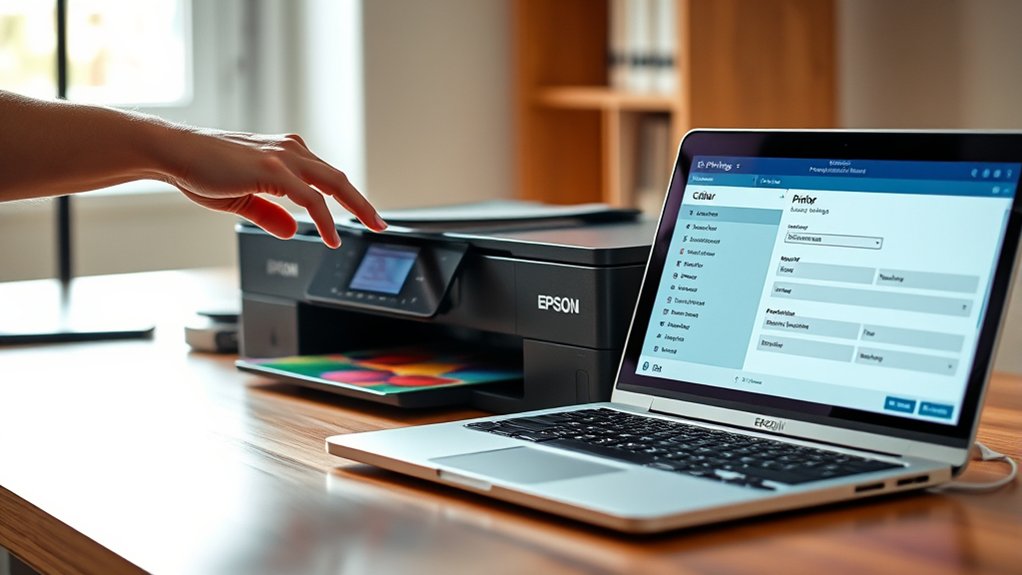

To open your Epson printer driver when printing an image, start by selecting Print in your image viewer. This action will prompt the printing dialog box where you can access the printer driver settings.
On Windows, go to Settings > Devices > Printers & Scanners. Choose your Epson printer from the list, then click Manage followed by Printing Preferences. These options allow you to customize print settings such as image resolution, color adjustments, and paper type for optimal output.
If you are using a Mac, navigate to System Preferences > Printers & Scanners. Select your Epson printer, then click Options & Supplies. Here, you can fine-tune your print settings to improve image quality.
Adjusting these settings can help you achieve better print results.
If you need to troubleshoot or save your preferences, there are simple steps you can follow next.
Key Takeaways
- Access Epson printer driver via Windows Settings > Devices > Printers & Scanners > select printer > Manage > Printing preferences.
- On Mac, open System Preferences > Printers & Scanners > select Epson printer > Options & Supplies > Driver or Utility tab.
- Confirm printer driver installation and compatibility from Epson’s official website before opening driver settings.
- Use the driver interface to adjust print quality, color, and paper type settings before printing images.
- Restart devices or check connections if the Epson printer driver interface fails to open during printing.
How to Open the Epson Printer Driver on Windows and Mac
Wondering how to open the Epson printer driver on your Windows or Mac device? First, verify your printer driver compatibility by downloading the correct version from Epson’s official website.
On Windows, click the Start menu, go to Settings > Devices > Printers & Scanners, select your Epson printer, then click “Manage” followed by “Printing preferences.” This opens the driver interface.
On Mac, open System Preferences, choose Printers & Scanners, select your Epson printer, and click “Options & Supplies” followed by “Driver” or “Utility” to access the driver settings.
Using the driver correctly helps optimize your image printing tips, like selecting quality modes or paper types. Following these steps guarantees you access the Epson printer driver quickly and maintain print quality effectively.
How to Adjust Epson Printer Driver Settings for Better Image Quality
Although the default settings often produce decent prints, adjusting your Epson printer driver can greatly enhance image quality. You can optimize your prints by tweaking several key options to get sharper, more vibrant results.
Tweaking your Epson printer driver settings can significantly improve print sharpness and color vibrancy.
Focus on these adjustments:
- Increase image resolution for finer detail and smoother gradients.
- Adjust color settings to match your image tone and saturation preferences.
- Select the correct paper type to guarantee proper ink absorption.
- Enable advanced print quality modes for high-definition output.
- Fine-tune brightness and contrast to improve overall print clarity.
How to Save Epson Printer Driver Settings for Future Prints
Saving your Epson printer driver settings can save you time and guarantee consistent print quality for future projects. After adjusting the printer settings to your liking, look for the “Save Preferences” or “Save Settings” option within the driver interface.
This option is usually found under the “Advanced” or “Maintenance” tab. Click it, name your custom profile, and confirm to save your preferences. When you print again, simply select this saved profile instead of manually adjusting settings each time.
This method guarantees your preferred print quality and paper type settings remain intact, streamlining your workflow. If you frequently print similar images or documents, regularly updating and saving your printer settings will help maintain consistency and efficiency.
What to Do If Your Epson Printer Driver Won’t Open
If your Epson printer driver won’t open, it can disrupt your printing tasks and cause frustration. To get back on track, start by troubleshooting printer issues methodically. First, check your driver installation to ascertain it’s complete and up to date.
Next, try these steps:
Restart your computer and printer to refresh connections. Confirm the printer is properly connected via USB or network. Open Device Manager to verify the driver status and update if needed. Temporarily disable firewall or antivirus software that might block the driver. Reinstall the Epson printer driver using the official Epson website.
Following these steps should help you identify and resolve why the driver won’t open, streamlining your printing experience.
Fixing Epson Printer Driver Opening Issues
When your Epson printer driver won’t open, you can fix the issue by following a few targeted steps. First, restart your computer and printer to refresh system processes.
Next, check for driver compatibility issues by ensuring your driver matches your operating system version. Visit Epson’s official website to download and install the latest driver updates.
Ensure your driver matches your OS version by downloading the latest updates from Epson’s official website.
If the problem persists, run printer driver troubleshooting tools built into your OS to detect and resolve conflicts automatically. Also, temporarily disable antivirus software, as it might block the driver from opening.
Finally, uninstall and reinstall the Epson printer driver to eliminate corrupted files. These steps will help you quickly address common driver opening issues and get your Epson printer working smoothly again.
Frequently Asked Questions
Can I Print Photos Directly From My Smartphone to Epson Printers?
Yes, you can print photos directly from your smartphone to Epson printers using smartphone printing apps. Just verify your device and printer share a wireless connection for smooth, quick photo printing without needing a computer.
How Do I Update Epson Printer Drivers Automatically?
Imagine your printer as a loyal steed needing fresh armor. Enable automatic installation in Epson’s software or your computer’s update settings. This guarantees printer driver updates install seamlessly, keeping your printing journey smooth and worry-free.
Are Epson Printer Drivers Compatible With All Image File Formats?
Epson driver compatibility varies, so you shouldn’t expect support for all image formats. Check your printer’s manual or Epson website to see supported image formats. This ensures your files align for smooth printing without errors or delays.
What Is the Best Paper Type for Printing High-Quality Images?
You’ll get the best print quality using glossy or luster photo paper, which enhances color vibrancy. Studies show photo paper improves image sharpness by up to 30%, making your prints look professional and vivid every time.
How Do I Troubleshoot Color Mismatch in Epson Printer Outputs?
You should check your print settings and perform color calibration regularly. Adjust color profiles in the printer driver, guarantee your monitor is calibrated, and use Epson’s color calibration tools to fix color mismatch in your prints effectively.
Conclusion
Opening your Epson printer driver is like unfastening a treasure chest—inside lies the key to perfect print quality. By following these steps, you’ll easily access and adjust settings to bring your images to life.
Remember to save your preferences for smoother future prints. If the driver won’t open, don’t worry—troubleshooting tips can get you back on track quickly.
With a little patience, you’ll master your Epson printer like a pro. Learning how to open Epson printer driver when printing image is essential for achieving the best results every time.