
To get your HP printer online, start by restarting both your printer and computer to refresh their connections. This simple step often resolves many connectivity issues.
Next, check that all cables are securely connected. If you are using a wireless printer, make sure it is connected to the correct Wi-Fi network.
Clear any stuck print jobs in the print queue to avoid blockages. Then, set your HP printer as the default printing device on your computer.
If problems continue, update or reinstall the printer drivers. You can also use HP’s Print and Scan Doctor tool for additional troubleshooting.
Keep these basics in mind, and you will find more tips ahead to help maintain a steady online status for your printer.
Key Takeaways
- Restart both the HP printer and the computer to re-establish communication and clear temporary glitches.
- Check and secure all printer connections, including USB cables or Wi-Fi network settings, to ensure proper connectivity.
- Set the HP printer as the default device in your computer’s printer settings to prioritize it for print jobs.
- Clear any pending or stuck print jobs in the print queue to prevent the printer from remaining offline.
- Update or reinstall the latest HP printer drivers from the official website for improved compatibility and functionality.
Restart Your HP Printer and Computer to Fix Offline Issues
If your HP printer shows as offline, the first step you should take is to restart both your printer and computer. This simple printer reset often resolves common connectivity issues by renewing the network connection and clearing temporary glitches.
Begin by turning off your printer, unplugging it from the power source, and waiting about 60 seconds. Then, power your computer down completely before turning it back on.
After your computer restarts, plug your printer back in and power it on. This process re-establishes communication between your devices, which can bring your printer back online.
If the problem persists, consider other troubleshooting steps, but a printer reset is a quick, effective way to eliminate many offline status errors.
Check If Your HP Printer Is Properly Connected
Before troubleshooting further, make sure your HP printer is properly connected to your computer or network. Start by checking the physical printer connections. Ensure the USB cable is securely plugged into both the printer and your computer if you use a wired setup.
For wireless printers, verify that your printer is connected to the correct Wi-Fi network. You can usually find this information on the printer’s control panel or settings menu. If your printer uses Ethernet, confirm the cable is firmly attached to both the printer and your router.
These basic printer connections are often overlooked but essential. Following these troubleshooting steps will help you identify connection issues early, saving time and avoiding unnecessary fixes. Once you confirm the connections are solid, you can proceed confidently with further troubleshooting.
Clear Your Print Queue to Get Your Printer Online
To get your HP printer back online, start by accessing the print queue on your computer. Check for any pending print jobs that might be stuck and cancel them.
Clearing these jobs often resolves issues and allows your printer to reconnect smoothly.
Access Print Queue
When your HP printer won’t come online, checking the print queue can often reveal stuck or paused jobs blocking new print tasks. To access the print queue, open the Control Panel on your computer and select “Devices and Printers.”
Find your HP printer, right-click it, and choose “See what’s printing.” This opens the print queue window, where you can review all pending print jobs. Effective print queue management allows you to prioritize or troubleshoot jobs that may be causing delays.
You can pause, resume, or reorder jobs based on urgency. By accessing the print queue regularly, you maintain smooth print job prioritization and prevent backlog issues that keep your printer offline. This simple step helps you quickly restore your printer’s online status.
Cancel Pending Jobs
If your HP printer remains offline despite checking the print queue, clearing pending jobs can often resolve the issue. Start by opening the print queue from your printer settings. You’ll see a list of all print jobs currently waiting.
Select any stuck or pending jobs, then click “Cancel” or “Delete” to remove them. This step clears the backlog and helps your printer reconnect online. For efficient print job management, regularly monitor and clear your print queue to prevent future offline status.
After canceling the pending jobs, restart your printer and computer to refresh their connection. This simple action often restores your HP printer’s online status quickly and keeps your printing workflow smooth.
Set Your HP Printer as the Default on Windows and Mac
Although your HP printer may be connected, you won’t be able to print seamlessly until you set it as the default device on your computer. Setting your printer as the default guarantees that your print jobs use the correct default settings without extra steps.
On Windows, go to “Settings” > “Devices” > “Printers & scanners,” select your HP printer, and click “Set as default.” On Mac, open “System Preferences,” choose “Printers & Scanners,” select your printer, and click “Set as default printer.” Adjust printer preferences to customize print quality or paper size.
Visualize the steps:
- Access your computer’s printer menu
- Identify your HP printer from the list
- Click “Set as default” or “Default printer”
- Confirm printer preferences for smooth printing
This streamlines your printing process every time.
Update or Reinstall HP Printer Drivers for Better Connectivity
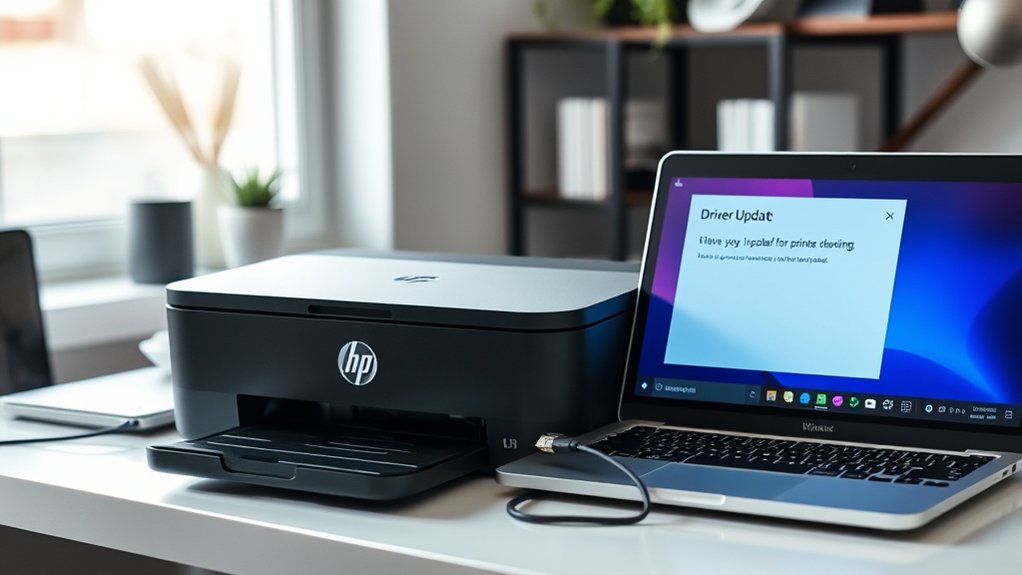
If your HP printer isn’t connecting properly, updating or reinstalling the drivers can help fix the issue. You’ll need to download the latest driver from the HP website and follow the installation prompts carefully.
If updating doesn’t work, uninstall the current driver and reinstall it to guarantee a fresh setup.
Driver Update Process
When your HP printer struggles to connect, updating or reinstalling its drivers can resolve many common issues. The driver update process guarantees your device communicates properly with your computer, preventing installation errors and enhancing driver compatibility.
To update your HP printer driver, follow these steps:
Visit the official HP website and locate your printer model
Download the latest driver compatible with your operating system
Run the installer, following on-screen prompts carefully
Restart your computer to complete the update
Reinstallation Steps Guide
Updating your HP printer driver often fixes connection problems, but sometimes a fresh installation is necessary to restore proper functionality. To ascertain successful printer installation, uninstall the current driver first, then download the latest version from HP’s official website, confirming software compatibility with your OS.
Follow these reinstallation steps:
| Step | Action | Tip |
|---|---|---|
| 1 | Uninstall old drivers | Use Control Panel or Settings |
| 2 | Restart your computer | Clears temporary files |
| 3 | Download latest driver | Confirm OS and version match |
| 4 | Install new driver | Follow on-screen instructions |
This process helps resolve connectivity issues and guarantees your printer runs smoothly.
Fix Wireless Network Issues That Cause HP Printer Offline
Although wireless networks offer convenience, they can sometimes disrupt your HP printer’s connection, causing it to go offline. To fix wireless network issues, start by checking your network configuration to confirm your printer is connected to the correct Wi-Fi.
Wireless networks can disrupt HP printer connections; first, ensure your printer is linked to the correct Wi-Fi.
Reduce wireless interference caused by devices like microwaves or cordless phones by moving your printer closer to the router. Restart your router and printer to refresh the connection. Also, verify that your Wi-Fi signal is strong and stable.
Printer placed near routers without obstacles
No electronic devices causing signal interference
Correct Wi-Fi network name and password entered
Router and printer power-cycled recently
Following these steps will help you resolve connectivity problems and get your HP printer back online efficiently.
Use HP Print and Scan Doctor to Troubleshoot Offline Problems
If your HP printer still shows offline after checking your wireless network, using HP Print and Scan Doctor can help identify and fix the issue quickly. This free tool runs diagnostics and applies solutions automatically, saving you time.
To start, download and install Print and Scan Doctor from HP’s website, then follow on-screen instructions.
| Step | Action |
|---|---|
| 1. Launch | Open HP Print and Scan Doctor |
| 2. Diagnose | Click “Start” to scan for problems |
| 3. Fix | Apply suggested fixes or follow prompts |
Following these HP Troubleshooting Tips with Print Doctor Usage often resolves offline status caused by driver issues, connectivity, or print spooler errors.
Tips to Prevent Your HP Printer From Going Offline Again
To keep your HP printer online consistently, you should maintain a strong and stable network connection. Implementing effective printer maintenance tips and network stability strategies will help prevent offline issues.
Maintain a strong, stable network and use proper printer care to prevent offline problems with your HP printer.
Regularly update your printer’s firmware to guarantee compatibility and security. Position your printer close to the router to avoid weak signals. Restart your router and printer periodically to refresh connections.
Also, avoid network congestion by limiting heavy internet use while printing.
- Keep printer firmware updated
- Place printer near your Wi-Fi router
- Restart devices regularly
- Minimize simultaneous heavy network traffic
Frequently Asked Questions
Can I Use My HP Printer Offline for Printing Saved Documents?
Yes, you can use your HP printer offline for printing saved documents. Your printer capabilities support offline printing, so just send files directly from your computer without needing an internet connection or network setup.
How Do I Connect My HP Printer to a New Wi-Fi Network?
You’ll start Wi Fi setup by accessing your printer’s control panel, selecting Network settings, and choosing your new Wi Fi. Then, you’ll enter the password, run network troubleshooting if needed, and confirm the connection.
What Should I Do if My HP Printer Displays a Paper Jam Error?
You should turn off your printer, carefully open all access points, and gently remove any jammed paper. Follow these troubleshooting tips: check rollers, clear debris, and restart the printer to resolve the paper jam error efficiently.
Is It Possible to Print From a Mobile Device Without Wi-Fi?
Did you know 60% of users rely on mobile printing? You can print without Wi-Fi using wireless printing options like Bluetooth or direct mobile printing. This connects your device directly to the printer for quick, hassle-free documents.
How Do I Replace Ink Cartridges on My HP Printer?
To replace the ink cartridge, open your printer’s ink access door, remove the old cartridge, and insert the new one firmly.
Regular printer maintenance, like cleaning and timely cartridge replacement, guarantees peak print quality and device longevity.
Conclusion
Getting your HP printer back online is easier than you think—just follow these simple steps like a pro. Restart your devices, check connections, clear the print queue, and update drivers to keep things running smoothly.
Don’t forget to tackle wireless issues and use HP’s tools to troubleshoot quickly. These steps can resolve most common problems without hassle.
With these tips, your printer won’t play hide-and-seek offline anymore, ensuring your documents print without a hitch every time. By following this guide, you’ll know exactly how to get HP printer online whenever issues arise.