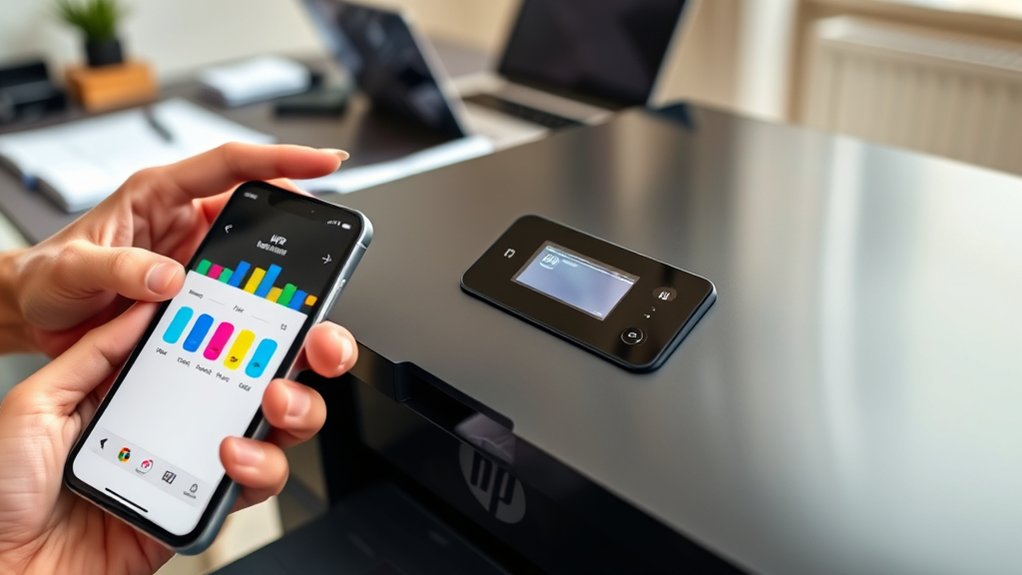

You can check your HP printer’s ink levels easily through the control panel by maneuvering to the “Ink Levels” or “Supplies Status” menu.
This is the quickest way to get a snapshot of your ink status directly from the printer itself.
On your computer, use the HP Smart app or the HP Utility app for Mac to see real-time ink indicators.
These tools provide detailed information and can help you monitor ink usage efficiently.
If you prefer mobile monitoring, download the HP Smart app on your smartphone to receive alerts and status updates.
Knowing when to replace cartridges helps keep printing smooth and uninterrupted.
Explore more tips to manage ink efficiently and extend the life of your printer cartridges.
Key Takeaways
- Check ink levels on the HP printer control panel under “Setup” or “Tools” with visual ink indicators.
- Use the HP Smart app on Windows, Mac, or smartphones to view real-time ink status and receive alerts.
- On Windows, access ink levels via “Devices and Printers,” right-click your printer, then check “Printer Properties” or “Maintenance.”
- On Mac, open “Printers & Scanners” in System Preferences, select your HP printer, then view ink levels in “Options & Supplies.”
- Monitor HP ink alerts on your computer or app to replace cartridges before running out and maintain print quality.
Quick Ways To Check HP Printer Ink Levels
Wondering how to quickly check your HP printer’s ink levels? You can start by using the built-in ink level indicators that many HP printers offer. These indicators give you a visual representation of your ink status, often accessible via the printer’s software on your computer.
If your printer lacks a digital display, you can still check ink levels through the HP Smart app or the printer’s control panel. Keep an eye on these indicators regularly to avoid unexpected ink shortages.
If you notice print quality issues or the ink level indicators show low ink despite recent cartridge replacement, it’s time for troubleshooting ink issues. Cleaning the cartridges or reinstalling them can often resolve inaccurate readings and maintain peak printer performance.
Check Ink Levels On HP Printer Control Panel
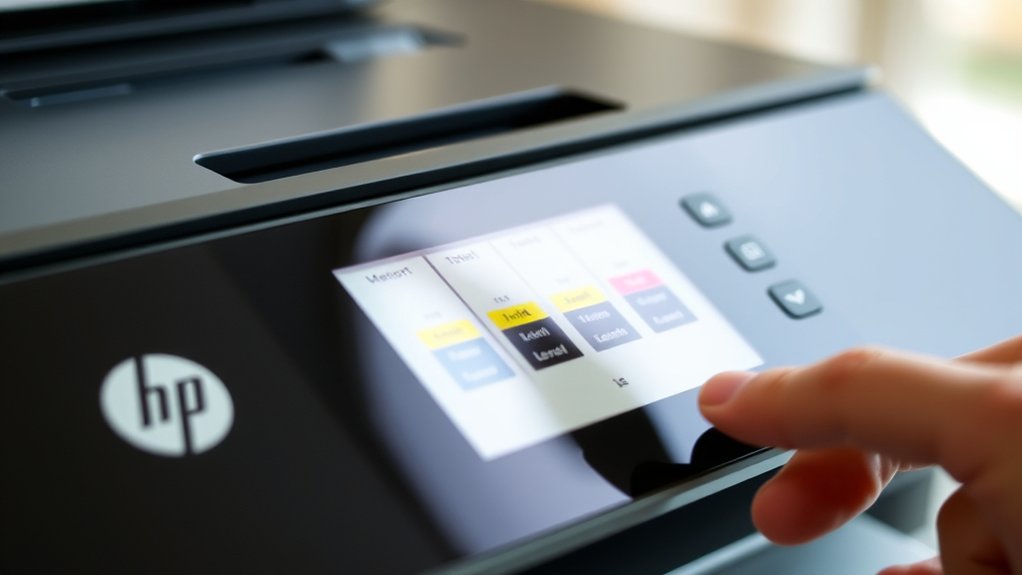
How can you quickly check ink levels directly on your HP printer? Simply use the control panel features designed for this purpose. Most HP printers with a touchscreen or LCD display have built-in ink level indicators that show the current status of each cartridge.
To access these, navigate through the menu by selecting the “Setup” or “Tools” option, then choose “Ink Levels” or “Estimated Ink Levels.” The control panel will display color-coded bars or icons representing the ink remaining in each cartridge.
Navigate to Setup or Tools, then select Ink Levels to view color-coded ink status on your printer’s control panel.
This method offers an immediate, visual report without needing a computer. If your printer has physical buttons instead of a screen, consult the manual for specific steps, as some models print an ink status page via the control panel.
Using these control panel features helps you stay informed and avoid unexpected ink shortages.
How To Check Ink Levels On Windows Using HP Software
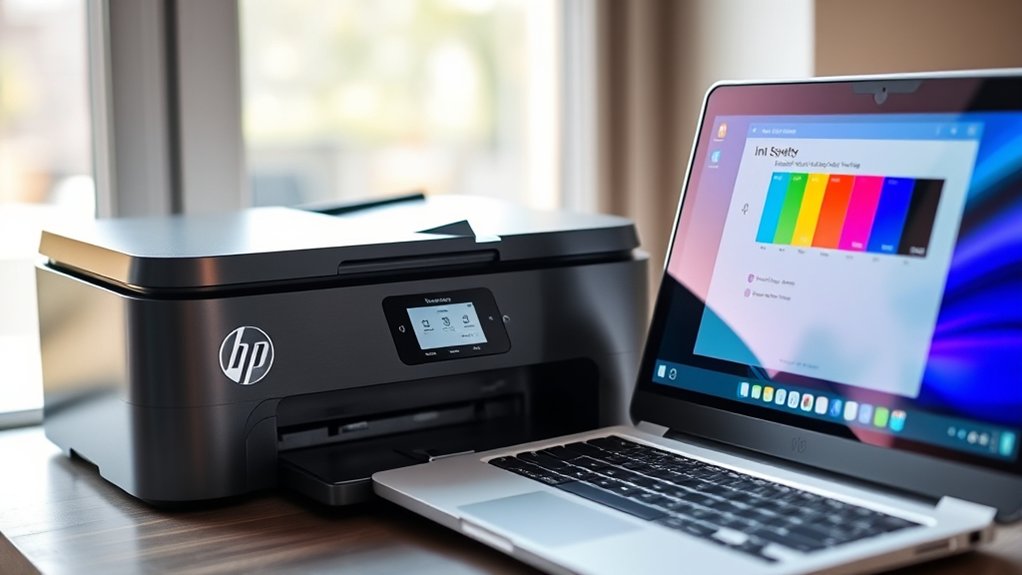
First, make sure you’ve installed the HP printer software on your Windows computer. Then, open the HP Smart app, which helps you manage your printer settings.
Finally, navigate to the ink levels section to see the current status of your cartridges.
Install HP Printer Software
Download and install the official HP printer software to easily monitor your ink levels on a Windows PC. Start by visiting HP’s official website and locating your printer model.
Download the full software package, which includes the necessary drivers. Installing drivers guarantees your computer communicates properly with your printer, preventing common issues.
Run the installer and follow on-screen instructions to complete the setup. Once installed, the software provides a user-friendly interface to check ink levels and manage print settings.
This tool also helps with printer troubleshooting, allowing you to identify and fix problems quickly. By installing the HP printer software, you simplify ink monitoring and maintain your printer’s performance without hassle.
Open HP Smart App
Once you’ve installed the HP printer software, you can easily check your ink levels by opening the HP Smart app on your Windows PC. This app is designed with user-friendly features that simplify printer management.
Before proceeding, verify your device compatibility by confirming the app supports your specific HP printer model and Windows version. To open the app, simply locate it in your Start menu or desktop shortcuts.
The HP Smart app offers a centralized dashboard where you can access various app features, including ink level monitoring, print queue management, and troubleshooting tools. Using this app lets you stay informed about your printer’s status without needing to interact directly with the printer hardware, making it a convenient and efficient option for managing your printing needs.
Navigate To Ink Levels
After launching the HP Smart app, you can quickly navigate to the ink levels section to monitor your printer’s cartridge status. On the main screen, select your printer, then look for the “Ink” or “Supplies” tab.
This section displays clear ink level indicators for each cartridge, showing you how much ink remains. If you see low levels, it’s a good idea to prepare replacements to avoid interruptions.
Checking these indicators regularly helps you stay ahead with printer maintenance tips, ensuring smooth printing and avoiding unexpected outages. The app also offers alerts when ink is critically low, so you can act promptly.
How To Check Ink Levels On Mac With HP Utility App
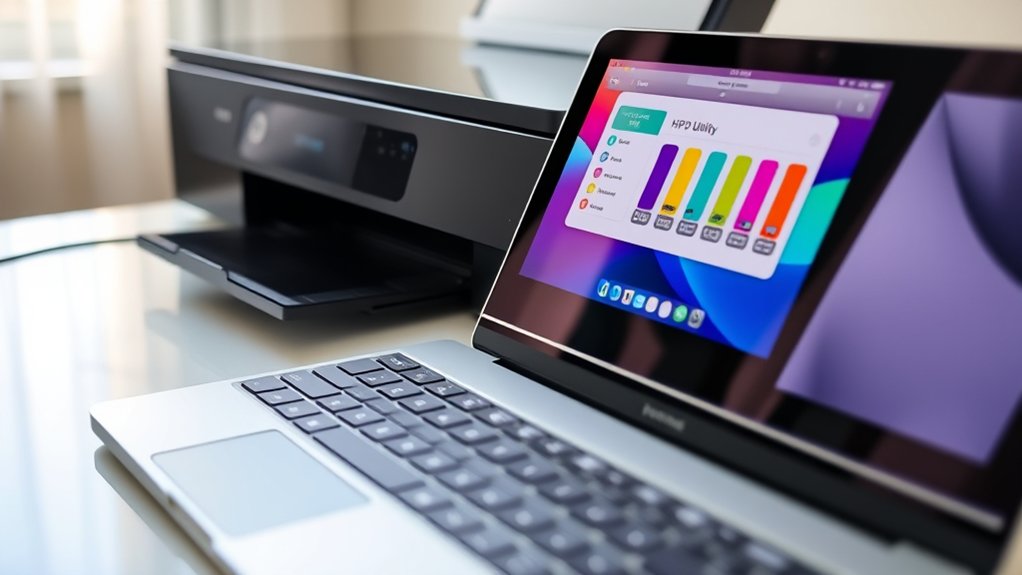
To check your ink levels on a Mac, start by opening the HP Utility app from your Applications folder. Once inside, select your printer to access its status and maintenance options.
From there, you can easily view the ink levels and monitor your cartridge status.
Accessing HP Utility
Launch the HP Utility app on your Mac to quickly check your printer’s ink levels. To access the app, open your Applications folder, then find and double-click the “HP” or “HP Utility” icon.
If you don’t see it, download the latest HP software from the official website. Once open, you’ll find a dashboard that allows easy accessing settings related to your printer’s status and maintenance.
This centralized control helps you monitor ink levels and manage other printer functions without hassle. The app also simplifies troubleshooting issues, guiding you through steps to resolve common printer problems.
Viewing Ink Status
Once you have the HP Utility app open, checking your ink levels is straightforward. Navigate to the “Ink Levels” section, where you’ll find clear ink level indicators for each cartridge. This helps you monitor usage and plan replacements efficiently.
Keeping an eye on these indicators is a key part of printer maintenance tips to avoid running out of ink unexpectedly.
Here’s a quick overview of what you’ll see:
| Cartridge Color | Ink Level Status | Recommended Action |
|---|---|---|
| Black | 75% Full | No action needed |
| Cyan | 40% Full | Prepare to replace soon |
| Magenta | 15% Full | Replace cartridge soon |
Regularly checking ink levels guarantees smooth printing and extends your printer’s life.
Using HP Smart App To Monitor Printer Ink On Your Smartphone
Although monitoring ink levels might seem tedious, the HP Smart app makes it simple and convenient to check your printer’s status directly from your smartphone. With its smartphone functionality, you can easily connect your HP printer to the app and view real-time ink levels anytime, anywhere.
The app displays clear ink status indicators, helping you avoid unexpected print interruptions. Additionally, app notifications alert you when ink is running low, so you can act promptly without constantly checking manually.
Setting up the app is straightforward. Just download it from your device’s app store, connect your printer via Wi-Fi, and start monitoring. Using the HP Smart app not only saves time but also guarantees you stay informed about your printer’s ink levels with minimal effort.
Understanding HP Ink Alerts And When To Replace Cartridges
How do you know when it’s time to replace your HP printer’s ink cartridges? HP printers use ink alerts to notify you when ink levels are low or cartridges reach the end of their lifespan.
These alerts appear on your computer screen or within the HP Smart app, giving you enough time to prepare a replacement. It’s important to pay attention to these warnings because continuing to print with empty or near-empty cartridges can damage your printer or reduce print quality.
Keep in mind that cartridge lifespan varies depending on your printer model and usage frequency. By monitoring ink alerts closely, you can replace cartridges promptly, ensuring consistent print performance and avoiding interruptions in your printing tasks.
Frequently Asked Questions
Can I Use Third-Party Ink Without Affecting Ink Level Readings?
You can use third-party ink, but third party compatibility varies and may affect ink level readings. Keep in mind, ink quality impact can cause print issues or inaccurate levels, so choose reputable brands to minimize problems.
How Accurate Are HP Printer Ink Level Indicators?
Ink level accuracy in HP printers isn’t always a silver bullet; it gives a good estimate but can vary. You should still perform regular printer maintenance to avoid unexpected ink runs and guarantee consistent print quality.
What Should I Do if Ink Levels Show Full but Print Quality Is Poor?
If ink levels show full but print quality’s poor, check your ink quality first. Then, run cleaning maintenance on your printer heads to remove clogs or dried ink, improving print clarity and performance effectively.
Can Ink Levels Be Checked on HP Printers Without a Display Panel?
Like checking a silent night sky for stars, you can monitor ink levels on HP printers without displays using HP software or the Smart app. These tools simplify ink level monitoring and support efficient printer maintenance.
Does Printer Ink Level Monitoring Work With All HP Printer Models?
No, ink level compatibility varies by printer model differences. Some HP printers support real-time monitoring, while others don’t.
You’ll need to check your specific model’s features to confirm if ink level monitoring works for you.
Conclusion
Keeping an eye on your HP printer’s ink levels is like watching the fuel gauge in your car—you don’t want to run out unexpectedly. Whether you check directly on the control panel, use HP software on Windows or Mac, or monitor through the HP Smart app, staying informed helps you print smoothly without interruptions.
Remember, timely ink alerts guide you when it’s time to replace cartridges, keeping your printer ready for every task. By regularly checking your ink status, you can avoid last-minute surprises and maintain the quality of your prints.
To sum up, knowing how to find out ink levels in HP printer ensures you stay prepared and your printing experience remains hassle-free.