
To connect your phone to a printer, first check if your printer supports wireless printing technologies such as AirPrint for iPhone or Wi-Fi for Android devices.
Ensuring both your phone and printer are connected to the same network is essential for a smooth connection.
Next, go to your phone’s print settings or open the app you want to print from and select your printer from the available options.
If your printer supports it, you can also connect using a USB cable for a direct connection.
If you encounter any issues, try updating your software or restarting your devices.
Keep exploring different apps and printer features to optimize your mobile printing experience and find the best solutions for your needs.
Key Takeaways
- Ensure your printer supports mobile printing protocols like AirPrint, Google Cloud Print, or Wi-Fi Direct for seamless phone connectivity.
- Connect both your phone and printer to the same Wi-Fi network to enable wireless printing.
- Use your phone’s print option within apps and select the compatible printer from the available devices list.
- For USB printing, verify phone and printer USB compatibility and use the correct cable for direct connection.
- Install and use manufacturer or third-party printing apps like HP Smart or PrinterShare for enhanced mobile printing features.
Check If Your Printer Supports Phone Printing
How can you tell if your printer supports phone printing? Start by reviewing your printer’s manual or manufacturer website for mobile printing features. Look for terms like “AirPrint,” “Google Cloud Print,” or “Wi-Fi Direct,” which indicate compatibility with smartphones.
Perform printer compatibility checks by verifying if your device can connect over Wi-Fi or Bluetooth. You can also check the printer’s control panel for a wireless icon or mobile printing option.
Additionally, some printers support printing through manufacturer apps available on your phone’s app store. Ensuring your printer supports these features will save you time and frustration.
Connect Your Android Phone to a Printer Wirelessly
To connect your Android phone to a printer wirelessly, start by enabling Wi-Fi printing on both devices. You can use Google Cloud Print or a similar service to simplify the process.
Finally, make sure your printer settings are configured correctly for seamless communication.
Enable Wi-Fi Printing
Although connecting your Android phone to a printer might seem complex, activating Wi-Fi printing is straightforward once you know the steps. First, verify your printer supports Wi-Fi printing and is compatible with your phone.
Next, confirm your Wi-Fi network has strong Wi-Fi security to keep your devices safe. Then, connect both devices to the same network.
| Step | Action |
|---|---|
| 1. Check Printer | Verify printer compatibility |
| 2. Connect Network | Join same Wi-Fi network |
| 3. Enable Wi-Fi | Turn on printer’s Wi-Fi feature |
| 4. Print from Phone | Select printer in print options |
Now, open a document or photo, tap print, and choose your printer. Your phone should print wirelessly without hassle.
Use Google Cloud Print
Once you’ve set up Wi-Fi printing, you might want a solution that allows printing from anywhere, not just on your local network. That’s where Google Cloud Print comes in. Although Google Cloud Print was discontinued in 2020, some printers still support alternative cloud printing services inspired by Google Cloud technology.
To use Cloud Printing, you connect your printer to the internet and link it with your Google account. Then, from your Android phone, you can print documents or photos directly using supported apps that integrate with cloud printing services.
This method offers flexibility, allowing you to print remotely without worrying about network restrictions. Check your printer’s compatibility and app support to guarantee you can take advantage of Cloud Printing effectively.
Configure Printer Settings
Connecting your Android phone to a printer wirelessly usually involves just a few simple steps. Once connected, you’ll want to configure printer settings to guarantee your printouts look just right.
Open your print menu, then tap on printer preferences to adjust settings like paper size, color options, and print quality. These options help tailor printing to your needs. Here’s a quick overview:
| Setting | Options | Purpose |
|---|---|---|
| Paper Size | A4, Letter, Legal | Match your paper type |
| Color Mode | Color, Black & White | Save ink or print in color |
| Print Quality | Draft, Normal, High | Adjust speed vs. detail |
Adjust settings before printing to avoid wasting paper or ink.
Print From Your iPhone Using Airprint
Using AirPrint, you can easily print documents, photos, and emails directly from your iPhone without installing any additional software. First, verify your printer supports AirPrint and is connected to the same Wi-Fi network as your iPhone.
For an effective AirPrint setup, power on your printer and connect it to Wi-Fi using its control panel. On your iPhone, open the app with the content you want to print, tap the Share icon, then select Print.
Choose your AirPrint-enabled printer from the list. Adjust print options like the number of copies or page range, if needed. Finally, tap Print.
This simple process makes iPhone printing convenient and quick, eliminating the need for extra drivers or cables. Just keep your devices on the same network for seamless connectivity.
Use a USB Cable to Connect Your Phone to a Printer
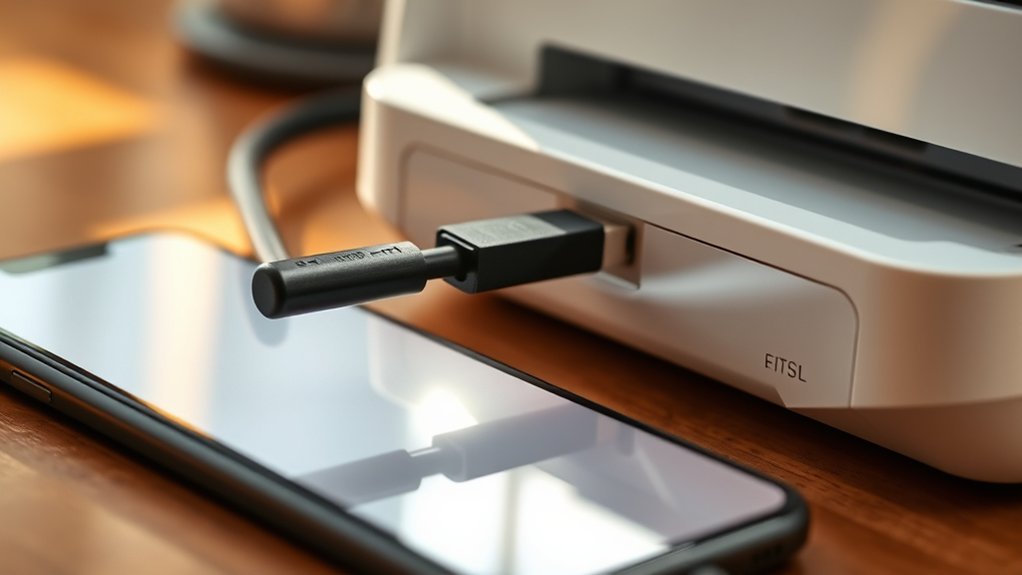
To connect your phone to a printer with a USB cable, first verify your phone’s USB compatibility. Then, choose the correct USB cable that fits both your phone and the printer.
Finally, enable USB debugging mode on your phone if needed to guarantee a smooth connection.
Check Phone USB Compatibility
How do you know if your phone supports a direct USB connection to a printer? First, check your phone compatibility with USB standards. Most modern smartphones support USB On-The-Go (OTG), allowing direct connections to peripherals like printers.
Confirm your phone’s USB version (2.0, 3.0, or higher) matches or exceeds the printer’s requirement for smooth communication.
| Phone Brand | USB Standard Supported | USB OTG Support |
|---|---|---|
| Samsung | USB 3.1 | Yes |
| Apple | Lightning / USB-C | Limited |
| USB-C 3.1 | Yes |
If your phone lacks USB OTG or compatible USB standards, direct USB printing might not work. Checking these details guarantees you avoid connection issues before selecting a cable or printer.
Select Correct USB Cable
Selecting the right USB cable is essential for connecting your phone to a printer effectively. First, identify the USB cable types compatible with both your phone and printer.
Most phones use USB-C or Micro-USB ports, while printers typically have USB Type-B or USB-C ports. Choose a cable that matches these ports on both devices to guarantee a stable printer connection.
Avoid using adapters or incompatible cables, as they can cause connection issues or slow data transfer. Also, pick a cable with good build quality to prevent disconnections during printing.
Once you have the correct USB cable, connect your phone directly to the printer’s USB port. This simple step sets the foundation for a reliable and efficient printing experience from your phone.
Enable USB Debugging Mode
Although connecting your phone to a printer with a USB cable is straightforward, you may need to activate USB debugging mode to establish a proper communication channel. USB debugging allows your Android device to communicate directly with your printer through Android settings, making printing smoother.
To activate it, go to Settings > About Phone > Tap Build Number seven times to open Developer Options. Then, navigate to Developer Options and toggle on USB debugging.
| Step | Action | Feeling |
|---|---|---|
| 1 | Open Android Settings | Curious |
| 2 | Access Developer Options | Empowered |
| 3 | Activate USB debugging | Confident |
| 4 | Connect USB cable to printer | Ready |
| 5 | Start printing | Accomplished |
Activating USB debugging guarantees a reliable link for your printing needs.
Print Documents and Photos Directly From Mobile Apps
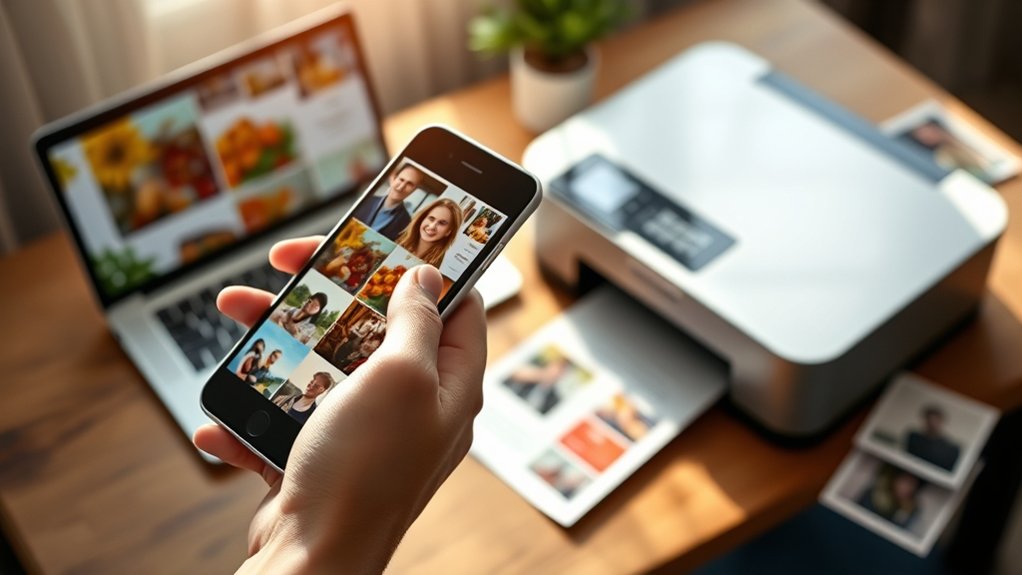
When you want to print documents or photos, many mobile apps let you send files directly to your printer without extra steps. This feature highlights mobile printing benefits like convenience, speed, and reducing the need for transferring files to a computer. However, app compatibility issues can arise, so it’s important to check if your printer supports your mobile app.
To print directly from apps, follow these steps:
Open the document or photo within the app.
Tap the share or options menu and select “Print.”
Choose your connected printer and configure print settings.
Fix Common Phone-to-Printer Connection Issues
Printing directly from your mobile apps is convenient, but connection problems can still interrupt your workflow. To troubleshoot connection issues, first make certain your phone and printer are on the same Wi-Fi network.
Check your printer’s compatibility with your phone’s operating system and update both devices’ software if needed. Restart your printer and phone to refresh the connection.
If you still can’t connect, verify your printer’s settings allow mobile printing and that any required apps or drivers are installed. Disable VPNs or firewalls temporarily, as they might block communication.
Finally, consult your printer’s manual or online support for model-specific advice. By following these steps, you can quickly resolve common connection problems and enjoy seamless mobile printing.
Top Apps for Phone-to-Printer Printing
Wondering which apps make printing from your phone easiest? Choosing the best printing apps can simplify your mobile print options and guarantee smooth, hassle-free printing. These apps connect directly to your printer, letting you print documents, photos, and emails right from your device.
Here are three top apps to evaluate:
Google Cloud Print: Supports many printers and works across platforms.
PrinterShare Mobile Print: Offers versatile printing options and supports various file types.
HP Smart: Ideal if you use HP printers; it provides scanning and print management features.
Choose the Best Printer for Mobile Printing
Since mobile printing demands convenience and compatibility, choosing the right printer is essential. Start by exploring various mobile printer options that support wireless connections like Wi-Fi, Bluetooth, or NFC.
Look for models specifically designed for mobile use, ensuring seamless integration with your phone’s operating system. Next, review printer brand comparisons to identify reliable manufacturers known for mobile-friendly features and robust app support.
Consider print quality, speed, and ease of setup, as these factors impact your overall experience. Don’t forget to check if the printer supports popular mobile printing standards such as AirPrint or Google Cloud Print.
Frequently Asked Questions
Can I Print From My Phone Using Bluetooth?
Yes, you can print from your phone using Bluetooth connectivity. Just guarantee your printer supports Bluetooth and mobile printing.
Pair your devices, then select the printer in your phone’s print options to start printing wirelessly.
How Do I Print Double-Sided From My Phone?
You’ll want to embrace double-sided printing by enabling it within your mobile printing apps. Just select the duplex or double-sided option before printing, and your phone will gracefully handle both sides of your document.
Is It Possible to Schedule Print Jobs From My Phone?
Yes, you can schedule print jobs using mobile printing apps that support scheduled printing.
Just select your document, set the desired time, and your phone will automatically send the print job at the scheduled moment.
Can I Print Emails Directly From My Phone?
Imagine your email transforming into a crisp, tangible page. Yes, you can print emails directly from your phone using mobile printers.
Just open your email app, select print, and enjoy seamless email printing wherever you are.
How Do I Print on Different Paper Sizes From My Phone?
You can select the paper size during mobile printing by accessing your printer settings in the print dialog on your phone. Just choose the desired paper size before you print to guarantee it matches your document.
Conclusion
Connecting your phone to a printer doesn’t have to be a challenging task. By ensuring your printer supports mobile printing and choosing the right connection method—whether wireless, USB, or apps—you can breeze through your printing needs.
Even if hiccups arise, simple fixes often get you back on track quickly. Embrace these easy steps, and you’ll turn what seemed tricky into a smooth, effortless experience.
With these tips, connecting your phone to a printer will become second nature, making your printing tasks simple and convenient every time.