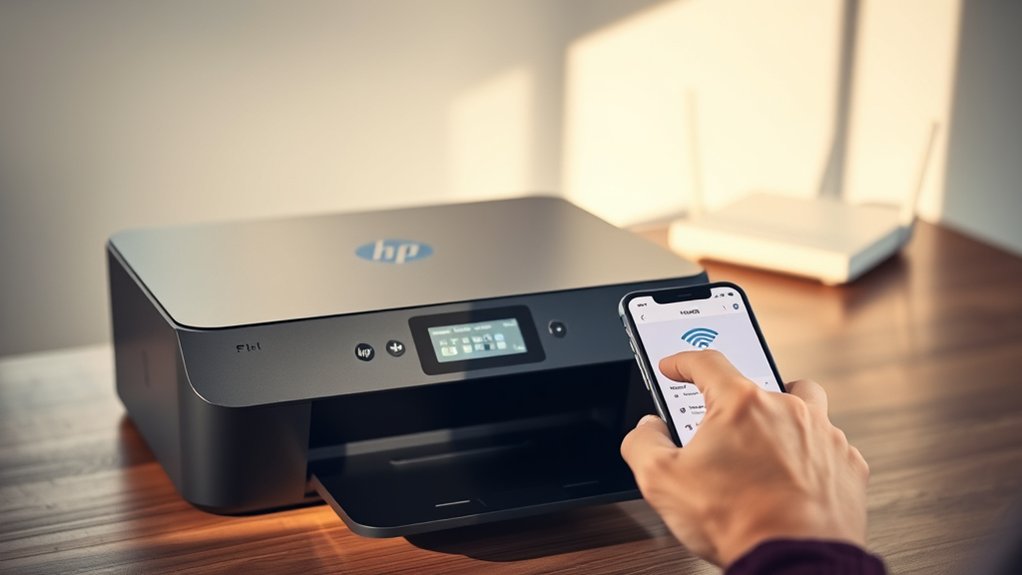

To connect your HP printer to WiFi, start by confirming your wireless network is active and your printer is in range.
Use the printer’s control panel to access the wireless setup wizard, select your network, and enter the password carefully.
Make sure your printer supports your router’s frequency and has updated firmware.
Once connected, verify the printer status says “Ready.”
If you want to address common issues or optimize performance, there’s more helpful information ahead.
Key Takeaways
- Ensure your wireless network is active and the printer is within range of the WiFi signal.
- Use the printer control panel to access the wireless setup wizard and select your WiFi network.
- Enter the correct WiFi password, paying attention to security protocols like WPA2 or WPA3.
- Confirm the printer connects successfully by checking for a confirmation message or network report.
- Optionally, use the HP Smart App for an easier wireless setup and printer management on your mobile device.
Connect Your HP Printer to WiFi in Simple Steps
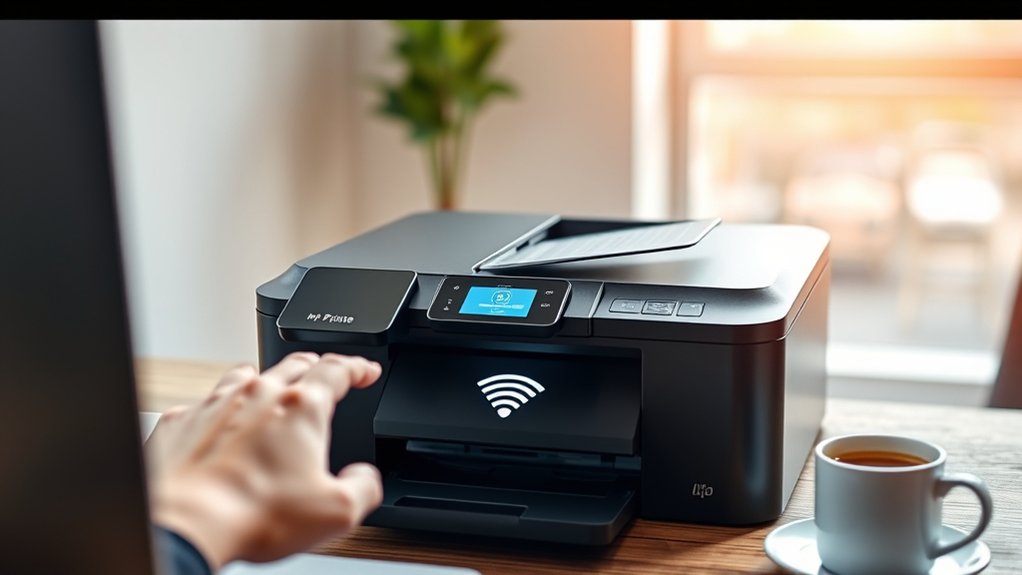
To connect your HP printer to WiFi, start by verifying your wireless network is active and your printer is within range. Verify that your network supports the printer’s required protocols to guarantee network compatibility.
Next, access the printer’s control panel and navigate to the wireless setup wizard. Select your WiFi network from the available list, then enter your network’s password, paying close attention to wireless security requirements such as WPA2 or WPA3 encryption.
Use the wireless setup wizard on your printer to select your WiFi network and enter the password carefully.
Confirm the connection, and the printer will attempt to join the network. Once the connection is successful, the printer will display a confirmation message or print a network report.
This process guarantees your HP printer securely connects to your compatible wireless network for seamless printing operations.
Prepare Your HP Printer for a Smooth WiFi Setup
After confirming your wireless network is active and selecting the correct WiFi settings on your HP printer, you need to prepare the printer itself for a smooth connection. First, verify your printer’s wifi compatibility with your router’s frequency band. Most HP printers support 2.4 GHz, while some newer models also support 5 GHz.
Make sure the printer firmware is up to date to avoid compatibility issues. Next, position your printer within ideal range of your wireless router to maintain a strong signal. Disable any temporary network restrictions like MAC address filtering on your router, or add your printer’s MAC address to the allowed list.
Finally, reset the printer network settings to clear previous configurations, making certain the printer network is clean and ready for a fresh WiFi setup.
Fix Common WiFi Issues on Your HP Printer
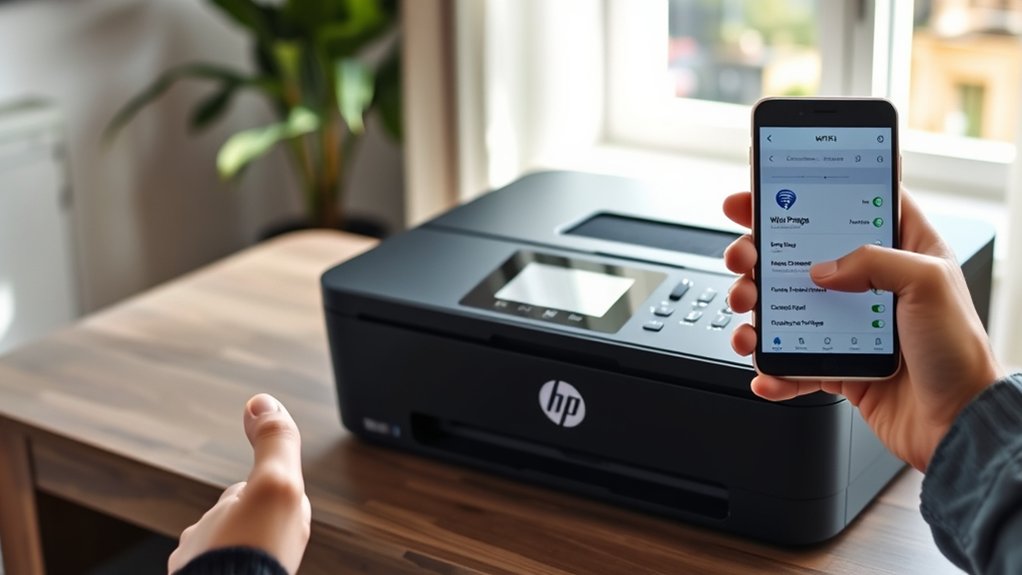
If your HP printer isn’t connecting to WiFi, start by troubleshooting the network settings to identify any connectivity issues. You can also reset the printer’s wireless settings to clear previous configurations that might be causing conflicts.
These steps often resolve common WiFi problems quickly and get your printer back online.
Troubleshoot Network Connectivity
Several common issues can disrupt your HP printer’s WiFi connection, but you can quickly identify and resolve most of them with systematic troubleshooting. First, check for network interference. Devices like microwaves or cordless phones can weaken the signal. Move your printer closer to the router to improve signal strength if necessary.
Next, verify your printer is connected to the correct WiFi network and that the network password is accurate. Restart your router and printer to refresh the connection. Also, check that your router’s firmware is up to date, as outdated software can cause connectivity problems.
Finally, confirm that your printer’s wireless settings match your home network’s configuration, including IP address and security protocols. These steps aid in restoring stable network connectivity for your HP printer.
Reset Printer Wireless Settings
Resetting your HP printer’s wireless settings can resolve many common WiFi issues by clearing incorrect configurations and restoring default network parameters. To reset network settings, access the printer’s control panel or settings menu. Look for options labeled “Network Setup,” “Wireless Settings,” or “Restore Defaults.”
Selecting “Restore Defaults” will erase existing WiFi configurations and return the printer to its factory network state. After the reset, you’ll need to reconnect the printer to your WiFi network by entering your SSID and password again. This process eliminates corrupted data or conflicts that might prevent a stable connection.
Resetting the wireless settings is often a vital troubleshooting step when the printer fails to detect or maintain a WiFi connection, ensuring a fresh start for network configuration.
Print Wirelessly From Any Device to Your HP Printer
Once your HP printer is connected to WiFi, you can easily print from any device on the same network without needing cables. To start wireless printing, make certain your device supports the printer’s network protocols. Most modern smartphones, tablets, and computers are compatible.
On your device, select the HP printer from the list of available printers in the print menu. Confirm the printer’s status is “Ready” to avoid connectivity issues. If your device doesn’t detect the printer automatically, verify that both the printer and device are connected to the same WiFi network.
For seamless device compatibility, update your printer’s firmware and device drivers regularly. This setup streamlines your workflow, allowing you to print documents, photos, or emails quickly and efficiently from anywhere within your network.
Use the HP Smart App to Manage Your HP Printer’s WiFi
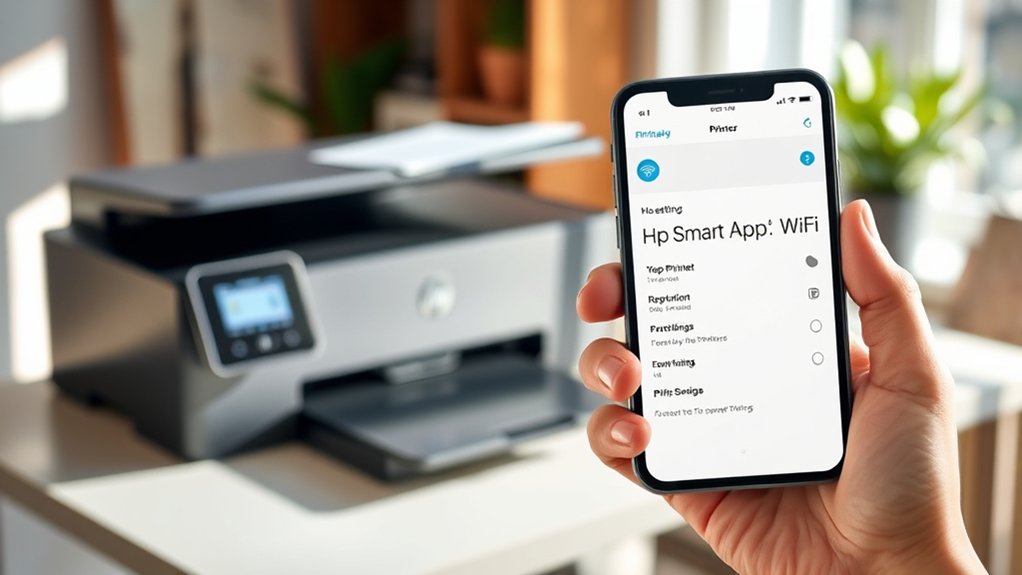
Although connecting your HP printer to WiFi can be done manually, using the HP Smart App simplifies managing your printer’s wireless settings. The HP Smart app offers intuitive app features that streamline wireless setup and printer management.
You can easily connect your printer to new networks, monitor connection status, and manage print jobs directly from your mobile device. Mobile printing capabilities allow you to print documents and photos seamlessly.
| Feature | Description | Benefit |
|---|---|---|
| Wireless Setup | Guides printer connection to WiFi | Quick, error-free setup |
| Printer Management | Monitor status, troubleshoot | Efficient control |
| Mobile Printing | Print from smartphone/tablet | Convenience on the go |
| Notifications | Receive alerts on WiFi status | Stay informed instantly |
Use HP Smart to optimize and simplify your wireless printer experience.
Update Your HP Printer Firmware for Better WiFi
Because firmware updates often include improvements to wireless connectivity and security, keeping your HP printer’s firmware current can enhance its WiFi performance. Regularly checking for and installing firmware updates is a key printer maintenance tip that guarantees your device operates efficiently and securely.
Firmware update benefits include fixing bugs, optimizing network protocols, and improving compatibility with routers. To update, access your printer’s control panel or use the HP Smart app, then navigate to the firmware section and follow the prompts.
Staying proactive with firmware updates minimizes connectivity issues and supports smoother wireless printing. Incorporating this step into your routine printer maintenance helps maintain reliable WiFi connections and extends your printer’s lifespan.
Improve WiFi Signal and Printing Speed on HP Printers
To boost your HP printer’s WiFi signal and printing speed, you need to enhance both your network setup and printer settings. First, position your printer closer to your router or consider using signal boosters to strengthen the WiFi connection, reducing interference and packet loss.
Next, access your printer’s control panel or HP Smart app to enable print optimization features, which streamline data processing and reduce lag. Confirm your router operates on the 5 GHz band if supported, as it offers faster data transfer rates.
Also, minimize the number of devices connected to the network during large print jobs. Regularly update your printer drivers and firmware to maintain peak performance. These steps collectively enhance your printer’s WiFi signal quality and speed, guaranteeing efficient and reliable printing.
Frequently Asked Questions
Can I Connect My HP Printer to a Public Wifi Network?
You can connect your HP printer to a public network if it supports printer compatibility with such networks.
However, public networks often have security restrictions, so make certain your printer can handle them to avoid connection issues.
How Do I Reset My HP Printer’s Network Settings?
Over 70% of connectivity issues resolve after a proper network reset. To reset your HP printer’s network settings, use the control panel reset methods or perform a wireless network reset. This aids effective network troubleshooting.
Is It Possible to Connect My HP Printer via Bluetooth?
Most HP printers don’t support Bluetooth connectivity for wireless printing; they rely on Wi-Fi. You can check your model’s specs, but typically, Bluetooth isn’t an option for printing with HP printers.
What Should I Do if My HP Printer Is Offline After Wifi Setup?
When your printer plays hide and seek offline, start printer troubleshooting by restarting both devices and checking your wifi connection. Then, verify the printer’s network settings and update drivers to restore seamless printing.
Can I Use an HP Printer Without Wifi or Cables?
You can’t use an HP printer without wifi or a wired connection, as it requires data transfer. However, alternative methods like USB or Ethernet cables provide reliable connections if wireless isn’t an option.
Conclusion
Connecting your HP printer to WiFi doesn’t have to feel like untangling a knot. By preparing your printer, using the HP Smart app, and updating firmware, you’ll guarantee a smooth, wireless printing experience.
If issues arise, troubleshooting common WiFi problems can quickly get you back on track. With these steps, you’ll print effortlessly from any device, turning your HP printer into a seamless part of your digital workflow.
Following these guidelines ensures that connecting your HP printer to WiFi is straightforward and efficient, making your printing tasks easier than ever.