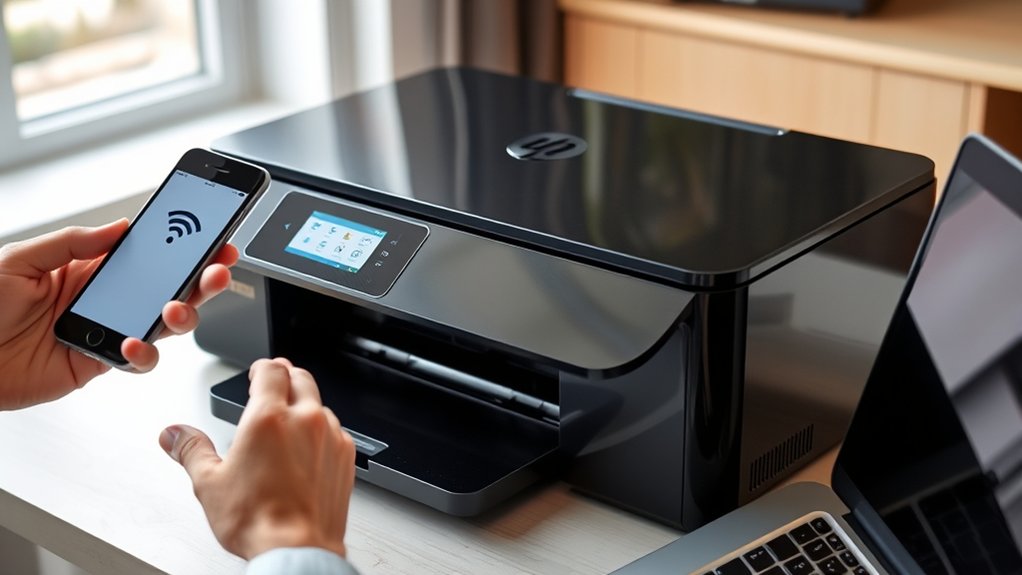

To connect your HP printer, first power it on and make sure it has enough paper and ink.
Download and install the official HP drivers along with the HP Smart software on your device. These tools will help you set up and manage your printer efficiently.
If you are using a USB connection, plug the printer into your computer using the USB cable. Wait for your computer to recognize the printer and complete the driver installation.
For a wireless connection, use the printer’s control panel to connect to your Wi-Fi network. Then, select the wireless setup option within the HP Smart software to complete the connection.
After setup, print a test page to confirm that your printer is working correctly.
Keep following for tips on troubleshooting and advanced setup options.
Key Takeaways
- Unbox and power on the HP printer, ensuring it has paper and ink or toner installed.
- Download and install the official HP printer drivers and HP Smart software from the HP website.
- Connect the printer to your computer using a USB cable or set up the wireless connection via the printer’s control panel.
- Follow on-screen instructions during software installation to select the connection type and enter Wi-Fi details if applicable.
- Print a test page from your computer’s printer settings to confirm successful connection and functionality.
Prepare Your HP Printer for Setup
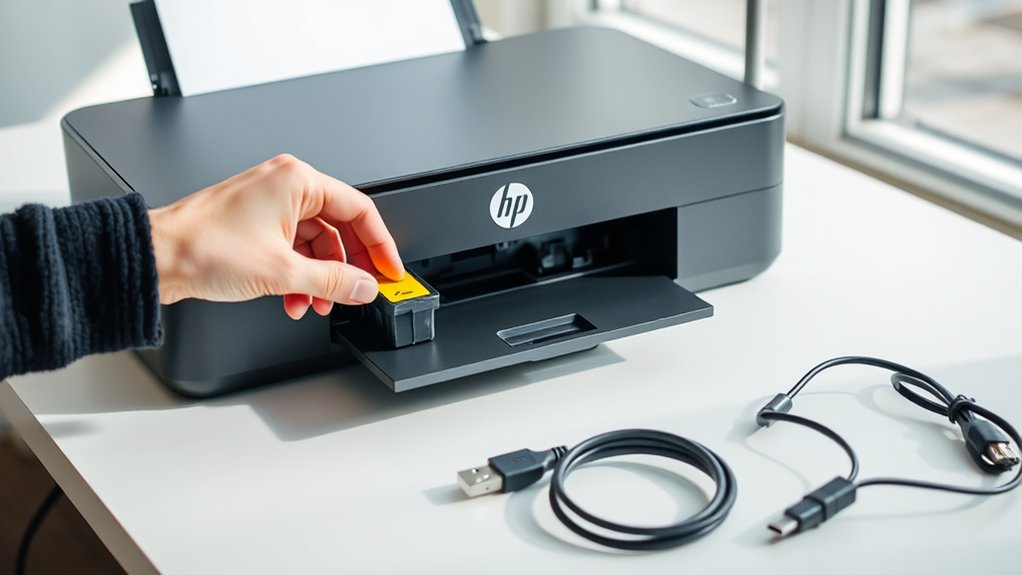
Before you start connecting your HP printer, make sure you prepare it properly. First, unbox the printer and remove all packaging materials. Next, plug the printer into a power source and perform a printer power up by pressing the power button. Wait until the printer fully initializes before proceeding.
Confirm your device compatibility by checking that your computer or mobile device supports the printer’s connection method, whether USB, Wi-Fi, or Ethernet. Ensuring compatibility avoids connection issues later.
Also, verify the printer has enough ink or toner and paper loaded in the tray. Finally, position the printer close to your device or router for a stable connection during setup. Preparing your HP printer this way sets a smooth foundation for a successful connection.
Install HP Printer Drivers and Software
Start by downloading the official HP drivers from the HP website to guarantee compatibility. Then, install the HP Smart software, which simplifies managing your printer and its features. Just follow the installation wizard’s steps to complete the setup smoothly.
Download Official HP Drivers
When you want your HP printer to function correctly, downloading the official drivers and software is essential. Start by visiting the HP official website to verify you get the latest and most compatible drivers for your specific printer model.
Avoid third-party sources, as they may cause driver compatibility issues or harm your device. On the website, enter your printer model in the search bar and select the correct operating system to narrow down the available drivers.
Once you find the appropriate driver package, download and run the installer. Follow the on-screen instructions to complete the installation.
This process guarantees your printer communicates effectively with your computer, providing smooth printing performance and access to all printer features. Always check for driver updates regularly to maintain peak function.
Use HP Smart Software
One of the easiest ways to install your HP printer drivers and software is by using the HP Smart app. This app streamlines setup by automatically detecting your printer and downloading the necessary drivers.
With HP Smart features, you can print, scan, and manage your printer settings directly from your device. The app also offers helpful tools like ink level monitoring and troubleshooting support, which enhance your overall experience.
One major HP Smart benefit is its ability to simplify wireless setup, eliminating complicated manual configurations. To get started, just download the HP Smart app on your computer or mobile device, open it, and let it guide you through connecting your printer.
This approach saves time and guarantees you have the latest software for peak printer performance.
Follow Installation Wizard Steps
Although the HP Smart app simplifies much of the setup, you’ll still need to follow the installation wizard steps to fully install your printer drivers and software. Start by launching the installer and carefully reading each prompt.
Select your printer model and connection type to guarantee software compatibility. The wizard will guide you through essential settings, including network configuration and driver installation.
If you encounter any issues, use the installation troubleshooting options provided. These tools help resolve common problems like connectivity errors or driver conflicts. Make sure you complete every step and restart your computer if prompted.
Following these instructions precisely ensures your printer functions correctly and integrates seamlessly with your system. This approach minimizes errors and maximizes performance.
Connect Your HP Printer With a USB Cable
Since connecting your HP printer with a USB cable provides a straightforward setup, you can quickly establish a reliable connection between your device and computer. Before you begin, verify your printer supports USB connection and your computer has a compatible USB port. Then, follow these steps:
Use the USB cable that came with your printer or a compatible one. Connect one end of the USB cable to your printer and the other to your computer. Turn on your printer and wait for your computer to recognize the device.
Once connected, your computer will typically install necessary drivers automatically. If not, visit HP’s official website to download drivers matching your printer compatibility. This method guarantees a stable connection without worrying about network issues.
Set Up Your HP Printer on a Wireless Network
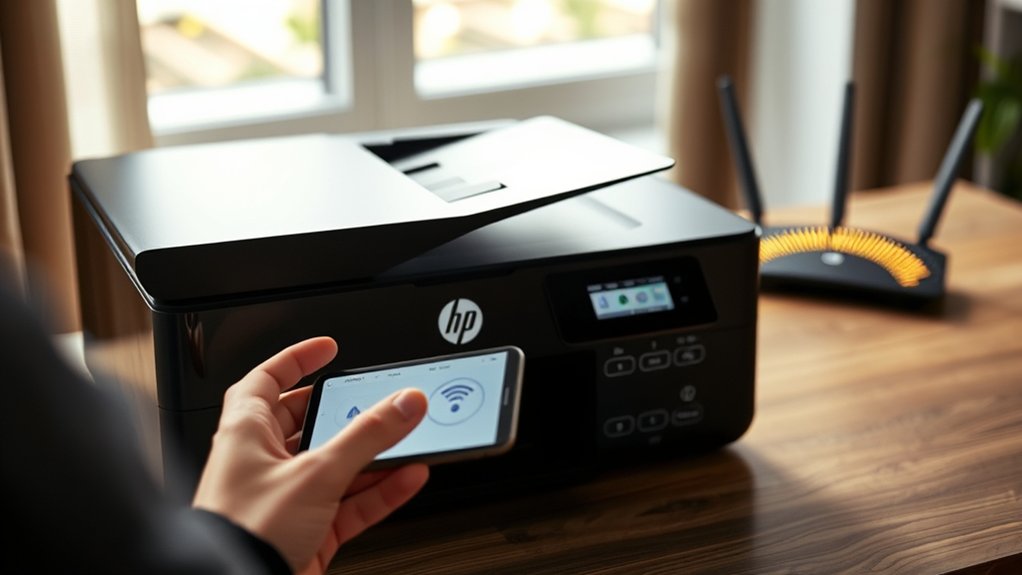
When you want the freedom to print from multiple devices without cables, setting up your HP printer on a wireless network is the ideal solution. Start by powering on your printer and accessing the wireless setup wizard via the control panel.
Select your Wi-Fi network and enter the password carefully to maintain wireless security. Next, install the HP printer software on your computer or mobile device. During installation, choose the wireless connection option to complete the network configuration.
Make sure your printer and devices connect to the same network for seamless operation. Finally, print a test page to confirm the setup. Following these steps guarantees a secure, efficient wireless connection, letting you print effortlessly from anywhere within your network range.
Fix Common HP Printer Connection Problems
If your HP printer isn’t connecting properly, start by troubleshooting your wireless or USB connections. Check cables, network settings, and ascertain your device is within range.
Don’t forget to update your printer drivers to fix compatibility issues and improve performance.
Troubleshoot Wireless Connectivity
Although wireless printers offer convenience, they can sometimes face connectivity issues that interrupt your workflow. To troubleshoot your HP printer’s wireless connection, start by checking the wireless signal strength. A weak signal can cause intermittent disconnections.
Next, verify your network configuration to guarantee your printer is connected to the correct Wi-Fi network and that the network settings match your router’s parameters. Finally, restart your printer and router to refresh the connection.
Here’s a quick checklist to fix common wireless problems:
- Confirm your printer is within range of the wireless router.
- Double-check the network password and SSID on the printer.
- Use the HP Smart app or printer control panel to run a wireless test report.
These steps often resolve connection glitches efficiently.
Resolve USB Connection Issues
Wireless connectivity isn’t the only area where HP printers can face issues; USB connections might also cause frustration. First, check your USB cable type—most HP printers use USB Type-B to Type-A cables. Using the wrong cable can prevent proper communication.
Next, verify the cable is securely connected to both the printer and your computer’s USB port. Try different ports if available, as some might not function correctly. Also, inspect the cable for damage; a faulty cable can cause intermittent connections.
Finally, confirm driver compatibility with your operating system. Even if the printer appears recognized, incompatible drivers can disrupt USB communication. Avoid updating drivers here; focus on verifying the cable and connection integrity first to resolve common USB issues quickly and effectively.
Update Printer Drivers
Updating your HP printer drivers is one of the most effective ways to fix common connection problems. Outdated or incorrect drivers often cause printer compatibility issues, preventing your device from communicating properly with your computer.
To update your drivers, follow these driver installation tips:
- Visit the official HP website and locate the exact model of your printer for the latest driver download.
- Uninstall any previous printer drivers before installing the new version to avoid conflicts.
- Restart your computer after installation to guarantee the changes take effect.
Print a Test Page to Confirm Connection
Print a test page to verify that your HP printer is properly connected and ready to use. This simple step provides immediate connection confirmation, ensuring your setup went smoothly.
To print a test page, access your printer settings on your computer. On Windows, open “Devices and Printers,” right-click your HP printer, and select “Printer Properties.” Then, click “Print Test Page.”
On a Mac, open “System Preferences,” select “Printers & Scanners,” choose your HP printer, and click “Open Print Queue,” followed by “Print Test Page.”
Once the test page prints successfully, you know your connection is solid. If it doesn’t print, double-check cables, wireless settings, or driver installation.
Printing a test page confirms your printer is ready to handle all your printing needs.
Frequently Asked Questions
How Do I Update My HP Printer Firmware?
You can update your HP printer firmware by accessing printer settings through the HP Smart app or control panel. Select “Firmware Update,” then follow prompts to download and install the latest firmware update for improved performance.
Can I Connect My HP Printer to Multiple Devices?
Like a busy bee buzzing between flowers, you can connect your HP printer to multiple devices. Just verify printer compatibility and manage device connections properly for seamless printing from all your gadgets without a hitch.
What Should I Do if My HP Printer Is Offline?
If your HP printer is offline, start printer troubleshooting by checking network issues. Make certain it’s connected to Wi-Fi, restart the printer and router, and verify your device’s connection. This often resolves offline status quickly.
How Do I Print From a Mobile Device to My HP Printer?
You can print from a mobile device to your HP printer by using mobile printing features or HP printer apps.
Just install the app, connect both devices to the same Wi-Fi, and send your document to print.
Is It Possible to Share My HP Printer Over a Network?
Yes, you can share your HP printer over a network. Just enable printer sharing in your network setup, connect the printer to your PC or router, and other devices on the network will access it easily.
Conclusion
Now that you’ve prepared your HP printer, installed the necessary drivers, connected it via USB or wireless network, and troubleshot common issues, you’re ready to print with ease.
Remember to check your connections, update your software, and test your printer regularly.
By following these steps, you’ll save time, avoid frustration, and enjoy smooth printing every time.
Stay confident, stay connected, and keep your HP printer working perfectly.
By following this guide on how to connect HP printer, you can ensure a hassle-free printing experience every time.