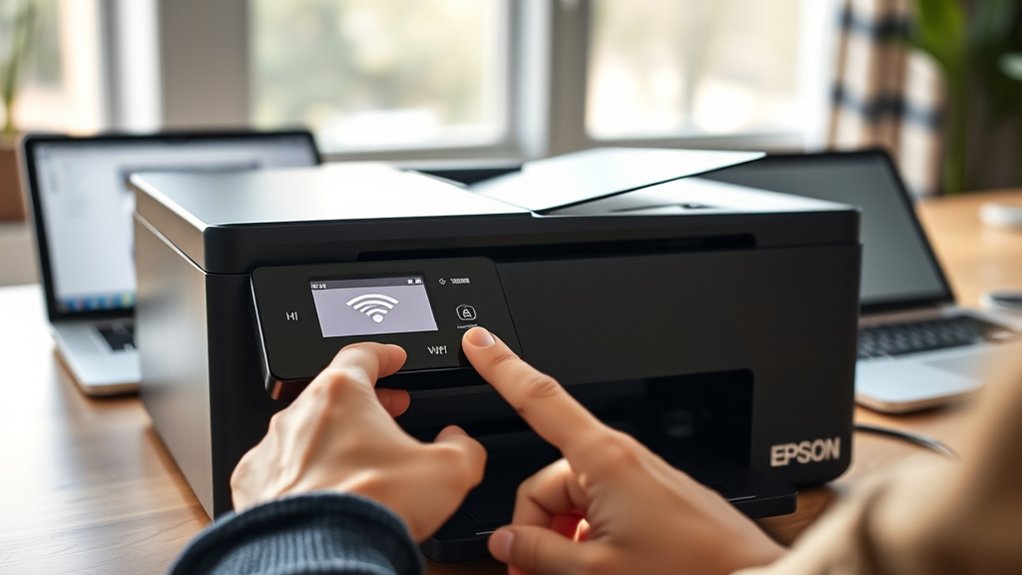

To connect your Epson printer to WiFi, start by turning on the printer and navigating to the network or wireless settings on its control panel.
Select your WiFi network from the list, enter the password, and confirm the connection.
Ensure that both your printer and device are connected to the same network to enable wireless printing. You can use Epson’s app or native options like AirPrint for a seamless printing experience.
If you encounter connection problems or want to improve your WiFi performance, continue exploring setup steps and troubleshooting solutions for optimal results.
Key Takeaways
- Ensure the Epson printer supports wireless connectivity and is powered on for setup.
- Access the printer’s network settings, select WiFi setup, and choose your WiFi network from the list.
- Enter the WiFi password correctly and confirm to connect the printer to the network.
- Verify the printer and your device are on the same WiFi network for wireless printing.
- Update printer firmware and drivers if connection issues arise, and restart devices if needed.
What You Need Before Connecting Your Epson Printer to WiFi
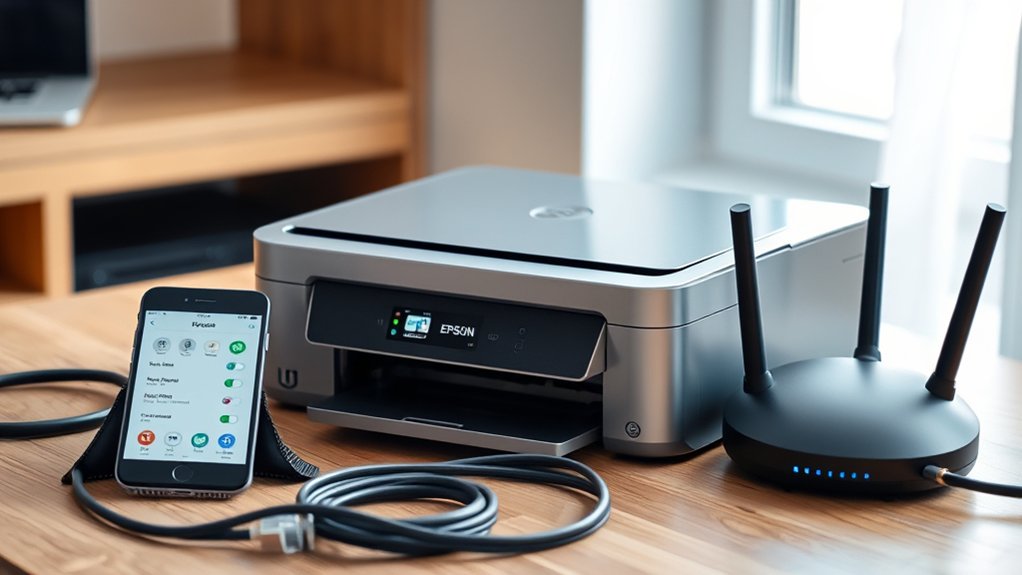
Before you connect your Epson printer to WiFi, make certain you have a few essential items ready. First, check your printer requirements to verify your Epson model supports wireless connectivity. You’ll need your printer’s manual or model number handy to confirm compatibility.
Next, check your network settings. Know your WiFi network name (SSID) and password, as you’ll need these to connect the printer. Also, make sure your router is broadcasting on a compatible frequency, typically 2.4 GHz, since some printers don’t support 5 GHz networks.
Finally, have your computer or mobile device nearby to help with setup and troubleshooting. Gathering these essentials beforehand will make connecting your Epson printer to WiFi a smoother, faster process without unnecessary interruptions.
Step-by-Step Guide to Connect Your Epson Printer to WiFi
Once you have all the necessary information and devices ready, you can begin connecting your Epson printer to your WiFi network. Start by turning on your printer and accessing the printer settings menu.
Navigate to the network setup option and select WiFi setup. Choose your WiFi network from the list and enter the password when prompted. Confirm the connection and wait for the printer to establish a link.
| Step | Action | Tip |
|---|---|---|
| 1 | Power on printer | Guarantee printer is ready |
| 2 | Open printer settings | Use control panel or screen |
| 3 | Select network setup | Find WiFi or wireless option |
| 4 | Choose your WiFi network | Confirm network name |
| 5 | Enter password & connect | Verify successful connection |
This straightforward network setup guarantees your Epson printer connects smoothly.
How to Print Wirelessly to Your Epson Printer From Any Device
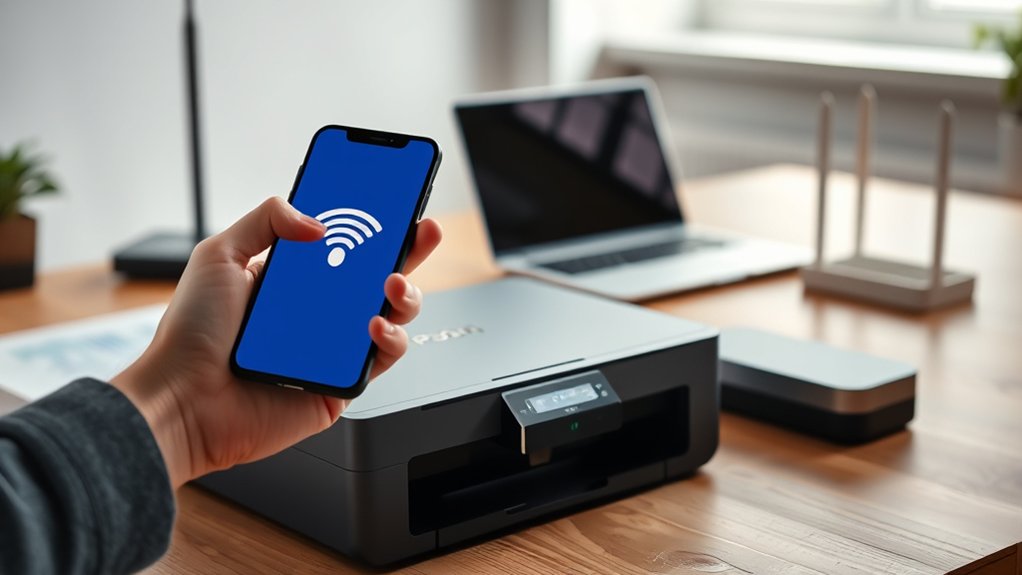
Wondering how to print wirelessly to your Epson printer from any device? First, verify your printer is connected to the same WiFi network as your device.
For seamless wireless printing, check your device compatibility. Epson supports Windows, macOS, iOS, and Android.
On a computer, open the document or image, select “Print,” and choose your Epson printer from the list of available devices.
On mobile devices, download the Epson iPrint app to access full printing features effortlessly. If your device supports AirPrint (iOS) or Mopria (Android), you can print directly without extra apps.
Once you select your printer and print settings, tap or click “Print.” This approach lets you enjoy hassle-free wireless printing from any compatible device in your network.
Troubleshooting Common Epson Printer WiFi Issues
If your Epson printer isn’t connecting to WiFi, you’re not alone. Many users face common issues like network interruptions or incorrect settings.
First, check your WiFi signal strength; a weak signal can cause connection drops. Move your printer closer to the router if needed.
Check your WiFi signal strength and move your printer closer to the router to prevent connection drops.
Next, review your printer settings to verify it’s connected to the correct network and that the password is entered accurately. Restart both your printer and router to refresh connections.
Also, confirm that your printer’s firmware and drivers are up to date. If you still face issues, temporarily disable any firewall or antivirus software that might be blocking the connection.
Following these steps will often resolve typical WiFi connectivity problems with your Epson printer quickly and effectively.
Easy Ways to Boost Your Epson Printer’s WiFi Performance
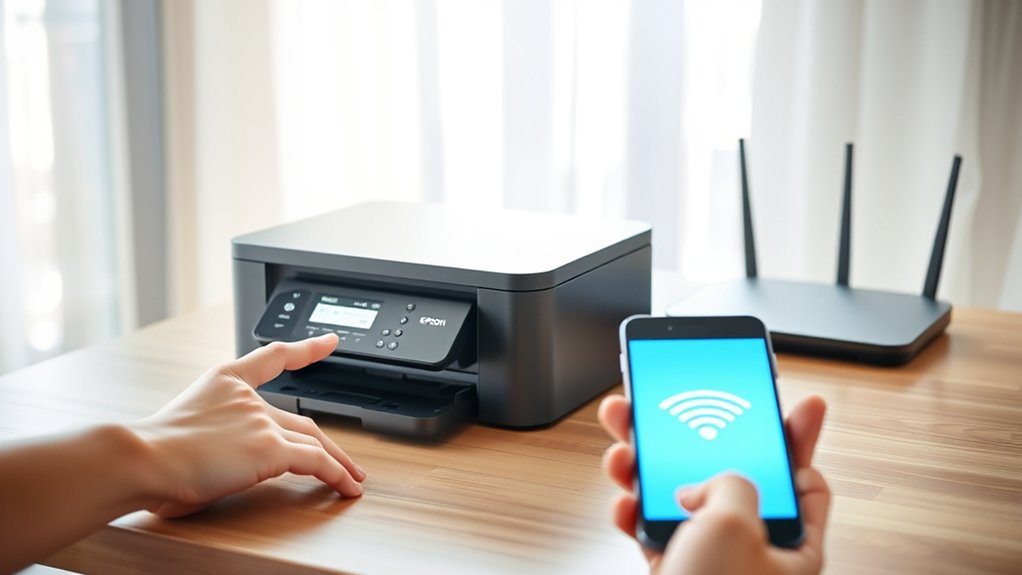
Although your Epson printer may already connect to WiFi, you can boost its performance by optimizing its placement and network settings. First, position your printer closer to the router to strengthen the WiFi signal and reduce connection drops. Avoid placing it near devices that cause network interference, like microwaves or cordless phones.
Next, make sure your router uses the less congested 5 GHz band if your printer supports it, as it offers faster speeds and less interference. You should also update your printer’s firmware and router software regularly to improve compatibility.
Finally, secure your network with a strong password to prevent unauthorized access that can slow down your WiFi. Following these steps will help you enjoy a more reliable and faster Epson printer connection.
Frequently Asked Questions
Can I Connect My Epson Printer to Multiple Wifi Networks Simultaneously?
You can’t connect your Epson printer to multiple WiFi networks simultaneously. You’ll need to access the printer network settings to switch between connections, as it only supports one active network connection at a time.
Does Epson Offer a Mobile App for Managing Wifi Printer Settings?
Back in the days of rotary phones, you’d be thrilled to know Epson offers an Epson mobile app that lets you easily manage your printer settings.
You can adjust WiFi and print preferences right from your smartphone.
How Secure Is the Wifi Connection on Epson Printers?
You’ll find Epson printers offer solid wifi security, but you should still update firmware regularly to reduce printer vulnerabilities. Use strong passwords and WPA2 or WPA3 encryption to keep your connection safe from unauthorized access.
Can I Connect My Epson Printer to a Guest Wifi Network?
Yes, you can connect your Epson printer to a guest network if it supports guest network compatibility. Just make sure the network allows device connections to avoid printer connection issues during setup or printing tasks.
What Firmware Updates Improve Epson Printer Wifi Connectivity?
You’ll find firmware benefits include enhanced stability and faster wifi connection. Updating your Epson printer’s firmware fixes connectivity issues, improves signal strength, and guarantees compatibility with new routers.
Always check Epson’s website for the latest updates.
Conclusion
Now that you’ve got your Epson printer connected to WiFi, you might think the hard part’s over. But what if you run into unexpected glitches or slow performance? Don’t worry—you’re equipped to handle those too.
With the right steps and a bit of patience, you’ll keep your printer running smoothly and wirelessly from any device. Ready to access its full potential? Your seamless printing experience is just a few clicks away.
By following these tips, you can ensure your Epson printer stays reliably connected to your network. Enjoy hassle-free printing and make the most out of your Epson printer connection to WiFi.