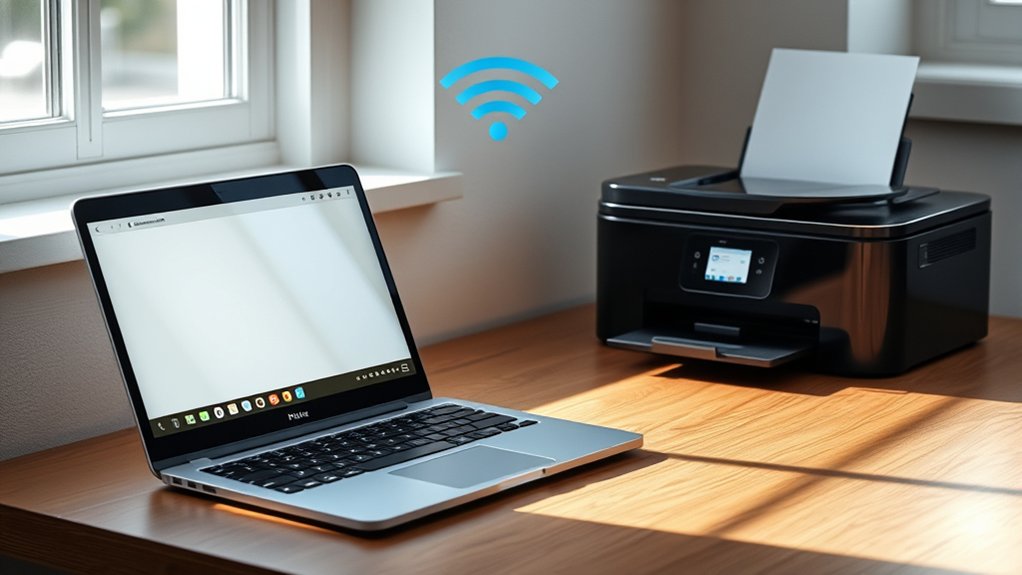

To connect your Chromebook to a printer, first verify that your printer supports Chrome OS or IPP protocols. This ensures compatibility and smooth printing operations.
For wireless printers, make sure both your Chromebook and printer are connected to the same Wi-Fi network. Then, add the printer via Settings > Printers on your Chromebook.
If you’re using a USB connection, simply plug your printer into your Chromebook’s USB port and select it from the list of available printers. You can print directly without Google Cloud Print by using built-in drivers or manufacturer apps.
If you want to optimize your setup or solve issues, you’ll find helpful tips ahead.
Key Takeaways
- Verify the printer is compatible with Chrome OS and supports Cloud Print or IPP protocols.
- Ensure both Chromebook and printer are connected to the same Wi-Fi network for wireless printing.
- Add the printer via Chromebook settings under “Printers” by selecting “Add Printer” and choosing your device.
- For USB printers, connect the printer via USB and select it from the “Available Printers” list in settings.
- If printing issues arise, restart devices, update firmware and OS, and ensure no print jobs are stuck in the queue.
Check If Your Printer Is Compatible With Chromebook
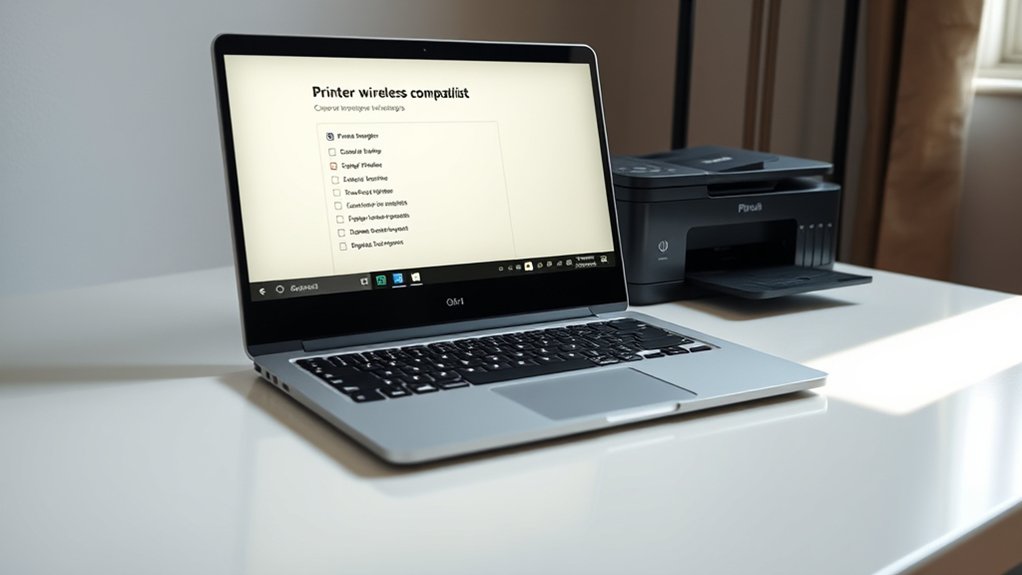
How can you tell if your printer works with your Chromebook? Start by checking printer compatibility with Chrome OS. Not all printers support Chromebook requirements, so you’ll want to confirm your model is compatible.
Google supports printers that use the Cloud Print service or those with native Chrome OS drivers. Visit the manufacturer’s website or Google’s support page to find a list of compatible printers.
Look for printers that support IPP (Internet Printing Protocol) or have built-in Wi-Fi or Ethernet connectivity because these meet Chromebook requirements. If your printer doesn’t meet these criteria, you might face difficulties.
Confirming printer compatibility first saves you time and frustration before attempting to connect and print from your Chromebook.
Connect Your Chromebook to a Wireless Printer
Once you’ve confirmed your printer is compatible, you can connect your Chromebook to a wireless printer by ensuring both devices are on the same Wi-Fi network. This wireless printer setup lets you access Chromebook printing options seamlessly.
Follow these steps:
- Open your Chromebook settings and navigate to “Printers.”
- Click “Add Printer,” then select your wireless printer from the list.
- Confirm the connection and print a test page to verify.
With this setup, your Chromebook communicates directly with the printer, eliminating cables and simplifying your workflow. If your printer doesn’t appear, double-check network connections and printer compatibility.
Using Chromebook printing options, you can easily manage print jobs, adjust settings, and enjoy hassle-free wireless printing right from your device.
Print From Your Chromebook Using a USB Cable
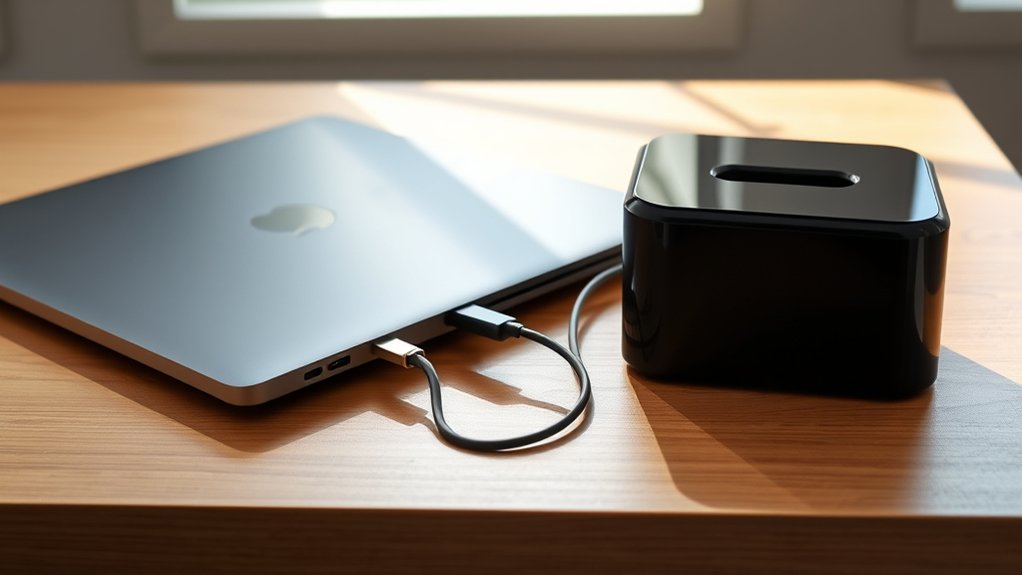
If your wireless printer isn’t compatible or you prefer a direct connection, printing from your Chromebook using a USB cable is a straightforward alternative. First, connect your USB printer to the Chromebook’s USB port. Then, open Chromebook settings, navigate to “Printers,” and your device should appear automatically. Select it, and you’re ready to print.
| Step | Action | Chromebook Settings Location |
|---|---|---|
| 1 | Connect USB printer | USB port on Chromebook |
| 2 | Open Settings | Click on time > Settings |
| 3 | Find Printers | Search “Printers” in Settings |
| 4 | Select USB printer | Listed under “Available Printers” |
| 5 | Print document | Use Ctrl + P or print option |
This method guarantees a quick, reliable printing experience without network hassles.
How to Print on Chromebook Without Google Cloud Print
Since Google Cloud Print was discontinued, you’ll need alternative methods to print from your Chromebook. Fortunately, you can still print easily by adjusting your printer settings and exploring alternative printing options.
- Use Built-in Printing: Go to your Chromebook’s settings, select “Printers,” and add your network or USB printer manually under printer settings.
- Print via Manufacturer Apps: Many printer brands offer Chrome OS-compatible apps or extensions that support direct printing without Google Cloud Print.
- Use Wireless Printing Protocols: Connect with printers supporting IPP (Internet Printing Protocol) or Wi-Fi Direct to print wirelessly without additional software.
Troubleshoot Common Chromebook Printing Issues
Although printing from a Chromebook is generally straightforward, you might encounter issues that prevent successful printing. First, double-check your printer setup to verify your printer is compatible and properly connected.
Verify that your Chromebook and printer are on the same Wi-Fi network to avoid connectivity issues. If your printer isn’t detected, try restarting both devices and reconnecting. Clear any pending print jobs that might cause jams in the queue.
Ensure both devices share the same Wi-Fi, restart if needed, and clear stuck print jobs to fix detection issues.
Also, confirm your printer’s firmware and your Chromebook’s OS are up to date. For USB printers, make sure the cable is securely attached. If problems persist, remove the printer from Chromebook settings and add it again.
Following these steps aids you quickly resolve common printing problems and get your documents printed without hassle.
Frequently Asked Questions
Can I Print From a Chromebook to a Printer on a Different Network?
Yes, you can print from your Chromebook to a network printer on a different network using remote printing solutions like Google Cloud Print alternatives or VPNs. Just guarantee your printer supports remote printing or is shared via the cloud.
How Do I Print Double-Sided Pages From My Chromebook?
You select double sided printing, adjust print settings, and confirm your choices.
You open the print dialog, choose your printer, enable double sided printing, and then print. Your pages print front and back, neat and efficient.
Are There Any Recommended Printer Brands for Chromebook Users?
You’ll want to choose printer brands with strong printer compatibility options like HP, Canon, and Epson. These offer the best wireless printers, ensuring seamless Chromebook connections and hassle-free printing without extra setup complications.
Can I Scan Documents Using My Printer With a Chromebook?
You can scan documents with your Chromebook if your printer supports scanning and has compatible scanning options.
Check your printer’s compatibility and use apps like Google Drive or manufacturer apps to complete the scanning process easily.
How Do I Update Printer Drivers on a Chromebook?
Imagine Sarah fixing printer troubles on her Chromebook by updating drivers. You don’t manually update drivers; instead, guarantee your Chromebook’s OS is current for printer troubleshooting.
The OS handles driver compatibility automatically through system updates.
Conclusion
Connecting your Chromebook to a printer might seem tricky at first, but once you check compatibility and choose between wireless or USB options, it’s straightforward.
While Google Cloud Print is gone, you’ve got reliable alternatives to keep printing simple. Sometimes, what feels like a tech hassle is just a quick fix away.
With these steps, you’ll move from frustration to smooth printing in no time—proof that ease often hides behind a little patience and know-how. Connecting your Chromebook to a printer is easier than you think when you follow the right approach.