

You can clear your printer queue by first checking if any jobs are stuck or showing errors.
Clearing the printer queue helps to resolve printing delays and errors effectively.
On Windows, open “Printers & scanners,” stop the Print Spooler service, delete spooled files, and restart the service.
On Mac, open the print queue, cancel jobs, or restart the spooler via Terminal if needed.
Linux users can use command-line tools like `lpq` and `lprm` to manage jobs and restart CUPS.
Following these steps restores printing smoothly; further guidance covers troubleshooting and maintenance tips.
Key Takeaways
- Open the printer queue via system settings to view and manage pending print jobs.
- Cancel or delete stuck print jobs directly from the printer queue interface.
- Stop and restart the Print Spooler service on Windows to clear persistent queue issues.
- Use command-line tools like `lpq` and `lprm` on Linux to view and remove print jobs.
- Restart the printer spooler or use Terminal commands on Mac when jobs won’t delete normally.
Check If Your Printer Queue Is Stuck

How can you tell if your printer queue is stuck? Begin by initiating queue monitoring through your operating system’s print management interface. Check if print jobs remain in the queue without progressing or display an error status.
Utilize printer diagnostics tools to verify printer connectivity and operational status. If the printer shows as offline or busy despite no active printing, the queue may be stalled.
Additionally, monitor the print spooler service to guarantee it’s running properly. Stuck queues often cause delays or failure to process new print jobs.
Clear the Printer Queue on Windows
Several methods exist to clear the printer queue on Windows, guaranteeing stuck print jobs don’t block new ones. First, open the printer settings by clicking the Start menu, typing “Printers & scanners,” and selecting your printer. Access the queue by clicking “Open queue.” Here, you can pause, resume, or cancel individual jobs for effective queue management.
If jobs won’t delete, stop the Print Spooler service: open Services (type “services.msc”), locate “Print Spooler,” right-click, and choose “Stop.” Next, navigate to C:WindowsSystem32spoolPRINTERS and delete all files to clear the queue manually. Finally, restart the Print Spooler service.
This method guarantees a clean slate for your printer, resolving common issues related to stuck documents and improving overall queue management.
Clear the Printer Queue on Mac

Managing a stuck print job on a Mac follows a different process than on Windows but is equally straightforward. First, open System Preferences and select “Printers & Scanners.” Choose your printer from the list to access macOS printer management options.
Click “Open Print Queue” to view current jobs. To clear the queue, select the problematic job and hit the “X” button or right-click and choose “Cancel.” If jobs won’t delete, restart the printer spooler by opening Terminal and entering: sudo cstoprp; sudo lprm -a; sudo cstartpr.
This resets the print system and clears all jobs. Finally, revisit printer settings preferences to confirm the queue is empty and your printer is ready. Following these steps guarantees efficient macOS printer management and resolves most print queue issues swiftly.
Clear the Printer Queue on Linux
To clear the printer queue on Linux, first check the printer status to identify any stuck jobs. Use command-line tools like `lpq` and `lprm` to manage and remove print jobs efficiently.
If issues persist, restart the printing service with commands like `sudo systemctl restart cups`.
Check Printer Status
Before clearing the printer queue on Linux, you need to check the printer status to identify any stalled or pending jobs. Start by verifying printer connectivity to verify the device is online and accessible. Use your system’s printer management tools or graphical interface to review the queue.
Look for print jobs marked as “error” or “paused,” which could indicate issues blocking further processing. Pay attention to print job priority; higher-priority jobs may delay others, so understanding this helps decide if you should reorder or cancel tasks.
Confirm the printer is not in an offline or error state, which can prevent jobs from printing. Accurately evaluating printer status helps you clear the queue effectively without disrupting active or critical print tasks.
Use Command Line
The command line offers a powerful way to clear the printer queue on Linux quickly and efficiently. To start, familiarize yourself with command line basics, including how to open a terminal.
Use the `lpq` command line utility to view the current printer queue. Identify the job IDs you want to remove. Then, employ the `lprm` utility followed by the job ID to delete specific print jobs, for example, `lprm 123`.
To clear the entire queue, you can run `cancel -a` or `lprm -`. These command line utilities provide precise control over print jobs, letting you manage the queue without a graphical interface.
Mastering these commands helps you troubleshoot and maintain your printer effectively from the terminal.
Restart Printing Service
Although clearing the printer queue manually can be effective, restarting the printing service often provides a quicker and more thorough solution. On Linux, you can manage this using service management commands.
First, open your terminal and stop the printing service by running `sudo systemctl stop cups`. This halts the current print jobs and clears the queue. Next, restart the service with `sudo systemctl start cups`.
Restarting the service resets the printer’s internal state and refreshes any restart settings applied. If you want the service to restart automatically on failure, enable that with `sudo systemctl enable cups`.
Using these service management commands guarantees you handle the queue efficiently without needing to delete individual jobs manually. This method is especially helpful when the queue stalls or jobs won’t delete normally.
Troubleshoot Common Printer Queue Errors
When your printer queue stalls, you’ll need to identify common errors such as stuck print jobs, connectivity issues, or driver conflicts. Begin by opening the queue management interface and cancel any jobs that remain pending or error out.
Next, check your network or USB connection to verify the printer remains properly linked to your device. If connectivity is stable, update or reinstall the printer driver to resolve conflicts that might halt the queue.
Verify your printer’s connection and update drivers to fix queue interruptions and maintain smooth printing.
Use the built-in troubleshooter in your operating system for automated error resolution, which can detect and fix underlying issues. Finally, restart the print spooler service to refresh the queue state.
These targeted steps optimize queue management and prevent recurring print job failures efficiently.
Manage Printer Queues With Official Apps
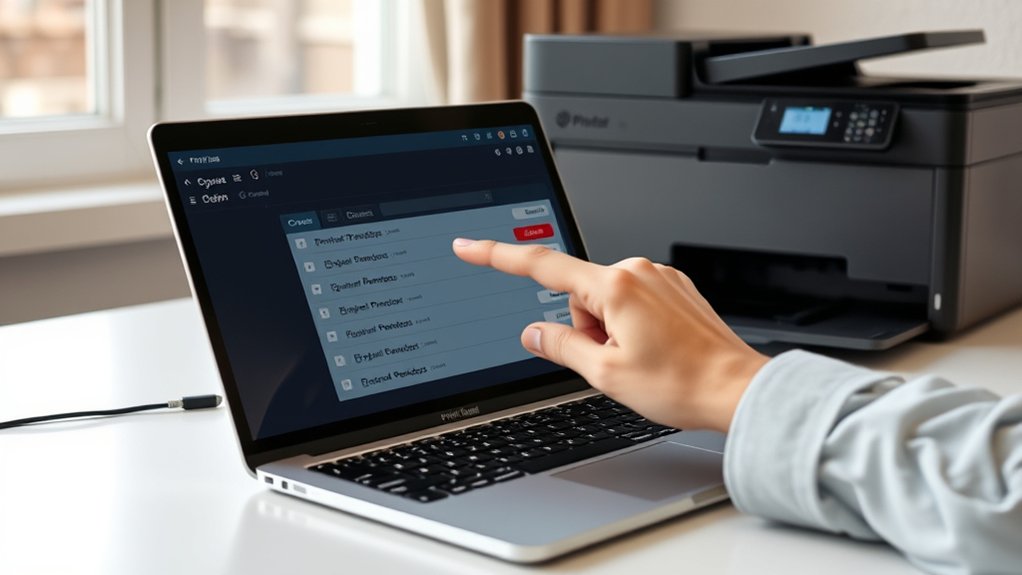
Since managing printer queues directly through your device can be cumbersome, using official printer apps streamlines the process considerably. These printer management apps provide a centralized interface to view, pause, resume, or cancel print jobs efficiently.
Start by downloading the official app from your printer manufacturer’s website or app store to guarantee compatibility and receive ongoing official support. Once installed, connect it to your printer via Wi-Fi or USB.
The app will display active and queued jobs, allowing you to clear stuck prints or reorder tasks with a few taps. Utilizing these tools reduces errors and saves time, preventing manual intervention through system settings.
Always keep the app updated to access the latest features and troubleshooting enhancements from official support channels.
Prevent Printer Queue Jams With Simple Maintenance
To prevent printer queue jams, you should perform regular maintenance that keeps your device running smoothly and reduces errors. Begin by scheduling printer cleaning sessions to remove dust, toner residue, and paper debris from rollers and internal components.
Use manufacturer-recommended cleaning kits or soft, lint-free cloths to avoid damage. Inspect paper trays to guarantee proper alignment and avoid paper jams that disrupt the queue. Additionally, update printer drivers and firmware regularly, as outdated software can cause communication errors leading to queue blockages.
Check for firmware updates on the official website and install them promptly. By integrating regular maintenance and printer cleaning into your routine, you minimize hardware malfunctions and software glitches that cause queue jams, guaranteeing consistent print job execution without unnecessary delays or interruptions.
Frequently Asked Questions
Can a Full Printer Queue Cause Paper Jams?
Yes, a full printer queue can cause paper jams by overloading the printer’s processing capacity. Use printer maintenance tips and efficient print job management to prevent queue backups and guarantee smooth, jam-free printing.
How Do I Print Multiple Files Simultaneously?
Like juggling multiple balls, batch printing lets you send several files at once. Use print management software to organize and queue files efficiently, ensuring simultaneous printing without manual intervention or delays between jobs.
What Is the Difference Between a Printer Queue and a Print Spooler?
You’ll find a printer queue lists pending print jobs, while the print spooler manages and optimizes this queue for efficient printer management. Both work together to guarantee smooth queue optimization and seamless printing operations.
Can I Clear a Printer Queue Remotely From Another Device?
Yes, you can clear a printer queue remotely using remote access tools. With proper printer management software or administrative rights, you can access the device, view the queue, and cancel pending print jobs efficiently from another device.
How Does Network Printing Affect the Printer Queue?
Network printing can increase printer latency due to network congestion, causing delays in processing jobs in the printer queue.
You should monitor network traffic to minimize congestion and keep the queue flowing smoothly for efficient printing.
Conclusion
Clearing your printer queue is like untangling a knot—once you know the steps, the jam unravels smoothly. Whether you’re on Windows, Mac, or Linux, a few precise actions can reset the flow and keep your documents moving.
Regular maintenance acts as oil to the gears, preventing future snags. Stay proactive, troubleshoot swiftly, and use official tools to keep your printing seamless and efficient. By following these guidelines, you can easily clear your printer queue and maintain a steady printing rhythm.