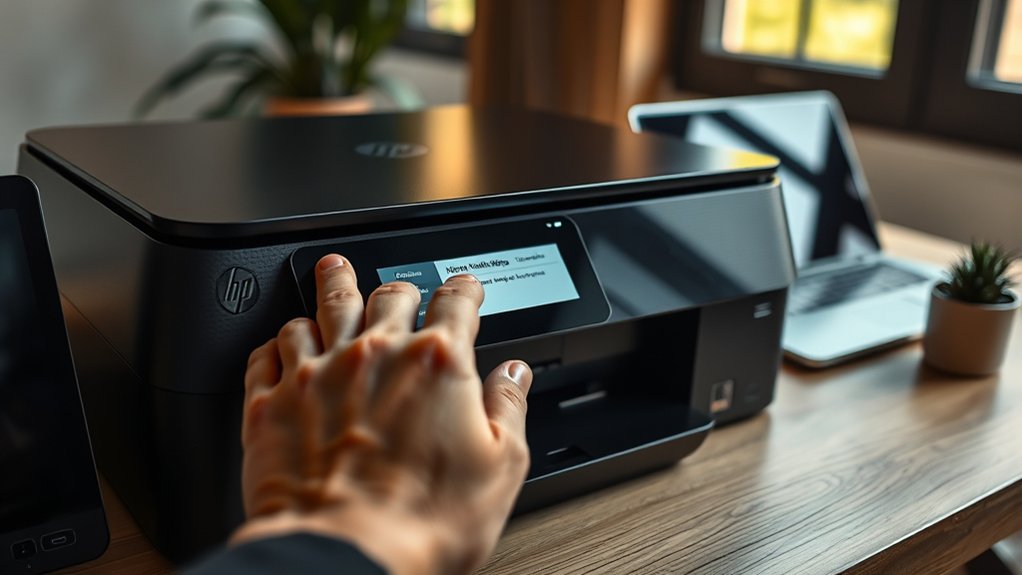

To change the Wi-Fi on your HP printer, start by resetting the printer’s network settings, usually by holding the wireless and cancel buttons for 5-10 seconds.
Next, access the printer’s control panel, navigate to the wireless setup menu, and select your new network. Enter the password when prompted to connect successfully.
Alternatively, you can use the HP Smart app to update your Wi-Fi details quickly and easily.
Make sure your router is working properly and that your printer is within range to avoid connection issues.
Keep reading to explore troubleshooting and security tips for maintaining a smooth and secure connection.
Key Takeaways
- Access the printer’s control panel or touchscreen to open the wireless or network settings menu.
- Use the wireless setup wizard to scan and select your new Wi-Fi network from the list.
- Enter the new Wi-Fi password accurately when prompted to connect the printer to the new network.
- Confirm the connection and check for a success message on the printer display.
- Alternatively, use the HP Smart app to change Wi-Fi settings by selecting your printer and entering new network credentials.
Prepare Your HP Printer: Reset and Gather Network Info
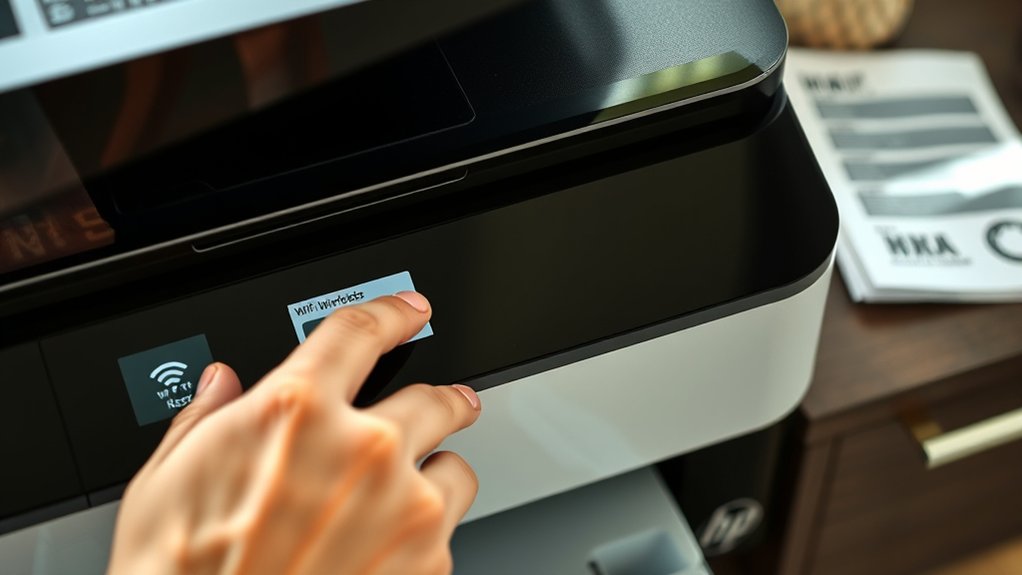
Before changing your WiFi settings, make certain you reset your HP printer to clear any previous network configurations. This guarantees a clean slate and avoids connection conflicts. You can use different reset methods depending on your printer model. Typically, holding down the wireless and cancel buttons together for 5-10 seconds works. Refer to your printer’s manual for the exact reset procedure.
Next, gather all necessary network information. You’ll need your WiFi network name (SSID) and password handy. Double-check these details to avoid errors during setup. Also, confirm your router is working properly and within range of the printer.
Change Wi-Fi on Your HP Printer
To change the Wi-Fi on your HP printer, start by accessing the printer’s control panel or touchscreen menu. Navigate to the wireless setup or network settings option, which is usually found under the Setup or Network menu.
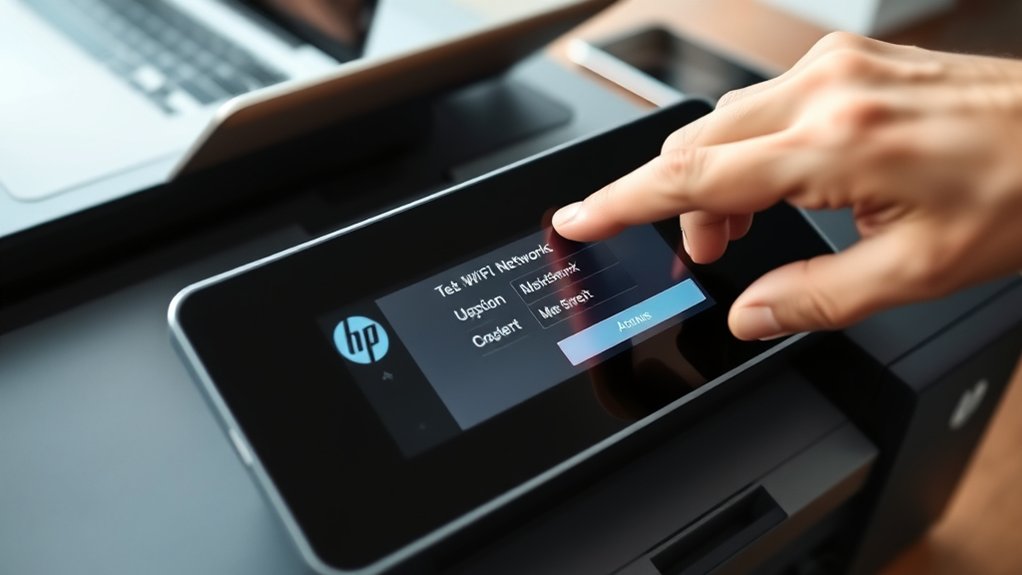
Select the wireless setup wizard to scan for available networks. Choose your new Wi-Fi network from the list, then enter the password when prompted. Confirm the connection to complete the setup.
Use the wireless setup wizard to find your network, enter the password, and confirm to connect your printer.
Your printer will now attempt to connect to the new wireless network. If the connection is successful, the printer will display a confirmation message. If not, double-check the password and try again.
Changing your printer’s Wi-Fi this way guarantees it stays connected without needing to reinstall software or drivers. Always keep your network settings handy for quick updates.
Update Your HP Printer’s Wi-Fi With the HP Smart App
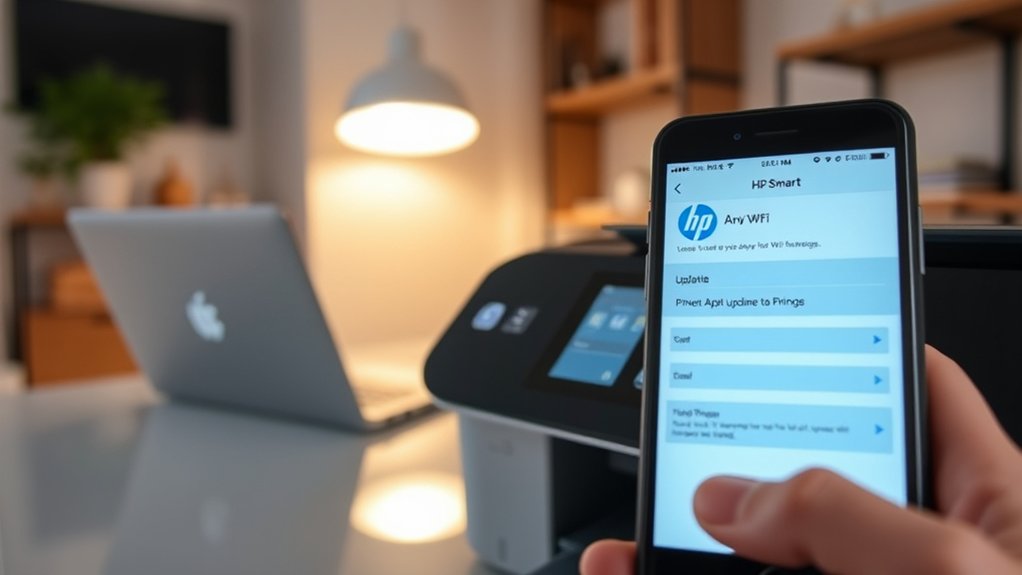
While you can change your printer’s Wi-Fi directly from its control panel, using the HP Smart app makes the process quicker and more convenient. First, download and open the HP Smart app on your phone or computer.
Connect your device to the same network your printer will use. Then, select your printer within the app and choose the Wi-Fi setup option. Follow the prompts to enter your new network credentials.
The app features automatic detection and easy switching between networks, simplifying updates.
| Step | Description |
|---|---|
| Download HP Smart | Get the app from your app store. |
| Open App | Launch and sign in if required. |
| Select Printer | Choose your printer from the list. |
| Wi-Fi Setup | Tap to change network settings. |
| Enter New Details | Input new Wi-Fi name and password. |
Troubleshoot Common HP Printer Wi-Fi Connection Issues
After updating your printer’s Wi-Fi settings using the HP Smart app, you might still face connection issues. Start by checking your printer’s display for error messages related to printer connectivity.
Verify your Wi-Fi network is working properly by restarting your router. Next, confirm that your printer and computer or mobile device are on the same network.
If problems persist, use the HP Print and Scan Doctor tool for automated network troubleshooting. You can also try disconnecting and reconnecting your printer to the Wi-Fi network through the control panel.
Finally, update your printer’s firmware to fix potential bugs affecting connectivity. Following these steps will help you quickly resolve most common HP printer Wi-Fi connection issues and maintain a stable printing experience.
Tips to Keep Your HP Printer Secure and Connected
Even if your HP printer connects smoothly, you need to take steps to keep it secure and maintain a reliable connection. Prioritizing printer security protects your data and prevents unauthorized access. Start by enabling wireless encryption on your network to safeguard communication between your devices and printer.
Ensuring your HP printer’s security and connection starts with enabling wireless encryption to protect your data.
Here are five tips to help you stay secure and connected:
- Change the printer’s default password to a strong, unique one.
- Keep your printer firmware updated to fix vulnerabilities.
- Use WPA3 or WPA2 encryption on your Wi-Fi network.
- Disable unused network protocols and services on the printer.
- Regularly review connected devices and remove any unknown ones.
Frequently Asked Questions
Can I Change Wi-Fi Settings From the Printer’s Control Panel Only?
Yes, you can change Wi Fi settings directly from the printer’s Control Panel. Just navigate to the wireless or network settings, select your new network, and enter the password to update your connection quickly and easily.
How Do I Know if My Printer Supports Dual-Band Wi-Fi?
Think of your printer’s specs as a map; check the printer specifications online or in the manual to see if it mentions dual band compatibility.
If it supports both 2.4GHz and 5GHz, you’re good to go.
Will Changing Wi-Fi Affect My Printer’s Firmware Updates?
Changing Wi-Fi won’t affect your printer’s firmware updates as long as your printer maintains stable connectivity.
Make sure it stays connected to the new network, so it can download and install firmware updates without interruption.
Can I Connect My HP Printer to a Guest Wi-Fi Network?
You can connect your HP printer to a guest network if the printer compatibility supports it. Just guarantee the guest network allows device communication, or printing might fail due to network restrictions or isolation settings.
Is It Possible to Set up Wi-Fi Direct on My HP Printer?
Think of Wi-Fi Direct as a secret handshake between devices. If your HP printer supports Printer Compatibility with Wi-Fi Direct, you can easily set it up for direct wireless printing without a router.
This boosts convenience instantly.
Conclusion
Now that you’ve changed your HP printer’s Wi-Fi, keeping it connected is like tending a garden—regular care prevents issues from taking root. Resetting, updating through the HP Smart app, and troubleshooting common problems will help your printer stay reliable.
By following these steps, you guarantee smooth printing without interruptions. Remember, a little attention goes a long way in maintaining a secure and seamless wireless connection.
For the best results, always ensure your HP printer WiFi settings are up to date and regularly checked to maintain optimal performance.