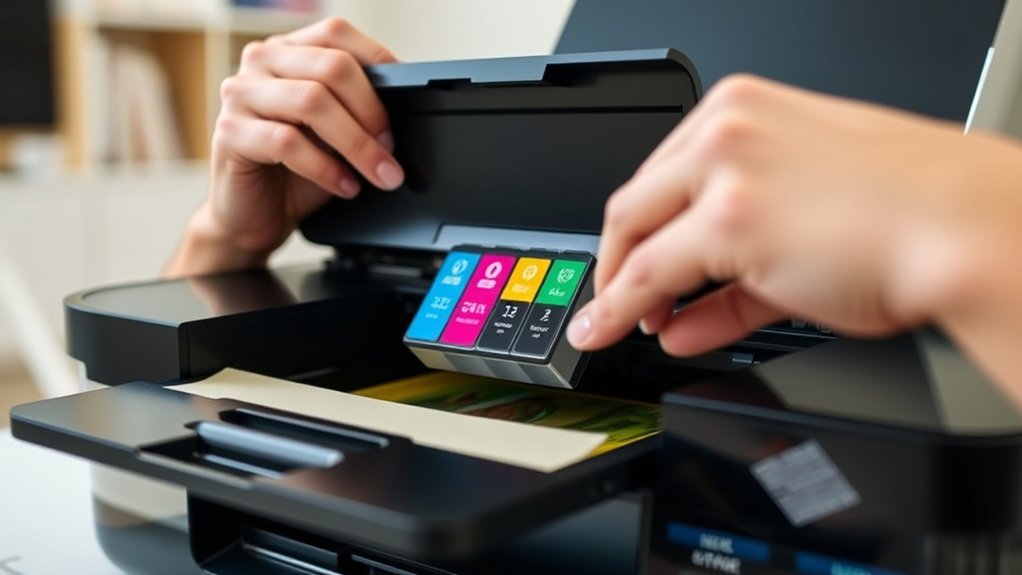

To change ink in your HP printer, first check for low ink warnings or poor print quality. These signs indicate it’s time to replace the ink cartridge.
Turn on the printer and open the cartridge access door. Gently press down to release the old cartridge and remove it.
Unpack your new genuine HP cartridge, remove the protective tape, then snap it firmly into the slot.
Close the door and run a test print or alignment to guarantee quality.
Follow these steps, and you’ll find tips to maintain your printer’s performance ahead.
Key Takeaways
- Turn on the HP printer and open the ink cartridge access door to prepare for cartridge removal.
- Press down gently on the old cartridge to release it, then remove it carefully by the sides.
- Unpack the new cartridge, remove protective tape without touching the nozzles, and align it with the slot.
- Insert the new cartridge firmly until it clicks into place, then close the access door gently.
- Run printer alignment or print a test page to ensure the new ink cartridge is installed correctly.
How to Know When to Change Ink in Your HP Printer
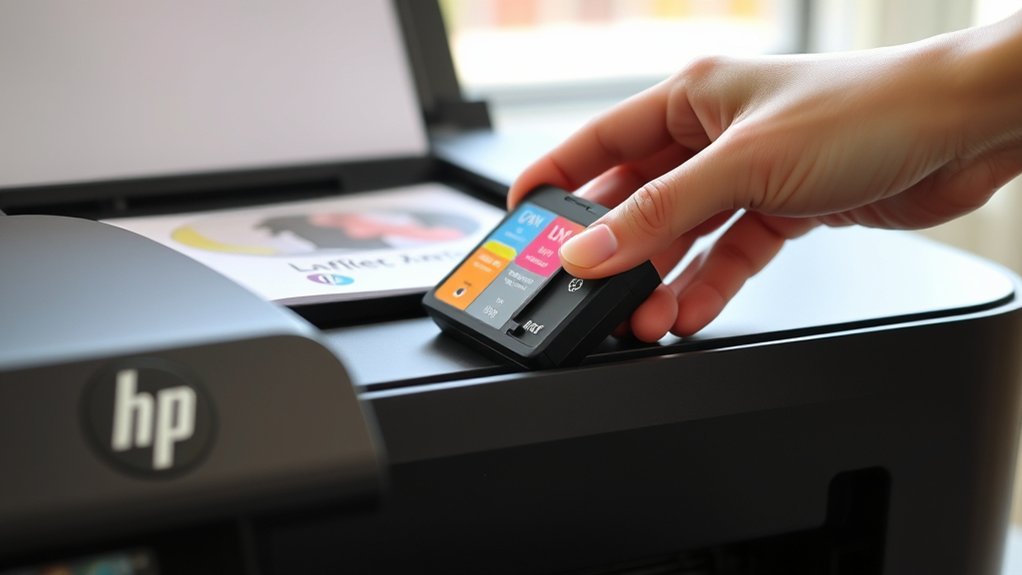
How do you know when it’s time to change the ink in your HP printer? First, check the ink level indicators on your printer’s display or software. These indicators provide a clear estimate of remaining ink and alert you when levels run low.
Check your HP printer’s ink level indicators to know when it’s time to replace the ink cartridge.
You should also watch for print quality issues, such as faded colors, streaks, or missing sections on your documents. These problems often signal that your ink is running out and needs replacement.
Ignoring these signs can lead to poor printouts and potential damage to your printer. Regularly monitoring both ink level indicators and print quality helps you avoid interruptions and maintain peak performance.
When you notice either of these signs, it’s time to prepare for an ink cartridge change.
Finding the Right Ink Cartridge for Your HP Printer
Start by identifying your HP printer model to guarantee you get the correct ink cartridge. Next, check the cartridge compatibility listed for your printer to avoid any issues.
Always purchase genuine HP ink to maintain print quality and protect your device.
Identify Printer Model
Knowing your printer model is essential when looking for the right ink cartridge. Without accurate model identification, you risk buying incompatible cartridges that won’t work with your device. To find your HP printer model, check the following:
Look for a label on the front, back, or inside the printer cover displaying the model number. Access your printer’s control panel or settings menu to view printer specifications. Review the printer documentation or original packaging for model details.
Once you have your model number, you can confidently search for ink cartridges designed for your specific HP printer. This guarantees the cartridges meet the required printer specifications, providing ideal print quality and avoiding installation issues. Accurate model identification is your first step to a smooth ink replacement process.
Check Cartridge Compatibility
Before purchasing ink cartridges, you’ll want to verify their compatibility with your HP printer model. Start by consulting the compatibility guide provided by HP, either in your printer’s manual or on the official website.
This guide lists supported cartridge types for each model, helping you avoid errors or damage. Different HP printers require specific cartridge types, so matching these exactly is essential. Avoid guessing or using generic cartridges, as they may not fit or function properly.
Once you identify the correct cartridge type, you can confidently proceed to purchase. Keeping your printer’s model number handy will streamline this process. Checking compatibility upfront guarantees smooth installation and ideal printing performance without interruption.
Purchase Genuine HP Ink
After confirming which cartridges fit your HP printer, focus on purchasing genuine HP ink to guarantee quality and reliability. Using genuine ink benefits you by ensuring sharp print quality, preventing printer damage, and extending cartridge life.
When looking for ink purchase options, consider official HP stores, authorized retailers, or the HP website to avoid counterfeit products.
Keep these tips in mind when buying ink:
- Verify the cartridge model matches your printer.
- Choose sealed, genuine HP packaging for authenticity.
- Compare prices across trusted vendors to get the best deal.
Sticking to genuine HP ink helps maintain your printer’s performance and avoids printing issues. Don’t risk your device’s longevity by opting for non-certified alternatives.
How to Remove Old Ink Cartridges From Your HP Printer
Start by turning on your HP printer and opening the ink cartridge access door. Wait for the cartridge carriage to stop moving.
Gently press down on the old ink cartridge to release it, then carefully pull it out. Handle the cartridge by its sides to avoid ink stains. Proper ink cartridge maintenance includes removing old cartridges promptly to prevent leaks and clogs.
Press down gently to release the cartridge, then pull out carefully, handling by sides to avoid ink stains.
After removal, inspect the cartridge slot for any ink buildup or debris. Use recommended printer cleaning techniques, like wiping with a lint-free cloth slightly dampened with distilled water, to clean the area. Avoid touching electrical contacts or nozzles, as this can cause damage.
Once the old cartridges are removed and the area is clean, you’re ready for the next step in replacing your ink.
How to Install New Ink Cartridges in Your HP Printer
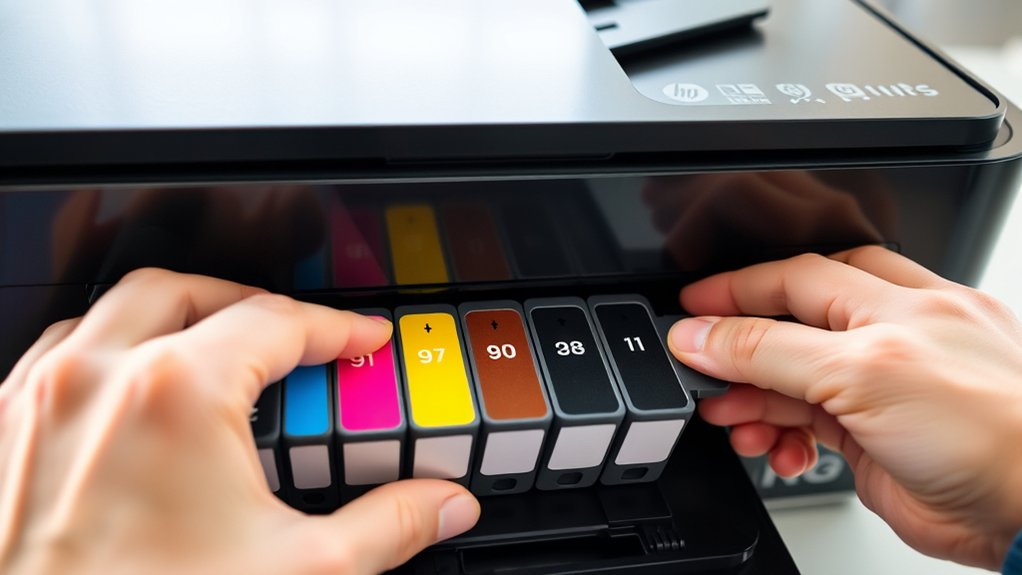
Before installing new ink cartridges, make sure your printer is turned on and the cartridge access door is open. Handle the cartridges carefully and remove any protective tape without touching the ink nozzles.
Then, align each cartridge with its slot and press it firmly until it clicks into place.
Preparing Printer For Cartridge
Although it may seem straightforward, preparing your HP printer for a new cartridge requires a few careful steps to guarantee proper installation. Proper printer maintenance starts with ensuring the printer is powered on and the access door is open.
Next, handle cartridges carefully to avoid damage or ink stains. Follow these essential steps:
- Turn on your printer and open the cartridge access door gently.
- Remove any protective tape or packaging from the new cartridge without touching the copper contacts.
- Check the cartridge slot for dust or debris and clean it with a lint-free cloth if needed.
Installing Ink Cartridge Steps
With the printer prepared and the cartridge ready, you can now install the new ink cartridge. First, identify the correct ink cartridge types for your HP printer model to guarantee compatibility.
Remove the protective tape from the cartridge without touching the copper contacts or ink nozzles. Open the printer’s ink cartridge access door, then carefully insert the cartridge into its slot, matching the colors if applicable.
Press down firmly until it clicks into place. Close the access door gently.
Installation tips include handling cartridges by their sides and avoiding exposure to direct sunlight. After installation, run a printer alignment or test page to confirm proper setup.
Following these steps guarantees your HP printer functions smoothly with the new ink cartridge installed correctly.
How to Align and Test Your HP Printer After Changing Ink
Once you’ve replaced the ink cartridges, you’ll want to align your HP printer to ascertain peak print quality. Proper printer alignment guarantees your prints are sharp and colors are accurate. Here’s how to do it:
Access the printer’s control panel or HP software on your computer. Select the “Align Printer” option, usually found under maintenance or tools. Follow the on-screen prompts to print the alignment page and place it on the scanner to complete alignment.
After alignment, run a test print to check for any streaks or misalignment. This step confirms your printer is ready to deliver crisp, professional-quality prints. Regular printer alignment keeps your device working at its best and extends ink cartridge life.
Troubleshooting Ink Replacement Issues in HP Printers
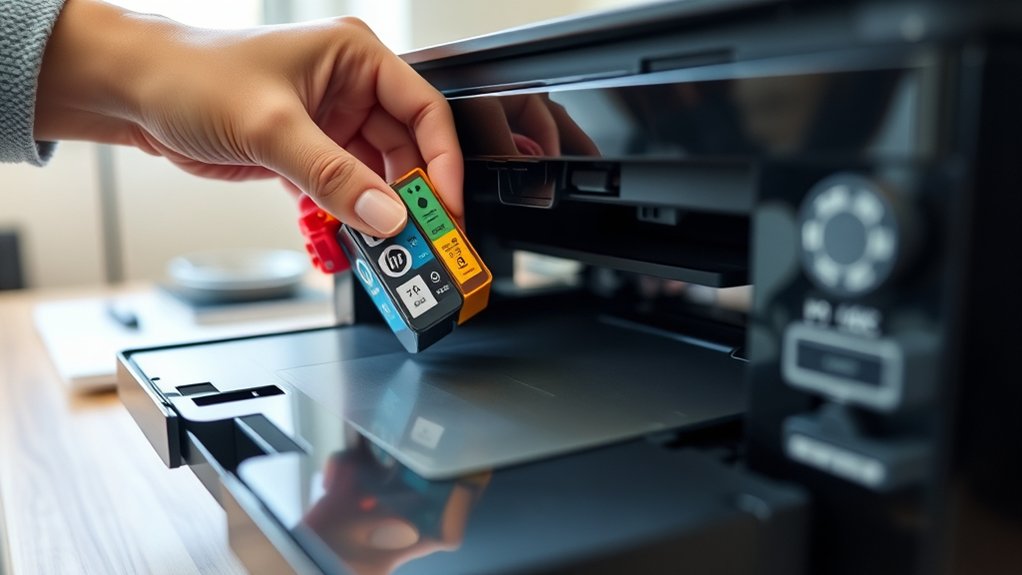
After aligning and testing your HP printer, you might still encounter issues related to ink replacement. If you notice ink streaks or ink smudging on your prints, first check the ink cartridges for proper installation. Remove and reseat them firmly to guarantee good contact.
Next, clean the printhead using the printer’s maintenance tools to clear any clogs causing streaks. Avoid using third-party ink, as it may lead to smudging or poor print quality. Also, verify that you’re using the correct cartridge model for your printer.
If problems persist, run a printer diagnostic or calibration again. Regularly cleaning the paper feed rollers can prevent smudging caused by paper jams. Following these steps helps maintain crisp, clean prints after changing your HP printer’s ink.
Frequently Asked Questions
Can I Use Third-Party Ink Cartridges With My HP Printer?
You can use third-party cartridges, but be aware third party compatibility varies. You might face ink quality concerns like clogging or fading.
Always check reviews and your printer’s warranty before deciding to switch cartridges.
How Do I Recycle Used HP Ink Cartridges?
Want to reduce your environmental impact? You can recycle your HP ink cartridges by returning them through HP’s free cartridge recycling program or local collection points.
It’s easy and helps protect the planet. Why not start today?
What Should I Do if My HP Printer Won’T Recognize a New Cartridge?
If your HP printer won’t recognize a new cartridge, check for cartridge alignment issues and run the alignment tool.
Also, update your printer firmware, as outdated firmware can cause recognition problems. Restart the printer afterward.
How Long Does an HP Ink Cartridge Typically Last?
Your ink cartridge lifespan is like a fading sunset, lasting about 200 to 400 pages.
If you print frequently, expect shorter life; print less, and the colors will linger longer, saving your cartridge’s glow.
Can I Change Ink Cartridges While the Printer Is Printing?
You shouldn’t perform ink replacement while your printer is printing, as it can disrupt printer functionality and cause errors. Wait until printing finishes, then safely change cartridges to maintain peak performance and avoid damage.
Conclusion
Now that you’ve mastered changing ink in your HP printer, you’re ready to print like it’s the Gutenberg era—only faster. Remember to choose the right cartridge, remove the old one carefully, install the new ink properly, and align your printer to avoid any hiccups.
If issues arise, don’t hesitate to troubleshoot. With these steps, your printer will keep producing sharp, vibrant prints without missing a beat.
By following these tips on how to change ink in HP printer, you ensure smooth printing every time.