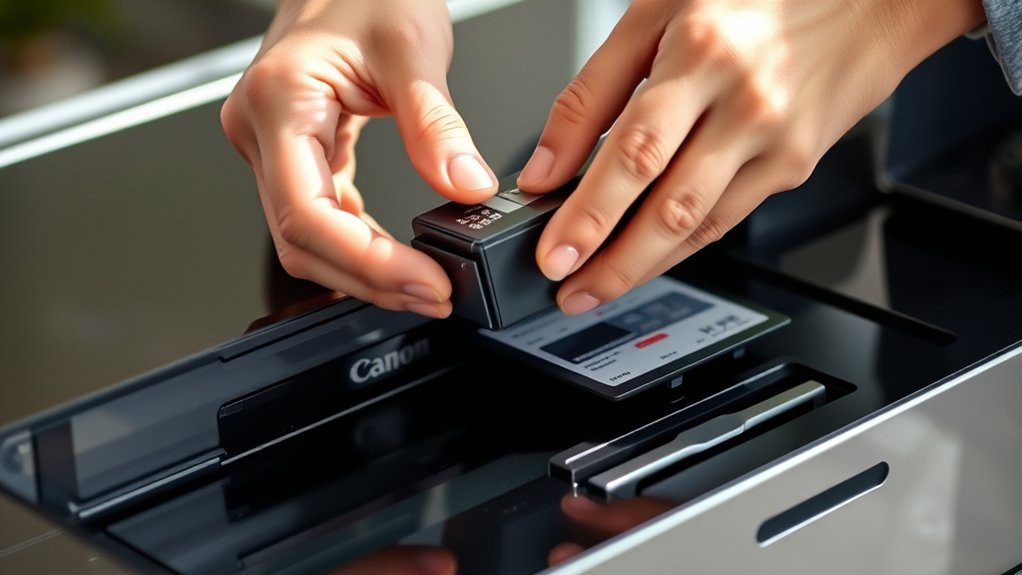

To change the cartridge in your Canon printer, start by powering off the device and opening the cartridge access door. This step is essential to safely handle the cartridges without damaging the printer.
For inkjet models, wait until the cartridge holder stops moving. Then, gently press down and remove the old cartridge. Before inserting the new one, make sure to remove any protective tape to ensure proper function.
For laser models, open the front cover and carefully remove the toner cartridge. Shake the new toner cartridge gently to distribute the toner evenly before inserting it fully into place.
After replacing the cartridge, close all covers securely. Finally, run a test print to check that the new cartridge is installed correctly and functioning well.
Keep following for detailed tips and common mistakes to avoid when changing cartridges in your Canon printer.
Key Takeaways
- Power off and unplug the Canon printer before opening the cartridge access door to ensure safety.
- Wait for the cartridge holder to stop moving before removing the old cartridge gently by pressing and pulling it out.
- Remove protective tape from the new cartridge before inserting it firmly into the holder.
- Close the cartridge access door and power on the printer to prepare for alignment.
- Run a printer maintenance cycle or test print to verify proper cartridge installation and print quality.
How to Prepare Your Canon Printer for Cartridge Replacement
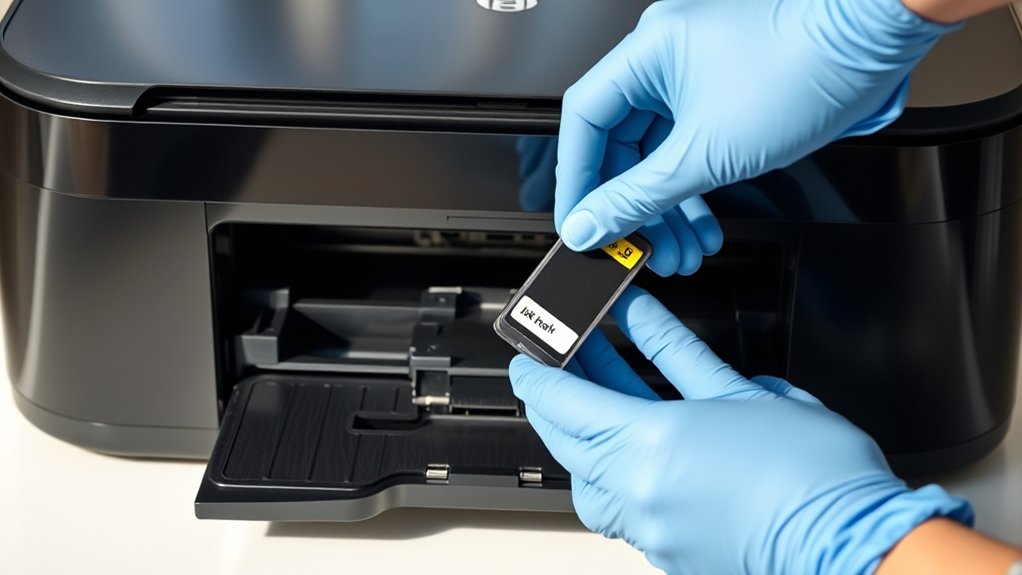
Before you start changing the cartridge in your Canon printer, you need to prepare the device properly to guarantee a smooth process. First, power off the printer and unplug it to avoid electrical issues. Open the printer cover carefully to access the cartridge area.
Make sure you have clean, dry hands or wear gloves to prevent ink stains. Follow printer maintenance tips by cleaning the cartridge slot gently with a lint-free cloth.
If you’re storing replacement cartridges, keep them sealed and stored in a cool, dry place using proper cartridge storage solutions to maintain their quality. This preparation not only protects your printer but also guarantees the new cartridge installs correctly and functions efficiently, saving you time and avoiding potential errors during replacement.
How to Identify Your Canon Printer Type and Cartridge
After preparing your Canon printer for cartridge replacement, the next step is to identify your printer model and the correct cartridge type. Start by locating your printer’s model number, usually found on the front or back of the device.
This information is essential because Canon printer models vary widely, and each requires specific cartridges. Next, check your printer’s manual or visit Canon’s official website to match your model with compatible cartridges.
Ensuring cartridge compatibility prevents installation issues and printing errors. Avoid using cartridges meant for different printer models, as this can damage your printer or void the warranty.
How to Change Ink Cartridges in Canon Inkjet Printers
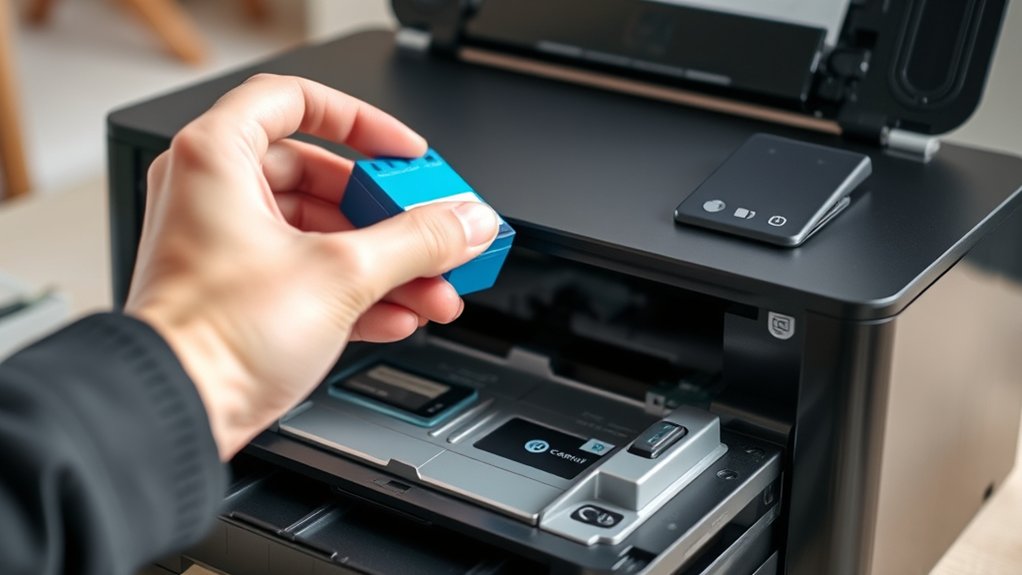
Changing ink cartridges in your Canon inkjet printer is a straightforward process you can complete in just a few steps. First, power on the printer and open the cartridge access door. Wait for the cartridge holder to stop moving.
Gently press the ink cartridge to release it, then pull it out. Remove the new ink cartridge from its packaging, peel off the protective tape, and insert it firmly until it clicks.
Close the access door and run a printer maintenance cycle to align the cartridges and guarantee the best print quality.
| Step | Key Tip |
|---|---|
| Remove old cartridge | Handle carefully to avoid spills |
| Insert new cartridge | Remove protective tape first |
| Maintenance | Run alignment after replacement |
Regular printer maintenance keeps your ink cartridge and printer working smoothly.
How to Replace Toner Cartridges in Canon Laser Printers
Anyone who uses a Canon laser printer will eventually need to replace the toner cartridge to maintain print quality. To do this correctly, first verify you purchase a toner cartridge with proper toner compatibility for your model. Then, follow these steps:
- Power off the printer and open the front cover to access the toner cartridge.
- Carefully remove the old cartridge by pulling it out, avoiding toner spillage.
- Unpack the new cartridge, gently shake it side to side, and insert it fully into the slot.
After replacement, close the cover and power on the printer. Remember to participate in cartridge recycling programs to dispose of your used toner cartridges responsibly, helping reduce environmental impact. Proper replacement verifies consistent prints and extends your printer’s lifespan.
How to Avoid Common Cartridge Replacement Mistakes
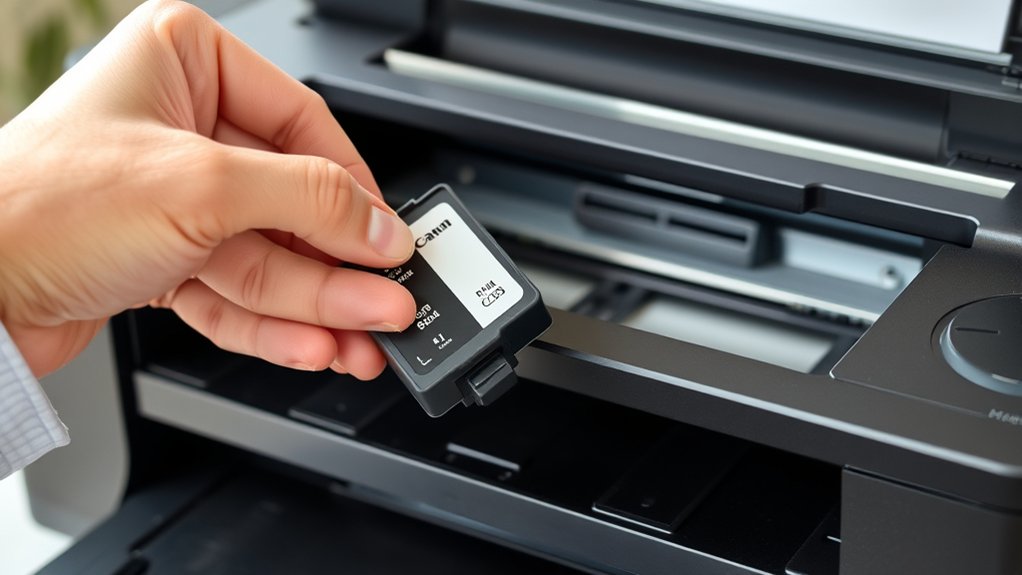
Replacing toner cartridges correctly helps maintain your Canon printer’s performance, but mistakes can still happen during the process. To avoid cartridge compatibility issues, always check that the cartridge matches your printer model before installation.
Using the wrong cartridge can cause printing errors or damage. Handle cartridges carefully to prevent leaks or damage during replacement. Follow printer maintenance tips by cleaning the cartridge contacts gently and avoiding exposure to direct sunlight.
Always power off your printer before replacing cartridges to prevent electrical issues. After installation, run a test print to guarantee proper setup. Avoid rushing through the process; taking your time helps prevent mistakes and guarantees your printer runs smoothly with high-quality prints every time.
Frequently Asked Questions
How Long Does a Canon Cartridge Typically Last?
Your Canon cartridge lifespan typically lasts between a few hundred to a thousand pages, depending on your printing frequency.
The more often you print, the faster your cartridge will run out and need replacement.
Can I Use Third-Party Cartridges in My Canon Printer?
You can use third-party cartridges, but you risk printer compatibility issues and lower cartridge quality. You might save money but sacrifice reliability, print clarity, and overall printer performance.
Choose carefully to protect your device.
How Do I Recycle Used Canon Cartridges?
You can recycle used Canon cartridges by returning them through Canon’s cartridge recycling program or local eco-friendly options like recycling centers. This helps reduce waste and supports sustainable cartridge recycling efforts in your community.
What Warranty Covers Canon Printer Cartridges?
Canon’s warranty coverage typically protects against defects in cartridge lifespan and performance. If your cartridge fails prematurely, you can contact Canon for a replacement under warranty, ensuring consistent print quality and reliability.
Why Is My Printer Not Recognizing the New Cartridge?
Isn’t it ironic your printer can’t recognize a new cartridge? Usually, cartridge compatibility issues cause this.
Try troubleshooting steps like reseating it, cleaning contacts, or updating firmware to solve the problem quickly and easily.
Conclusion
Changing your Canon printer cartridge is like tending a garden: prepare your tools, know your plants, and replace what’s worn out to keep everything flourishing. By identifying your printer type and following the right steps—whether inkjet or laser—you’ll guarantee smooth printing without hiccups.
Avoid common mistakes, and your printer will reward you with vibrant, clear prints. With care and attention, you’ll keep your printing experience fresh and hassle-free.
Mastering how to change cartridge in Canon printer ensures your device runs smoothly and produces high-quality prints every time.