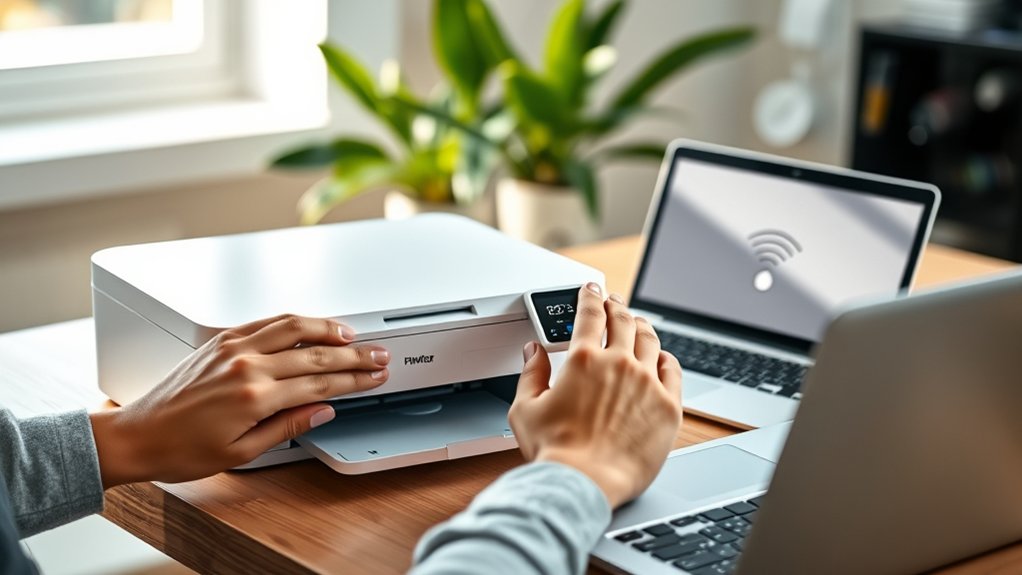

To add a WiFi printer, first connect your printer to your wireless network via its control panel by selecting your WiFi SSID and entering the password. This step ensures your printer can communicate with your devices over the network.
Next, on Windows, go to Settings > Devices > Printers & scanners, then click “Add a printer or scanner” and select your printer from the list.
On a Mac, open System Preferences > Printers & Scanners, click the “+” button, and choose your printer.
Make sure the necessary drivers install correctly to avoid connection issues.
Finally, test the printer by sending a print job to confirm everything is working properly.
For deeper setup instructions and troubleshooting tips, explore the detailed steps ahead.
Key Takeaways
- Ensure your printer supports WiFi and is connected to the same wireless network as your computer.
- Use the printer’s control panel to access wireless setup, select your WiFi network, and enter the password.
- On Windows, go to Settings > Devices > Printers & scanners and click “Add a printer or scanner” to find your WiFi printer.
- On Mac, open System Preferences > Printers & Scanners, click “+” and select your WiFi printer from the list.
- Install the latest printer drivers if prompted and print a test page to confirm successful connection.
How To Prepare Your Printer And Network For WiFi Setup
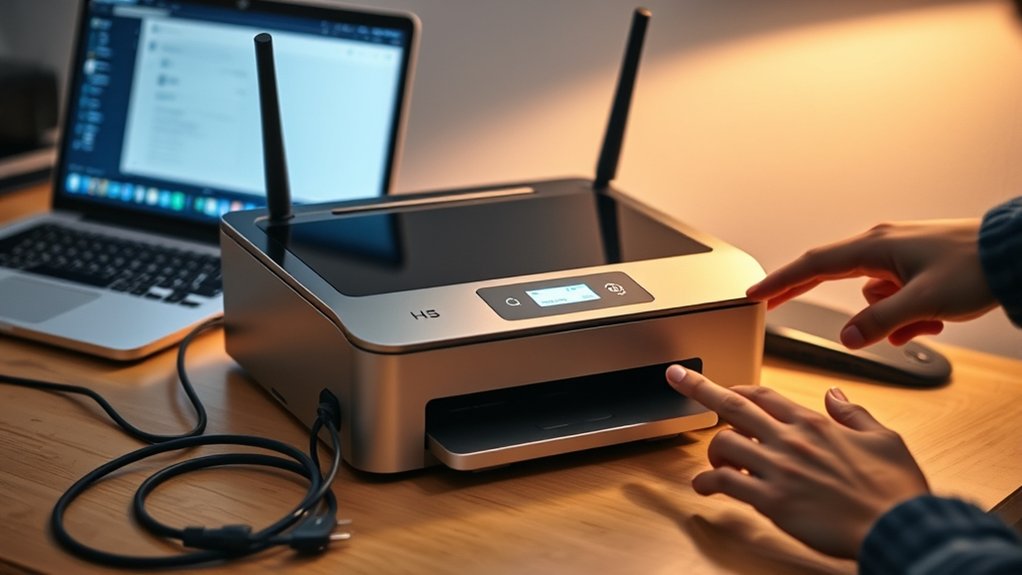
Before connecting your printer to WiFi, you need to verify both your printer and network are ready. First, check printer compatibility by confirming it supports wireless connections and matches your network’s WiFi standards (usually 802.11b/g/n). Consult the printer’s manual or manufacturer website for this info.
Next, review your network requirements: ascertain your router broadcasts a 2.4GHz or 5GHz signal compatible with the printer. Verify your network uses WPA or WPA2 security protocols, as some printers don’t support newer encryption types. Also, confirm your network’s SSID is visible for easy connection.
Finally, update your printer’s firmware to the latest version to avoid connectivity issues. Meeting these printer compatibility and network requirements prepares you for a smooth WiFi setup.
How To Connect Your Printer To WiFi
Once you confirm your printer and network are ready, you can connect the printer to your WiFi by accessing its control panel or setup menu. Navigate to the wireless setup section, often labeled “Network” or “WiFi Settings.”
Select your WiFi network from the list of available connections. If your printer supports WPS (WiFi Protected Setup), you can press the WPS button on your router and printer to establish a connection automatically. Otherwise, enter the network password manually.
Verify your printer compatibility with your router’s frequency (2.4 GHz or 5 GHz) to avoid connection issues. After entering the password, confirm the settings and wait for the printer to connect. A successful connection usually shows a confirmation message or a solid WiFi icon on the printer’s display.
How To Add A WiFi Printer On Windows
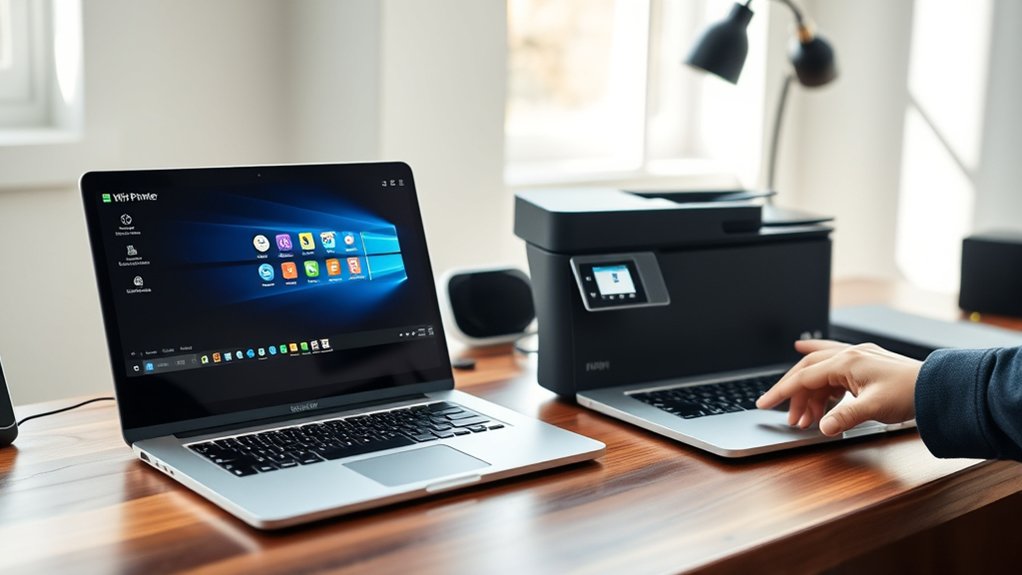
After connecting your printer to WiFi, you can add it to your Windows computer through the Settings app. First, verify printer compatibility with your Windows version to avoid issues.
Open Settings, go to Devices, then Printers & scanners. Click “Add a printer or scanner,” and Windows will search for available devices. Select your WiFi printer from the list.
If prompted, proceed with driver installation automatically or download the latest drivers from the manufacturer’s website for peak performance. Confirm the printer is set as default if desired.
Test the connection by printing a test page. Proper driver installation and compatible hardware guarantee smooth operation. If the printer isn’t detected, verify network settings and WiFi connection strength before retrying.
How To Add A WiFi Printer On Mac
To add a WiFi printer on your Mac, start by making sure your printer is connected to the same wireless network as your computer. Next, verify printer compatibility with your macOS version by checking the manufacturer’s website or macOS support.
Open System Preferences and select “Printers & Scanners.” Click the “+” button to add a printer. Your Mac will scan for available printers on the network. Select your WiFi printer from the list.
If prompted, download and install the latest drivers to guarantee full functionality. Confirm the printer appears in the list with a green status indicator. Adjust any additional macOS settings for default paper size or duplex printing as needed.
Your WiFi printer is now ready to use with your Mac.
How To Print To Your WiFi Printer From Smartphones And Tablets
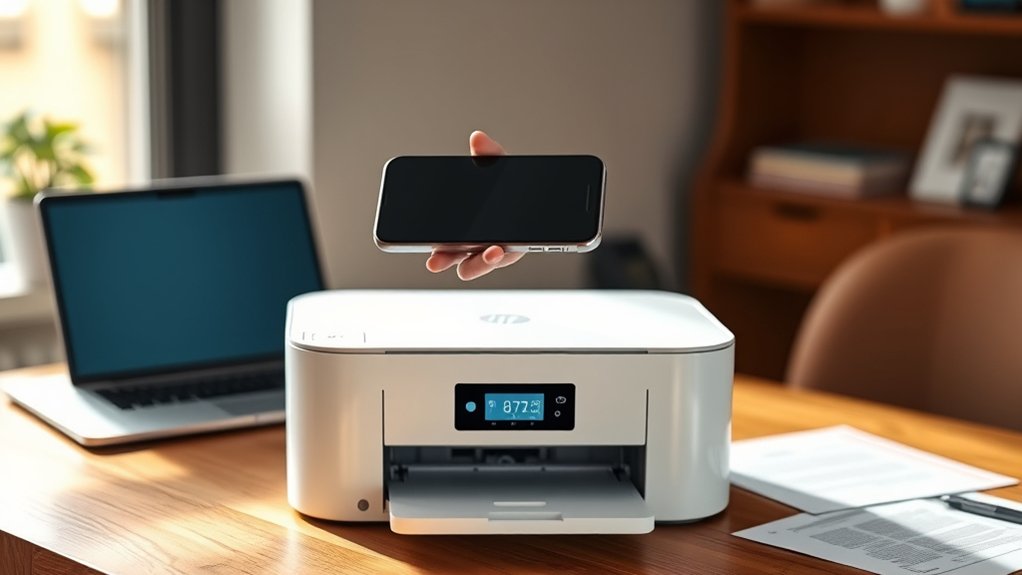
Connecting your smartphone or tablet to a WiFi printer involves a few straightforward steps. First, confirm your device and printer are connected to the same WiFi network.
Next, verify app compatibility by checking if your printer manufacturer offers a dedicated mobile printing app. Download and install it if available.
Open the document or image you want to print, then use the app’s print feature or the built-in mobile printing option on your device. Select your WiFi printer from the list of available printers.
Adjust print settings such as page range or color options as needed, then tap Print. This process leverages mobile printing capabilities to deliver seamless wireless printing from your smartphone or tablet without requiring cables or additional setup.
How To Troubleshoot Common WiFi Printer Issues
If your WiFi printer isn’t connecting, first check your network settings and verify the printer is within range.
For print quality issues, inspect the ink or toner levels and clean the print heads.
Following these steps will help you quickly identify and fix common problems.
Connection Problems
When your WiFi printer refuses to connect, start by checking your network settings and ensuring your device is within range. Verify the connection types supported by your printer, whether it uses 2.4 GHz or 5 GHz bands, and confirm your router broadcasts the correct frequency.
Assess the signal strength; weak signals often cause intermittent disconnections. Move the printer closer to the router if needed or remove physical obstructions. Restart your printer, router, and computer to refresh connections.
Confirm your device’s IP address matches the printer’s network configuration. Disable any VPNs or firewalls temporarily to rule out interference. If issues persist, update your printer’s firmware and network drivers.
These steps will resolve most common WiFi printer connection problems efficiently.
Print Quality Issues
Although WiFi connectivity might be stable, print quality issues can still arise from clogged nozzles, low ink levels, or incorrect print settings. To troubleshoot, start by checking ink cartridges and running a nozzle cleaning cycle.
Verify your color calibration settings to guarantee accurate color output. Adjust print resolution and paper type in your printer’s preferences to improve results.
| Issue | Solution |
|---|---|
| Faded prints | Replace ink or toner |
| Streaks or lines | Clean print head/nozzles |
| Color inconsistencies | Perform color calibration |
| Blurred images | Use high-resolution settings |
| Paper jams | Check paper alignment and type |
Following these steps will help maintain ideal print quality on your WiFi printer.
How To Secure Your WiFi Printer On Your Network
Since your WiFi printer connects directly to your network, securing it is essential to prevent unauthorized access and protect sensitive data. Implement robust printer security by enabling network encryption on your router and printer settings. Use WPA3 or WPA2 encryption standards to safeguard communication.
Follow these steps to enhance your WiFi printer security:
Change default printer passwords to strong, unique ones.
Disable unused services like FTP or Telnet on the printer interface.
Regularly update your printer’s firmware to patch security vulnerabilities.
How To Maintain A Reliable WiFi Printer Connection
To maintain a reliable WiFi printer connection, you need to regularly monitor signal strength and minimize interference from other devices. First, optimize your printer placement by keeping it within a strong WiFi range and away from thick walls or metal objects that weaken signals.
Avoid placing the printer near microwaves, cordless phones, or Bluetooth devices, as these cause signal interference. Use your router’s admin panel or a WiFi analyzer app to check signal quality around the printer’s location.
If interference persists, switch your router to a less congested channel or change the frequency band from 2.4 GHz to 5 GHz if supported. Regularly update your printer’s firmware and router settings to guarantee compatibility and maintain a stable connection.
Frequently Asked Questions
Can I Print Wirelessly Without a Router?
Yes, you can print wirelessly without a router using Wi-Fi Direct or an ad-hoc network. These methods enable direct printer connectivity, allowing wireless printing between your device and printer without relying on traditional network infrastructure.
What Are the Best Wifi Printers for Home Use?
You’ll want an inkjet for vibrant photo quality and inkjet advantages like better color blending, or choose a laser printer for laser printer benefits such as faster print speeds and lower cost per page for home use.
How Do I Update My Printer’s Firmware?
Think of updating firmware like tuning a guitar; skipping it causes printer compatibility issues. Visit your printer’s official site, download the firmware update tool, connect your device, then follow the firmware update process step-by-step.
Are There Any Apps to Manage Wifi Printers?
Yes, you can use apps like HP Smart or Epson iPrint for printer management. These apps simplify wifi connectivity, letting you monitor ink levels, print remotely, and troubleshoot issues directly from your smartphone or tablet.
Can Multiple Users Print to the Same Wifi Printer?
Yes, you can print from multiple users by enabling printer sharing on your device. Make certain your network setup allows all users to connect to the same Wi-Fi network. Then add the shared printer to each user’s system.
Conclusion
Now that you’ve navigated the nuances of network and printer preparation, connecting, and troubleshooting, you’re set to smoothly send signals and secure your setup. Remember, regular maintenance maximizes machine might and minimizes mishaps. Keep calibrating connectivity and controlling connections carefully to consistently capture crisp, clean prints.
With these smart steps, your WiFi printer will perform perfectly, providing productive printing power whenever you need it—fast, flawless, and frustration-free. Adding a WiFi printer to your network ensures convenience and efficiency, making your printing tasks seamless and accessible from any device.