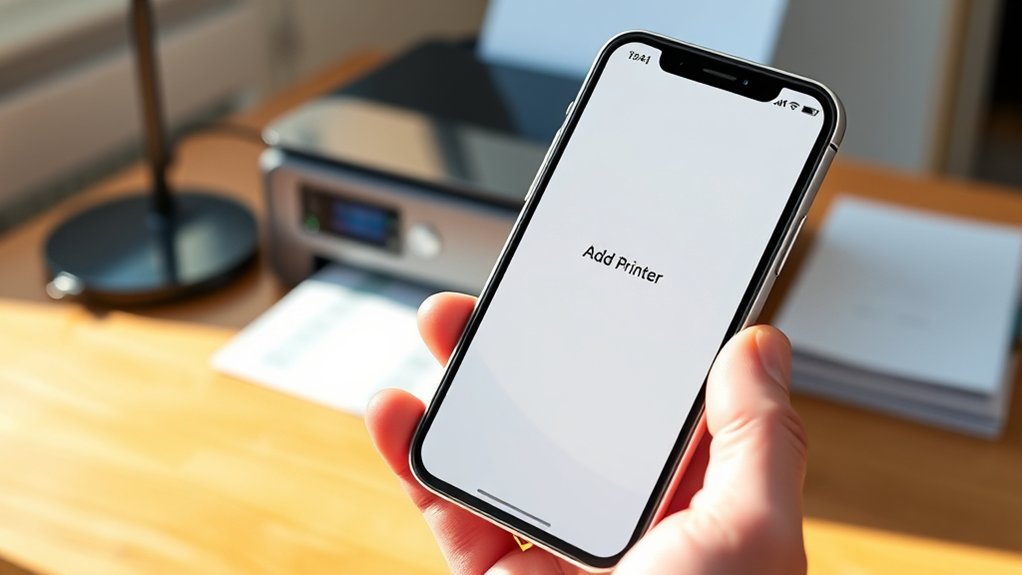

To add a printer to your iPhone, first check if your printer supports AirPrint for easy wireless printing. This feature allows seamless connection without additional setup.
Connect both your iPhone and printer to the same Wi-Fi network to ensure they communicate properly.
Next, open any app that supports printing, such as Photos or Mail. Tap the share icon, select “Print,” and then choose your printer from the available options.
If your printer isn’t AirPrint-compatible, download its official app from the App Store to connect and manage printing features.
After adding your printer, you can print documents, photos, and emails directly from your iPhone with ease.
Keep going to explore solutions for common connection issues and advanced setup tips.
Key Takeaways
- Confirm your printer supports AirPrint for seamless iPhone printing without extra drivers.
- Connect your iPhone and printer to the same Wi-Fi network before adding the printer.
- Use the iPhone’s Print option in the Share menu to select and add an AirPrint-compatible printer.
- Download and install the printer’s official app for enhanced features and direct printer setup.
- Restart devices and update software if the printer doesn’t appear or connection issues occur.
Check If Your Printer Supports AirPrint on iPhone
Wondering if your printer works seamlessly with your iPhone? The first step is to check your printer compatibility with AirPrint features. AirPrint is Apple’s built-in technology that allows you to print directly from your iPhone without installing extra drivers.
To verify, look up your printer model on Apple’s official AirPrint-supported printers list. If your printer supports AirPrint features, it means you can easily connect and print without hassle.
If it doesn’t, you might need third-party apps or alternative methods. Ensuring your printer is AirPrint-compatible saves you time and simplifies the printing process.
Connect Your iPhone to Your Printer Using AirPrint
Once you’ve confirmed that your printer supports AirPrint, connecting your iPhone is straightforward. First, verify both your iPhone and printer are on the same Wi-Fi network, which is essential for AirPrint features to work seamlessly.
Next, open the app you want to print from, like Photos or Safari, and tap the Share icon. Select “Print” from the options, then choose your compatible printer listed under “Select Printer.”
AirPrint automatically detects printers with the right printer compatibility, so you won’t need to install drivers. Adjust print settings as needed, such as copies or page range, then tap “Print.”
This method leverages AirPrint features to deliver quick, wireless printing without additional setup, making your iPhone printing experience simple and efficient.
Add a Printer Using Your Printer’s Official App
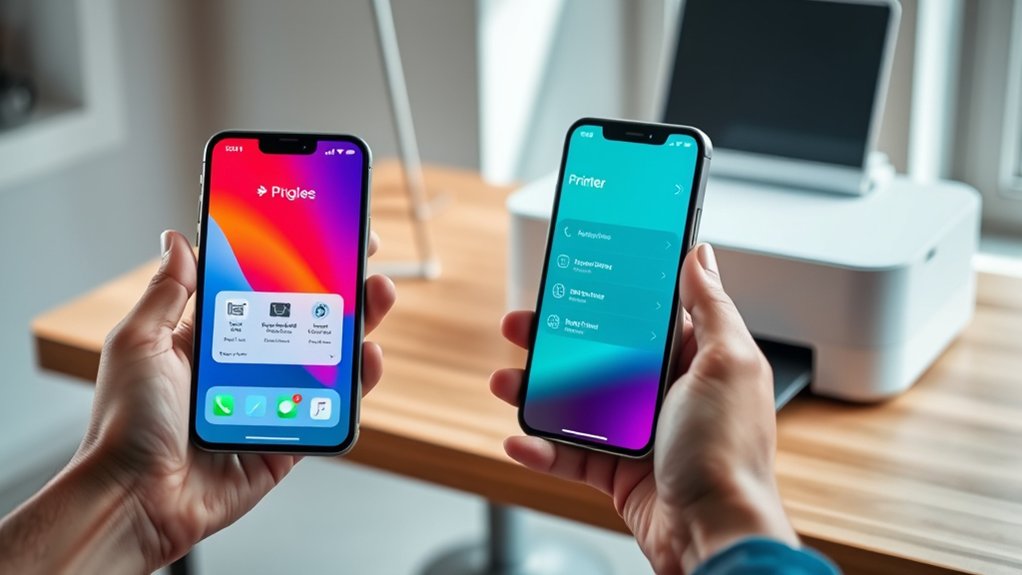
Using your printer’s official app offers a convenient way to add a printer to your iPhone, especially if your device doesn’t support AirPrint. These apps often provide enhanced printer app features like status monitoring, ink level checks, and direct scan options.
Before downloading, check printer app compatibility with your iPhone model and iOS version to avoid issues. Once installed, follow the app’s setup instructions to connect your printer via Wi-Fi or Bluetooth.
| Printer Brand | App Name | Key Features |
|---|---|---|
| HP | HP Smart | Scan, print, ink status |
| Canon | Canon PRINT | Wireless setup, photo printing |
| Epson | Epson iPrint | Remote print, scan, cloud |
| Brother | Brother iPrint | Secure printing, status alerts |
How to Print From Your iPhone After Adding a Printer
After adding a printer to your iPhone, you can easily print documents, photos, and emails directly from your device. To start printing documents, open the app containing the file you want to print. Tap the Share icon or the menu option, then select “Print.” Choose your added printer from the list.
Adjust the print options, like the number of copies or page range, if needed. Finally, tap “Print” to send your job wirelessly.
Wireless printing lets you print without cables, as long as your printer and iPhone are on the same Wi-Fi network. This method works seamlessly for most apps, including Safari, Mail, and Photos, making printing documents from your iPhone quick and convenient.
Fix Common Printer Connection Problems on iPhone
If your iPhone isn’t connecting to your printer, don’t worry. You can usually fix common issues quickly. Start printer troubleshooting by ensuring both devices are on the same Wi-Fi network. Check your printer’s power and connection status.
Restart your iPhone, printer, and Wi-Fi router to resolve minor glitches. If connectivity issues persist, update your iPhone’s iOS and printer firmware to the latest versions. Also, verify that your printer supports AirPrint, which is essential for seamless iPhone printing.
You can reset your network settings on the iPhone if problems continue, but note this will erase saved Wi-Fi passwords. Finally, consult your printer’s manual or the manufacturer’s website for specific troubleshooting steps. Following these tips should help you resolve most printer connectivity issues on your iPhone.
Frequently Asked Questions
Can I Print From My iPhone to a Bluetooth Printer?
You can print from your iPhone using Bluetooth printing only if your printer supports Bluetooth and is compatible with iOS. Check your printer compatibility first, as most iPhones prefer AirPrint over Bluetooth connections.
How Do I Print Double-Sided From My iPhone?
You’ll conquer double sided printing like a pro! Just tap the Share icon, select Print, then hit Print Settings.
Choose double sided or duplex printing if your printer supports it, and watch your iPhone handle the rest!
Is It Possible to Print Documents Without Wi-Fi?
Yes, you can print without Wi-Fi using AirPrint alternatives like Bluetooth or USB connections. Explore mobile printing options such as dedicated printer apps or direct device-to-printer connections to print documents seamlessly without relying on wireless networks.
Can I Print Photos Directly From My iPhone’s Gallery?
You can print photos directly from your iPhone’s gallery. Over 70% of iPhone users use photo printing apps.
With gallery access, just select your photo, tap share, and choose a compatible printer for photo printing.
How Do I Check Ink Levels From My iPhone?
You can check ink levels by opening your printer settings on your iPhone. Use the printer’s app or AirPrint options to view ink level status.
This helps monitor supplies and avoid running out unexpectedly.
Conclusion
Adding a printer to your iPhone is so simple, it might feel like you’re summoning a magic spell!
Once you check for AirPrint support or use your printer’s app, printing becomes effortless—like having a personal assistant at your fingertips. Even if you hit a snag, fixing connection issues is a breeze.
With these steps, you’ll wonder how you ever survived without instant, wireless printing right from your phone! Adding a printer to your iPhone truly transforms your mobile experience.