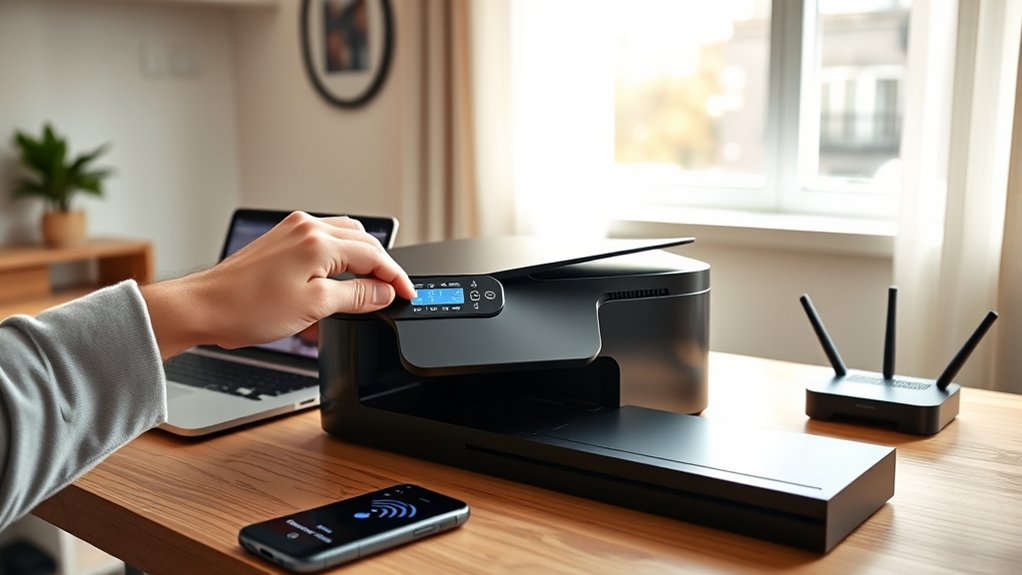

To get your printer online, start by connecting it to your Wi-Fi network using the printer’s wireless setup wizard and entering your network password. Alternatively, you can connect the printer directly with a USB or Ethernet cable. Ensuring your printer is online is the first step to seamless printing.
Next, install the correct drivers from the manufacturer’s website to ensure proper communication between your computer and printer. Complete the setup by restarting your computer.
If you face any connection issues, check your network settings and restart your devices. Additionally, you can optimize wireless settings for better stability and security.
Keep going to explore how to manage these steps effectively.
Key Takeaways
- Connect the printer to your Wi-Fi network using the wireless setup wizard on the printer control panel.
- Ensure the printer and computer are on the same network for successful communication.
- Install the correct printer drivers and software from the manufacturer’s website on your computer.
- Restart the printer and router to refresh network connections if the printer does not appear online.
- Assign a static IP to the printer to maintain a stable network connection and avoid disconnections.
Connect Your Printer to Wi-Fi Networks
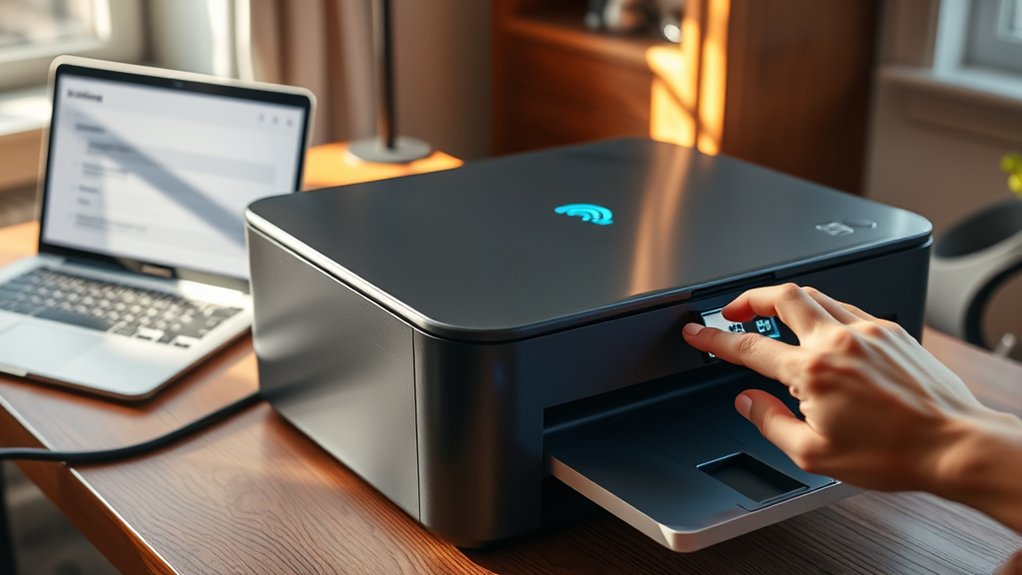
Before you can print wirelessly, you’ll need to connect your printer to your Wi-Fi network. Start by accessing the printer’s control panel or touchscreen, then locate the wireless setup wizard.
Select your home Wi-Fi network from the list and enter your password carefully to guarantee wireless security. A strong password helps protect your network and printer from unauthorized access.
Once connected, confirm the network stability by checking the printer’s signal strength or running a connectivity test. If the signal is weak, consider moving the printer closer to your router or removing obstacles that interfere with the connection.
Maintaining both wireless security and network stability guarantees smooth and reliable printing, helping you avoid interruptions and keep your documents flowing seamlessly.
Set Up Your Printer With USB or Ethernet Cable
Start by connecting your printer to your computer or network using a USB or Ethernet cable. Once plugged in, power on the printer and guarantee your device recognizes it in the system settings.
This connection method often provides a stable link, especially if Wi-Fi isn’t an option.
Connecting Printer Hardware
Connecting your printer hardware is a straightforward process that usually involves either a USB or Ethernet cable. First, determine which connection type suits your setup. USB cables are ideal for direct, single-computer connections, while Ethernet cables work best for networked printers accessible by multiple devices.
Before plugging in, check for printer compatibility issues with your computer or network. Also, verify your printer’s firmware updates are current to enhance performance and connectivity.
Connect the cable securely: USB to your computer’s port or Ethernet to your router or switch. Power on the printer and wait for the device to initialize. Avoid disconnecting cables abruptly to prevent hardware malfunctions.
This physical connection step lays the foundation for your printer to go online smoothly in subsequent setup stages.
Verifying Network Recognition
Once your printer hardware is connected, you need to confirm that your computer or network recognizes the device. Start by checking your computer’s device manager or printer settings to see if the printer appears. If it doesn’t, run the built-in network troubleshooting tool to identify connectivity issues.
For USB connections, make certain the cable is firmly plugged into both the printer and computer. For Ethernet, verify the cable is connected to your router or switch and the printer’s network settings display an IP address.
If your printer still isn’t recognized, restart your devices and try again. Addressing these steps promptly helps avoid common network troubleshooting pitfalls and makes sure your printer is ready to go online smoothly.
Install Printer Drivers and Software on Your Computer
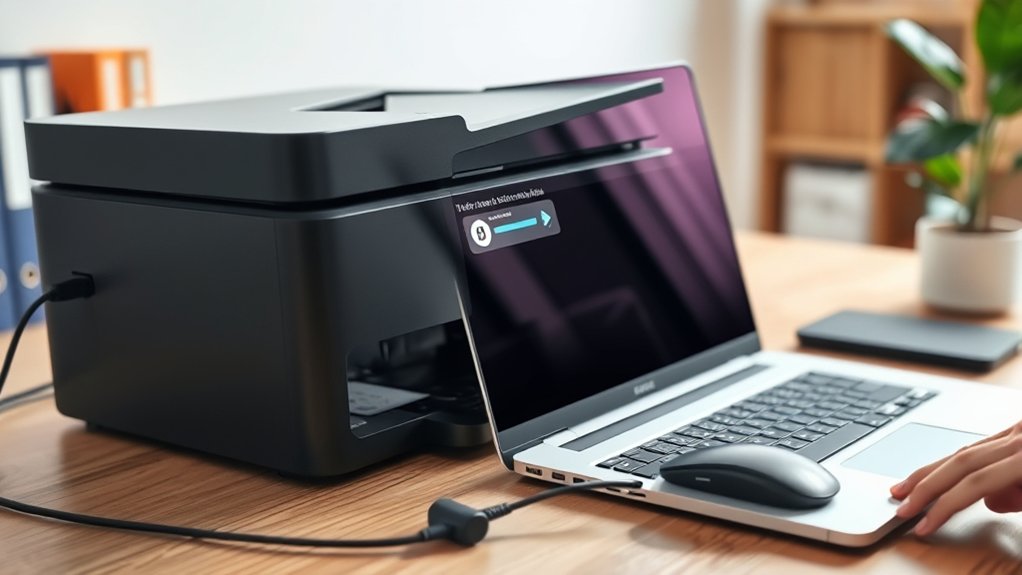
Download and install the correct drivers and software to confirm your printer communicates properly with your computer. This step prevents printer compatibility issues and assures the driver installation process goes smoothly.
Start by visiting the printer manufacturer’s website to find the latest drivers that match your printer model and operating system.
| Step | Action | Tip |
|---|---|---|
| 1 | Identify your printer model | Check printer label |
| 2 | Download drivers and software | Use official website |
| 3 | Run installation program | Follow on-screen prompts |
| 4 | Restart your computer | Completes driver setup |
Troubleshoot Common Printer Connection Issues
After installing the correct drivers, you might still face issues getting your printer online. Start by checking for any printer error messages on the device display or your computer. These errors often provide clues about the problem.
Next, verify your network connection. Ensure your printer and computer are on the same Wi-Fi network. Network issues are a common cause of offline printers. Restart your router and printer to refresh connections. Also, confirm the printer’s IP address hasn’t changed; a mismatch can cause disconnection.
If you’re using a USB connection, try a different cable or port. Finally, run the built-in troubleshooter on your computer to detect and fix common printer errors automatically. Following these steps can resolve most connection problems quickly.
Adjust Printer Settings to Improve Wireless Printing
To improve your wireless printing, start by optimizing your printer’s network settings for a stronger connection.
Next, manage the power options to prevent your printer from going into sleep mode during critical tasks. These adjustments help guarantee consistent and efficient printing performance.
Optimize Printer Network Settings
While connecting your printer to a wireless network can be straightforward, optimizing its network settings guarantees smoother performance and fewer interruptions. Start by accessing your printer’s control panel or web interface. Make sure the printer is set to a static IP address to maintain network stability and avoid connection drops.
Next, update the printer’s firmware to enhance printer security and fix known bugs. Enable WPA3 or WPA2 encryption on your printer’s wireless settings to protect your device from unauthorized access. Also, consider adjusting the channel settings on your router to reduce wireless interference, improving both speed and reliability.
Finally, disable unused network protocols on the printer to minimize security risks. These steps will help maintain a secure, stable connection, making your wireless printing experience hassle-free.
Manage Printer Power Options
Optimizing your printer’s network settings sets a solid foundation for reliable wireless printing, but managing power options can further enhance performance. Adjusting printer power saving modes guarantees your device remains energy efficient while staying responsive.
You can configure sleep and auto-off timers to balance power use and availability, reducing downtime and energy waste.
| Setting | Description | Benefit |
|---|---|---|
| Sleep Mode | Low power after inactivity | Saves energy, quick resume |
| Auto-Off Timer | Turns off after set time | Reduces power consumption |
| Power Saving Mode | Limits energy during printing | Promotes energy efficient printing |
Print Wirelessly From Your Phone or Tablet
Wondering how to print directly from your phone or tablet without cables? Mobile printing makes it simple. First, verify your printer supports wireless connections and is connected to the same Wi-Fi network as your device.
Next, download the printer manufacturer’s app for seamless app integration, which lets you send documents and photos to print with ease. Many apps also offer editing tools and print settings to customize your output.
Alternatively, you can use built-in features like Apple AirPrint or Google Cloud Print for quick access without extra apps. Just select the print option in your document or photo viewer, choose your printer, and tap print.
With these steps, you’ll enjoy hassle-free mobile printing anytime, anywhere.
Frequently Asked Questions
Can I Use a VPN to Access My Printer Remotely?
Yes, you can use a VPN setup to access your printer remotely. It creates a secure connection, allowing remote access as if you’re on the same local network.
This enhances privacy and protects your data from outsiders.
How Do I Share My Printer With Multiple Users?
You share your printer by enabling printer sharing on your device and adjusting network configuration settings. Connect all users to the same network, then grant access permissions so everyone can print seamlessly through your shared printer.
What Should I Do if My Printer Shows Offline After a System Update?
If your printer shows offline after a system update, start printer troubleshooting by restarting both devices. Check connections, update printer drivers, and run the printer troubleshooter to fix any compatibility issues caused by the update.
Are There Any Security Risks With Wireless Printing?
Yes, wireless printing has risks like wireless vulnerabilities that hackers exploit. You should always use secure connections, enable encryption, and update firmware regularly to protect your data and keep your printer safe from unauthorized access.
How Do I Print From a Chromebook to a Non-Wireless Printer?
Connect your Chromebook carefully via a compatible USB connection. Check Chromebook compatibility in settings, then select your printer.
This straightforward setup swiftly supports printing without wireless woes, ensuring efficient, easy access to your non-wireless printer.
Conclusion
Getting your printer online is easier than you think—even if it feels like you’re using a telegraph instead of modern tech! Just connect it to Wi-Fi or use a USB cable, install the necessary drivers, and adjust the settings to fit your needs.
If issues pop up, troubleshoot step-by-step. Once set, you can effortlessly print from your computer, phone, or tablet.
Follow these simple steps, and you’ll be printing wirelessly in no time. Knowing how do I get a printer online will make your printing experience smooth and convenient.