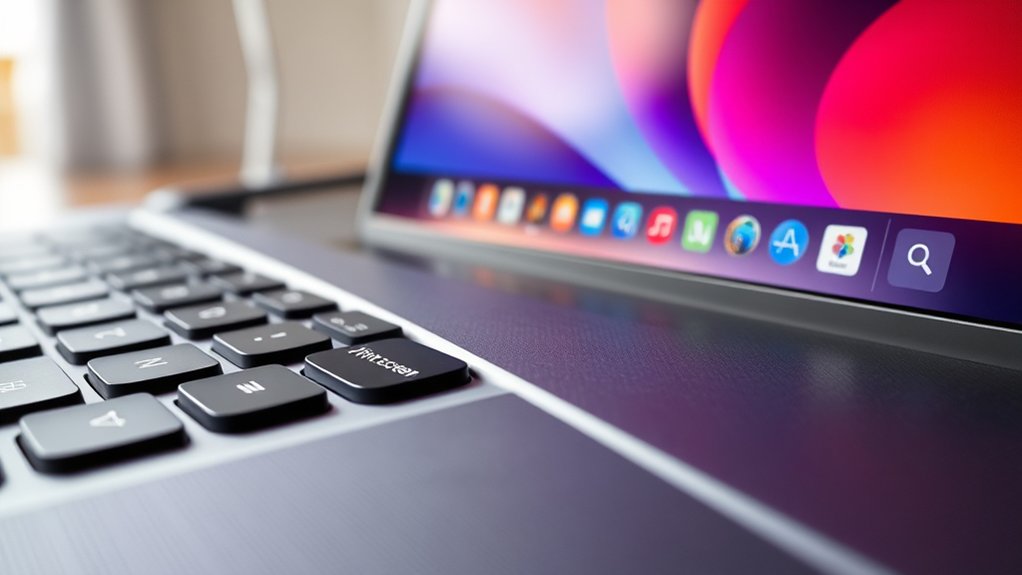

Print Screen vs Screenshot is an important distinction to understand for effective image capturing on your device.
You use Print Screen when you want a quick, full-screen capture copied to your clipboard without saving a file.
Screenshots, on the other hand, let you capture specific windows or areas and often include editing tools for cropping and annotation.
Print Screen is great for rapid, unedited captures, while screenshots provide more control and precision.
Knowing when to use each can improve your workflow and image clarity.
Keep exploring to uncover smart capture and editing tips.
Key Takeaways
- Print Screen captures the entire screen and copies it to the clipboard without saving automatically.
- Screenshots offer advanced options like selecting specific areas, windows, and immediate editing.
- Print Screen is a quick method for unedited, raw captures during presentations or troubleshooting.
- Screenshot tools provide precision and allow cropping, annotations, and immediate sharing.
- Understanding both helps choose between fast capture (Print Screen) and versatile editing (Screenshots).
What Is Print Screen and How Does It Work
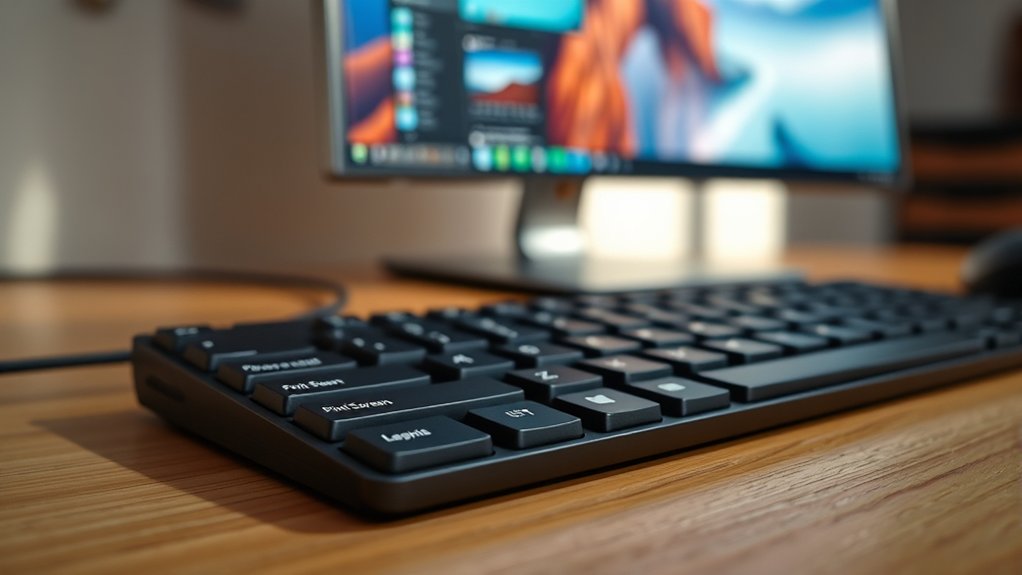
The Print Screen function captures an image of your entire computer screen and copies it to the clipboard. When you press the keyboard shortcut, typically labeled “PrtScn,” your system performs an image capture of everything visible on your display at that moment.
This method doesn’t save the file automatically; instead, it stores the screenshot temporarily, allowing you to paste it into an image editor or document. The simplicity of this keyboard shortcut makes it a quick tool for capturing your screen without needing additional software.
However, it captures the whole screen rather than specific windows or regions, which can be less precise depending on your needs. Understanding how Print Screen works helps you decide when this method suits your image capture requirements.
How to Take Screenshots: Common Methods Explained
While Print Screen offers a quick way to capture your entire display, you might want more control over what you capture or how you save it. That’s where screenshot tools come in. These tools let you select specific areas, annotate images, or directly save screenshots in various formats.
On Windows and macOS, built-in utilities like Snipping Tool or Screenshot app give you flexibility beyond the Print Screen key. For mobile screenshots, you usually press a combination of buttons, such as Power + Volume Down, but many devices also include gesture controls or editing options immediately after capture.
Print Screen vs Screenshot: What’s the Difference?
Although many people use “Print Screen” and “screenshot” interchangeably, they actually refer to different concepts. The print screen functionality is a basic command that captures your entire screen’s current display and copies it to the clipboard. You then paste it into an image editor or document.
In contrast, screenshot tools offer more advanced options, like capturing specific windows, selecting portions of the screen, or adding annotations. While print screen functionality provides a quick, raw capture, screenshot tools give you control and editing capabilities.
Understanding this difference helps you choose the right method for your needs. So, when you press the print screen key, you’re using a simple capture method; when you use screenshot tools, you’re leveraging enhanced features beyond basic screen copying.
When to Use Print Screen or Screenshot for Best Results
Knowing the difference between print screen and screenshot tools helps you decide which to use depending on your goal. To achieve the best capture quality, consider the context and your intended use. Use print screen when you want a quick, full-screen capture without extra editing.
Screenshots work better if you need specific areas or want to annotate right away. Follow these best practices:
Use print screen for rapid, unedited captures during presentations or troubleshooting.
Choose screenshot tools when you require precision, cropping, or immediate sharing.
Opt for screenshots to capture dynamic content like dropdown menus or videos.
Tips for Capturing and Editing Screenshots Like a Pro
If you want your screenshots to stand out, mastering both capture techniques and editing tools is essential. First, choose the right capture technique: full screen, window, or region to focus on relevant content. Next, use editing tools to highlight, crop, or annotate the image for clarity and impact. Efficient editing sharpens your message and guides viewers’ attention.
| Capture Technique | Best Use Case |
|---|---|
| Full Screen | Show entire desktop |
| Region Selection | Focus on specific content |
| Window Capture | Highlight active application |
Pair these capture techniques with editing tools like arrows, text, and blurs to emphasize details or mask sensitive info. By combining precise captures with smart edits, you’ll create professional, effective screenshots every time.
Frequently Asked Questions
Can I Take a Screenshot on Mobile Devices Without Using Print Screen?
Yes, you can take a screenshot on mobile devices without using print screen by using mobile screenshot methods like gesture controls or power-volume button combos.
You can also download screenshot apps for more features and convenience.
Are There Privacy Concerns When Sharing Screenshots Online?
Yes, you should consider privacy implications when sharing screenshots online. You might unintentionally share sensitive information or violate content ownership rights.
Always review what you’re sharing and respect others’ privacy and intellectual property.
How Do Accessibility Features Affect Taking Screenshots?
Think of accessibility features as a toolkit guiding your screenshot journey. You can use voice commands, screen magnification, color contrast, and keyboard shortcuts to capture images more easily and inclusively.
These tools enhance your efficiency and precision.
Can Screenshots Capture Video Playback Smoothly?
You can’t capture smooth video playback with screenshots since they’re static images. To preserve video quality, focus on adjusting playback settings or use screen recording instead, which captures motion and maintains clarity better than screenshots.
What File Formats Are Best for Saving Screenshots?
Imagine choosing the perfect outfit: PNG format keeps screenshots crisp, JPEG compresses for smaller files, BMP stores raw data but is large, and GIF suits simple animations.
You’ll pick based on clarity, size, or motion needs.
Conclusion
Print Screen captures exactly what’s on your screen in a single moment, like snapping a quick photo. It’s quick and straightforward, making it ideal for grabbing a simple image of your display without any fuss.
On the other hand, screenshots offer more flexibility. You can crop, annotate, and share them with ease, giving you greater control over how the captured image looks and is used.
Knowing when to use Print Screen vs screenshot lets you work smarter. Rely on Print Screen for speed, and choose screenshots when you need precision and polish. Together, Print Screen vs screenshot balance simplicity and sophistication in capturing your digital world.